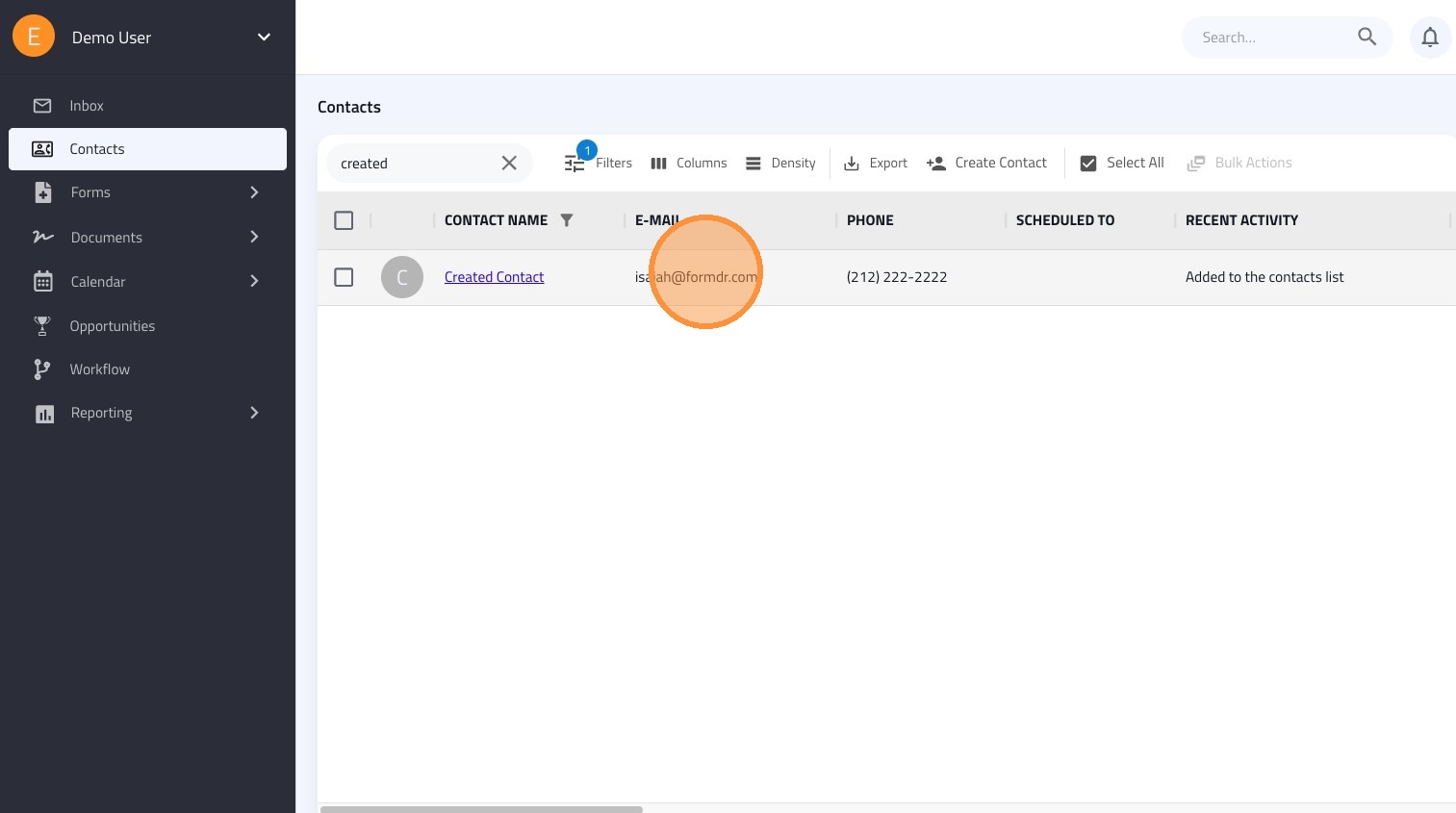
Learn how to Create and Edit a contact in FormDr.
Creating a Contact
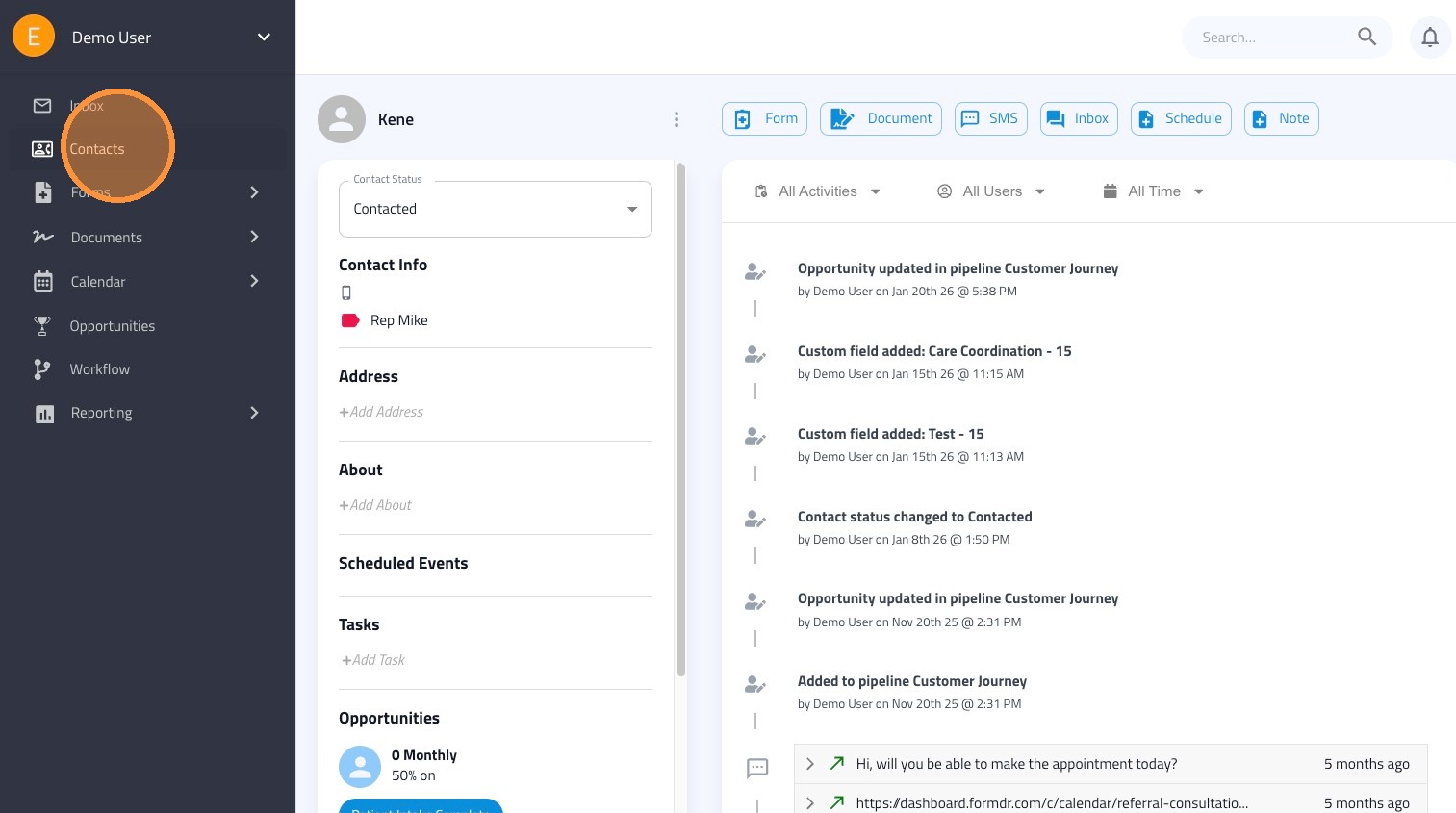
1. Click the Contacts tab on the left-hand sidebar.
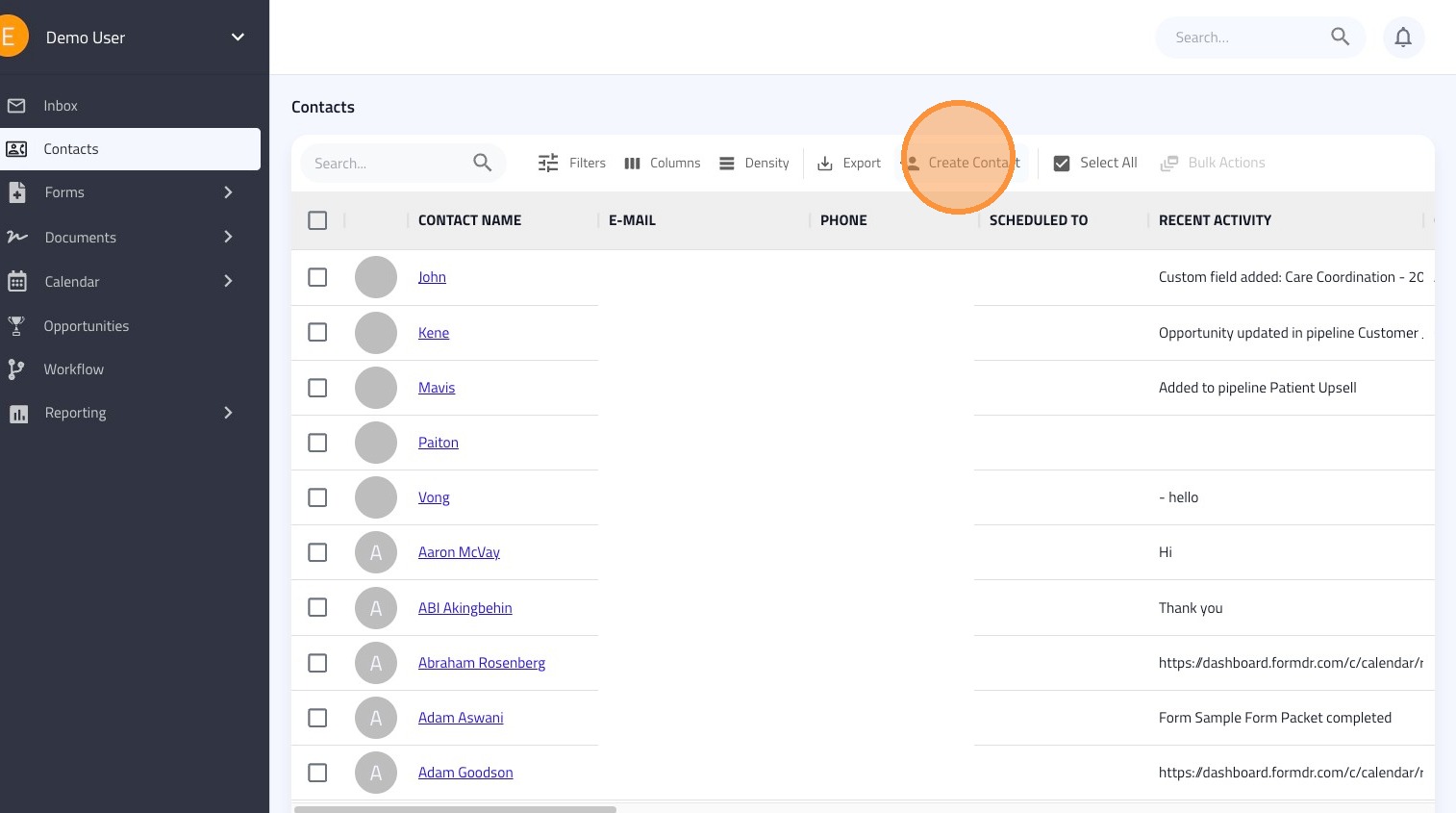
2. Select the Create Contact button located at the top of the contact list.
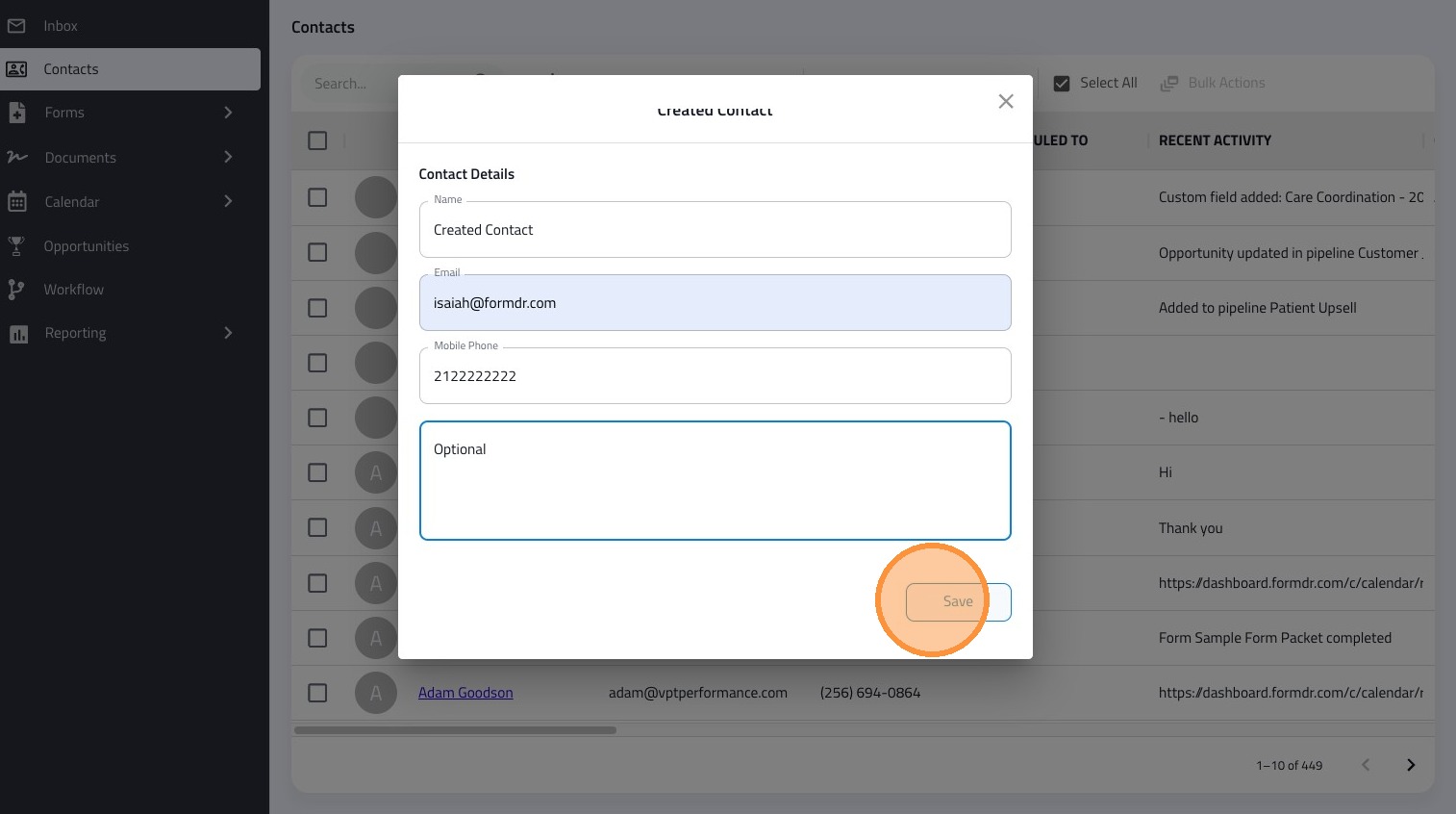
3. Fill in the contact's First & Last Name, Email, and Mobile Phone Number. Click Save to add them to your list.
Adding an Address
4. From the main contact list, use the search bar to find and click on the specific Contact Name.
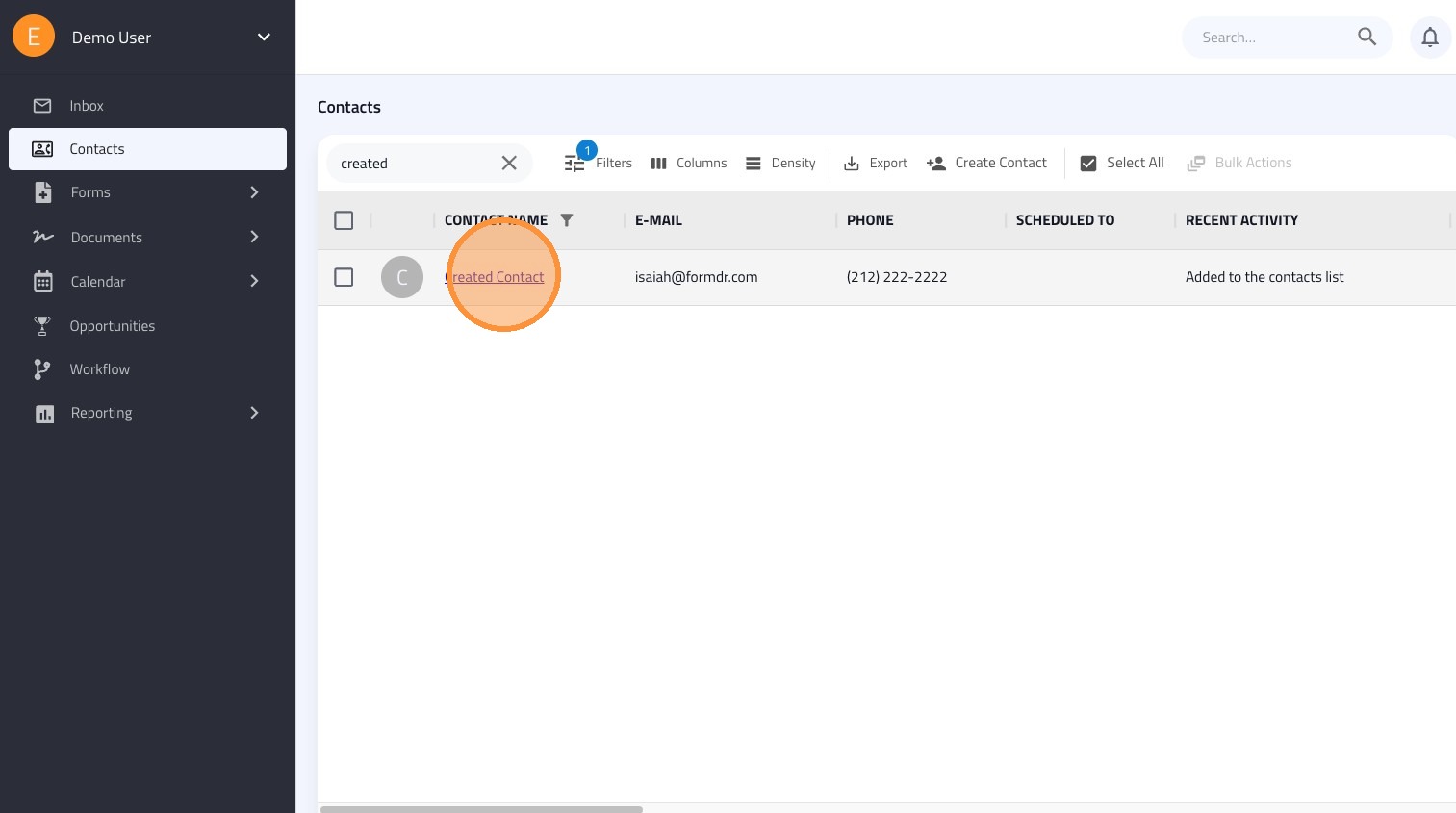
5. Once inside their profile, click the +Add Address link.
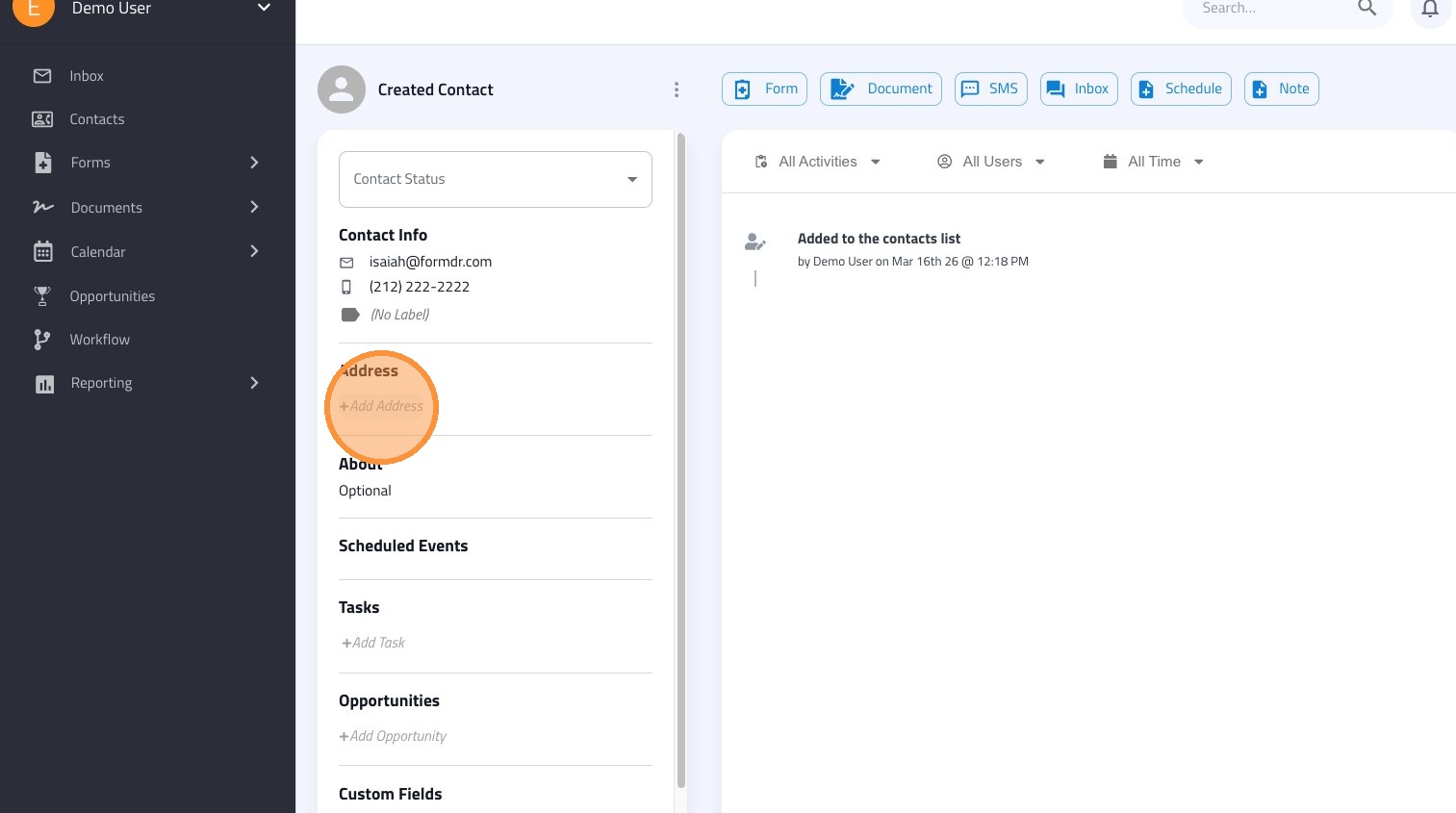
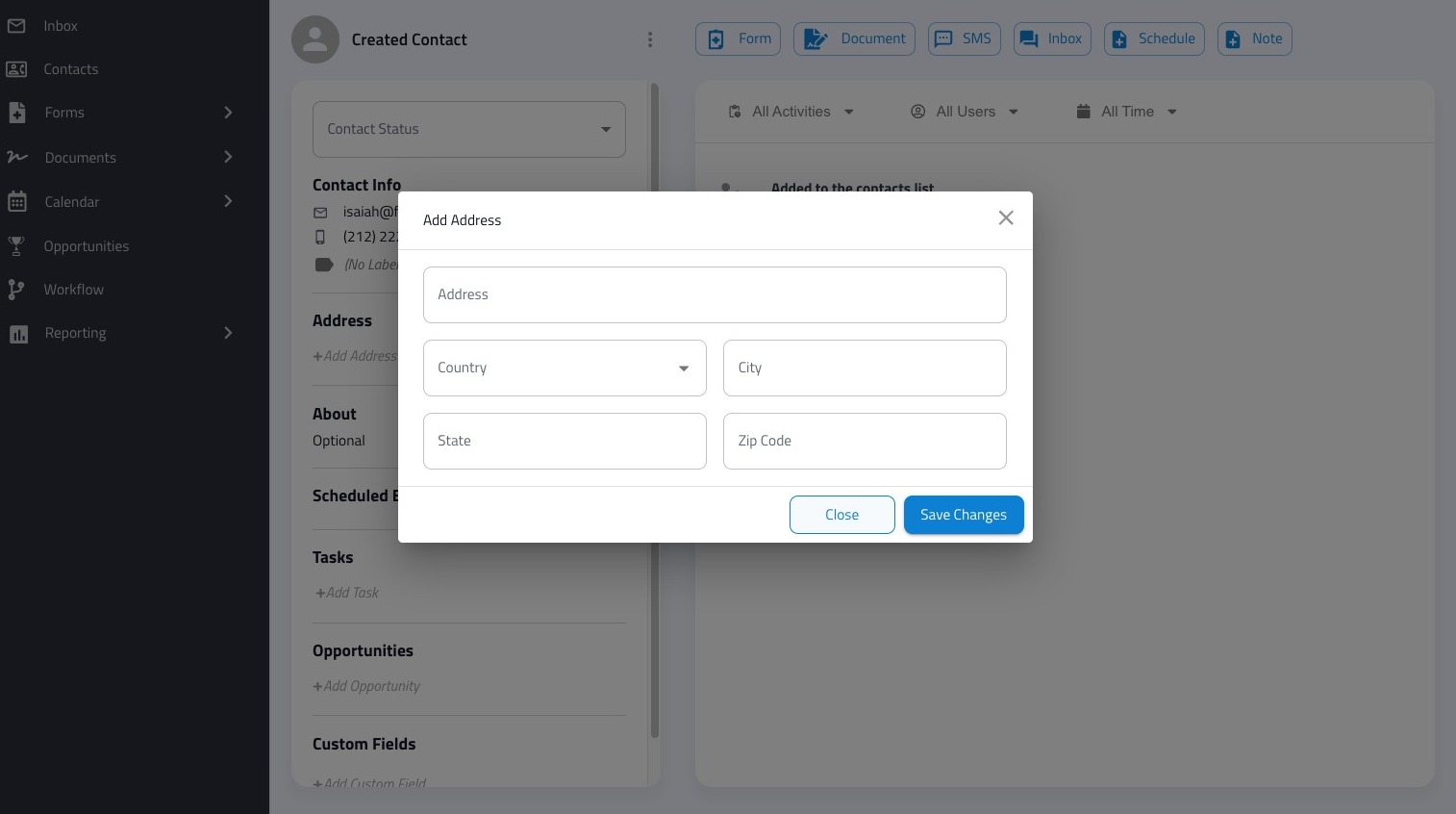
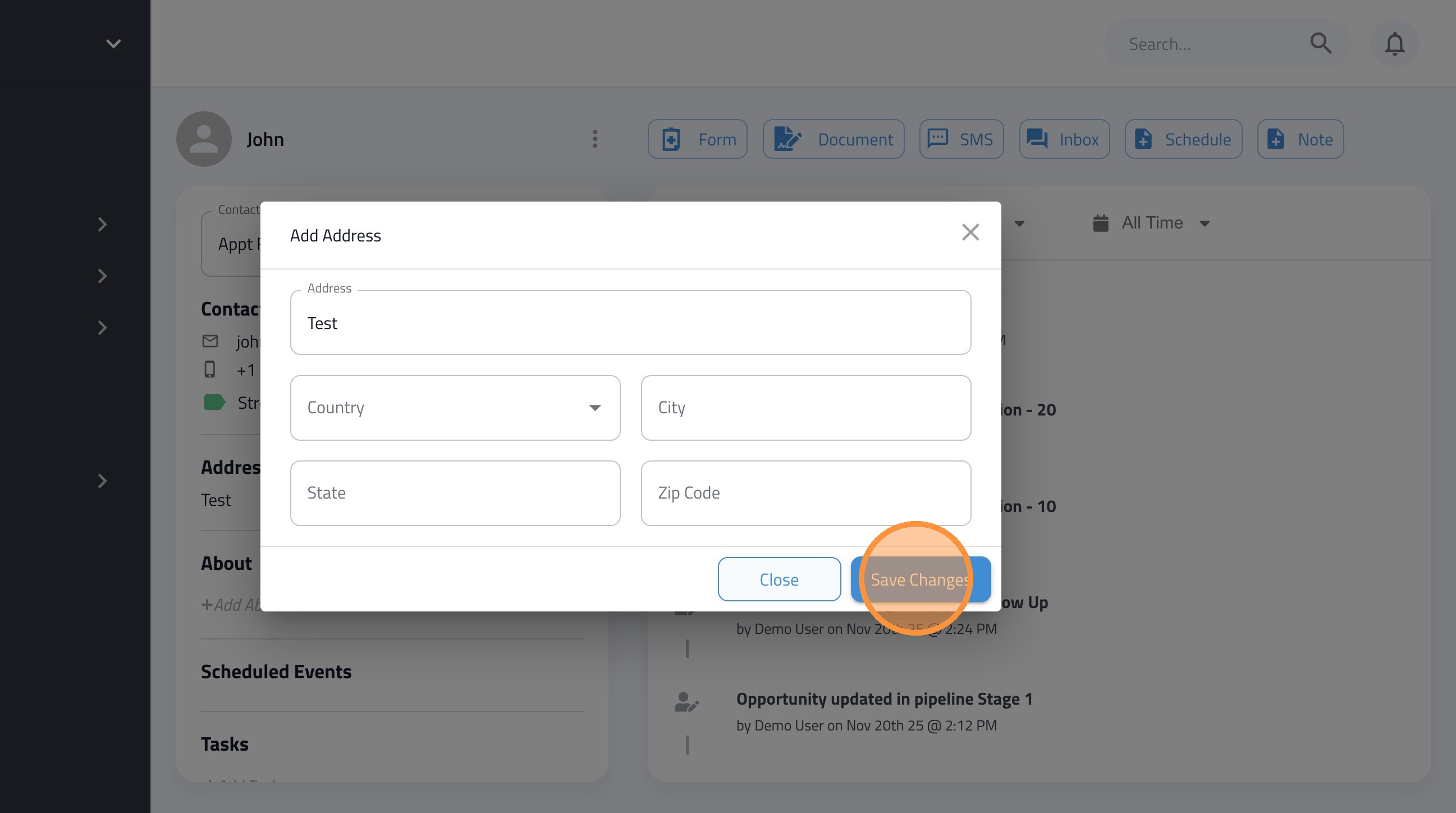
6. Add address information and save changes
Editing Existing Contacts
7. Click Contacts in the sidebar to view your list.
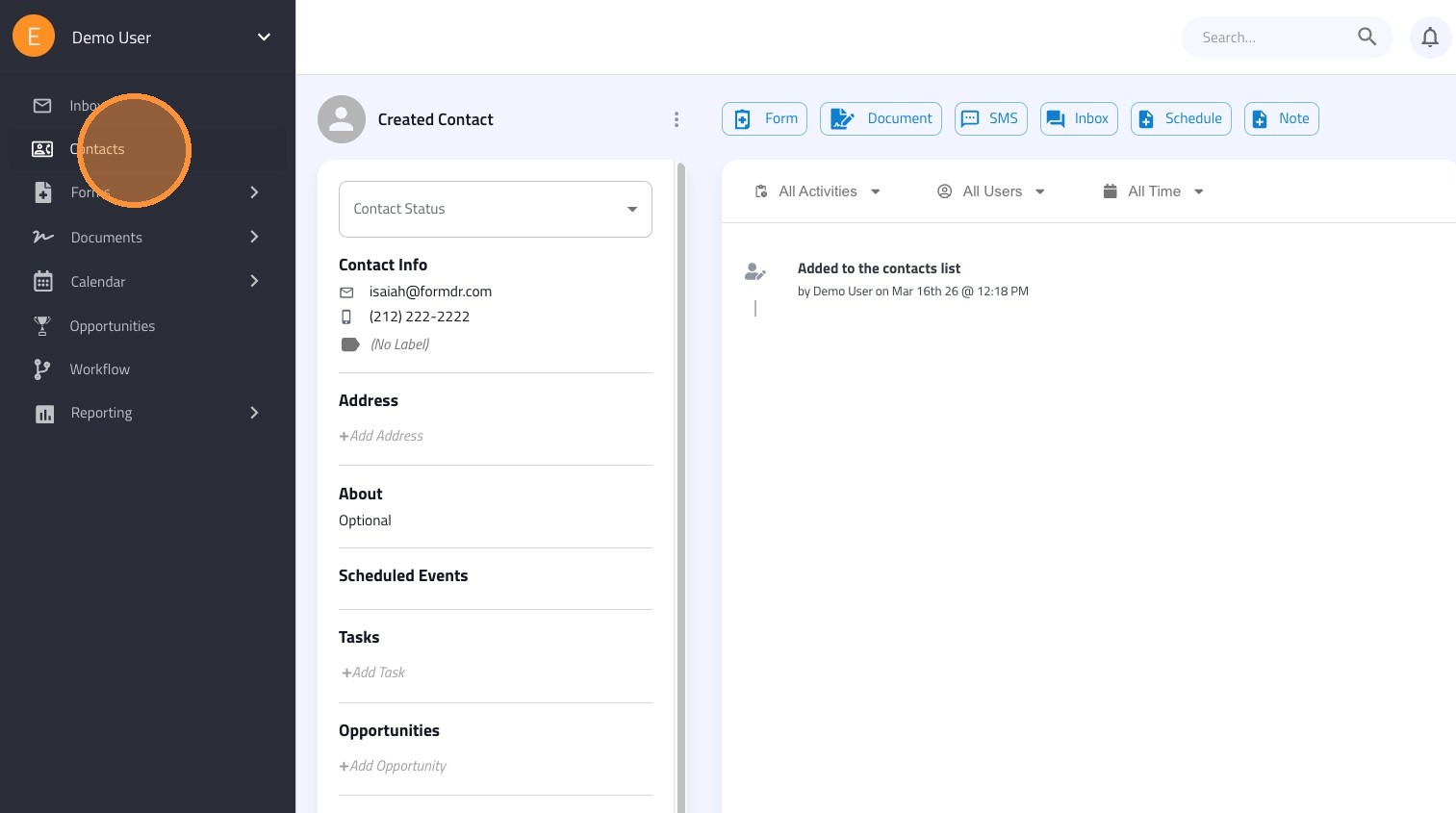
8. Use the Search... field to find the contact you wish to update.
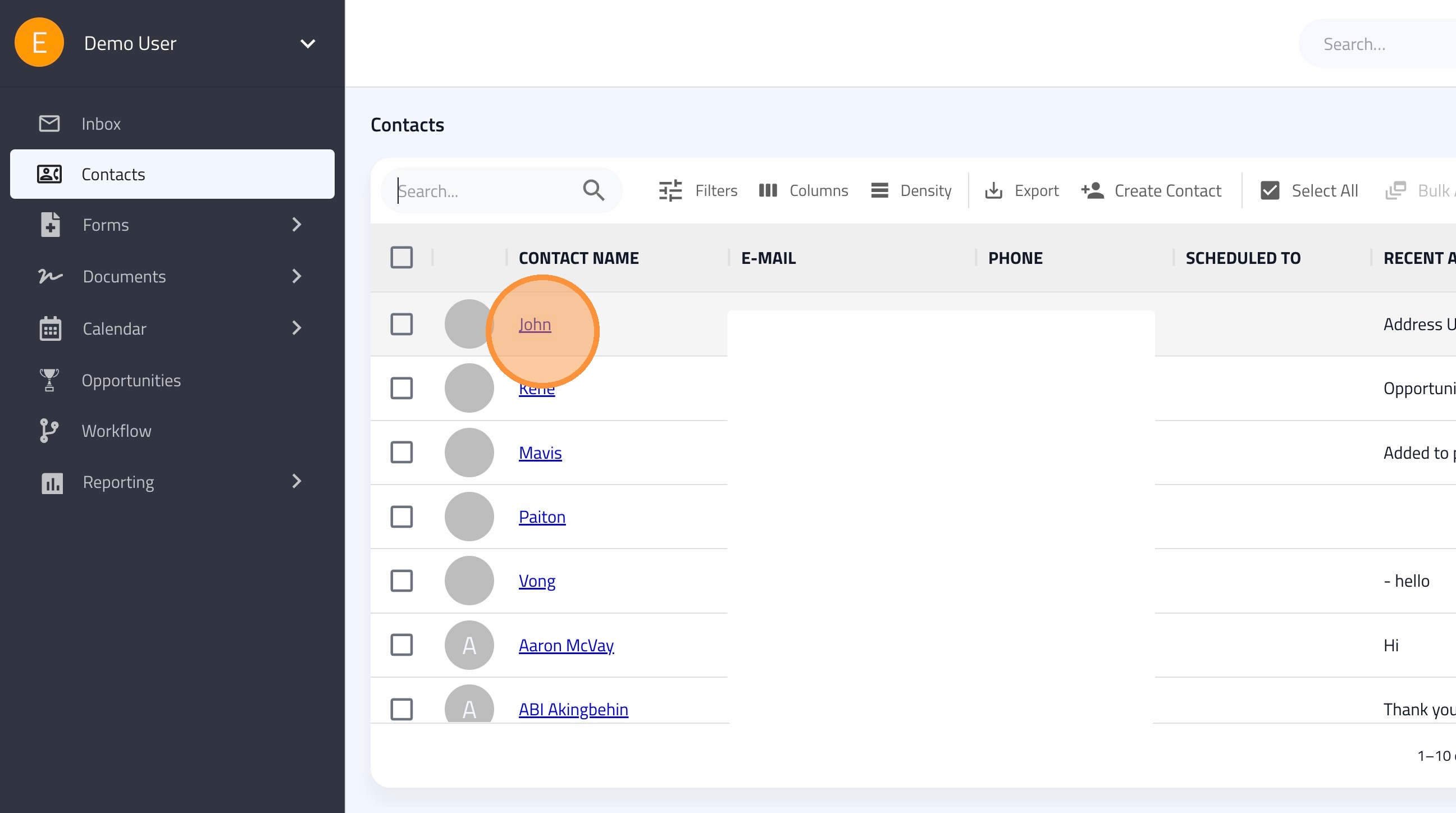
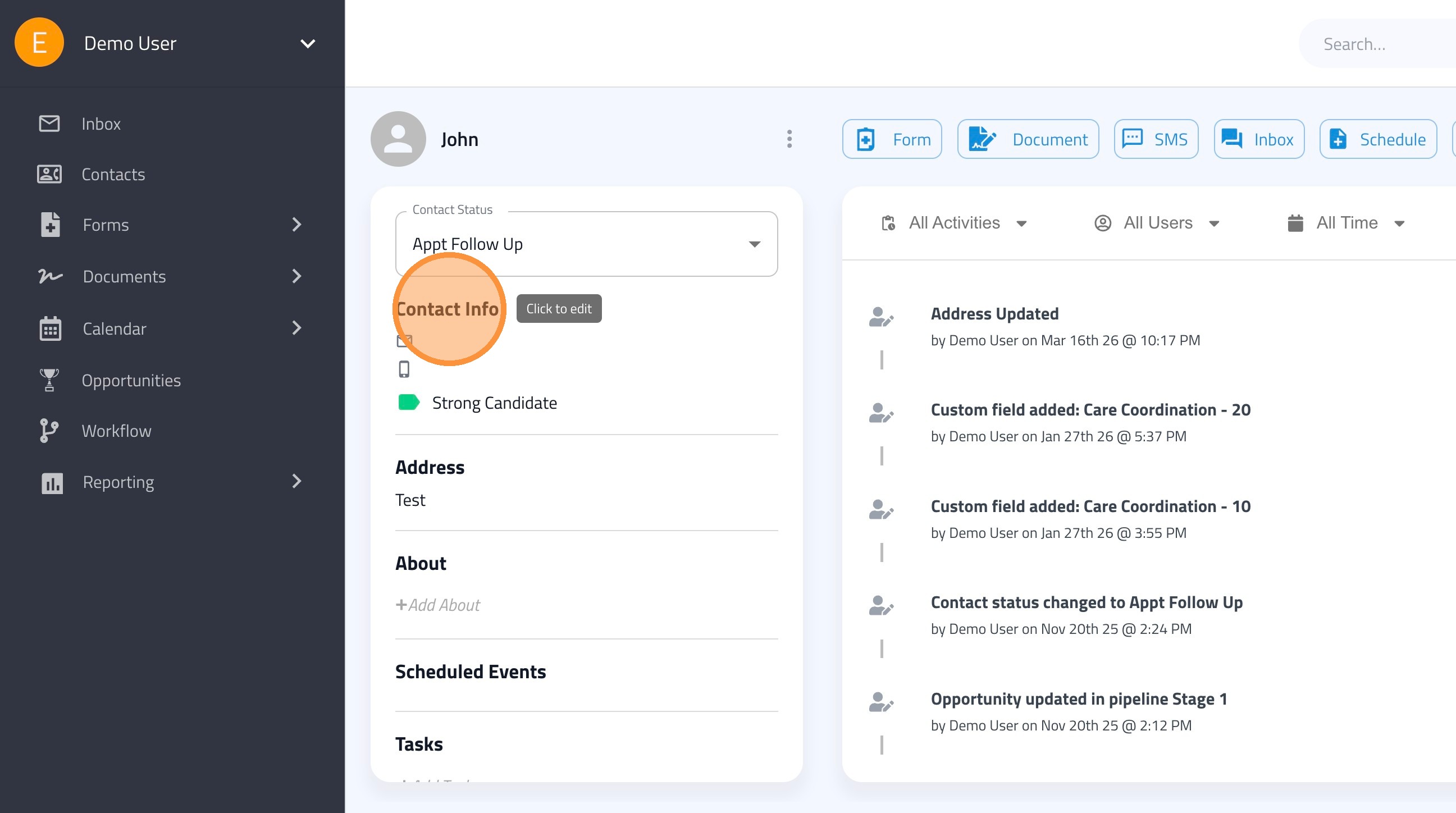
9. Click the Contact Info section title to open the edit window.
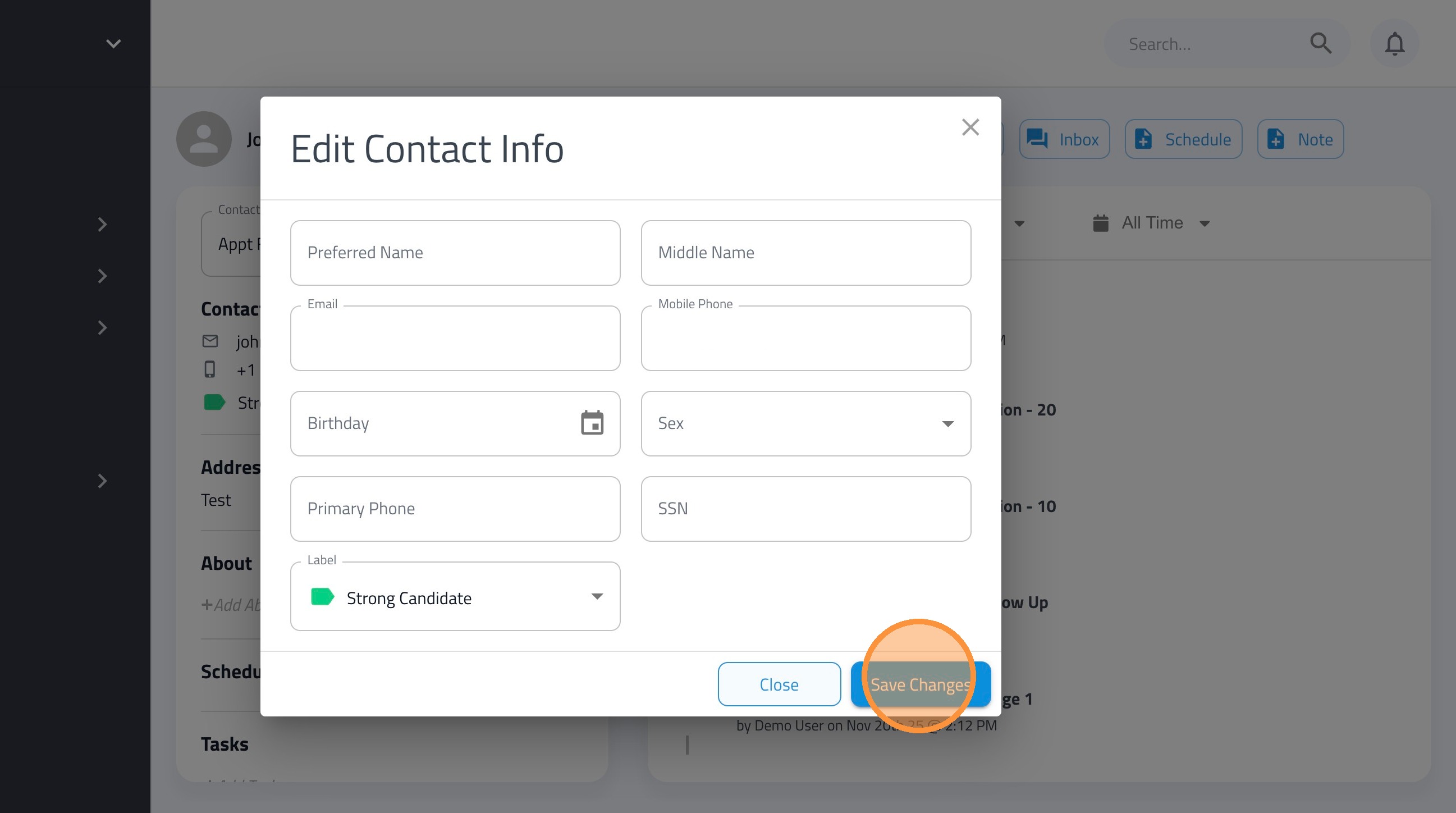
10. Modify the necessary fields and click Save Changes.
11. To edit the address, click on the "Address" field.
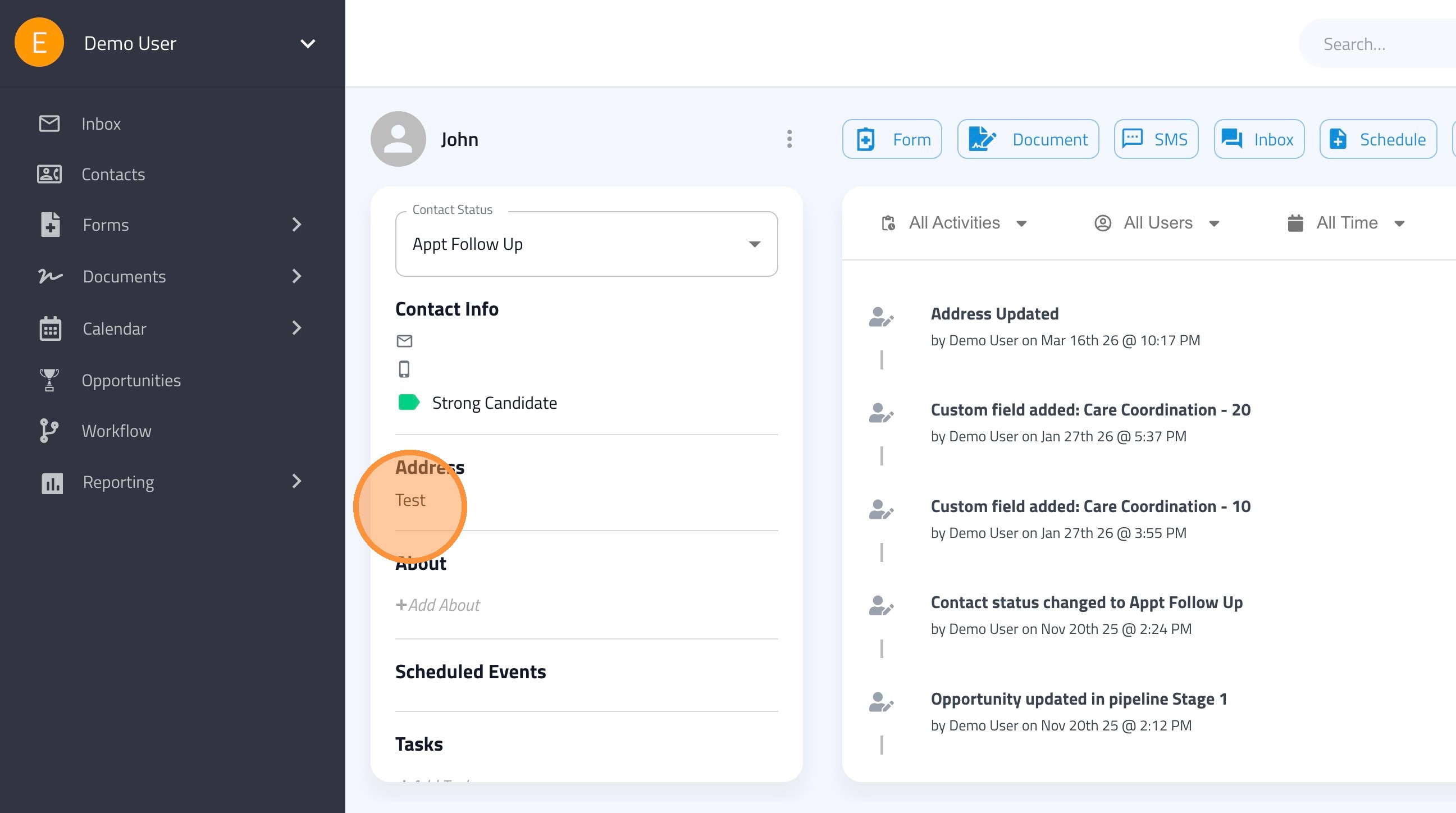
12. Click "Save Changes" when done
Editing from the 'Contacts' List
13. From the main Contacts list, you can double-click directly on contact fields (such as Email or Phone) to make quick edits without opening the full profile.