Learn how to add a new custom field to your contacts and assign a value to it. This guide will walk you through the process of creating a custom field and filling it with specific information for your contacts.
In this Article:
Creating a Custom Field
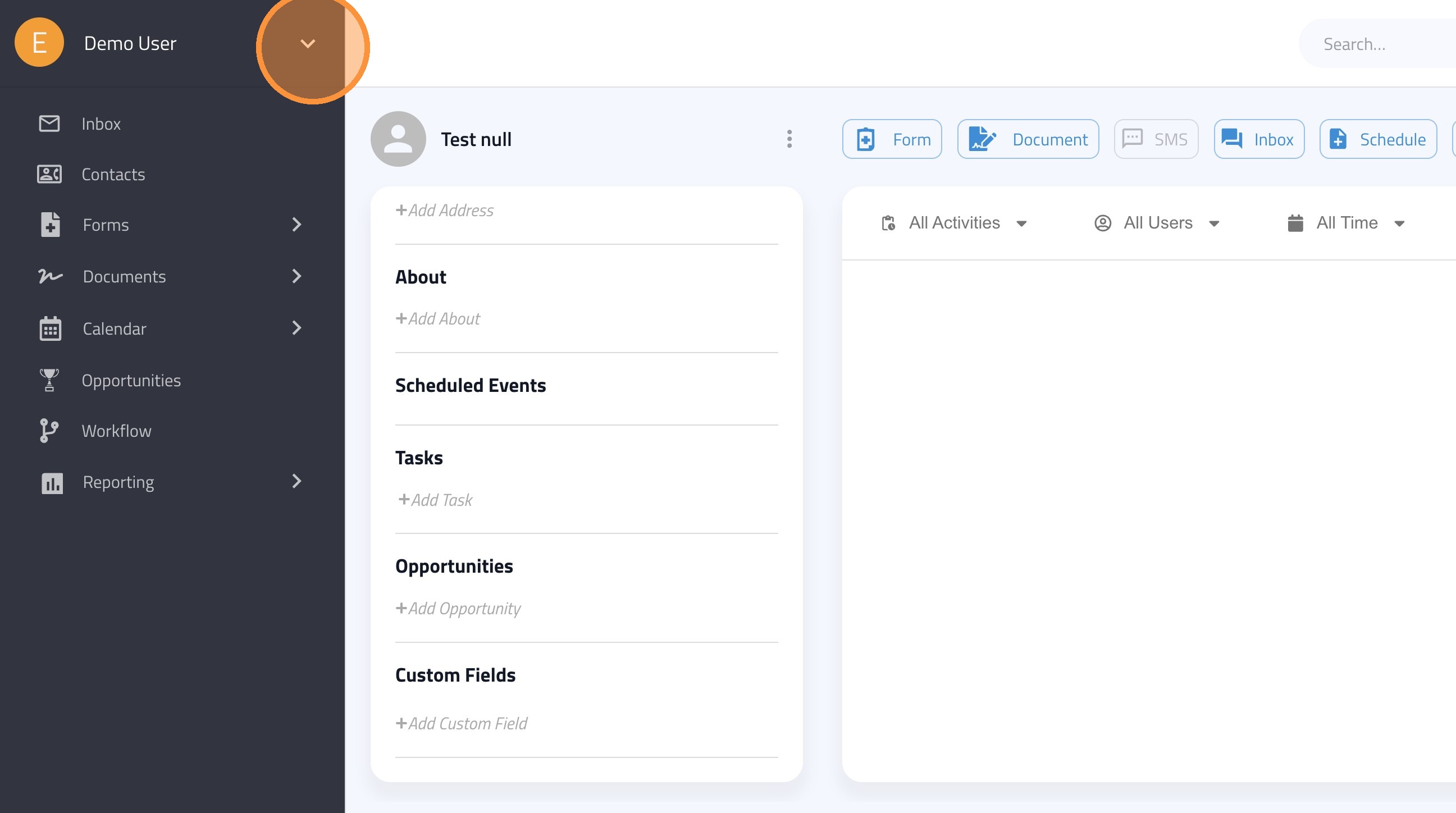
1. Click this icon.
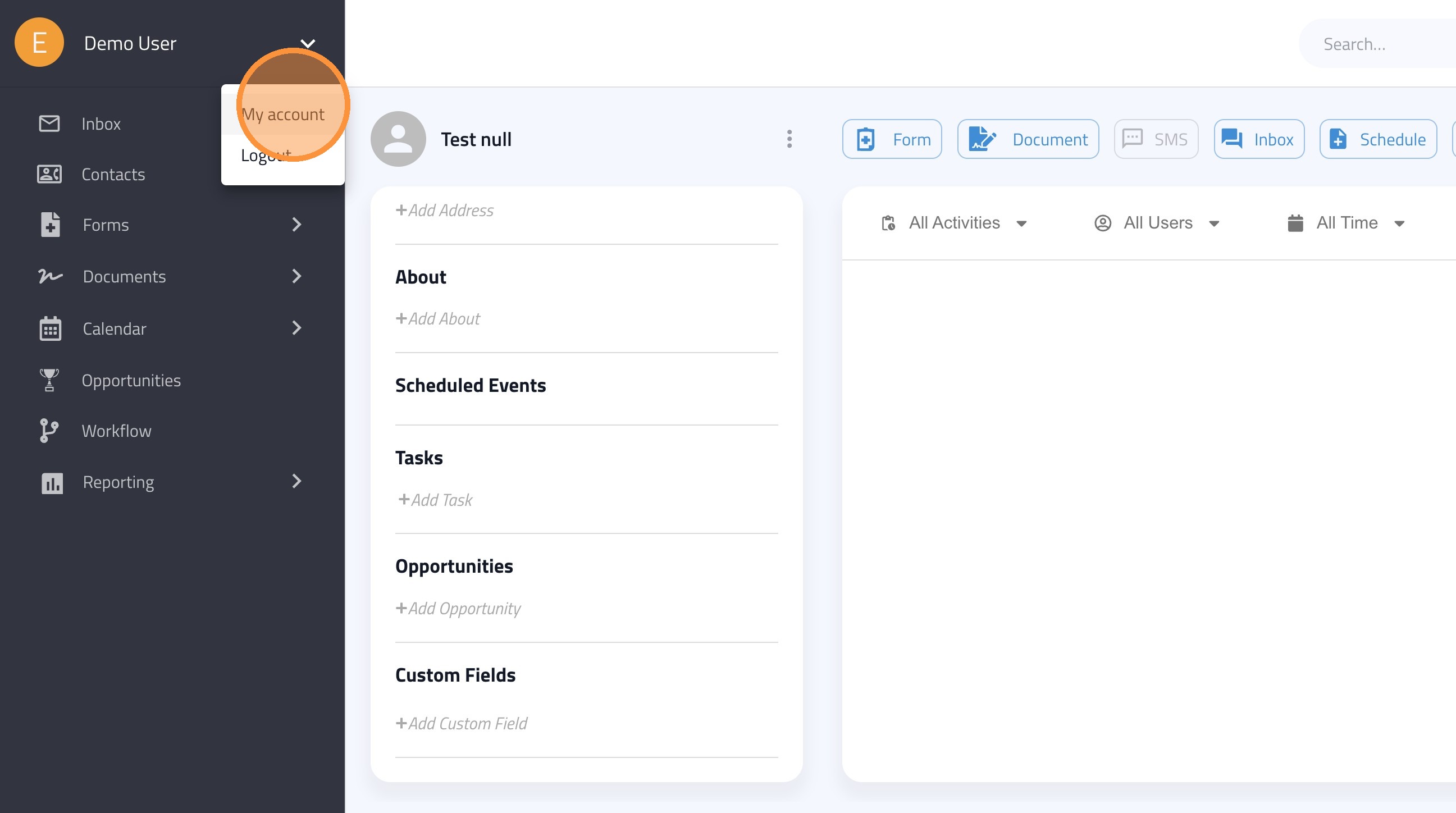
2. Click "My account"
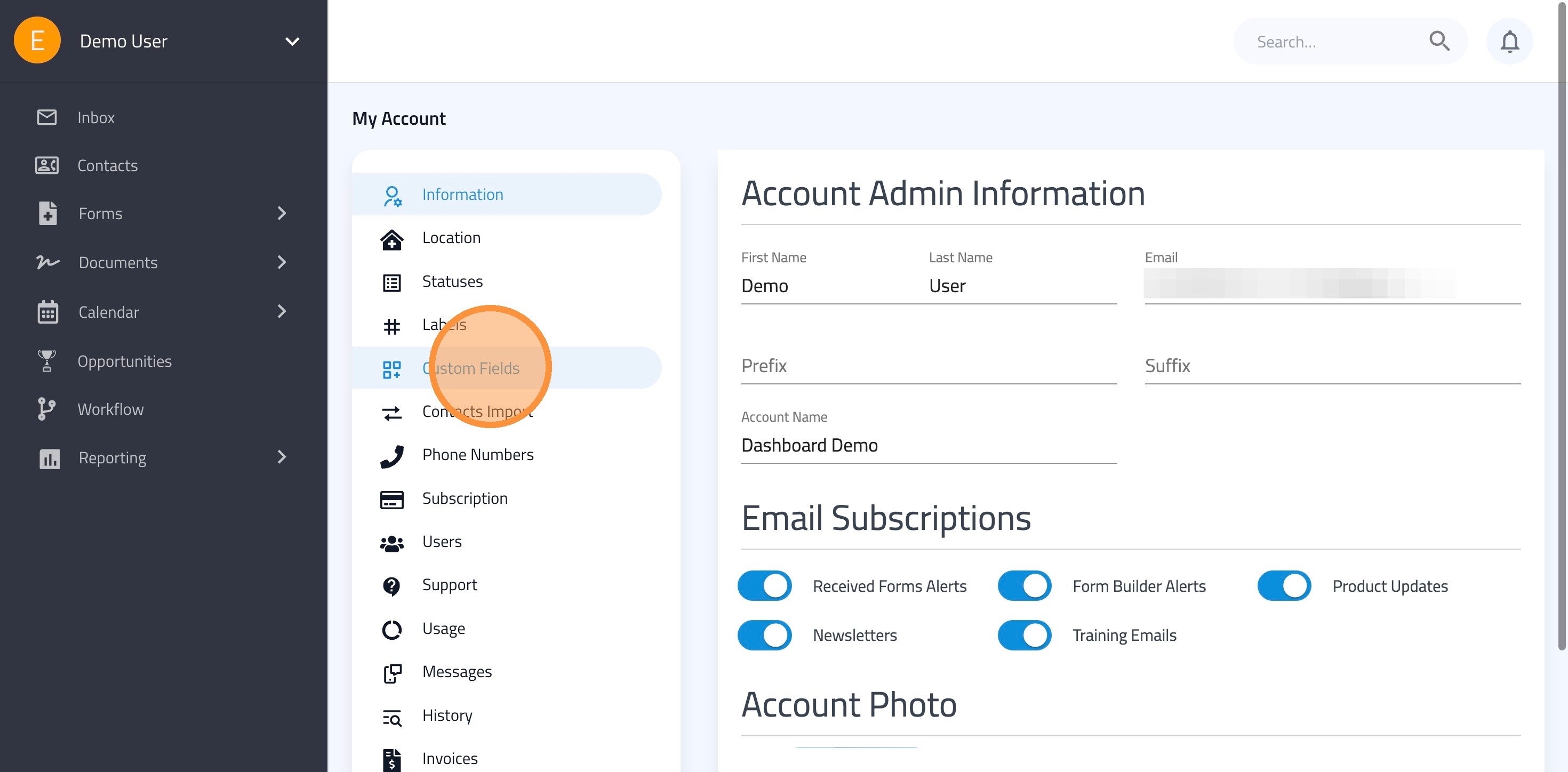
3. Click "Custom Fields"
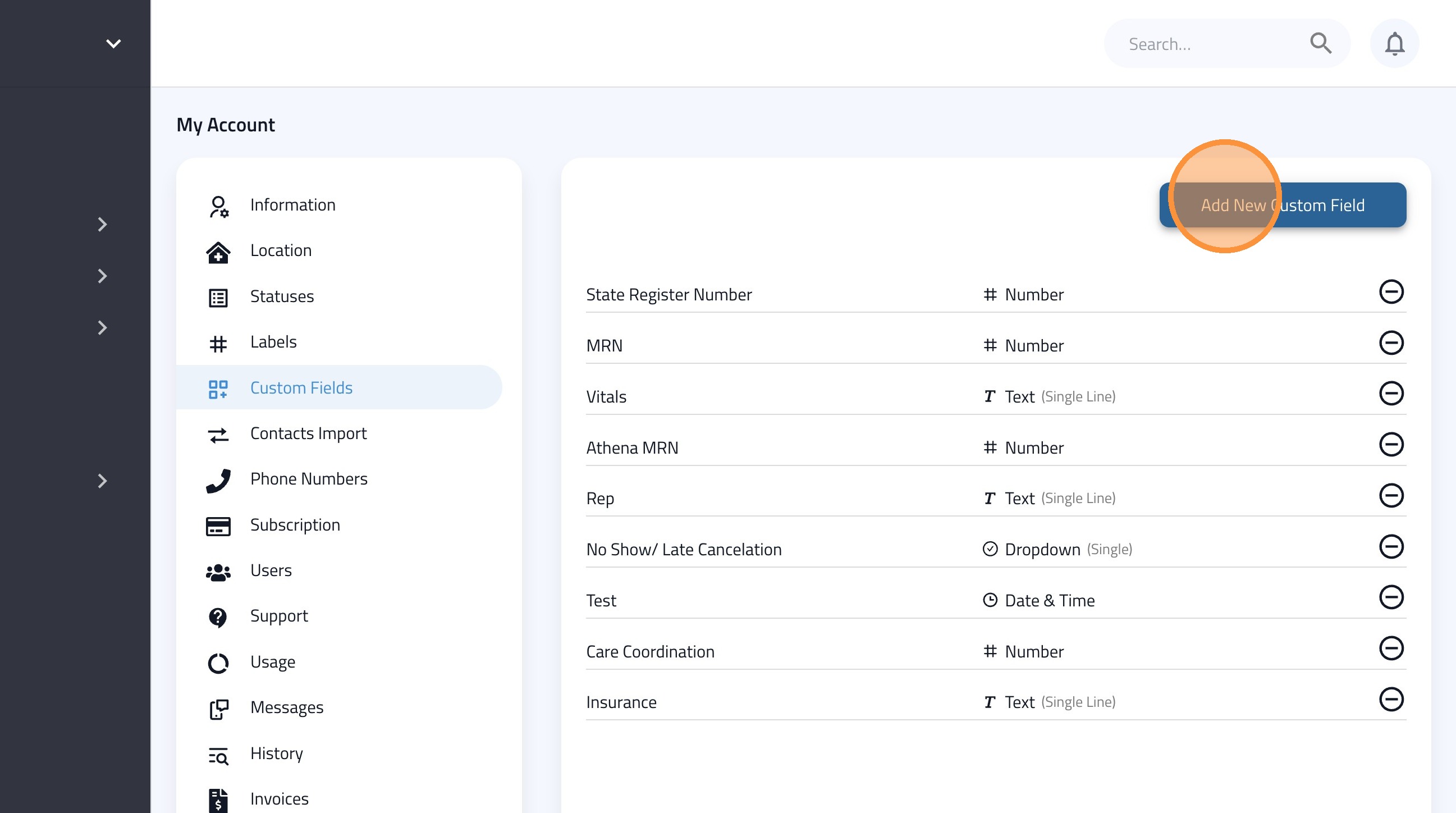
4. Click "Add New Custom Field"
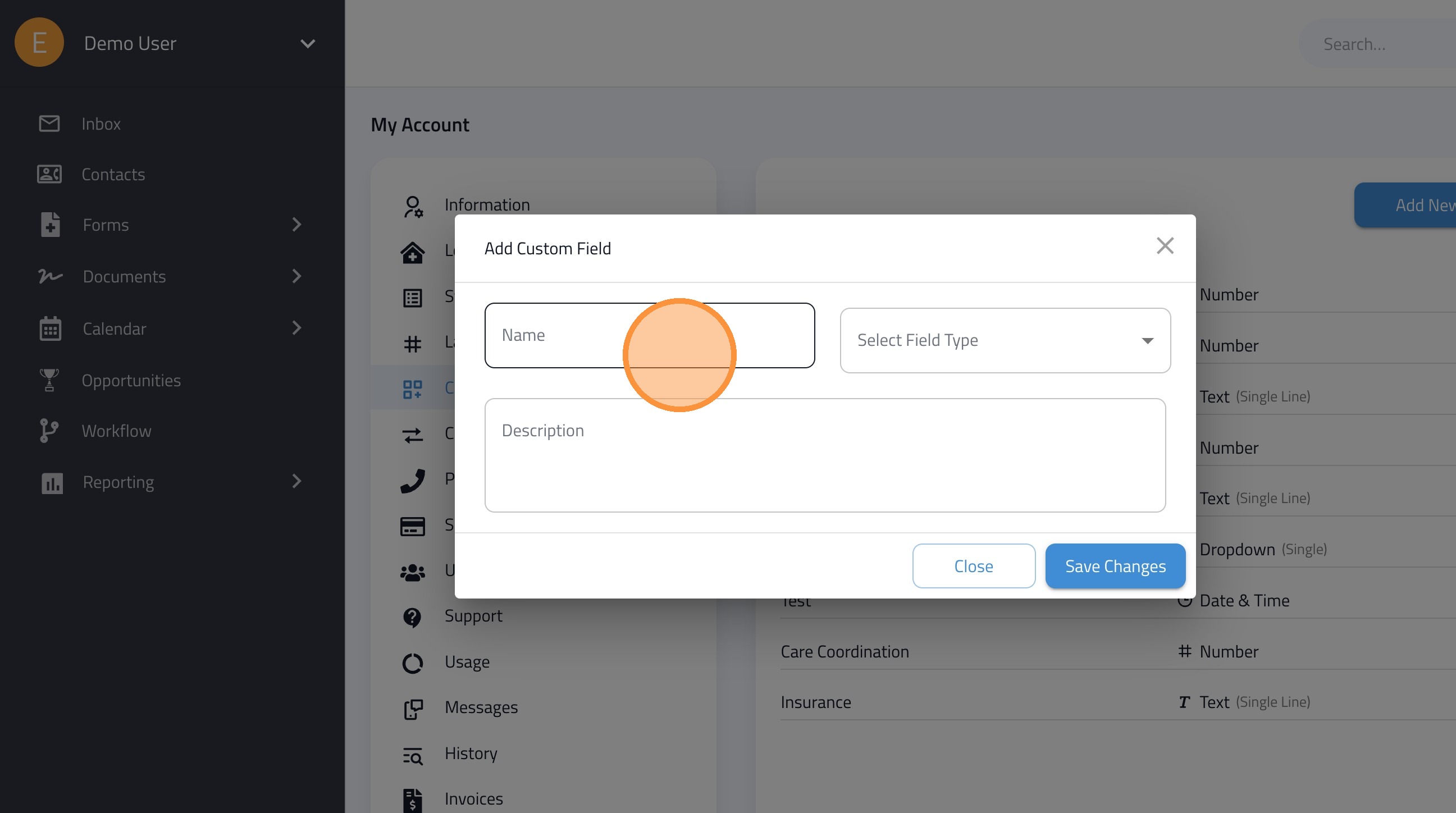
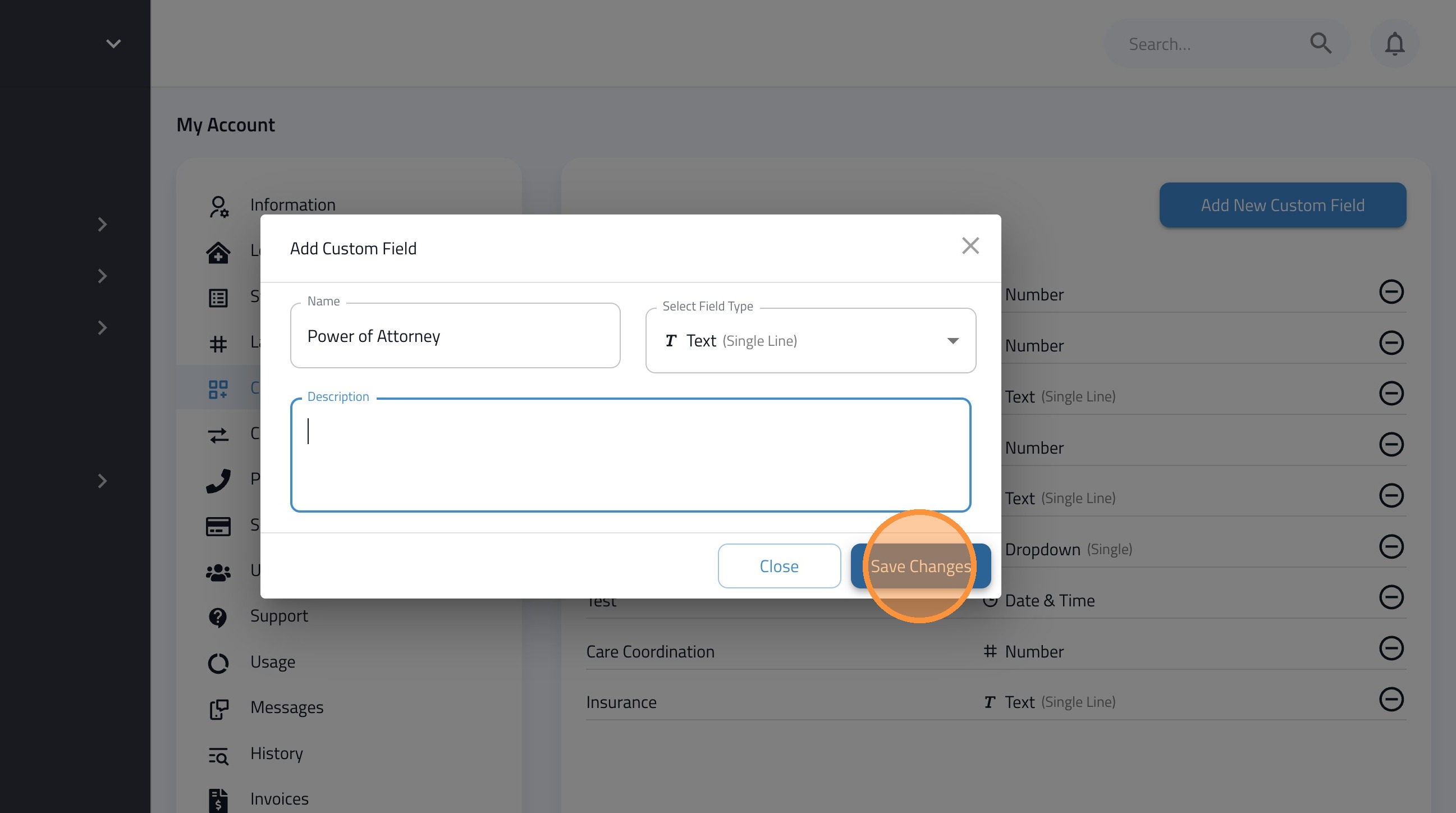
5. Name the custom field.
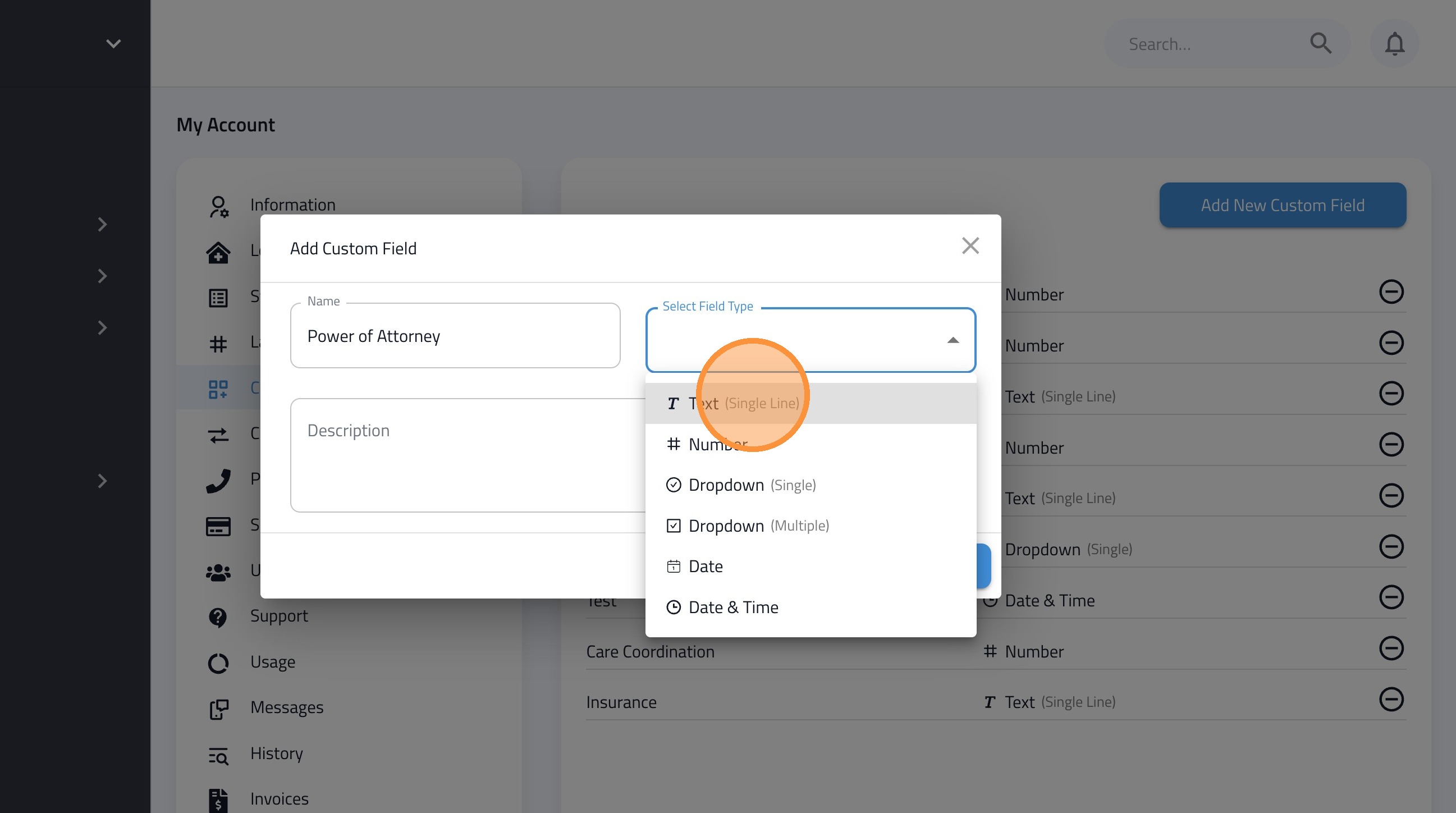
6. Select the field type.
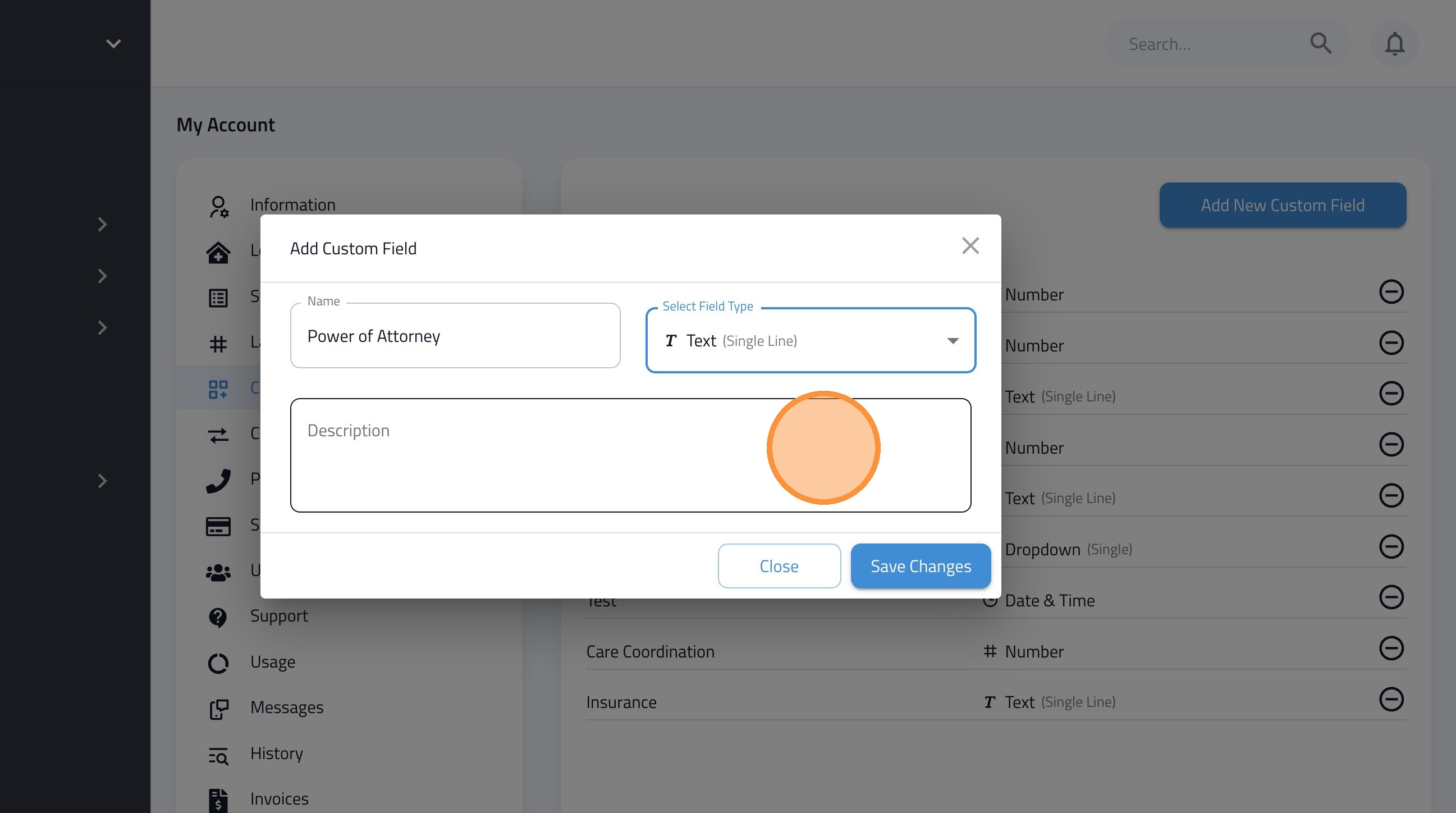
7. Describe the custom field (optional).
8. Click "Save Changes"
Assigning a Custom Field
Note: To assign a custom field, open the patient's record. You can do this from almost any screen in FormDr—including the Inbox, Pipelines, or Contacts—simply by clicking on the patient’s name.
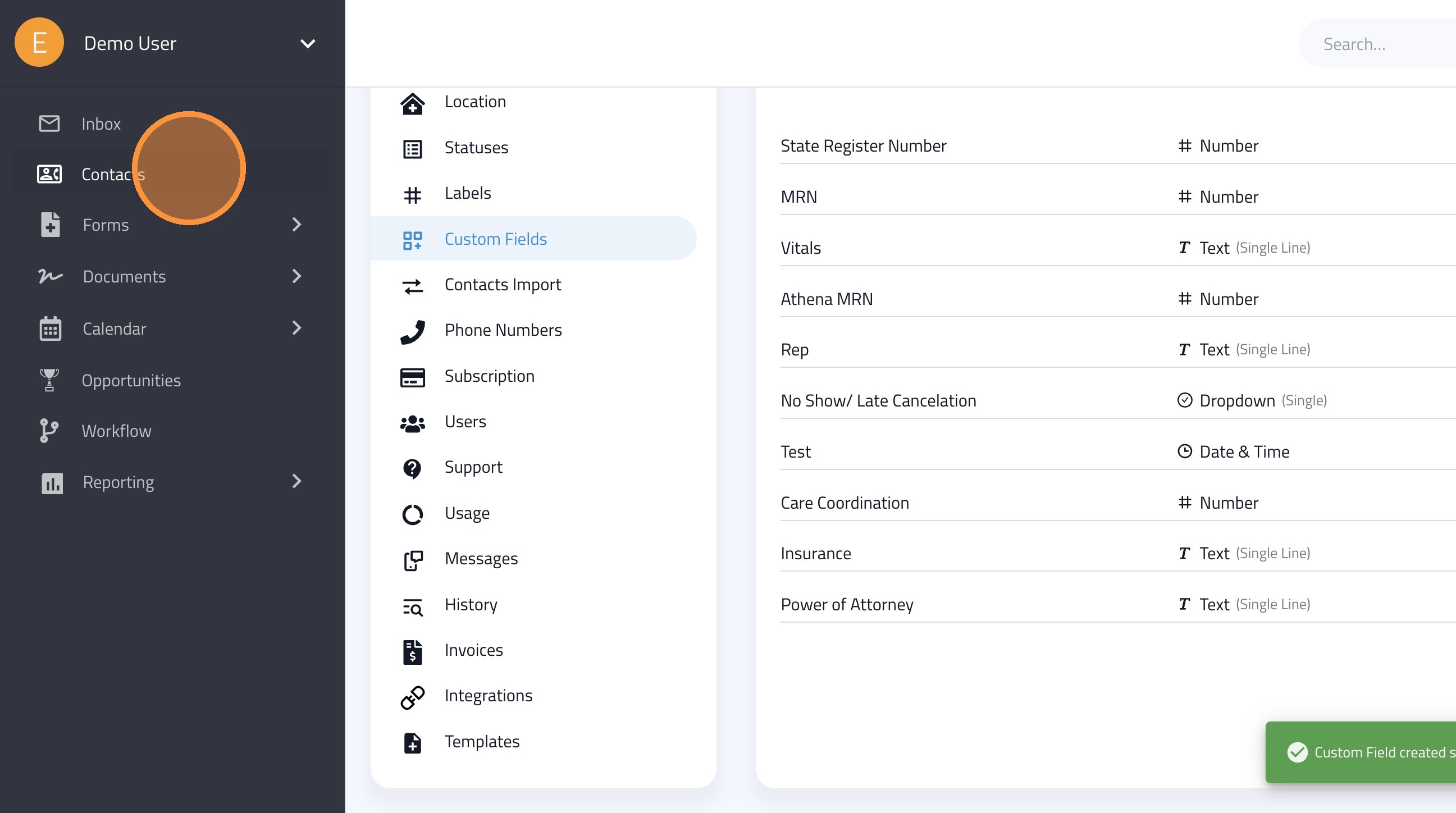
9. Click "Contacts"
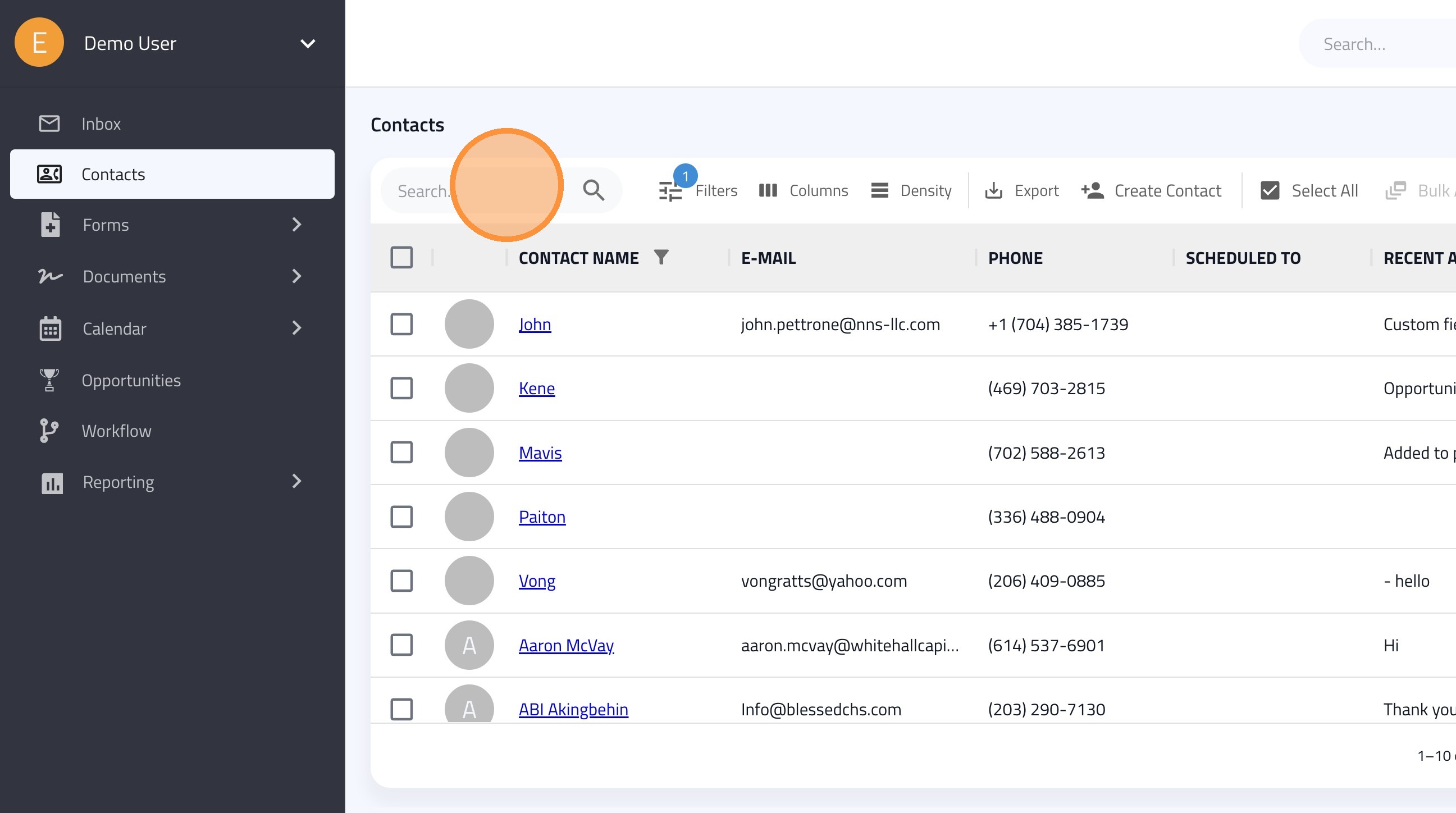
10. Search for and select a contact.
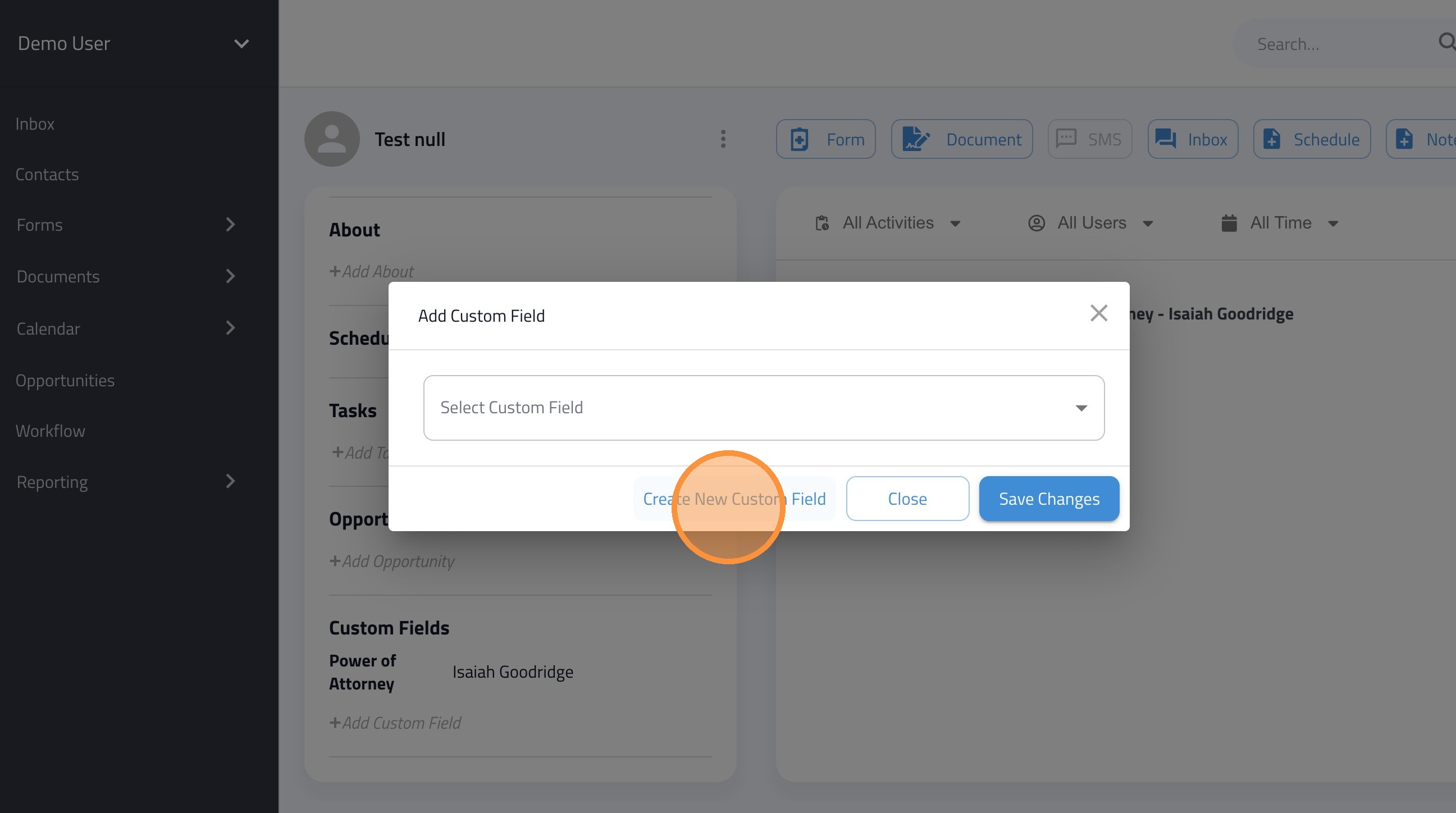
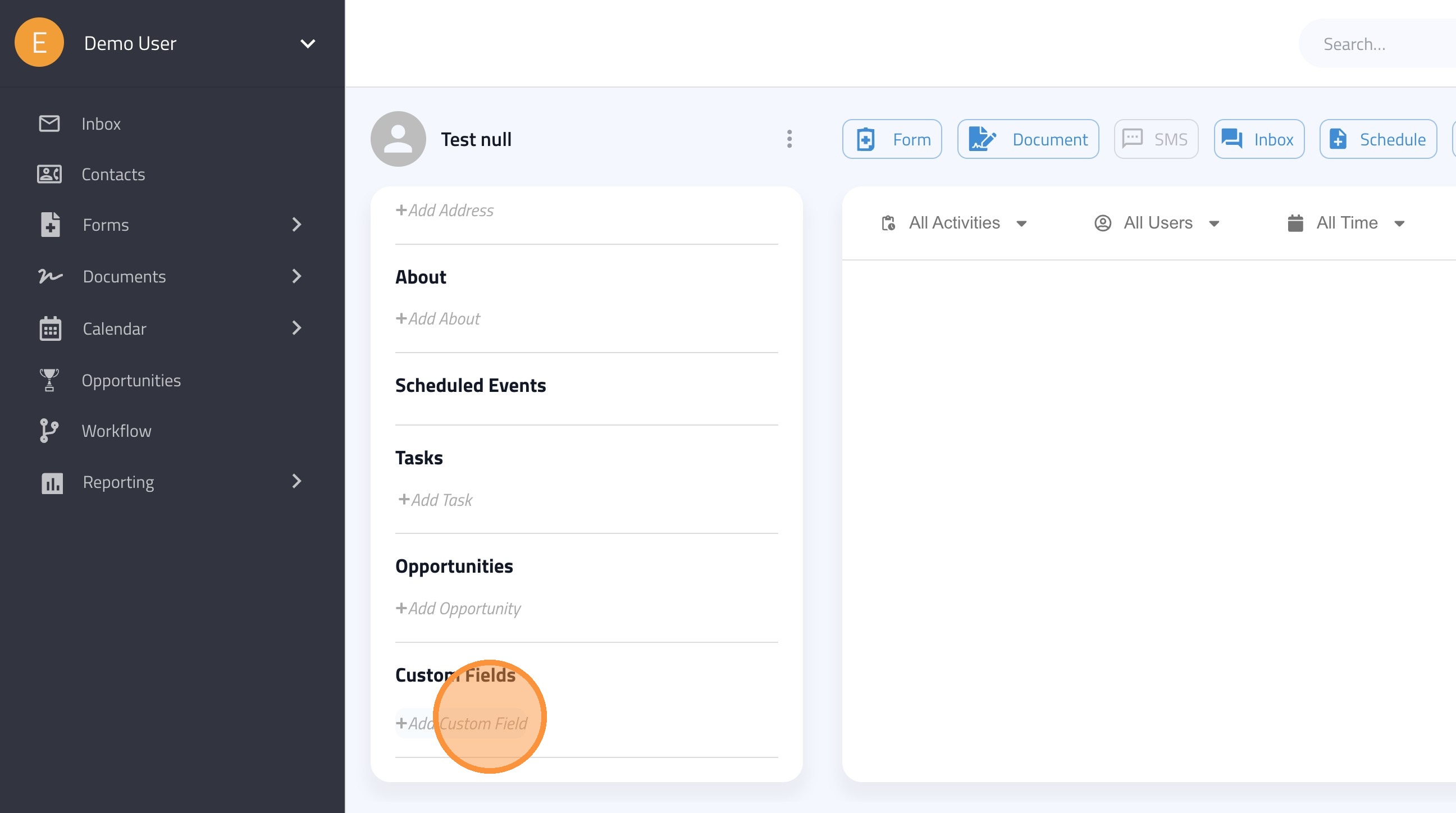
11. Click "Add Custom Field"
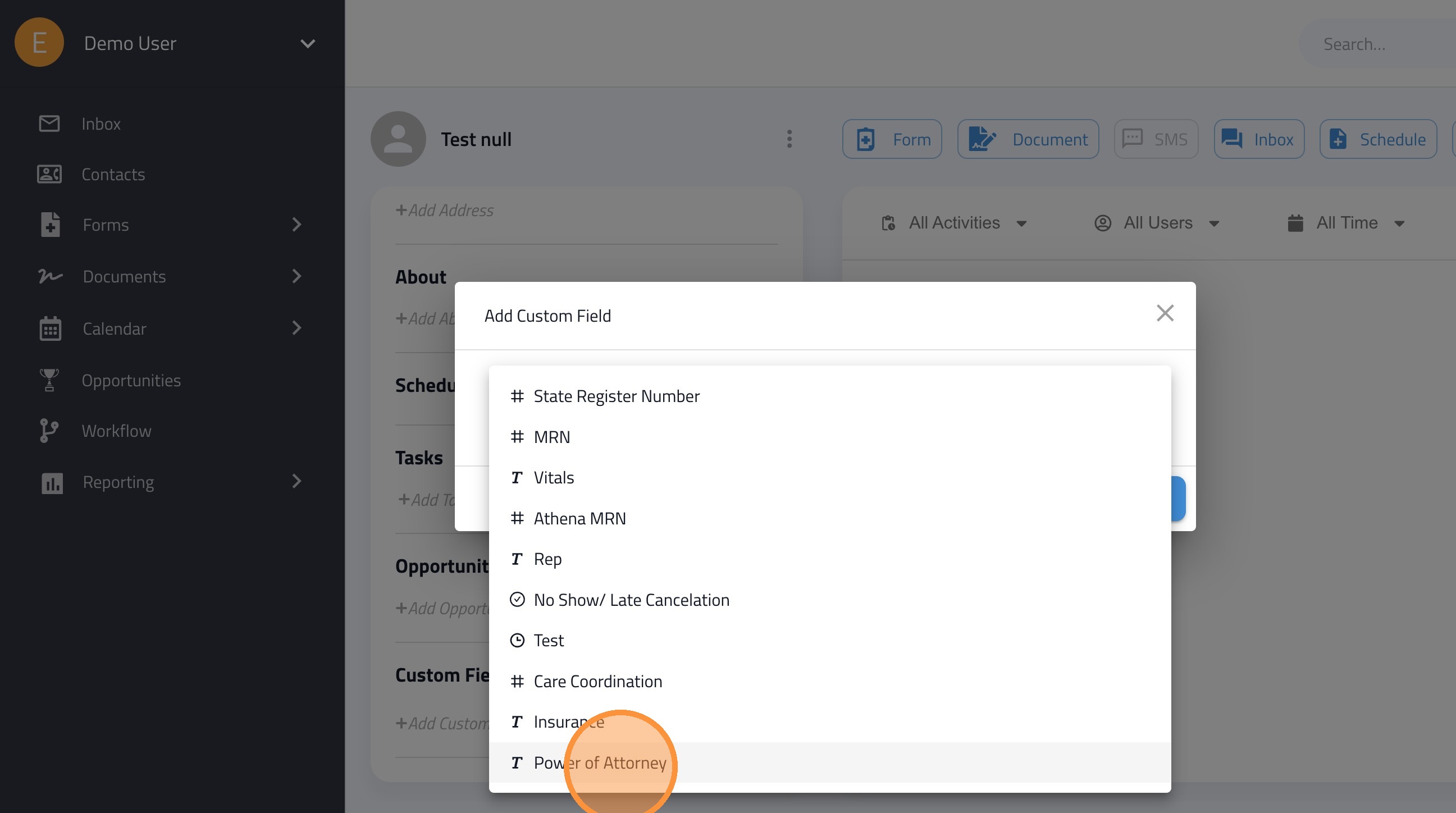
12. Select the custom field.
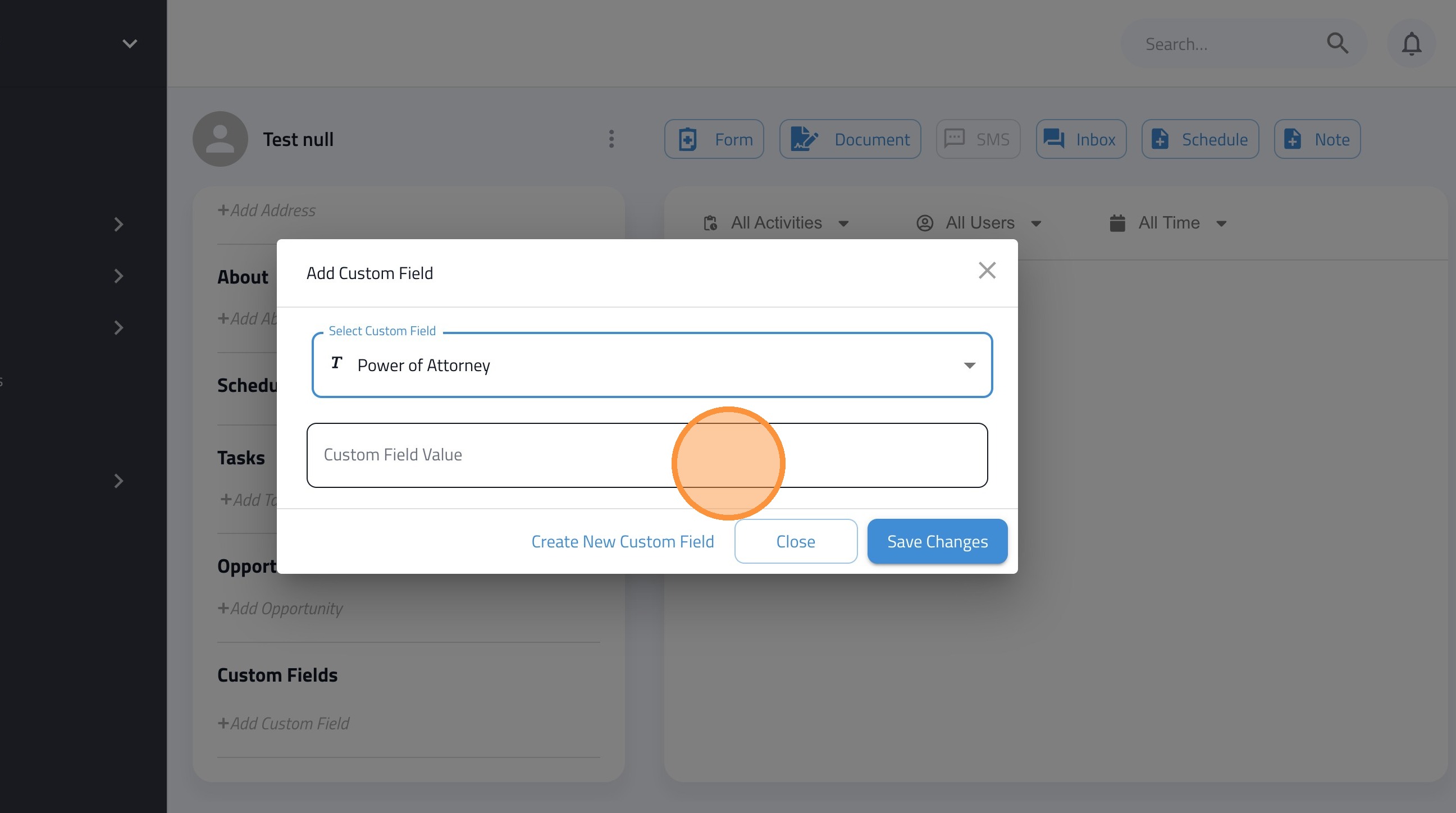
13. Add a value to the custom field.
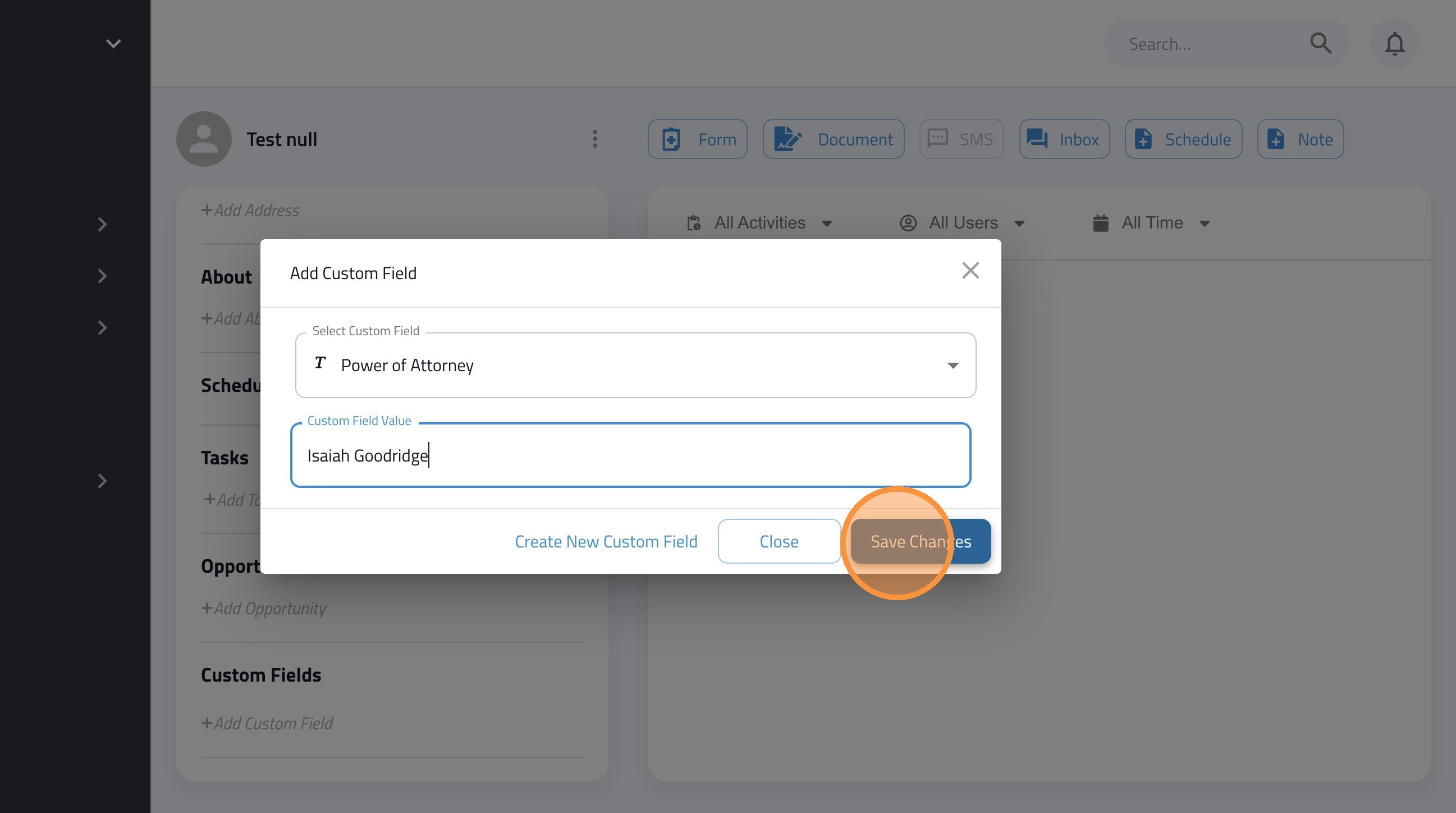
14. Click "Save Changes"
15. You can also create a new custom field directly within a contact’s record. Once added, this field becomes available to use for any patient across your account.
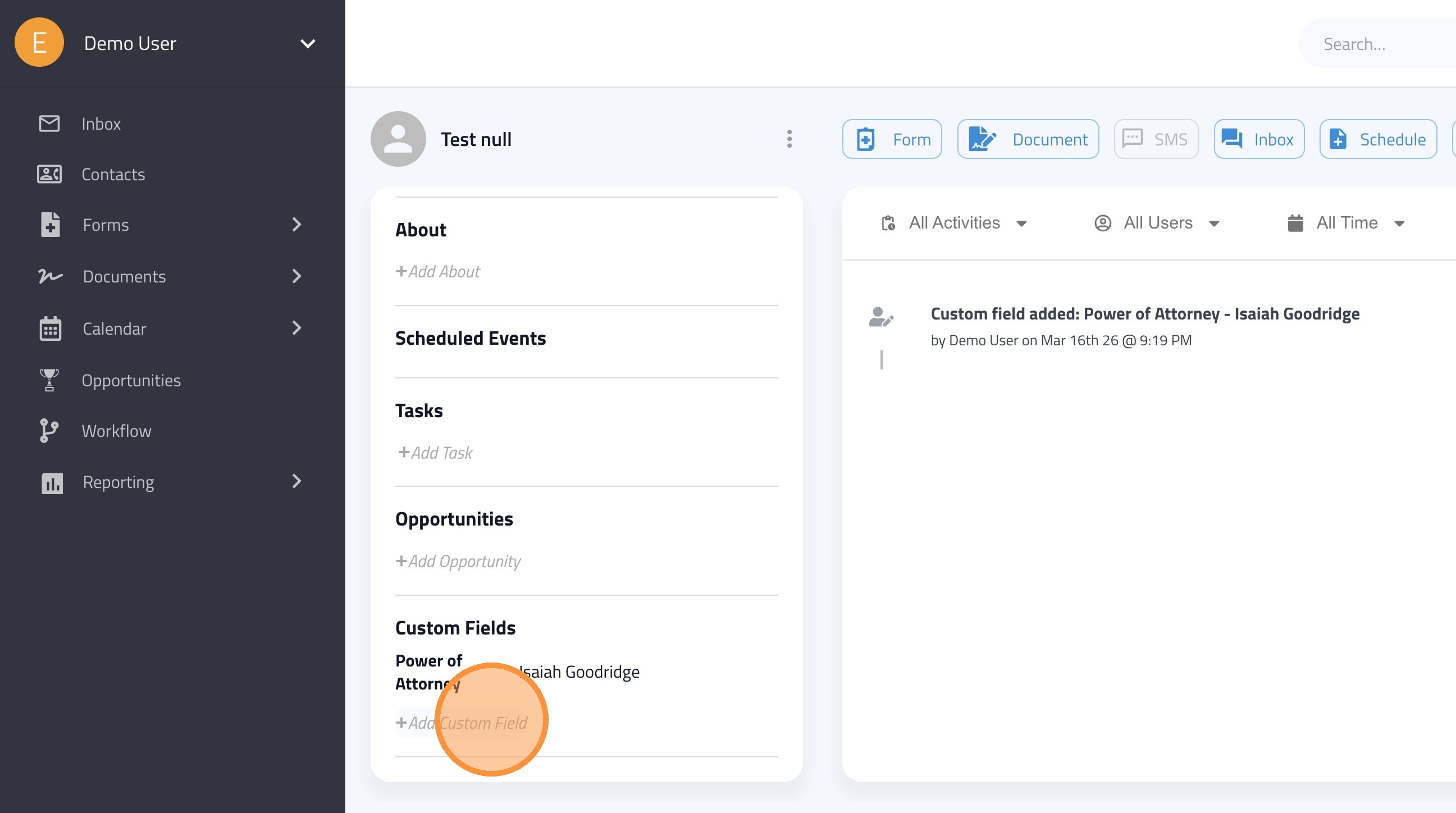
16. Click "Create New Custom Field" and follow steps 5-8.