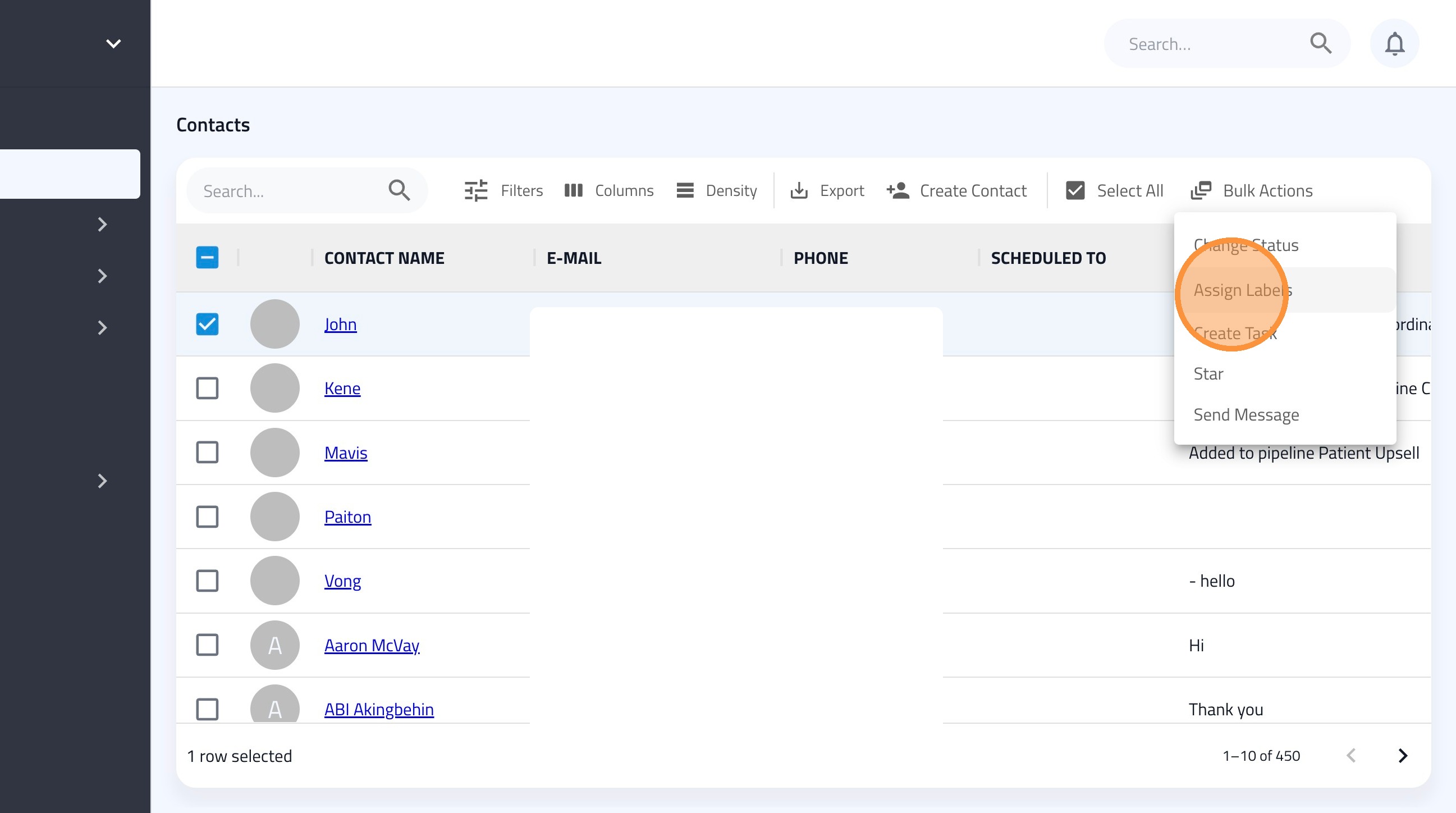
Learn how to create and assign custom labels to your contacts in FormDr. This guide will walk you through adding a new label and applying it to specific contacts for better organization and filtering.
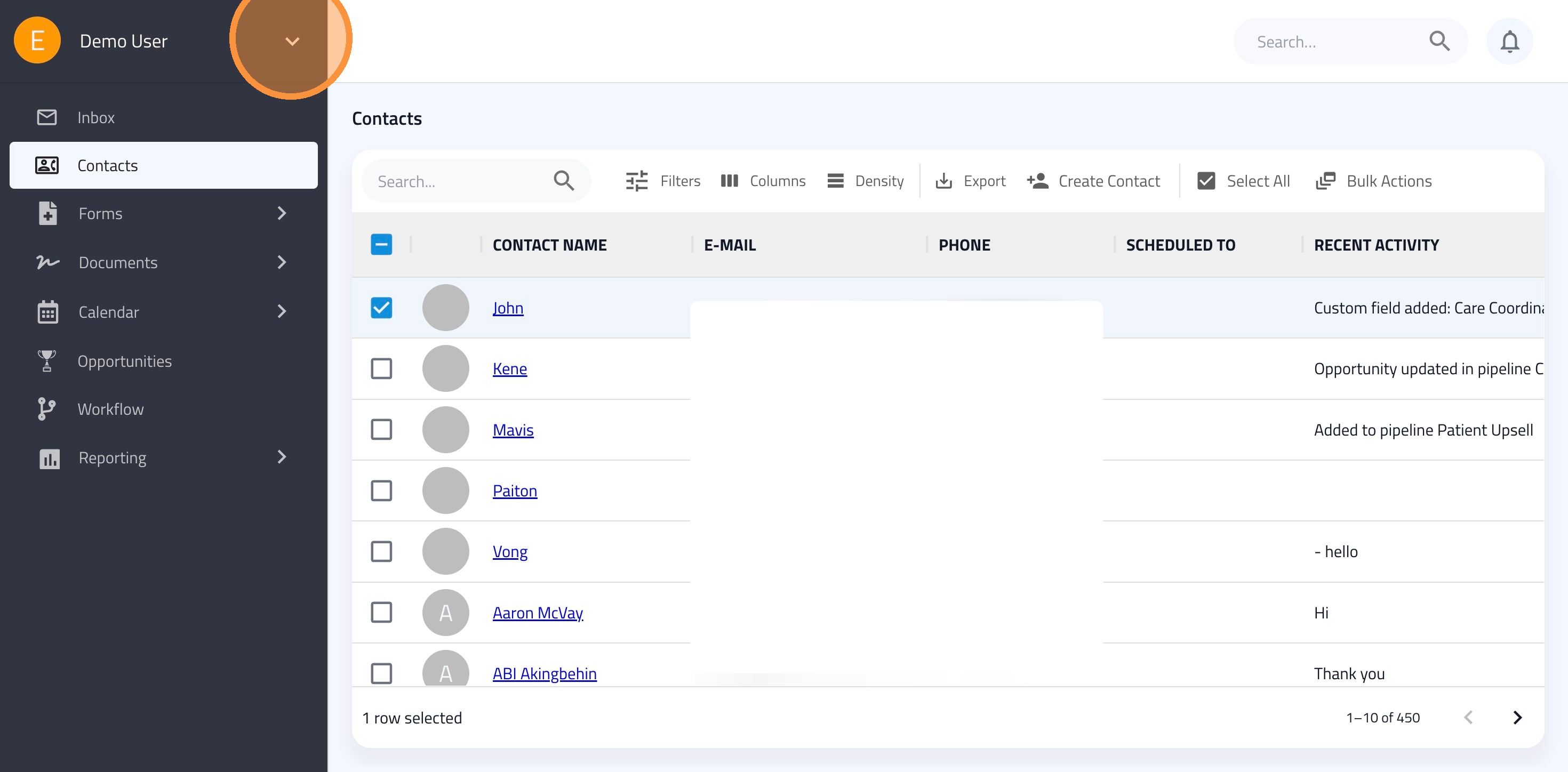
1. Click on the downward arrowhead (caret) icon next to your name
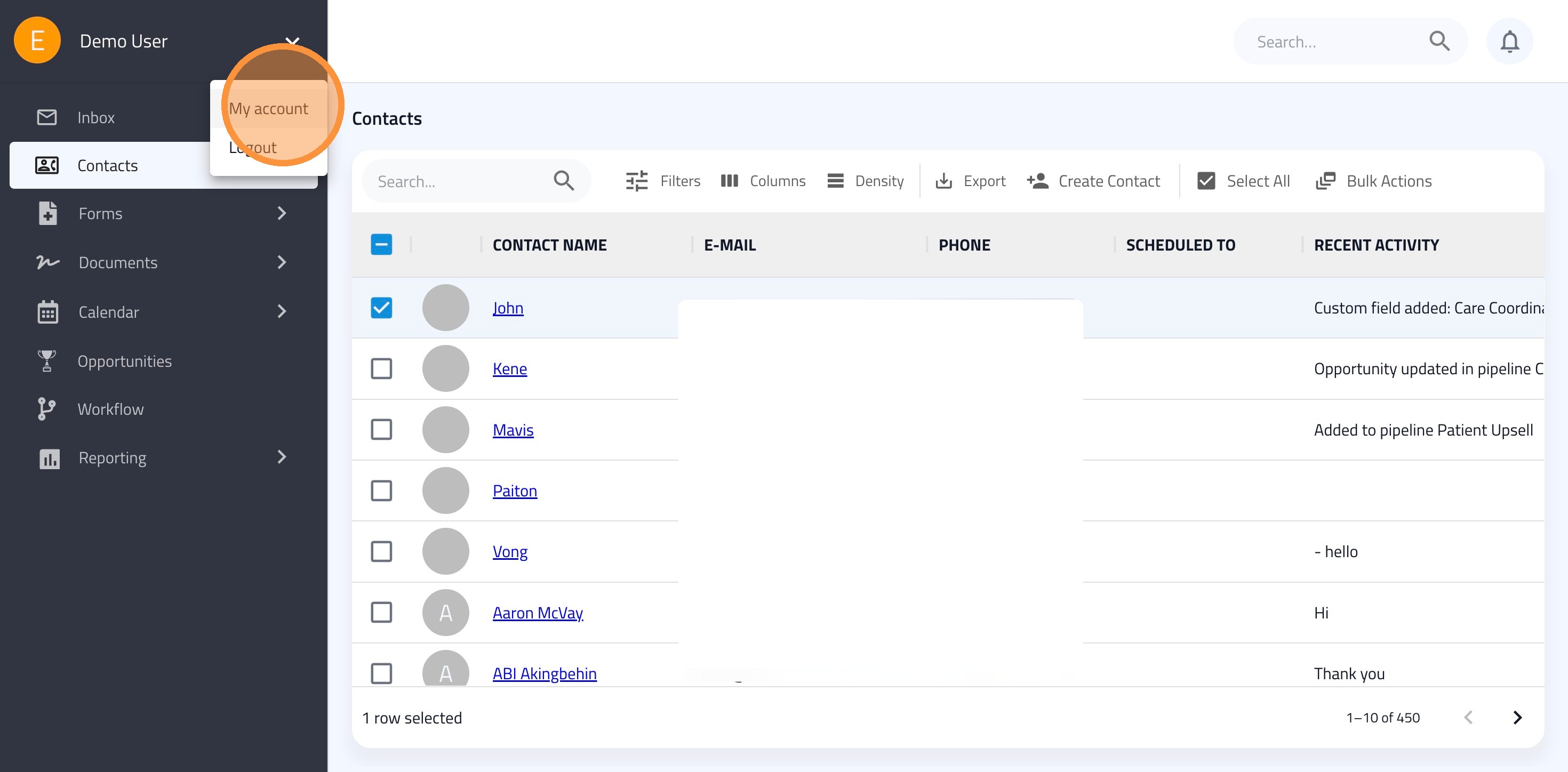
2. Click "My account"
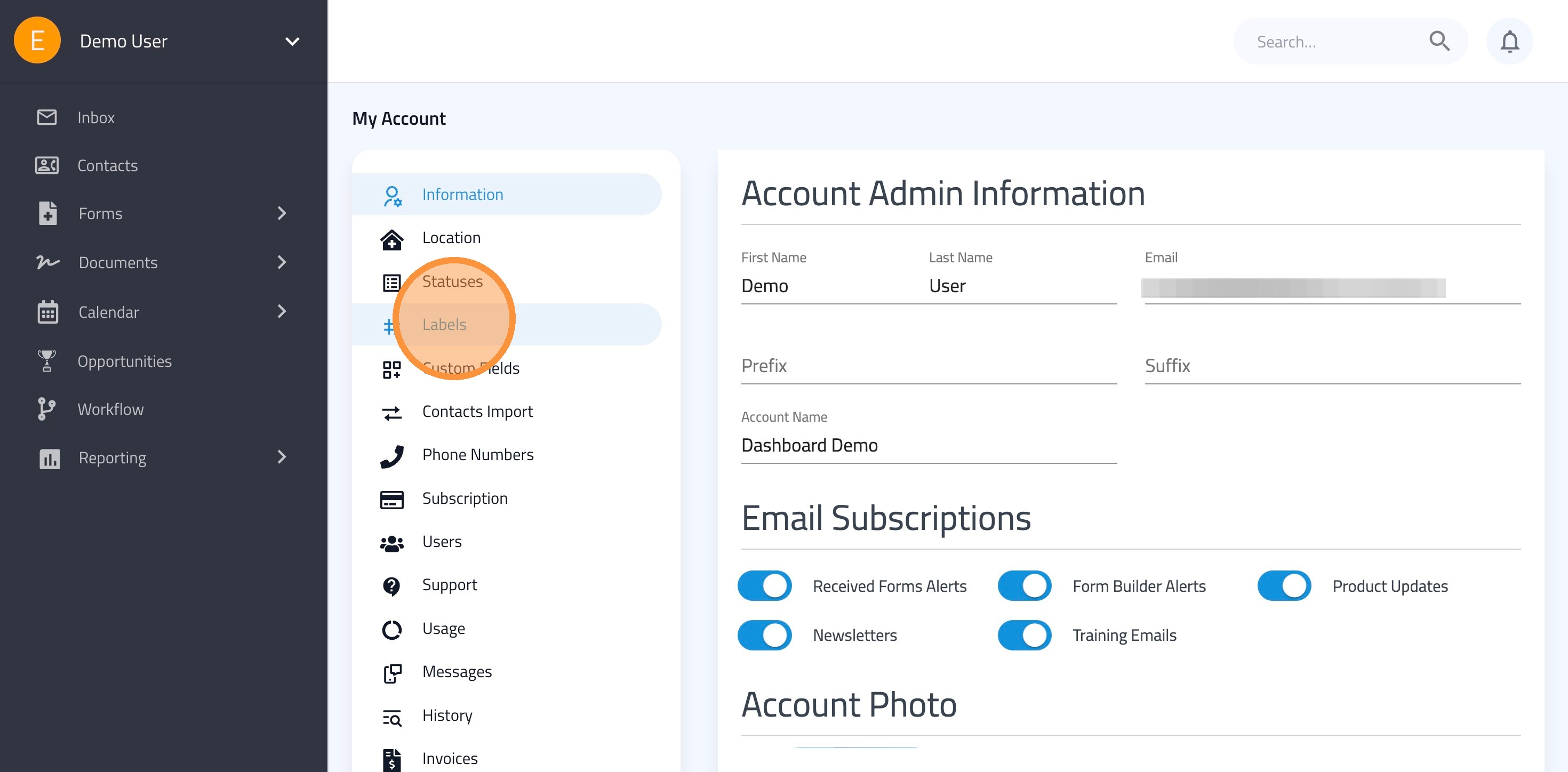
3. Click "Labels"
4. Click "Add Label"
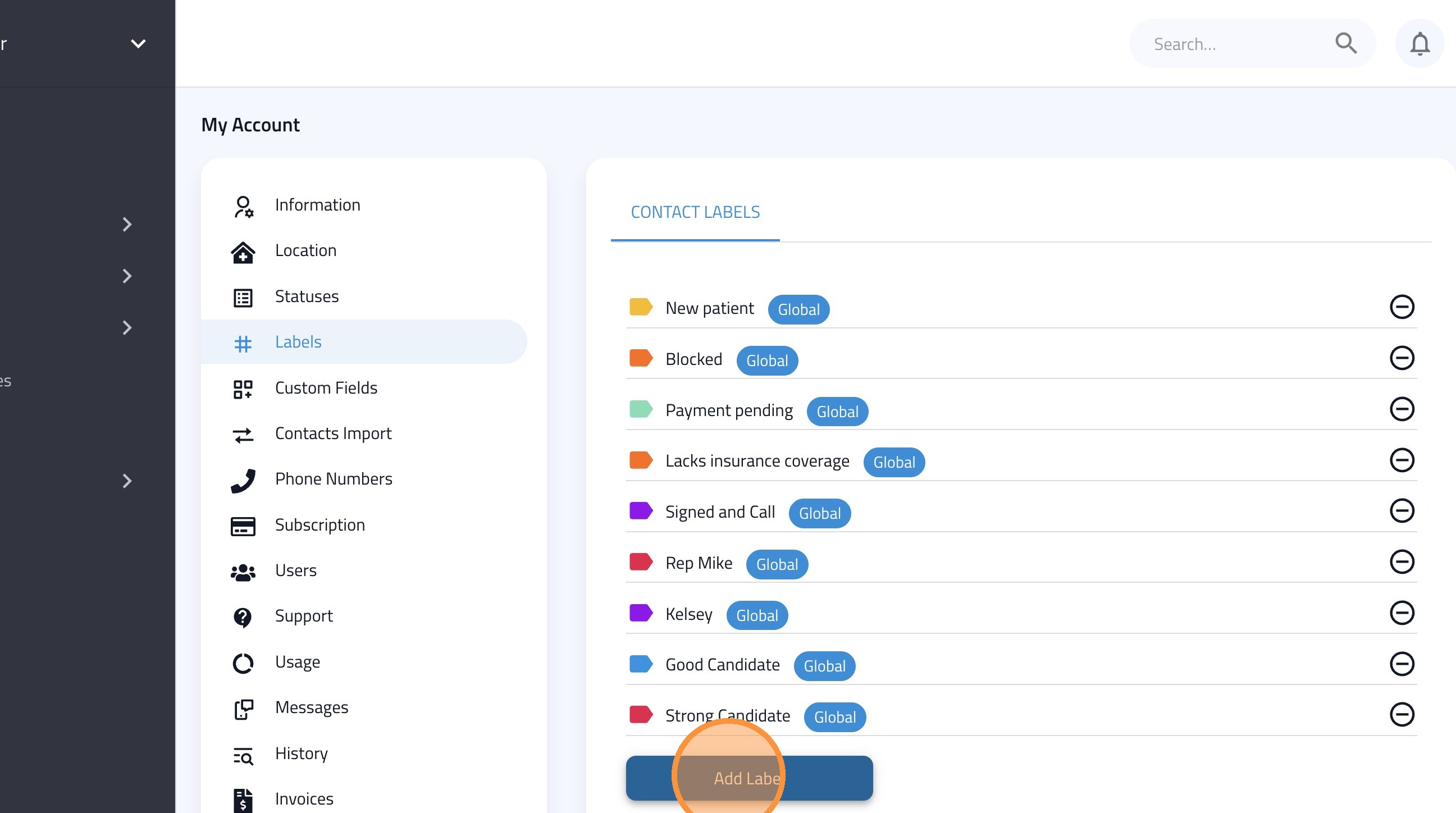
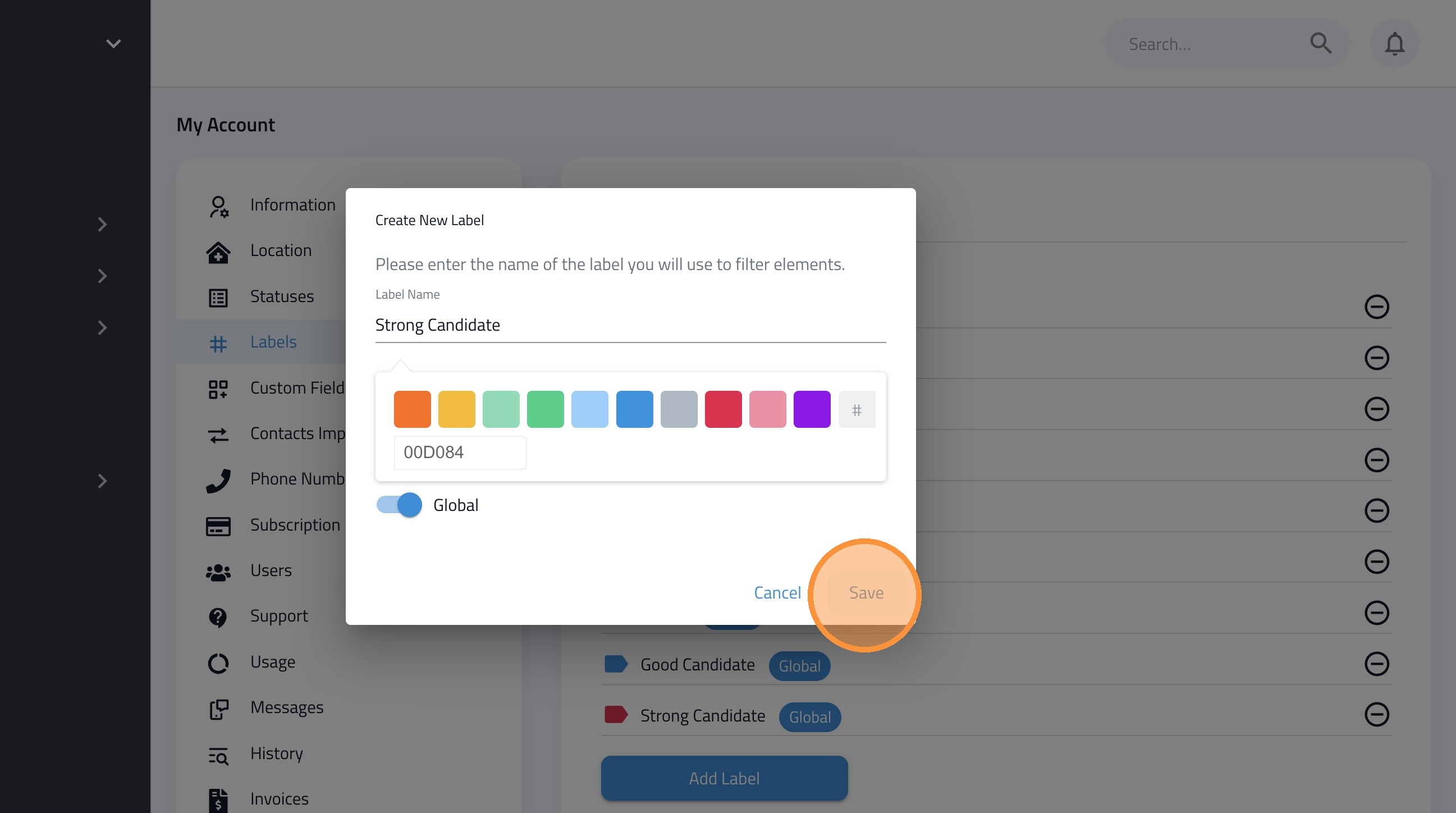
5. Name the label.
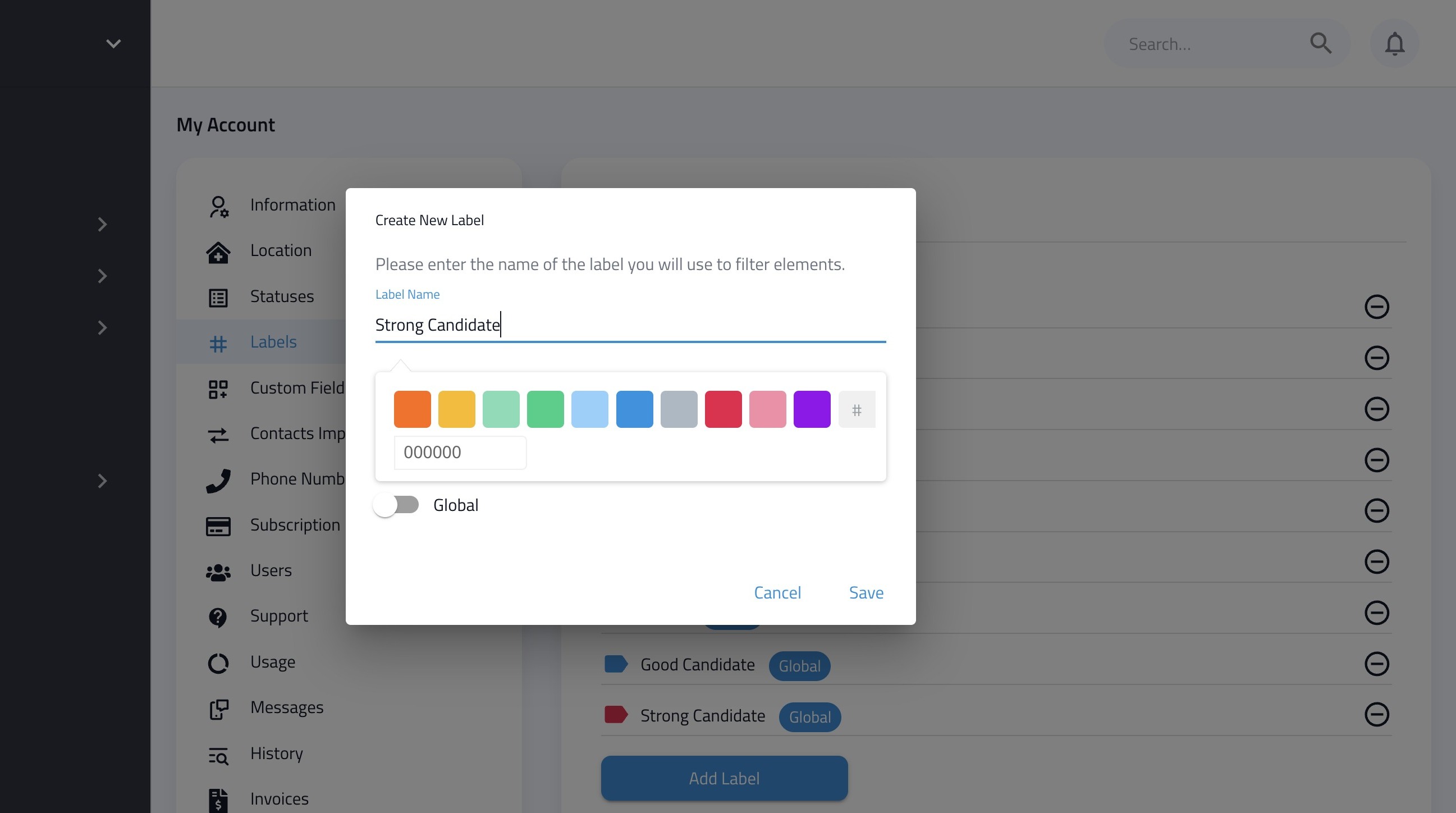
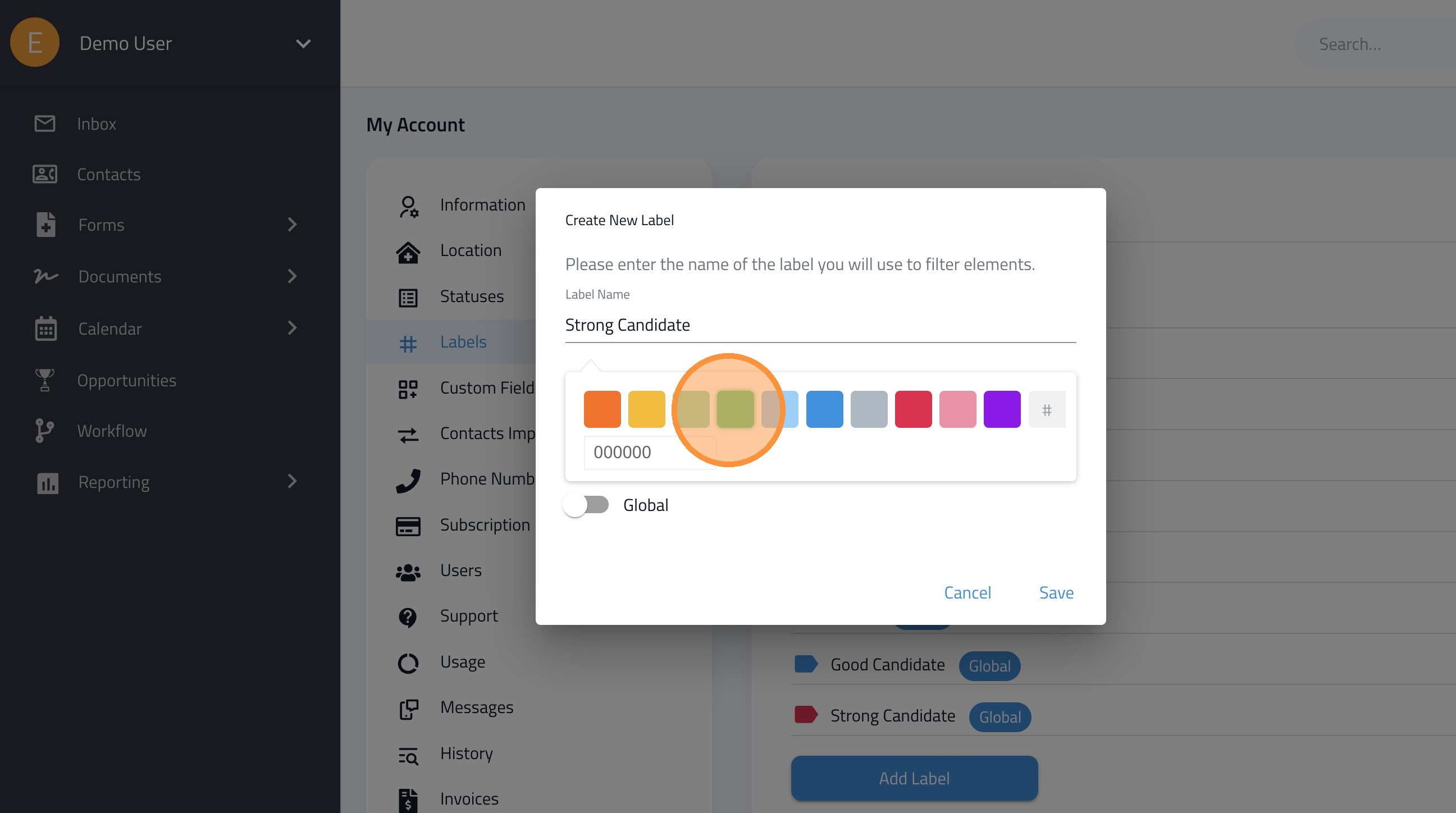
6. Choose a color for your label.
7. Toggle on "Global" to make this label selectable for other users.
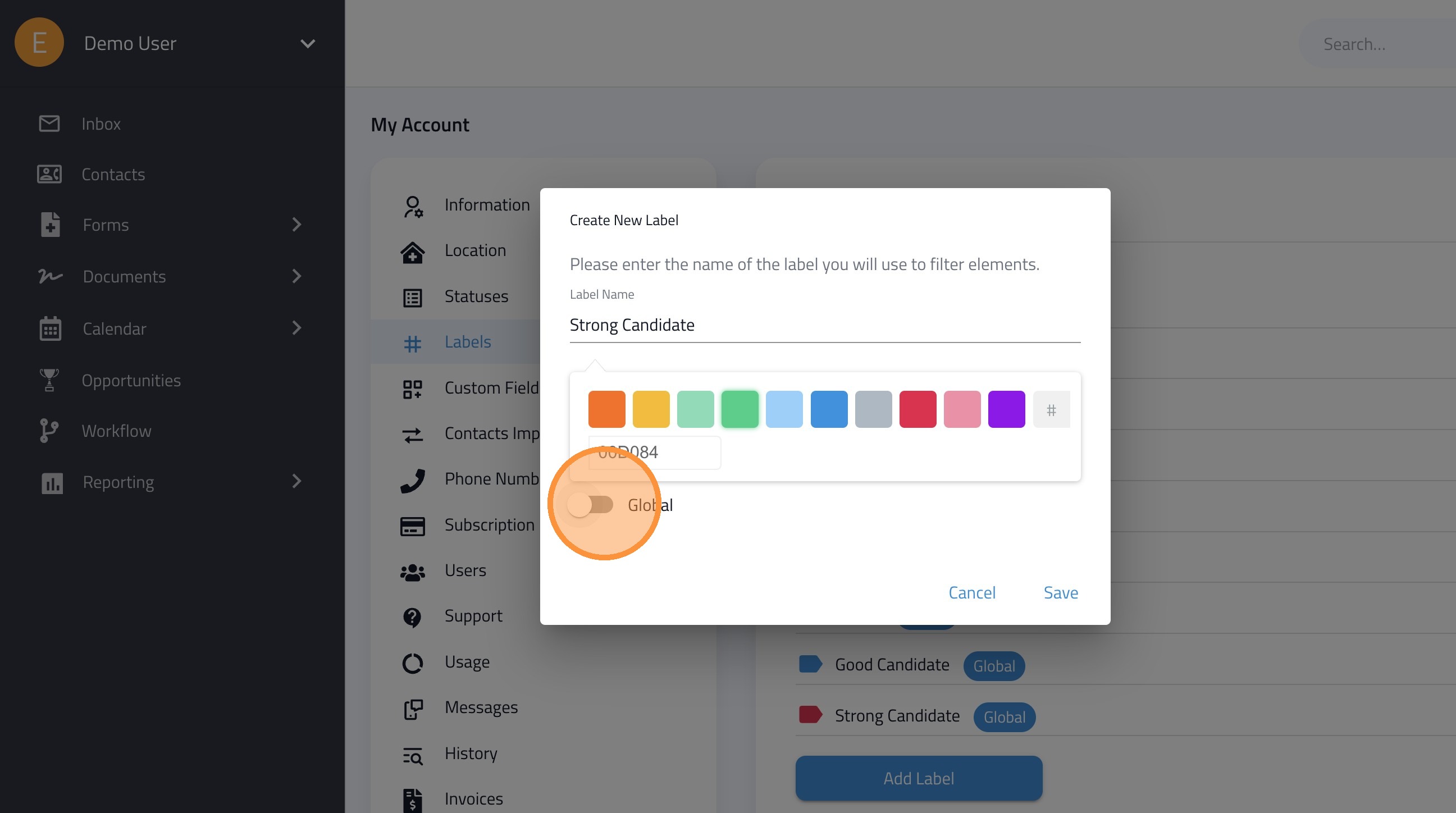
8. Click "Save"
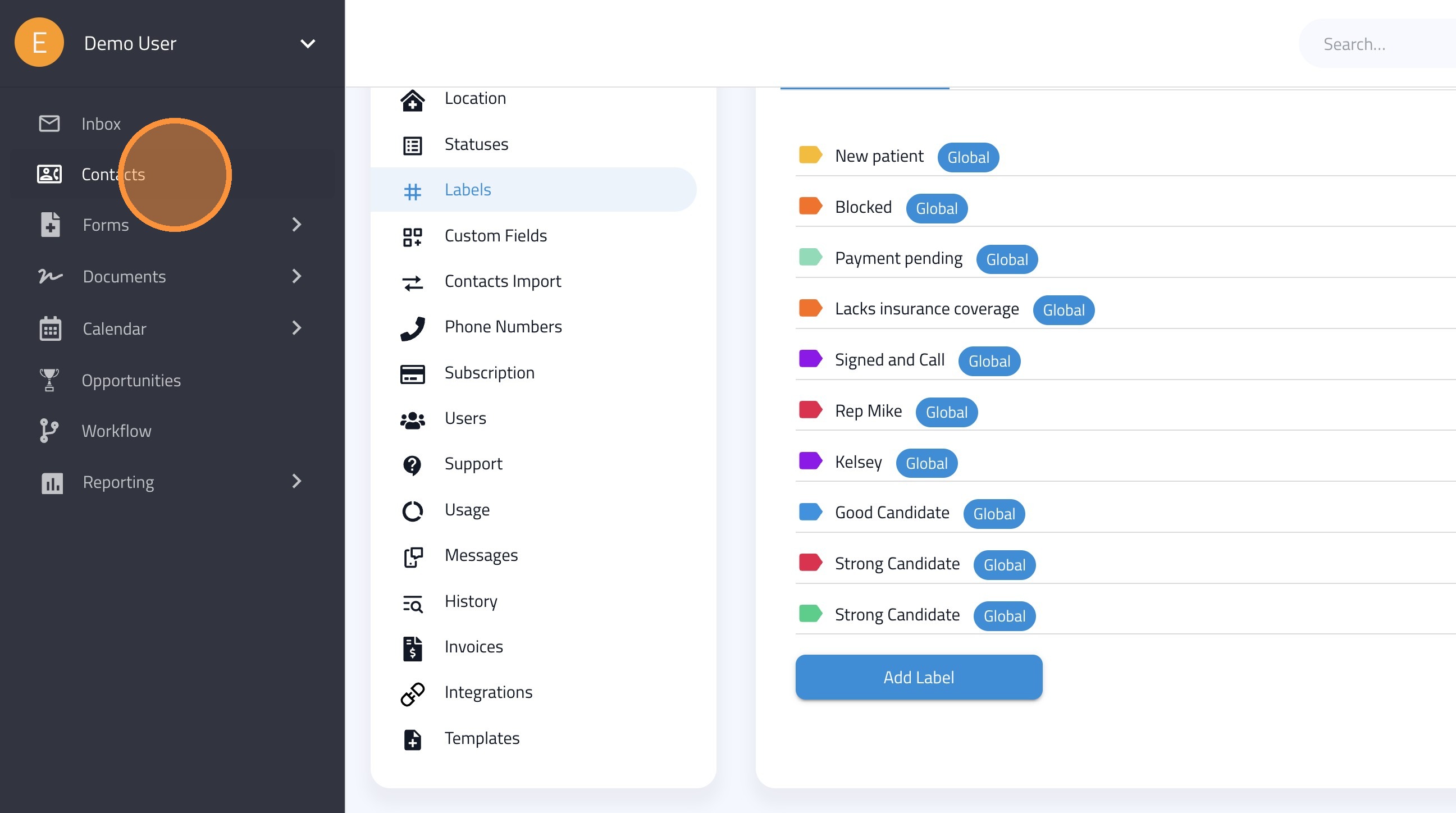
9. Click "Contacts"
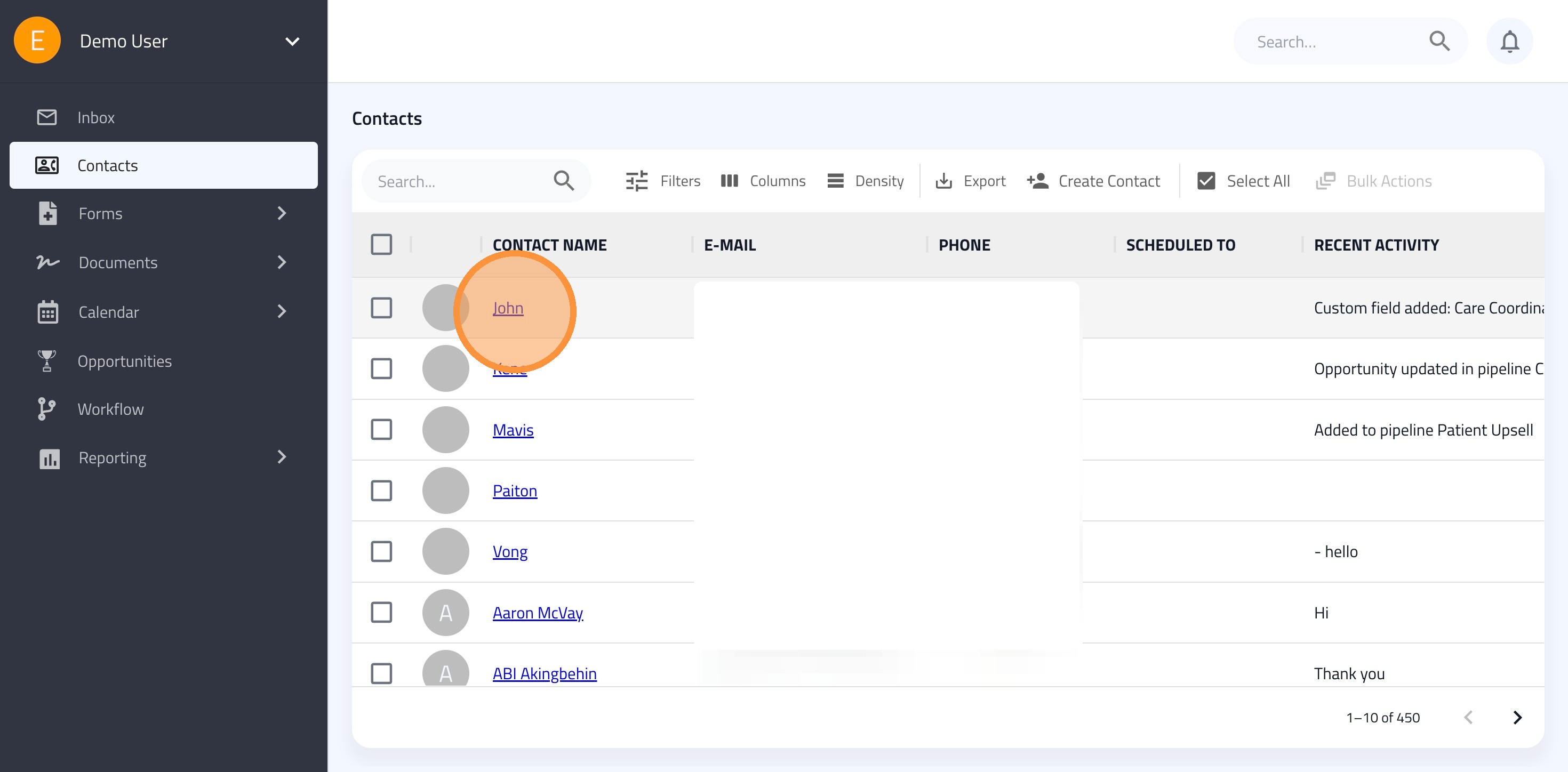
10. Select a patient
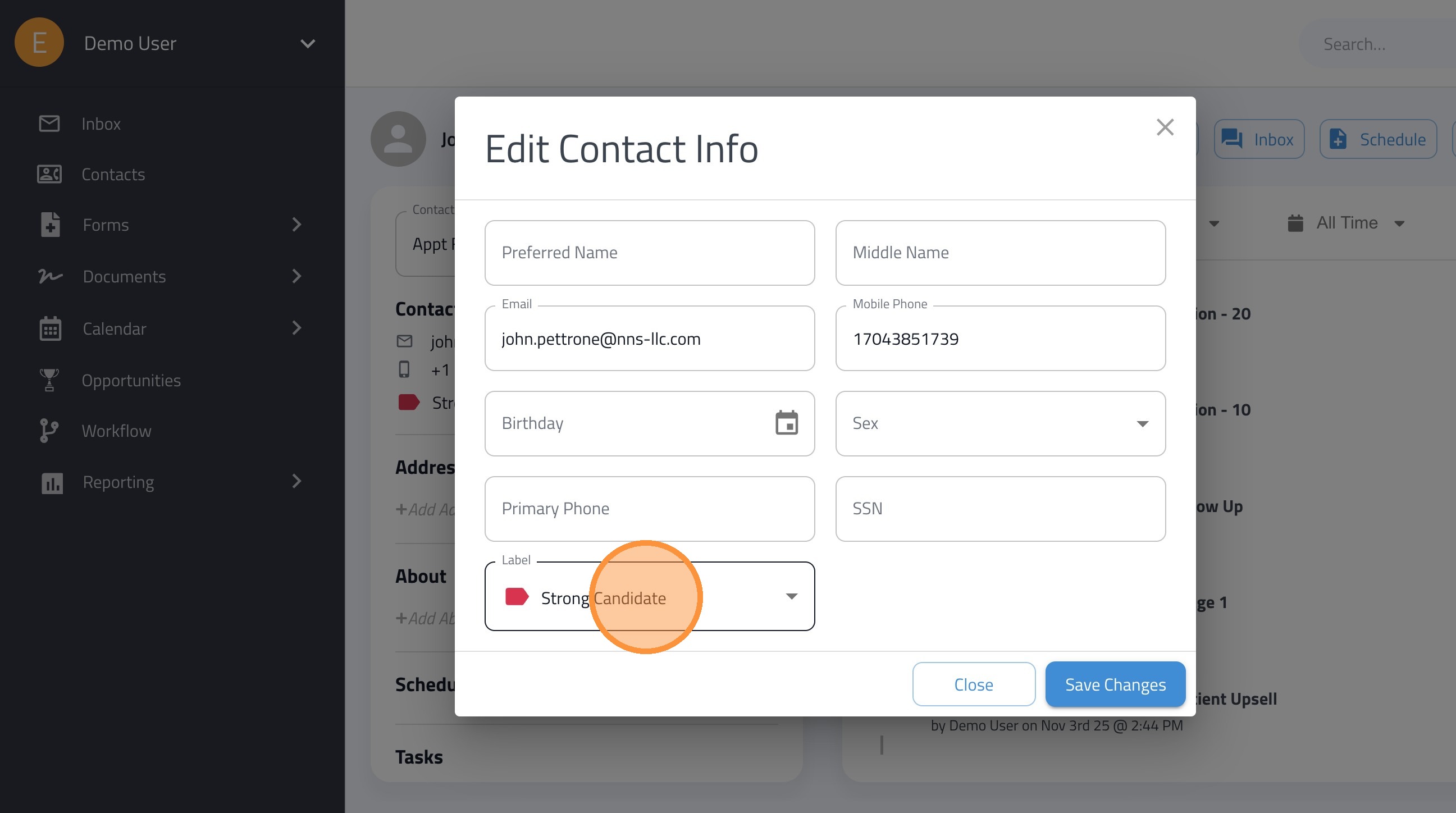
11. Click "Contact Info"
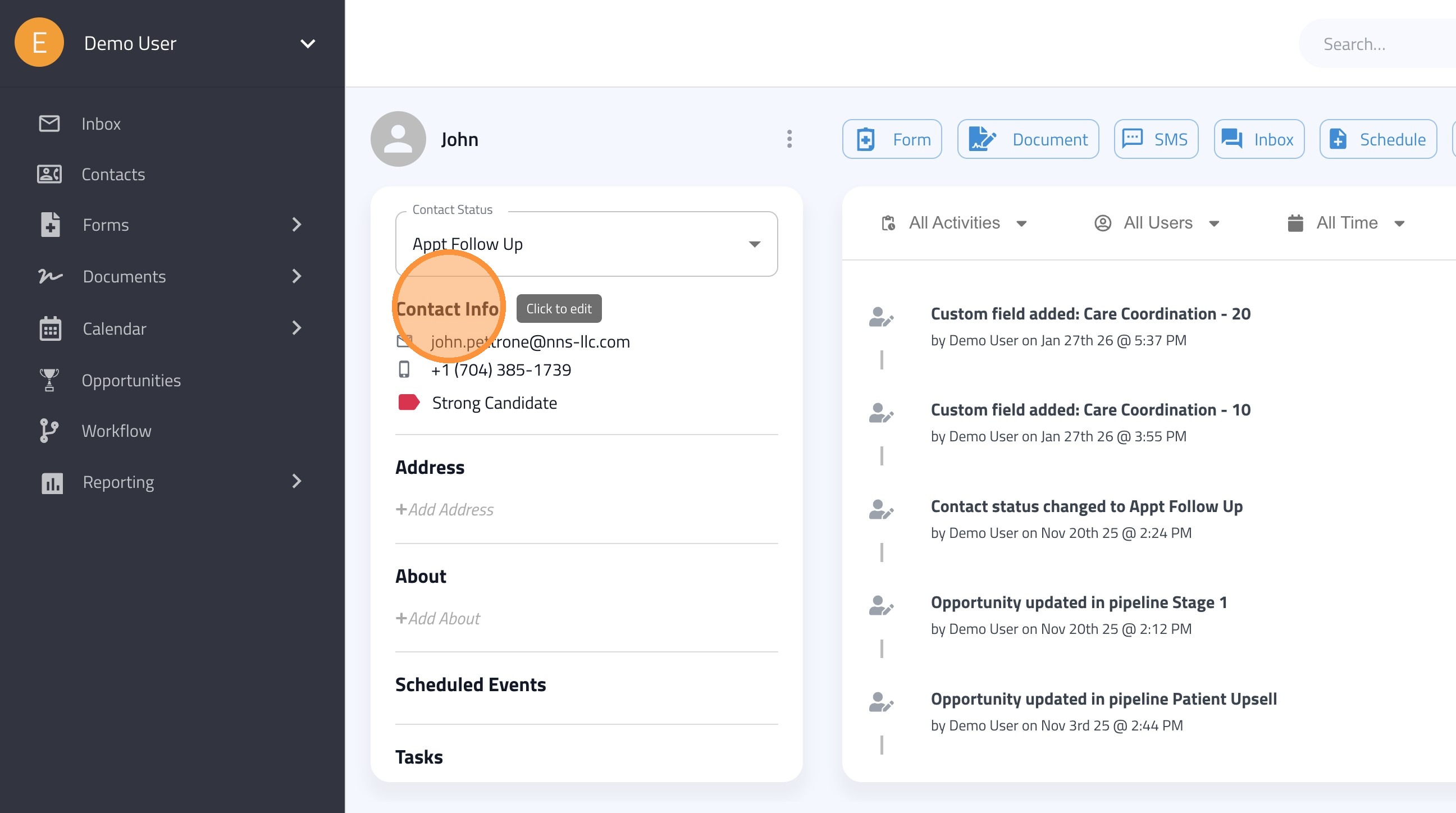
12. Select a label from the Label dropdown menu.
13. You can also assign labels to multiple contacts at once using our Bulk Actions feature.