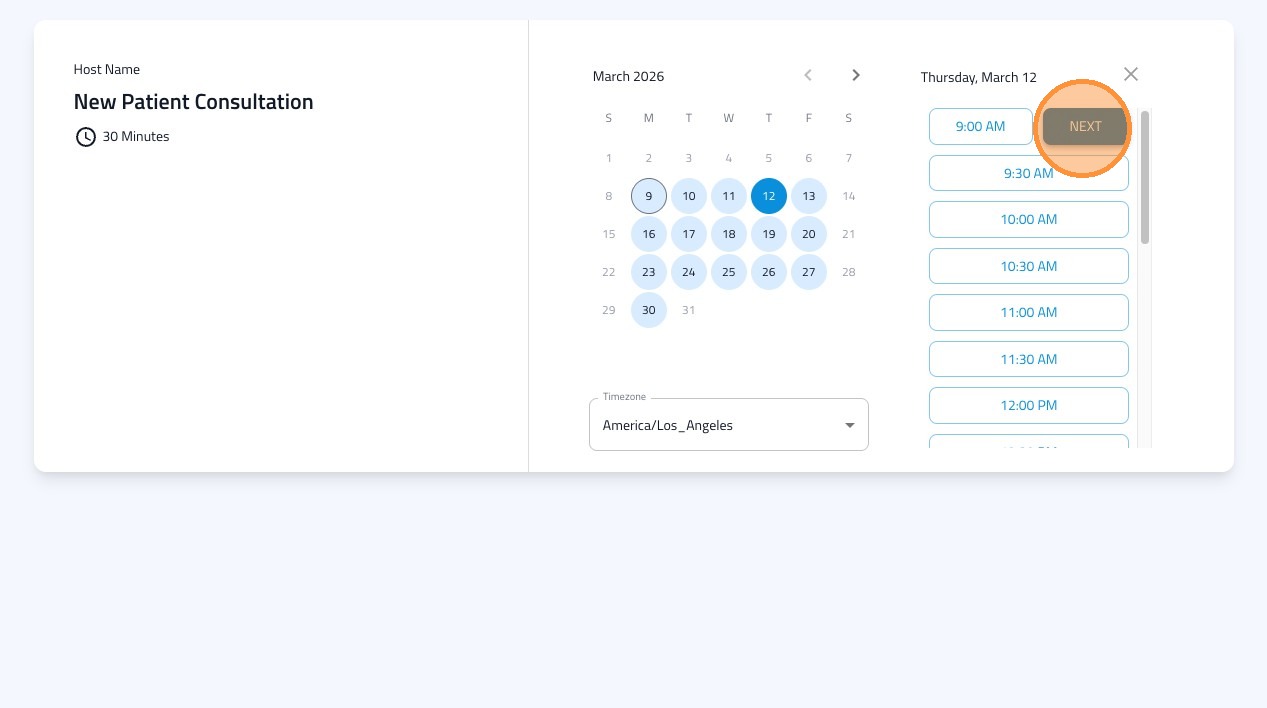
Learn how to create a new calendar and set up a booking page with custom questions and availability. This guide will walk you through the essential steps to ensure your FormDoctor booking system is configured to your needs.
1. Navigate to https://dashboard.formdr.com/calendar/event-type
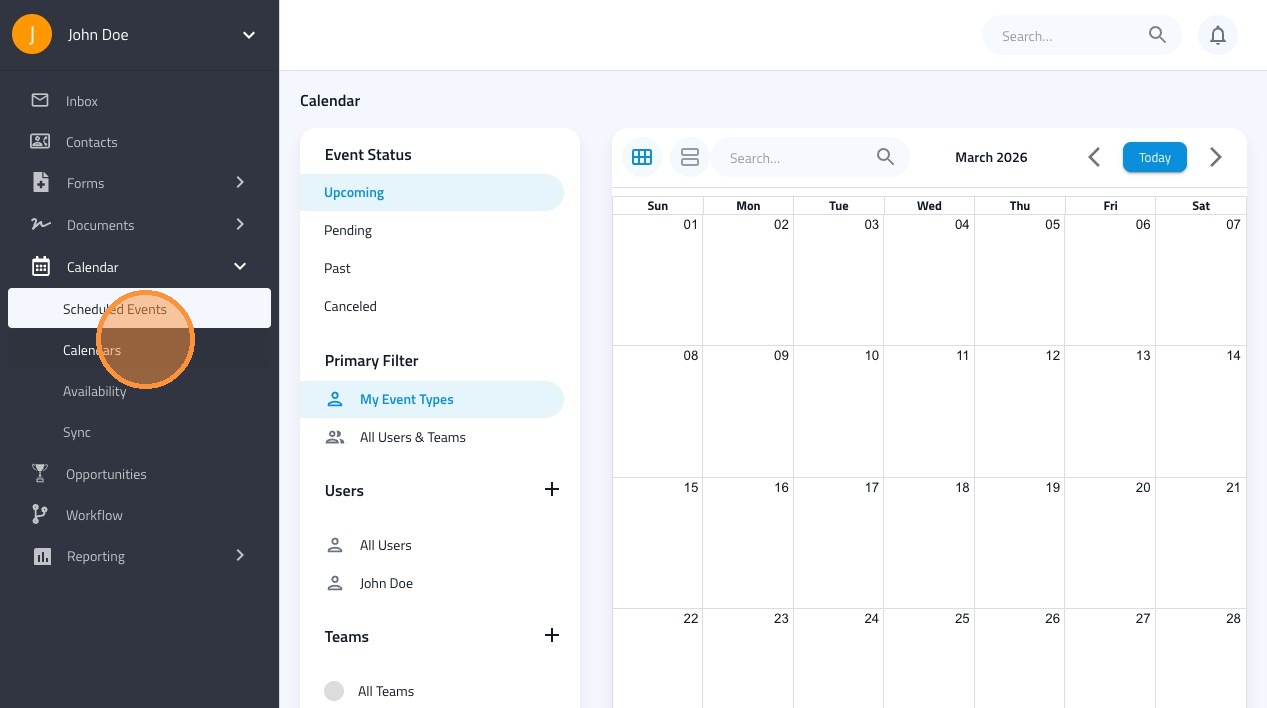
2. Click "Setup Calendar"
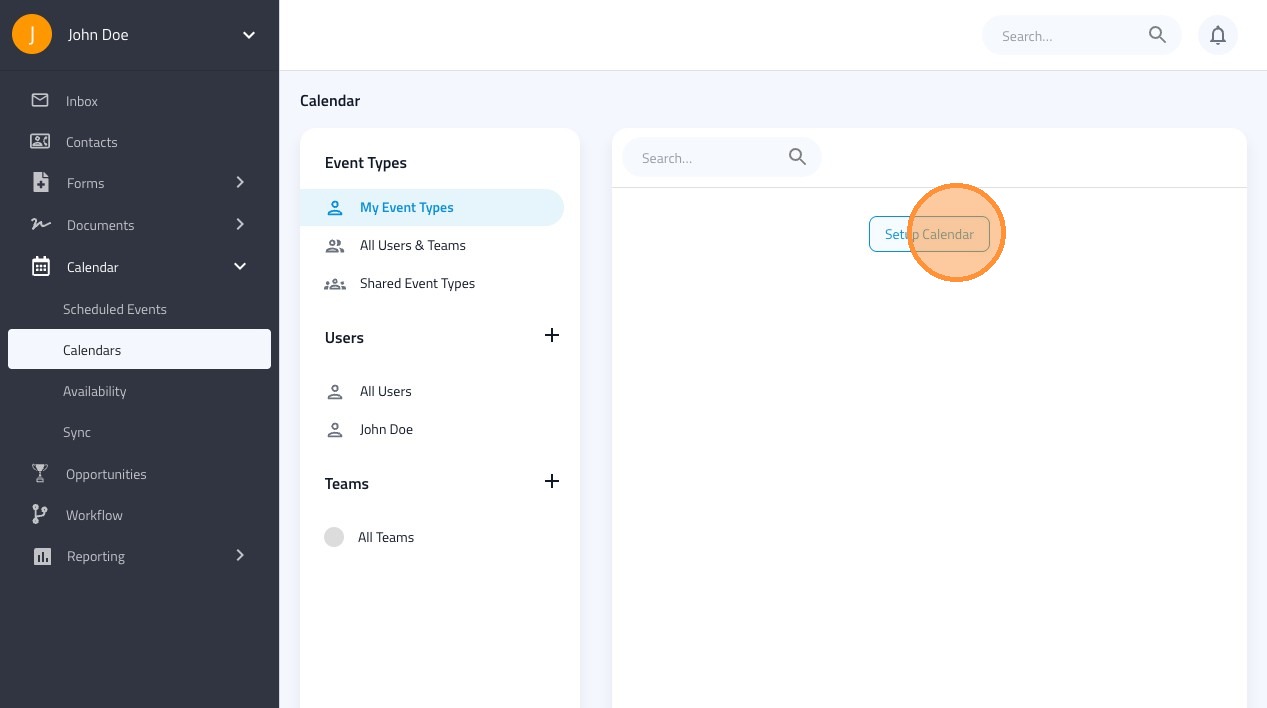
3. Click the "Name" field.
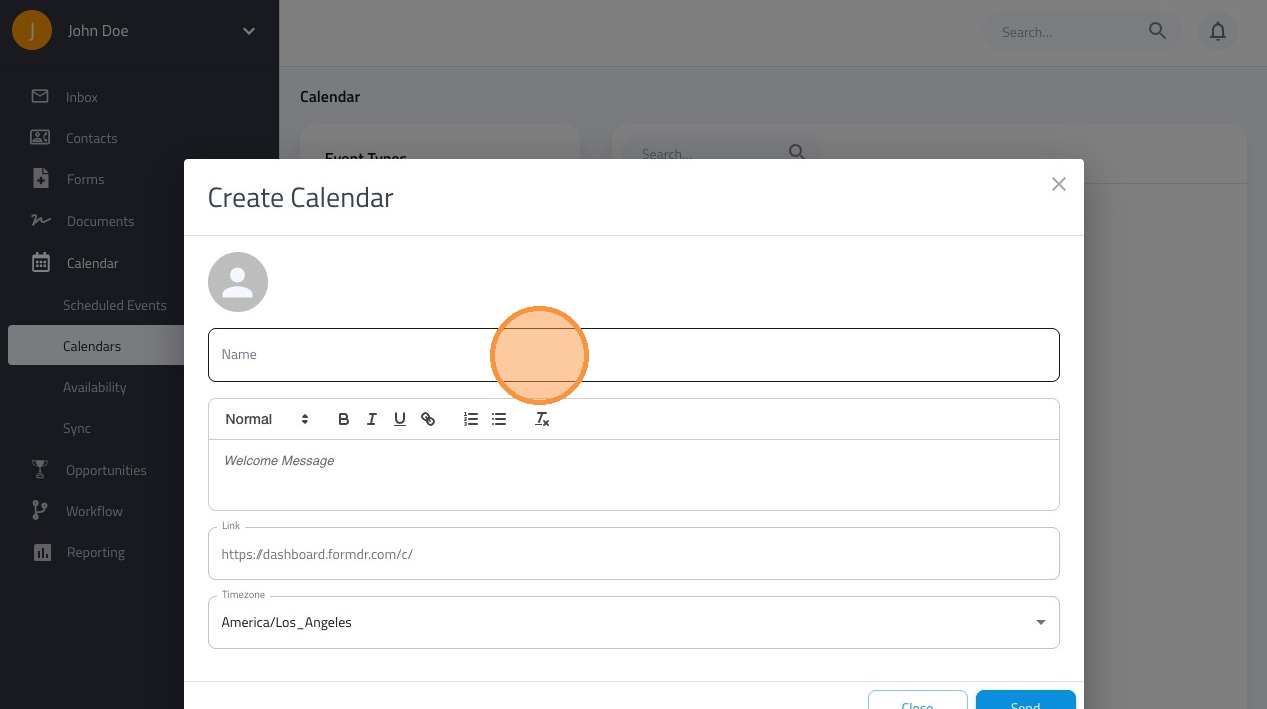
4. Type the name of your Calendar
5. Click "Save"
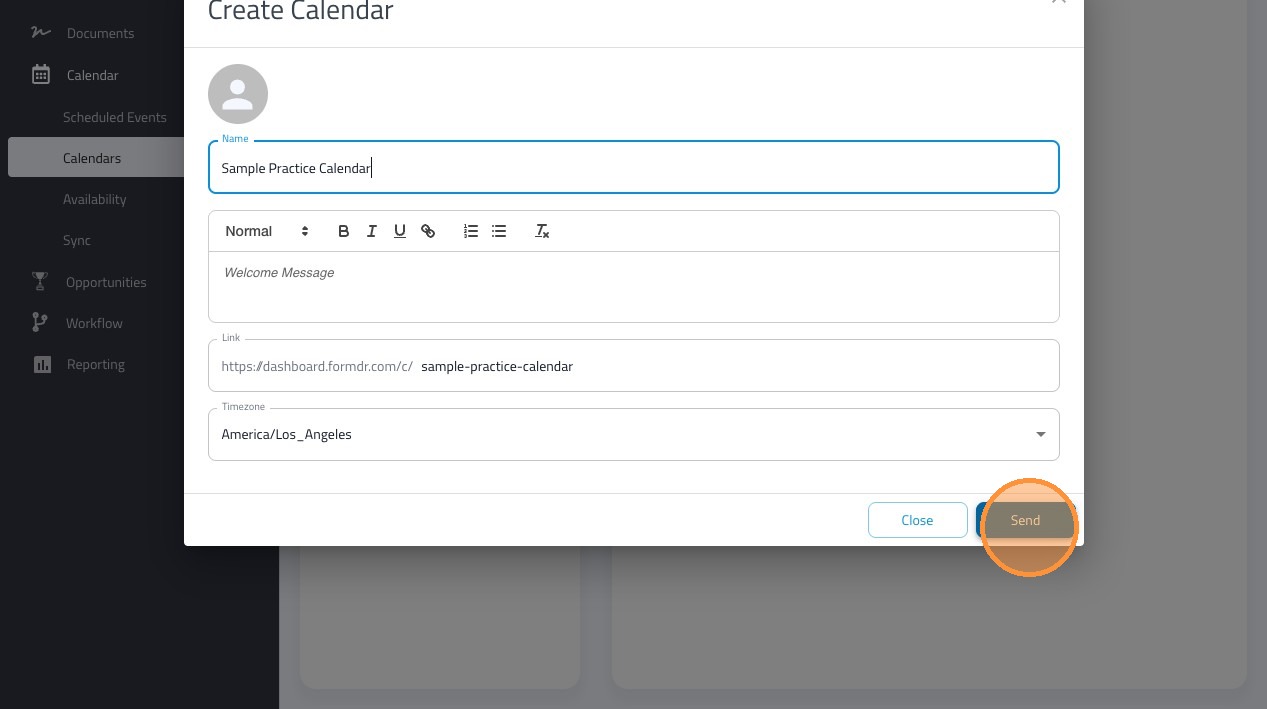
6. Click "Add Event Type"
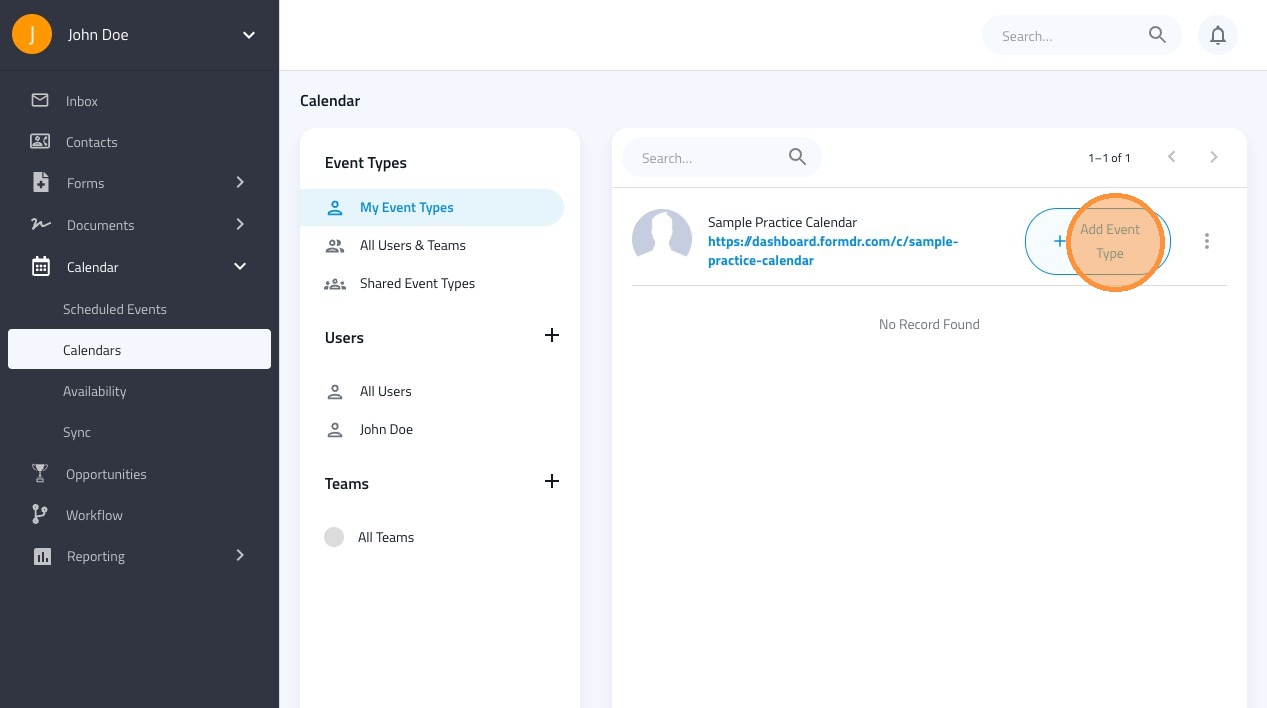
7. Click "One host with one invitee"
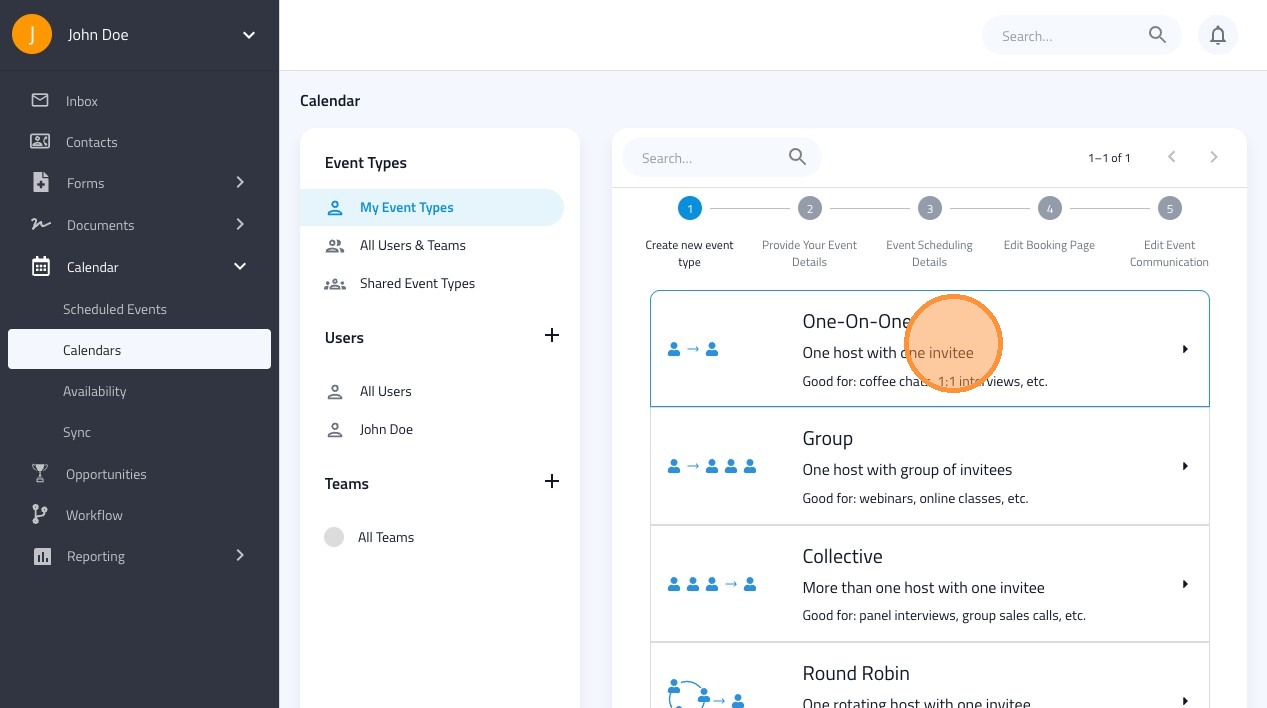
8. Give your event a Name
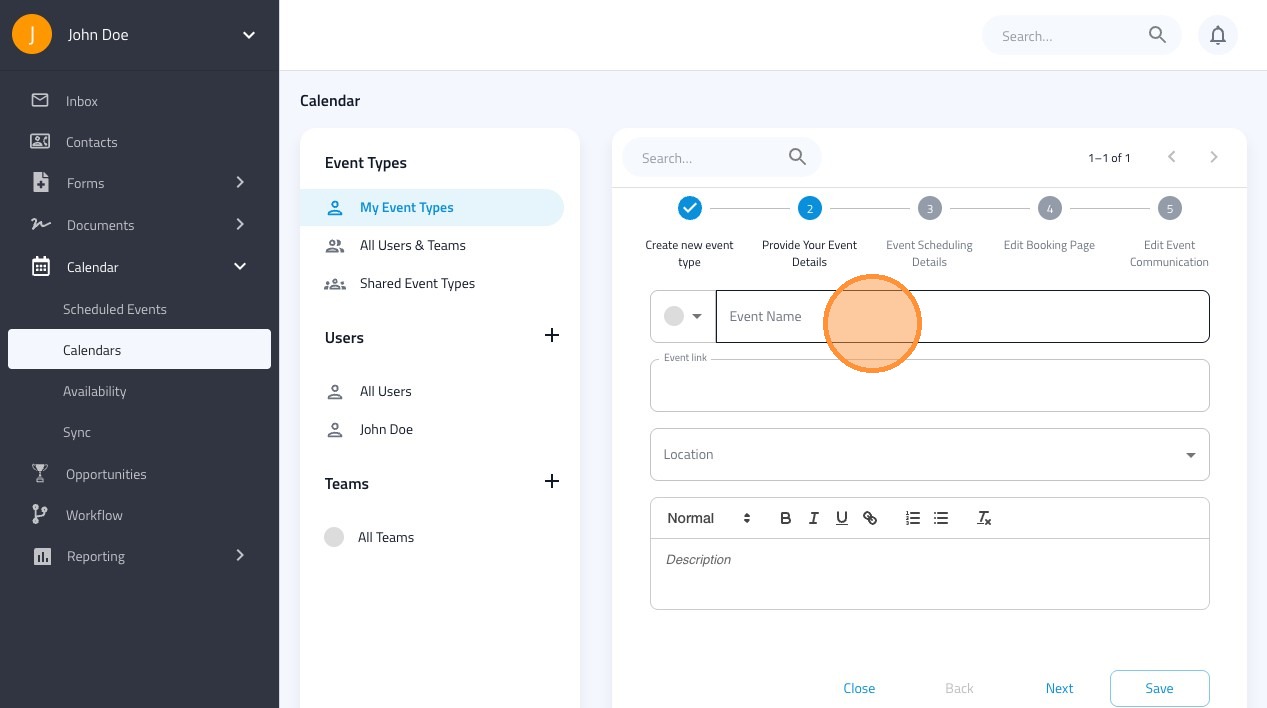
9. Select where the meeting will take place.
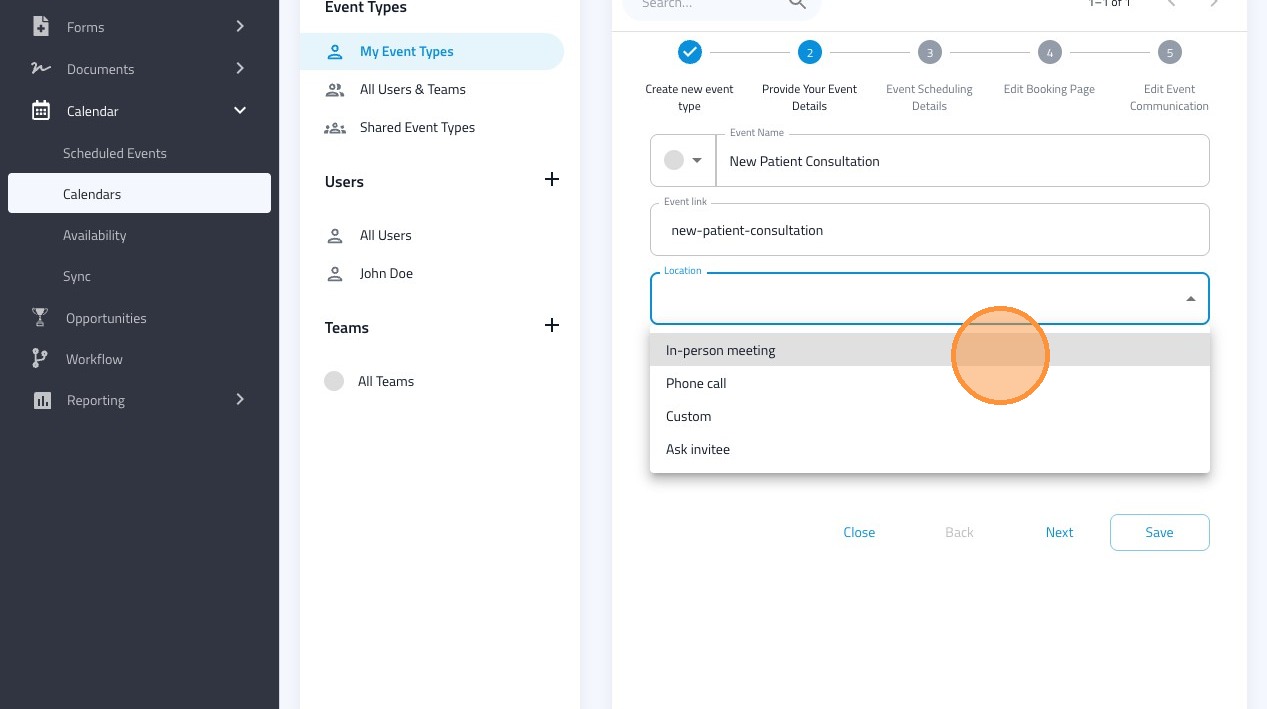
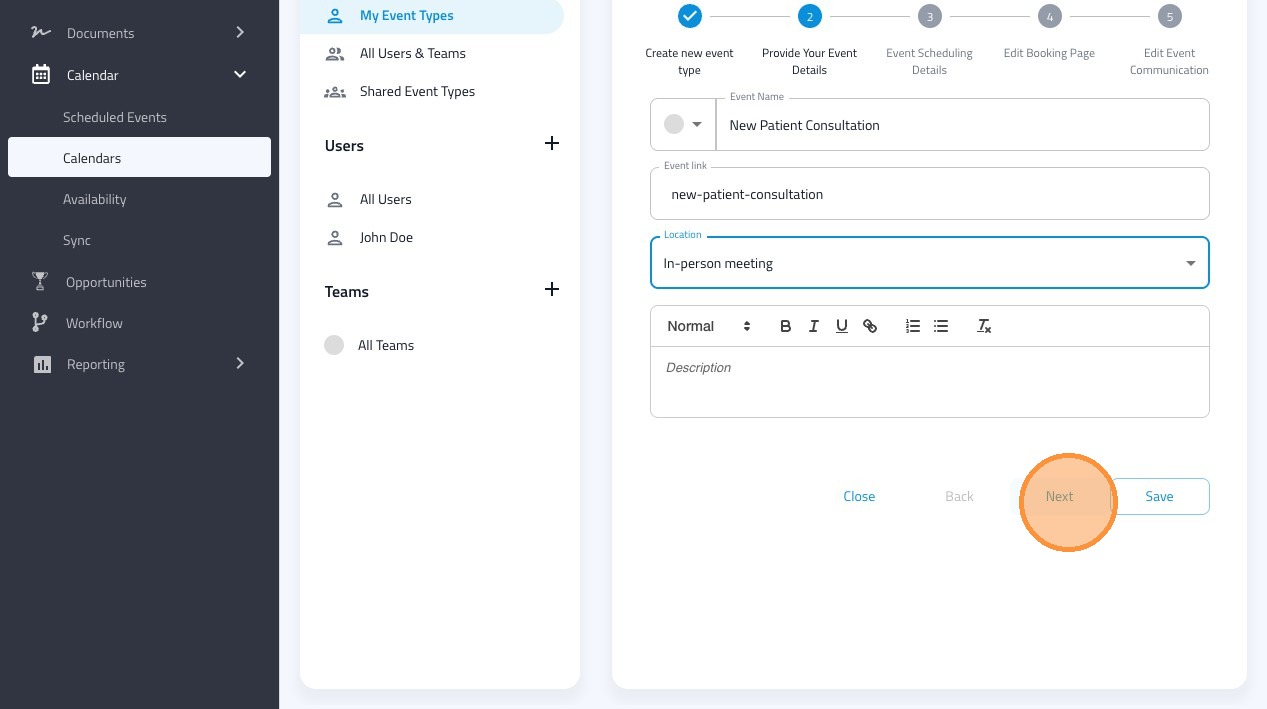
10. Click "Next" to save and add availability for the event
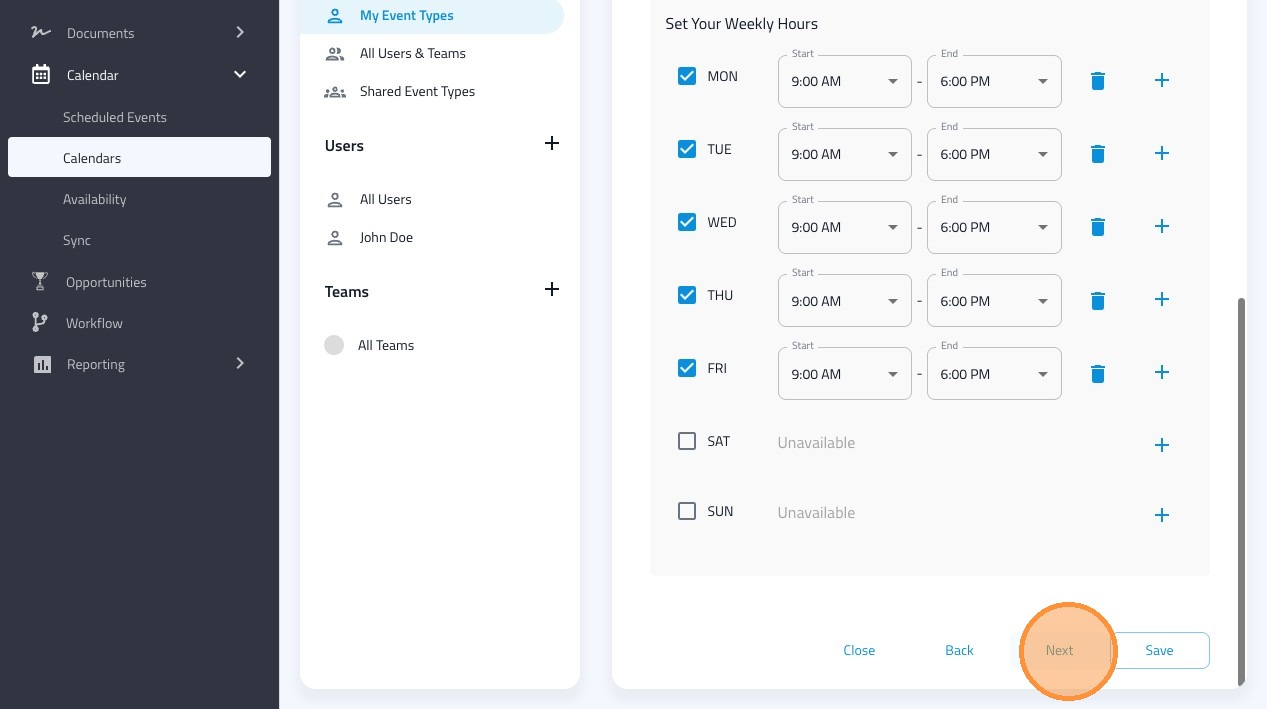
11. Adjust the hours and days this event is available
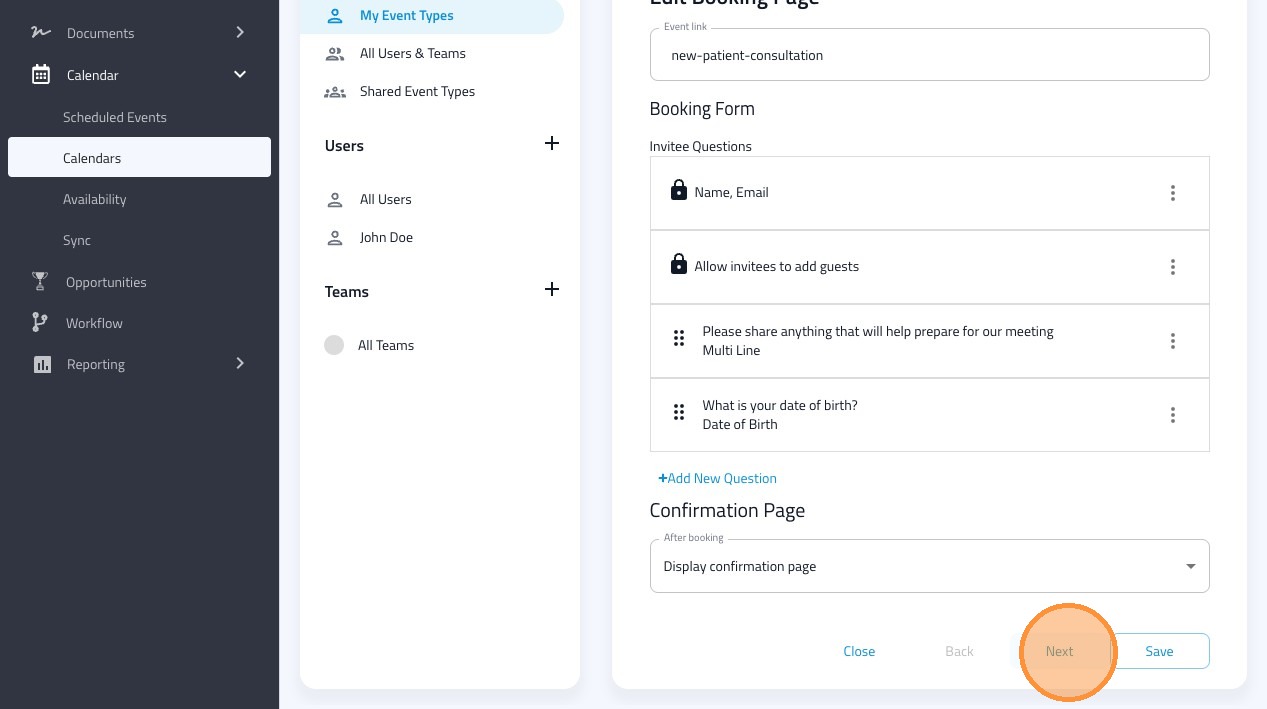
12. Edit the questions seen on the book page
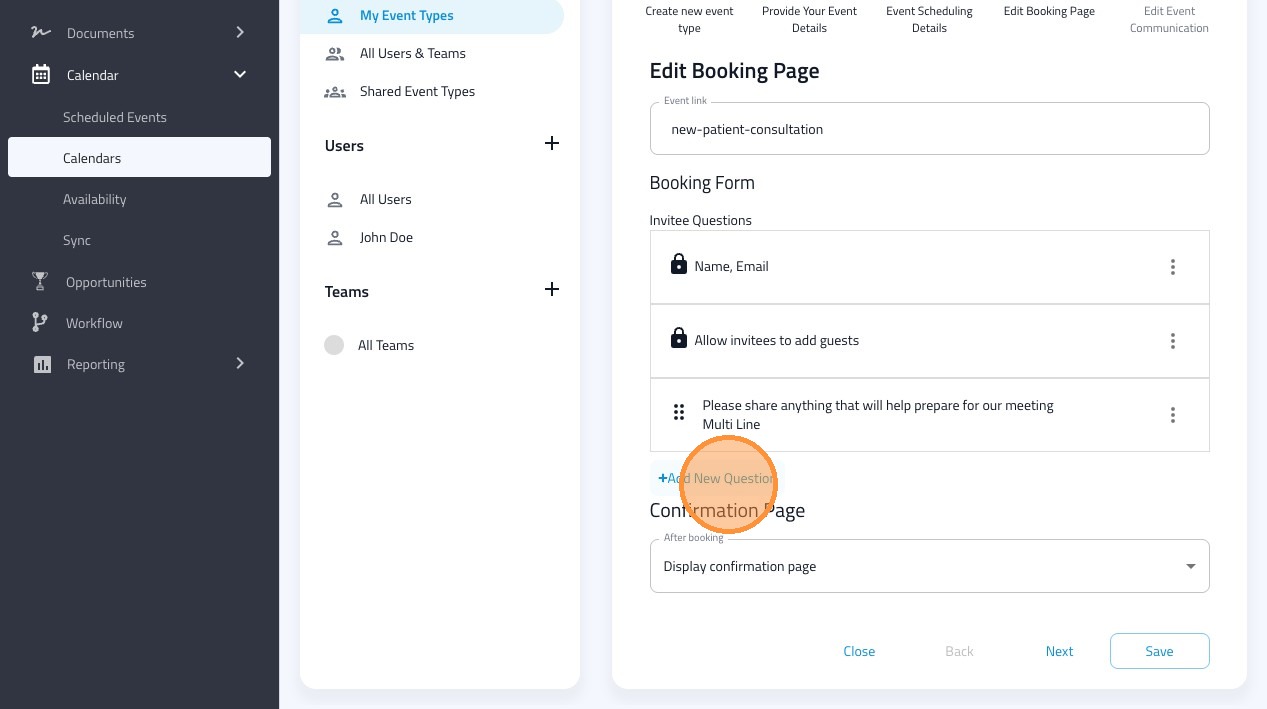
13. Add custom questions to ask your bookies
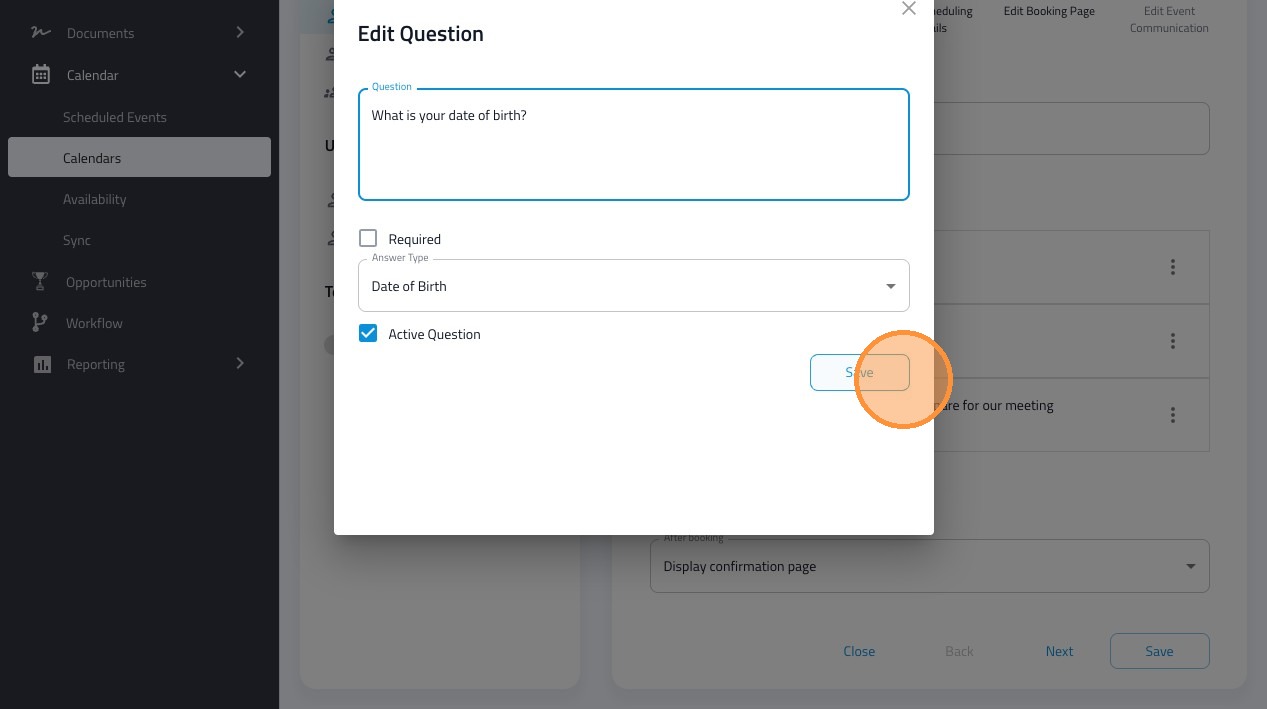
14. Click "Save" and then "Next" to adjust the event communication
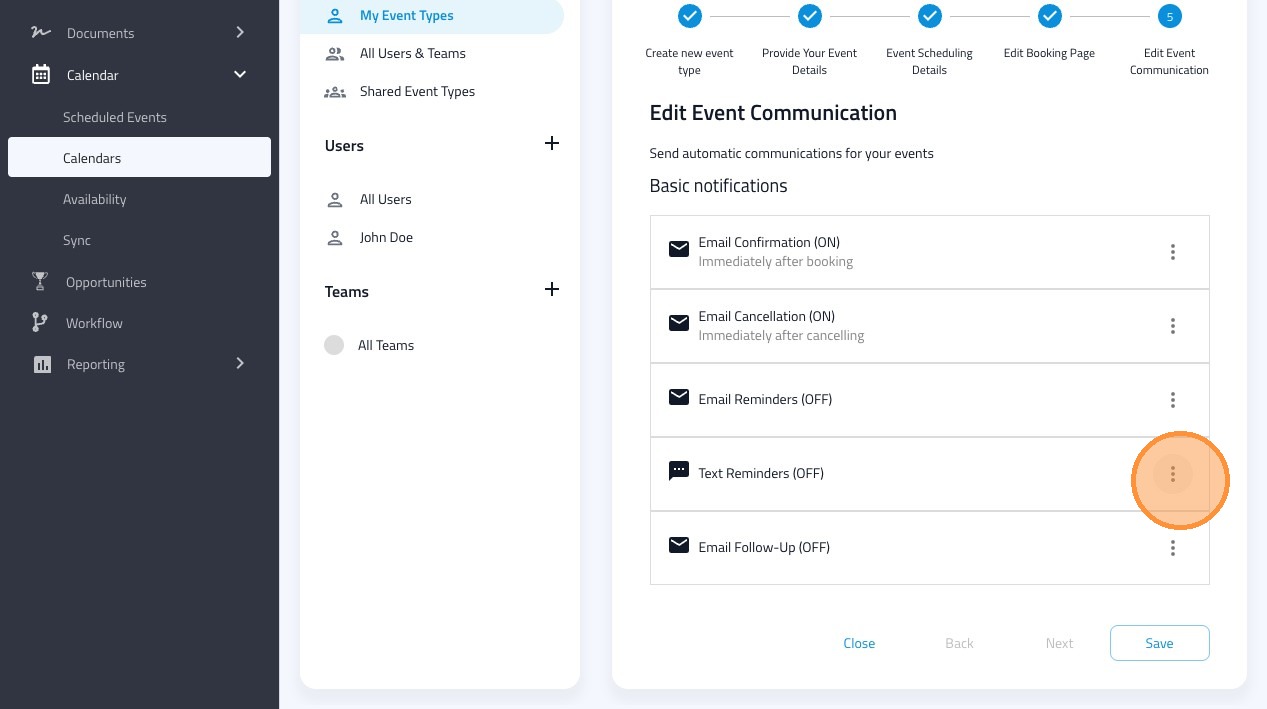
15. Adjust when the event reminders will be scheduled and sent
16. Click the "Disabled" toggle to enable the event notifications
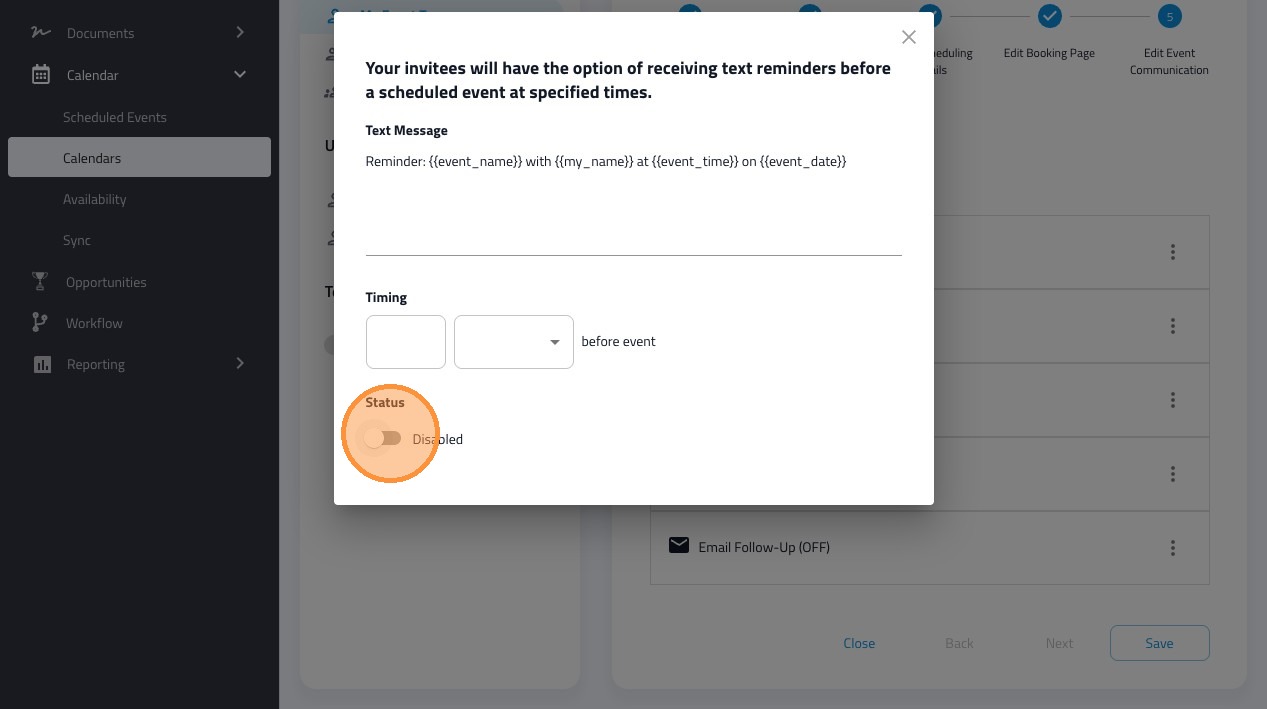
17. Adjust the timing the notification will go out before the event.
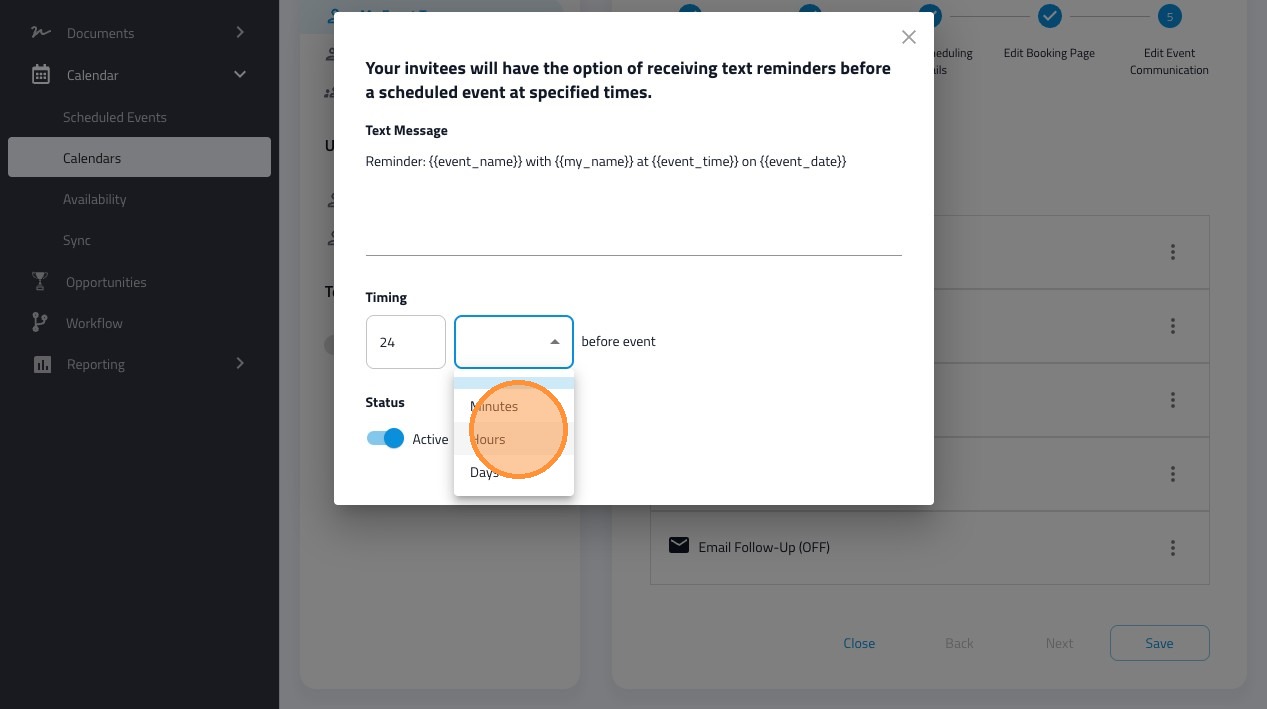
18. Adjust the content in the message reminders
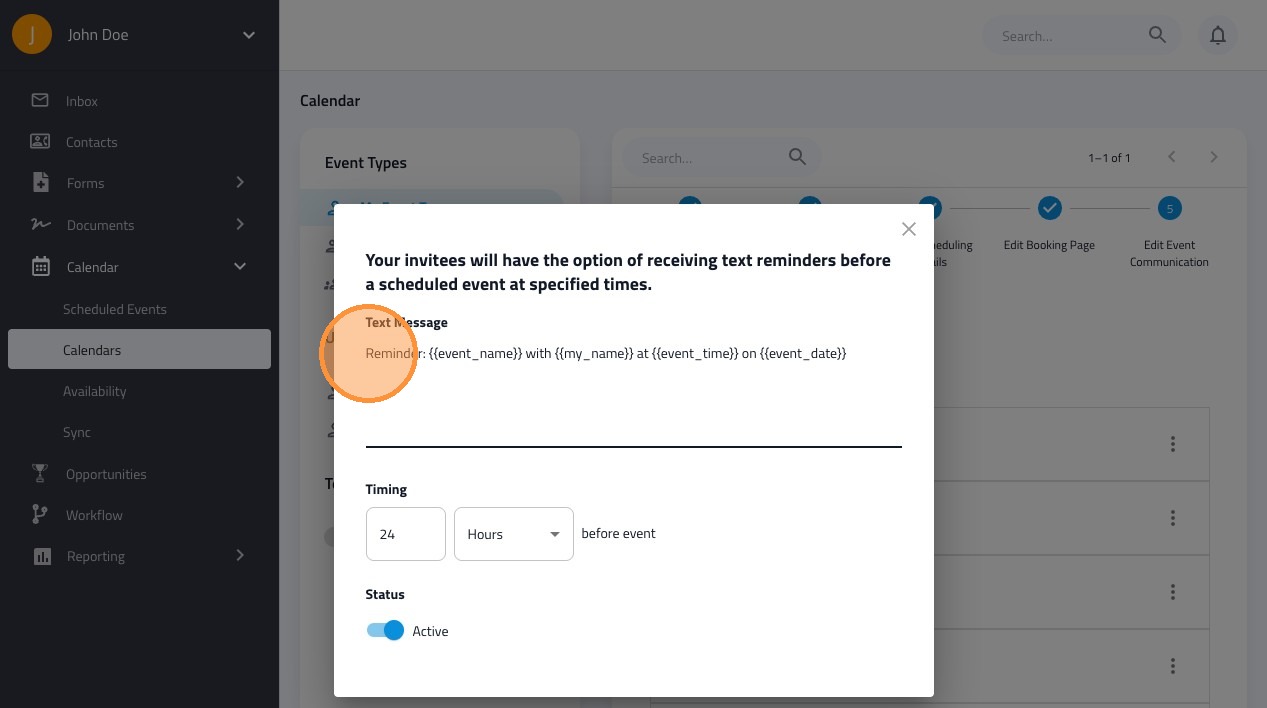
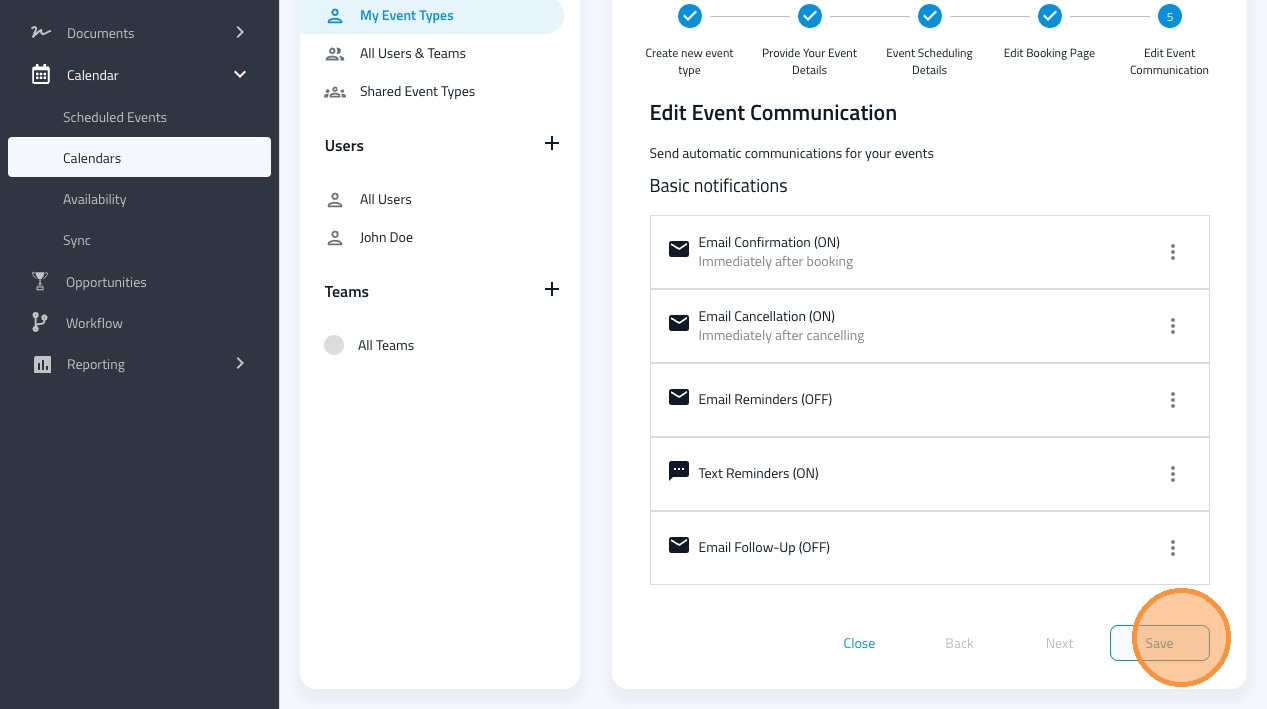
19. Click "Save"
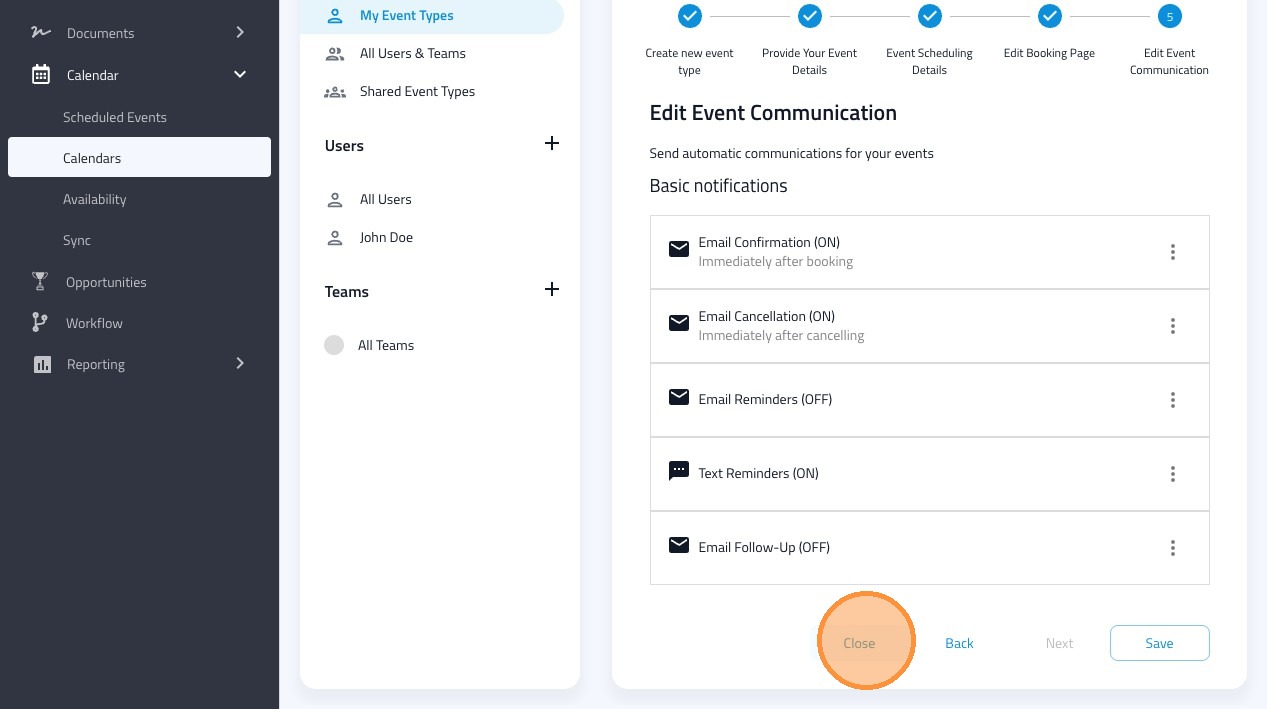
20. Click "Close"
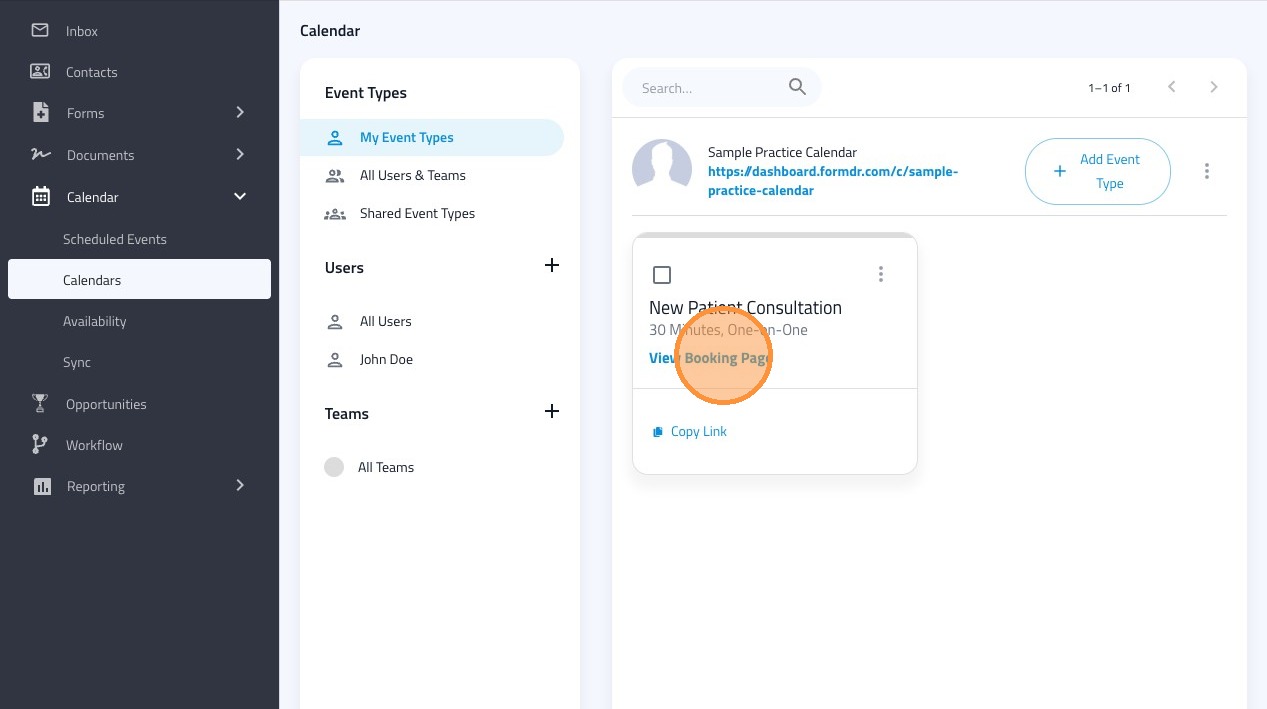
21. Click "View Booking Page" to see the public booking page that can be sent to patients.
22. Schedule a test appointment to see the workflow patients will experience.