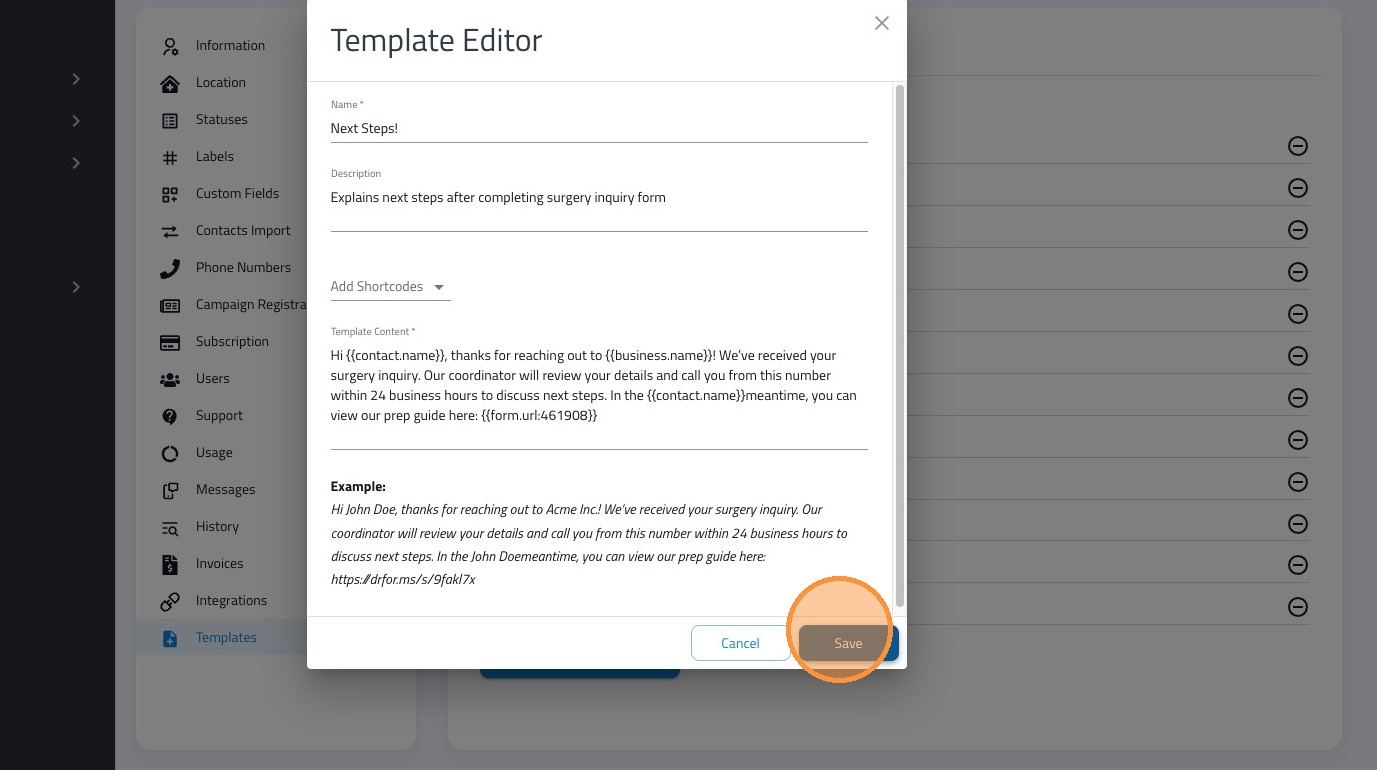
This guide walks you through building a library of standardized, professional SMS Templates.
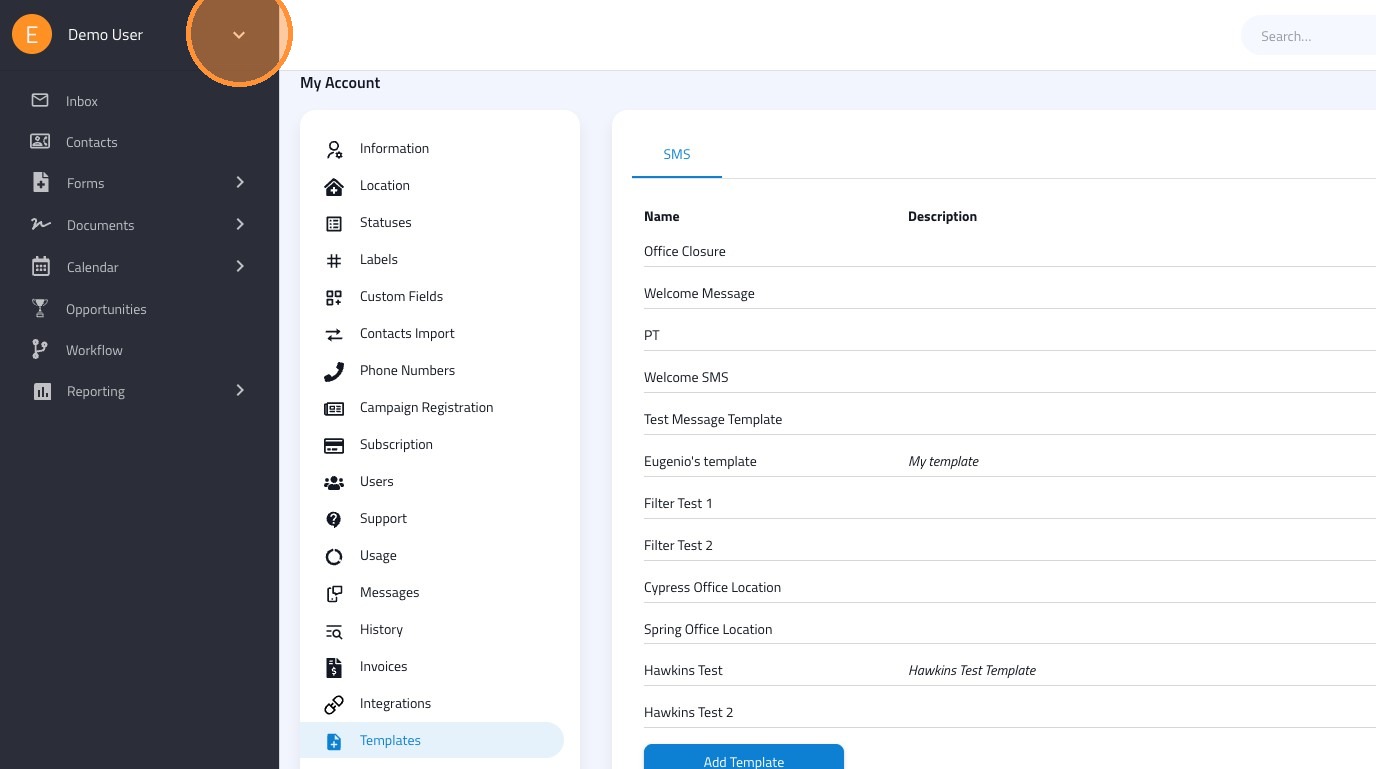
1. Click on the the chevron next to your name.
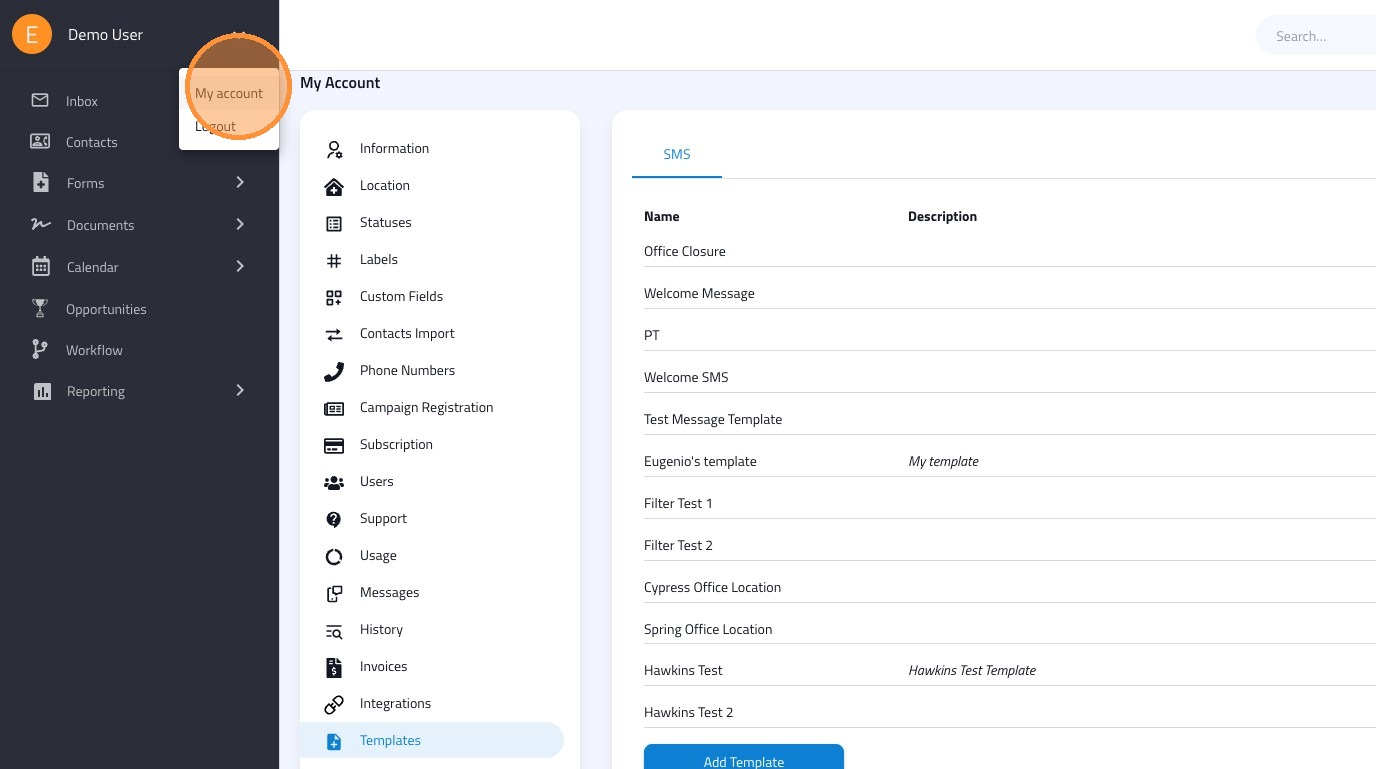
2. Select "My account" from the dropdown menu
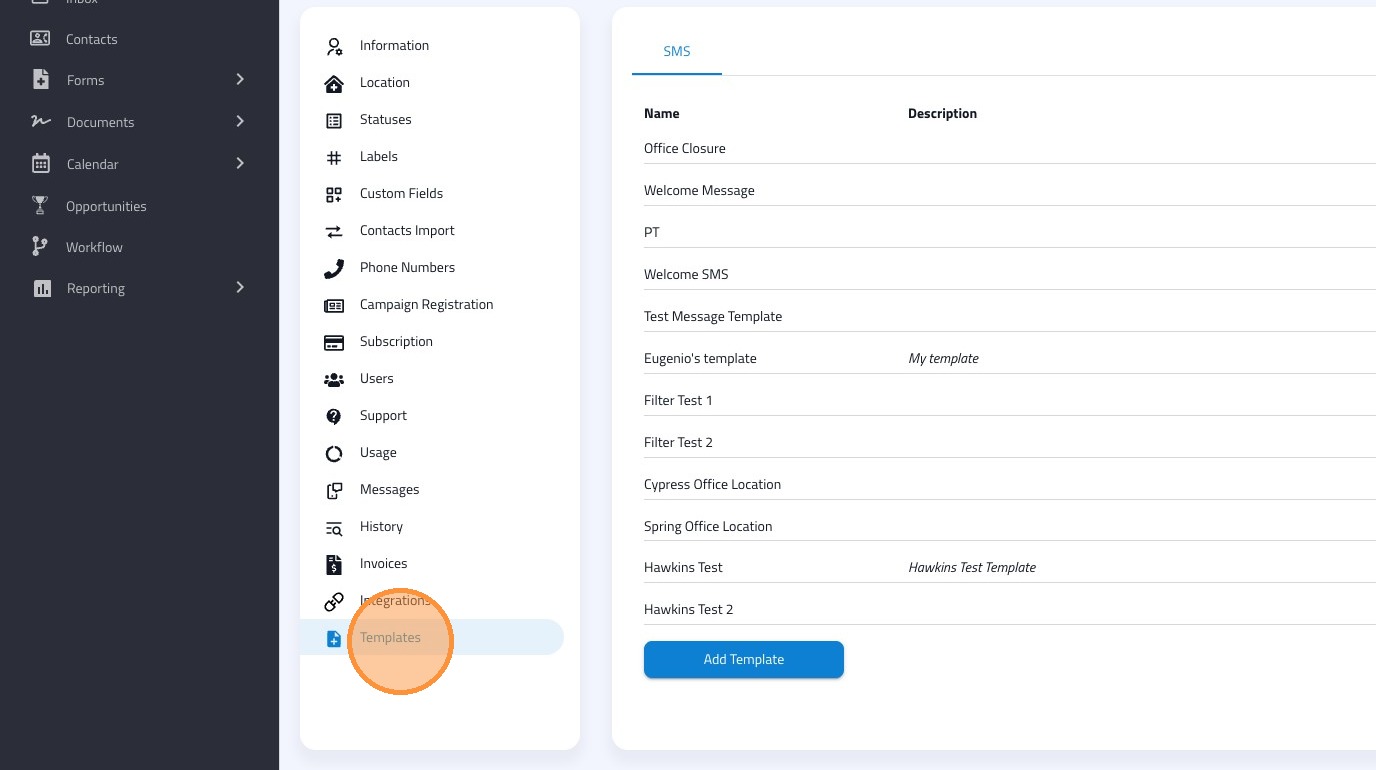
3. Click the "Templates" tab
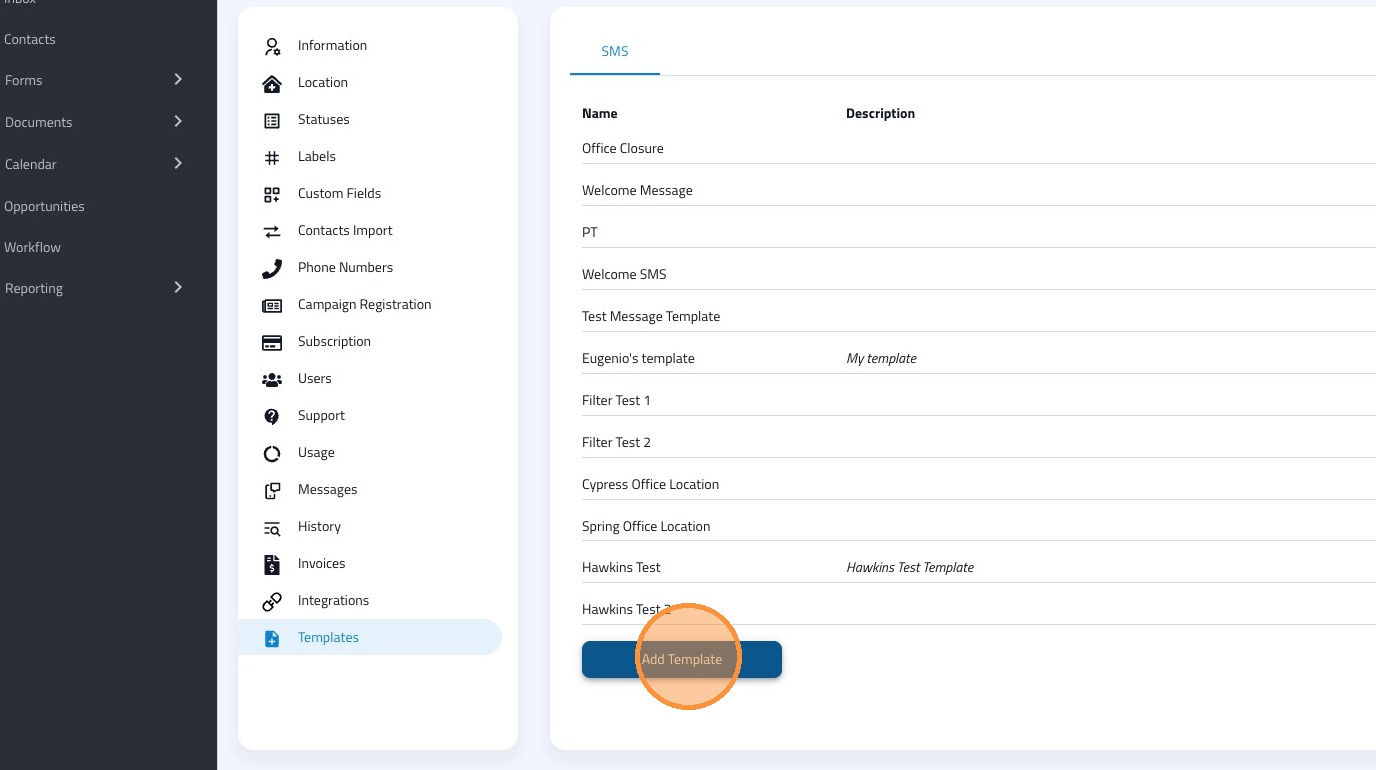
4. Click the "Add Template" button to start a fresh draft
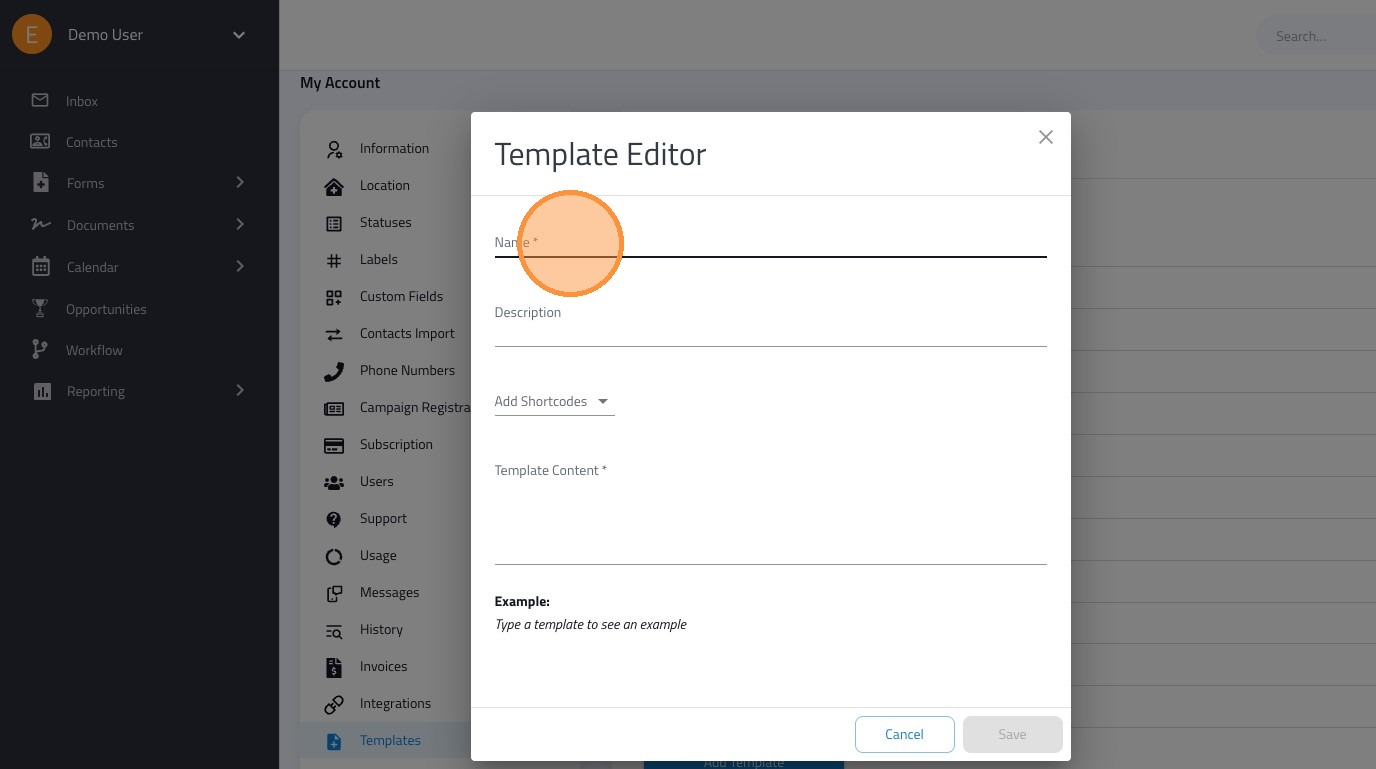
5. Click the "Name" field and enter a clear title
Tip: Use a name that’s easy for your team to identify, like "New Patient Inquiry" or "Office Closure.
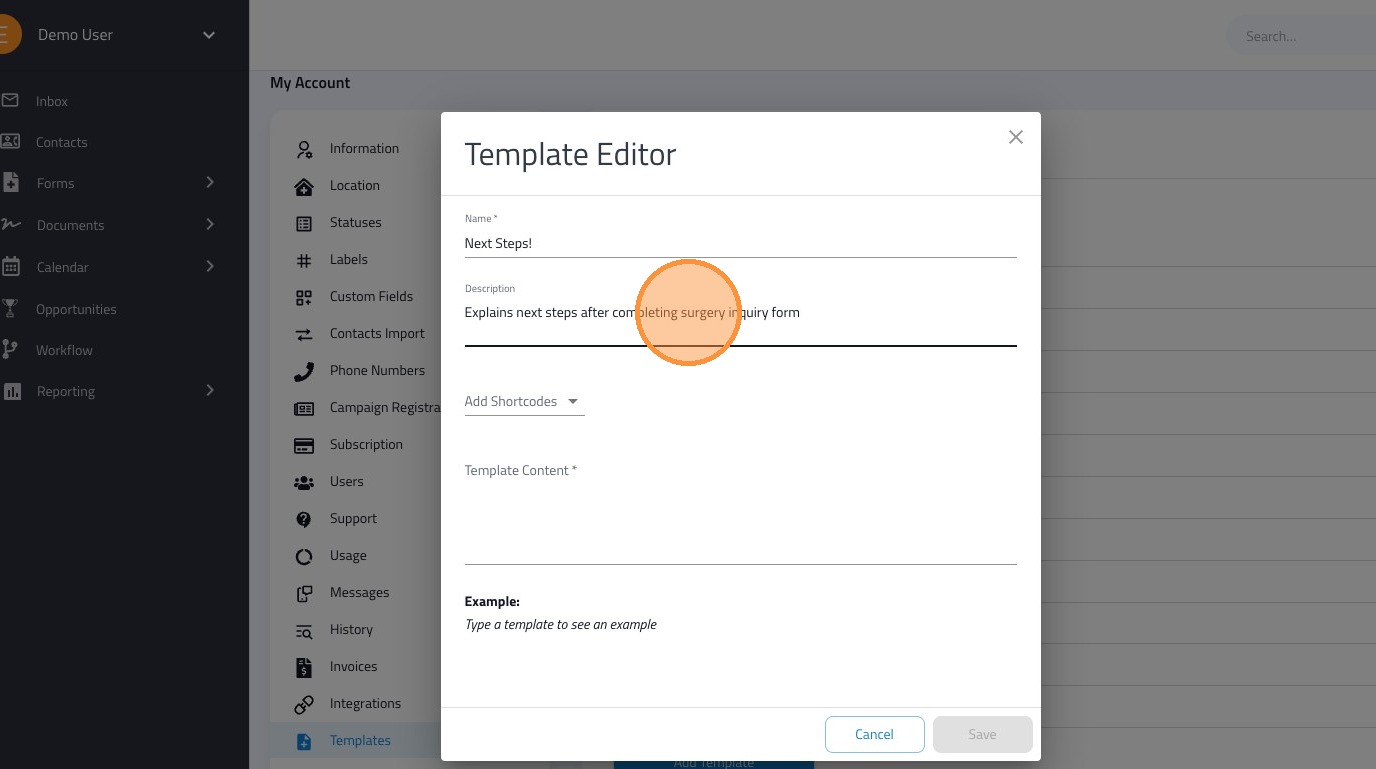
7. Optional: Use the "Description" field to note when this template should be used.
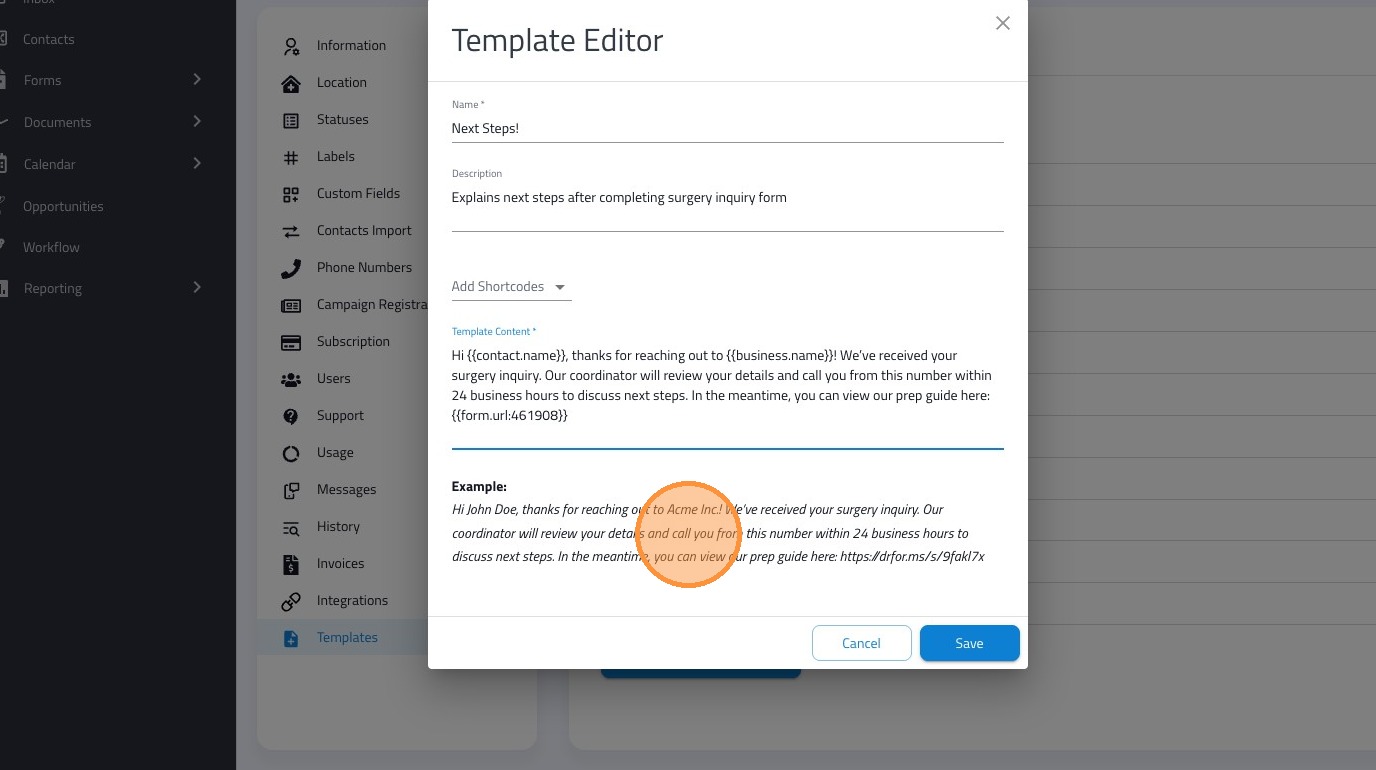
8. Click into the "Template Content" box to start typing your message
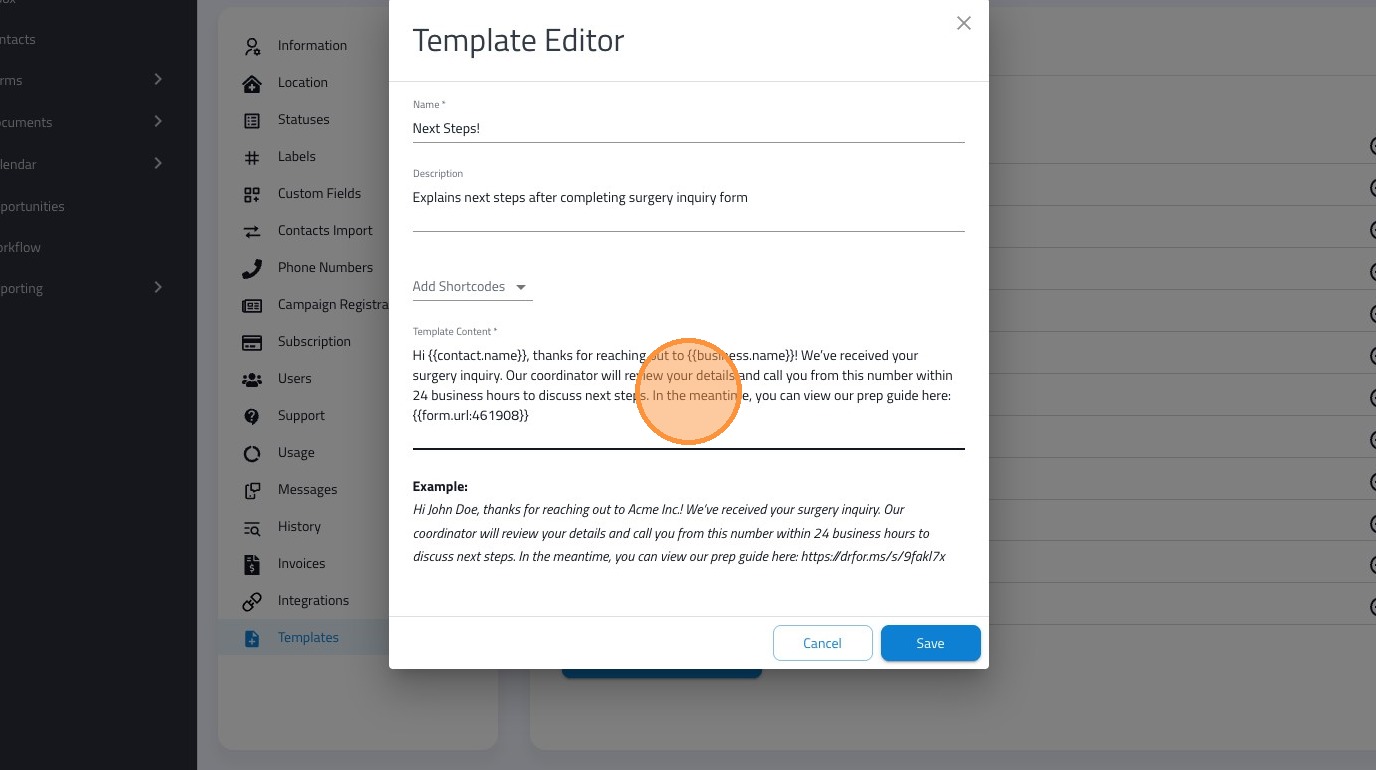
Tip: Review the text message preview below the content box. This shows you exactly how the message will appear on a patient’s mobile device.
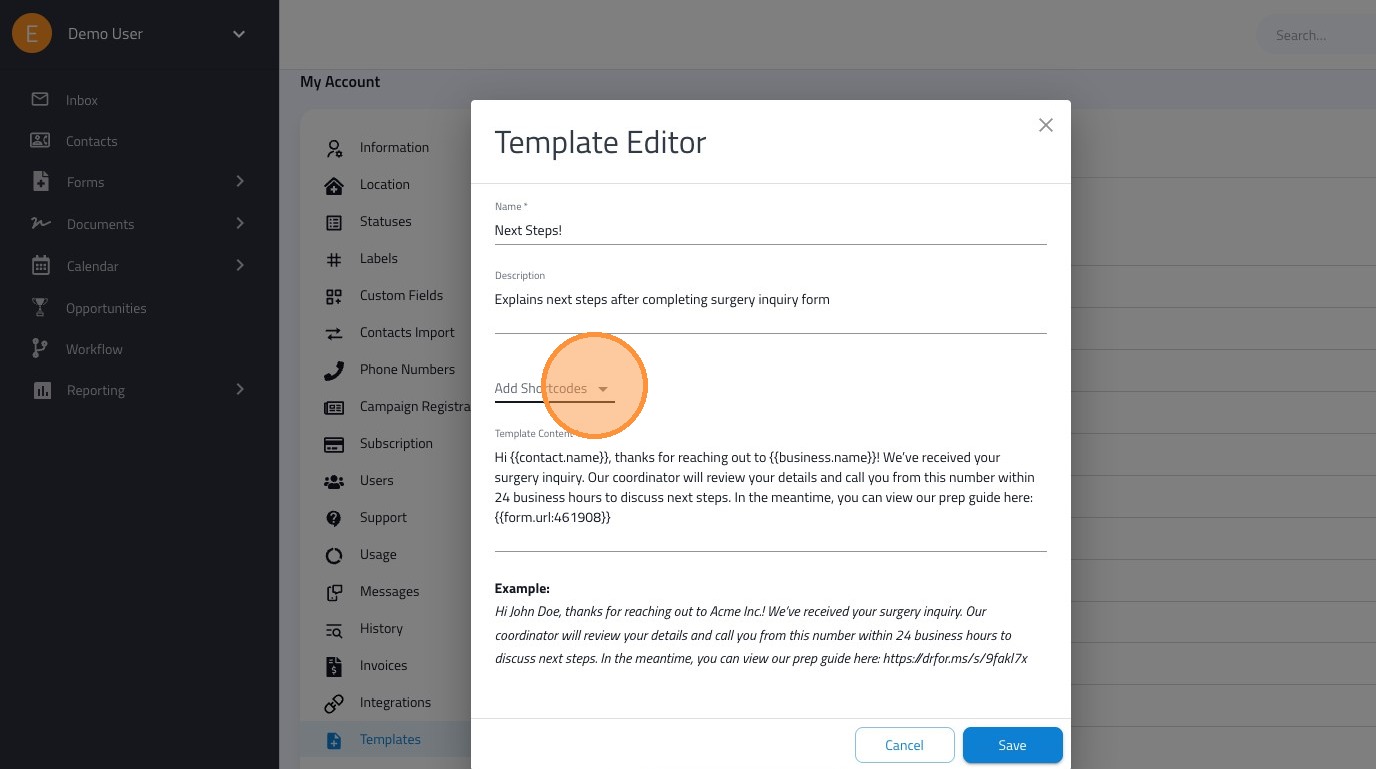
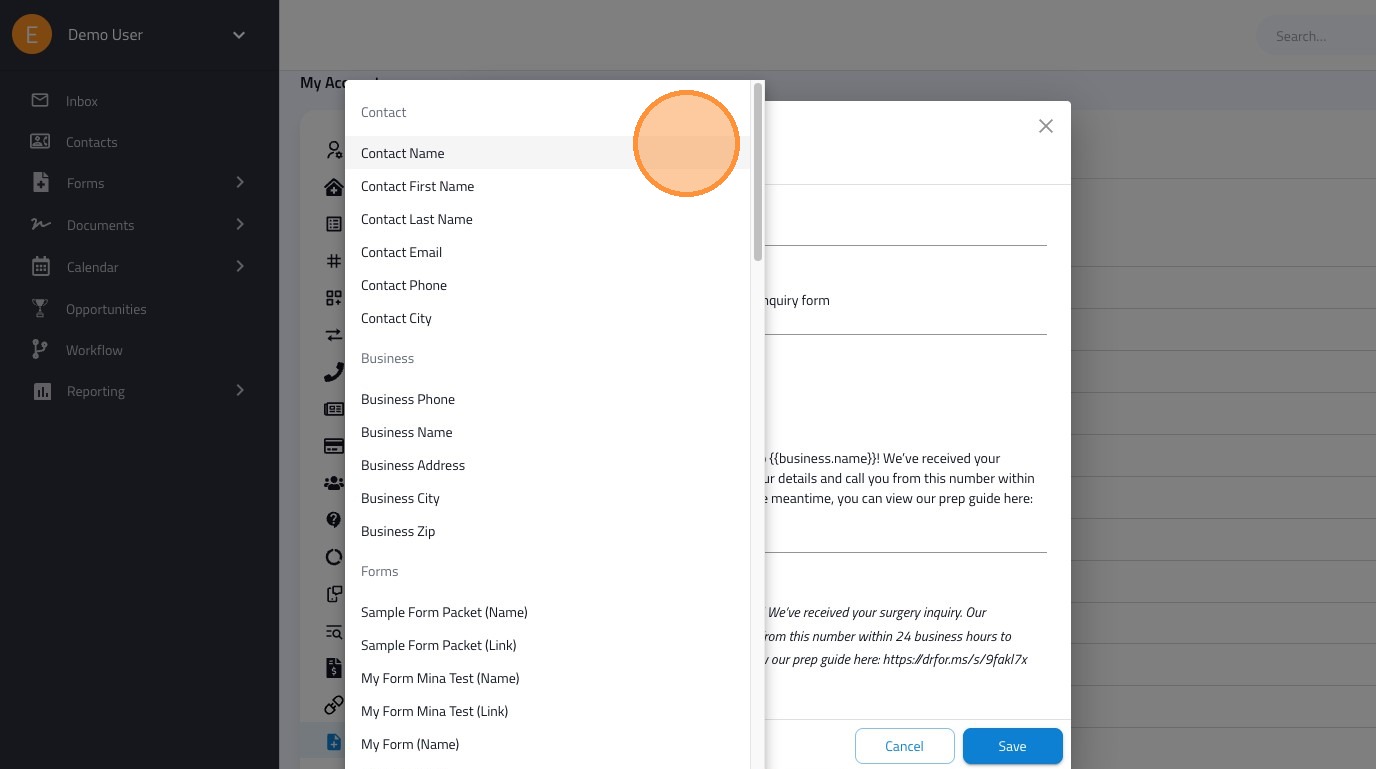
9. Click the "Add Shortcodes" dropdown to insert dynamic data.
Tip: Use this to automatically pull in information like Contact Name, Business Name, or Form Links so you don't have to type them manually.
10. Click "Save"