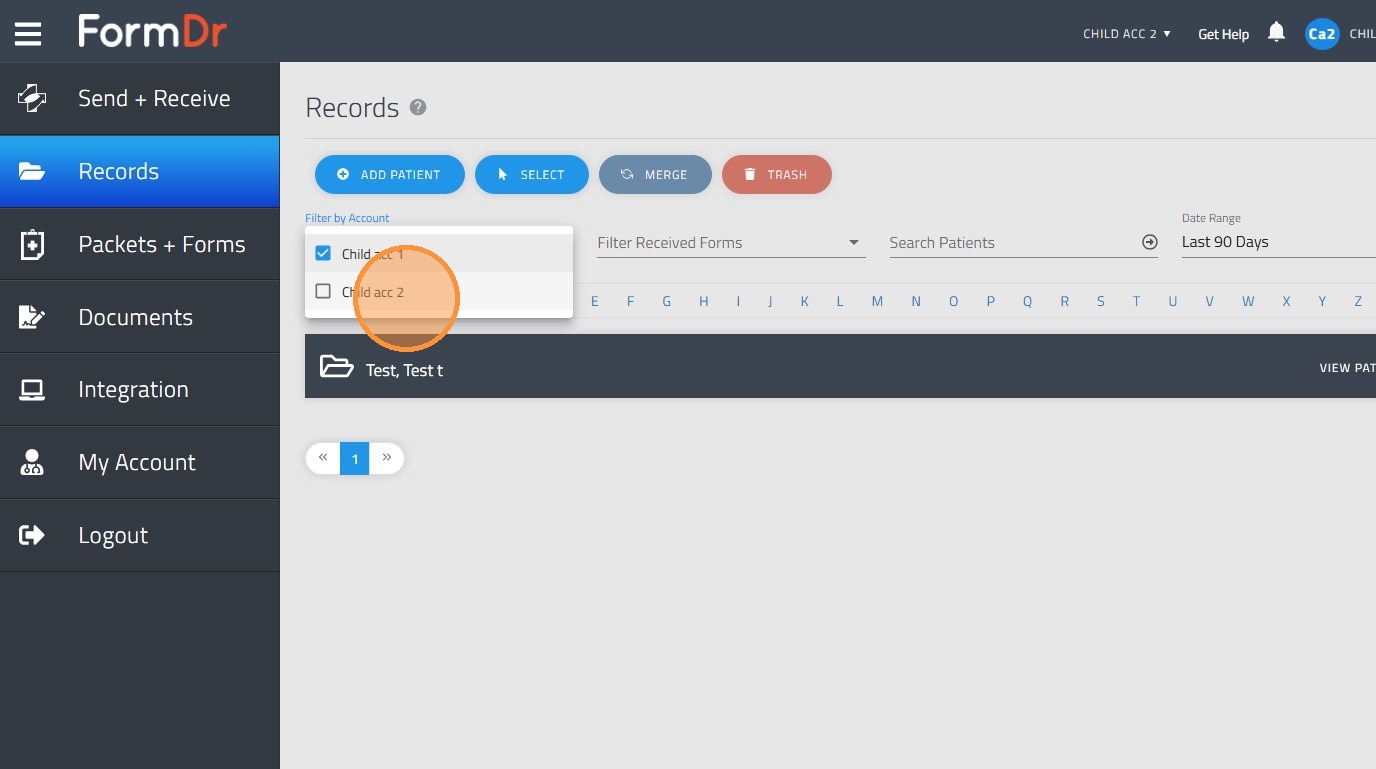
Learn how to navigate the FormDr portal to manage child accounts within your network. This guide covers how to switch and log into different accounts, access shared forms, and view or filter shared patient records efficiently.
How to log into different accounts
1. Log into the admin user account in order to verify the child account has access to other accounts.
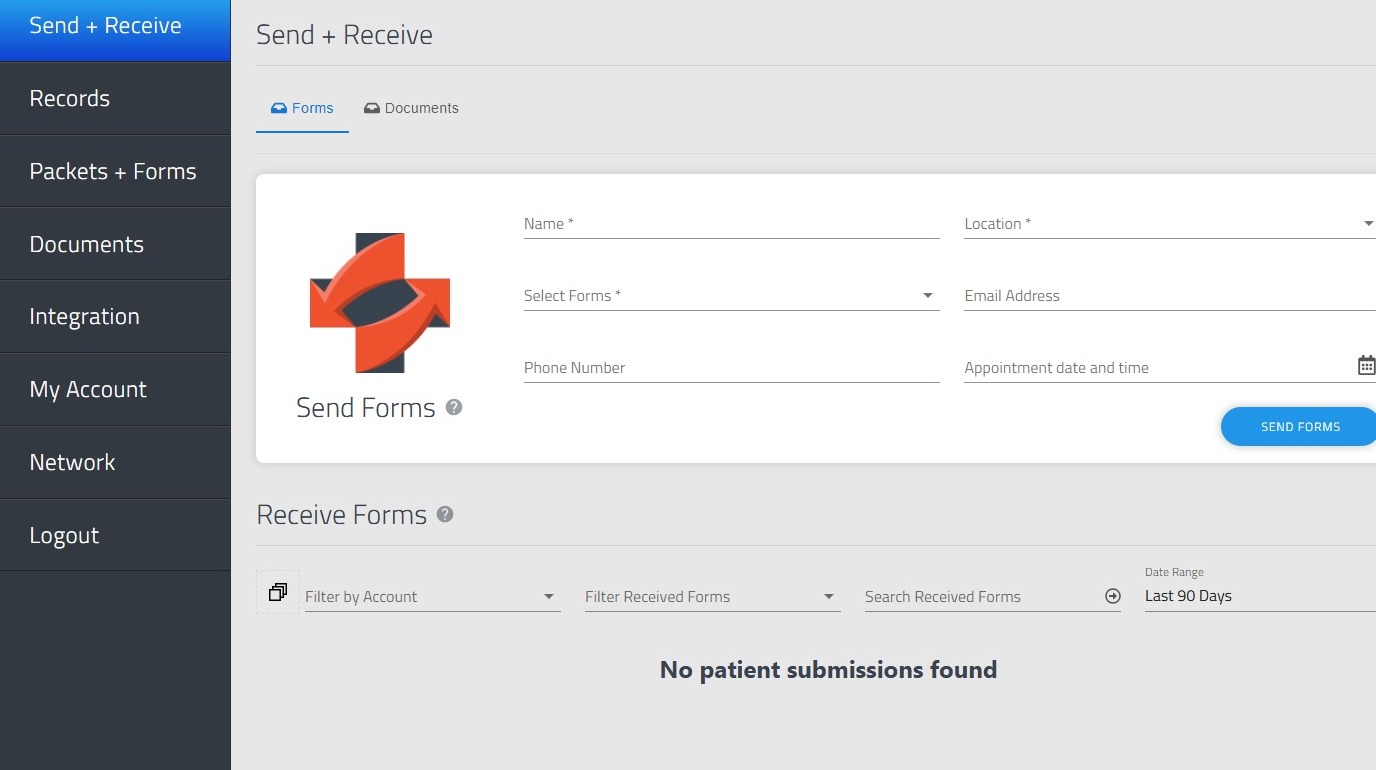
2. Click "Network" tab and go to the 'Admin' tab
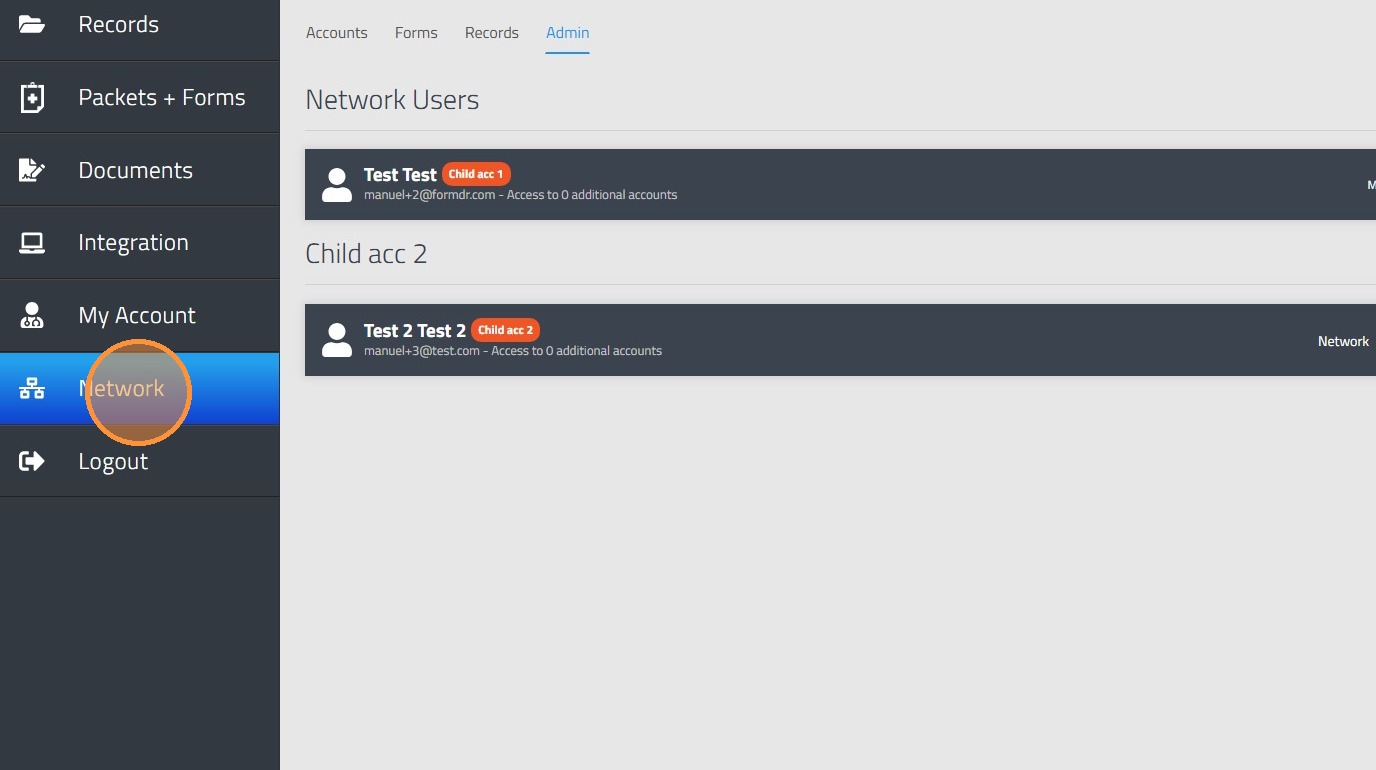
3. Give the child account admin network access to assign them to other child accounts.
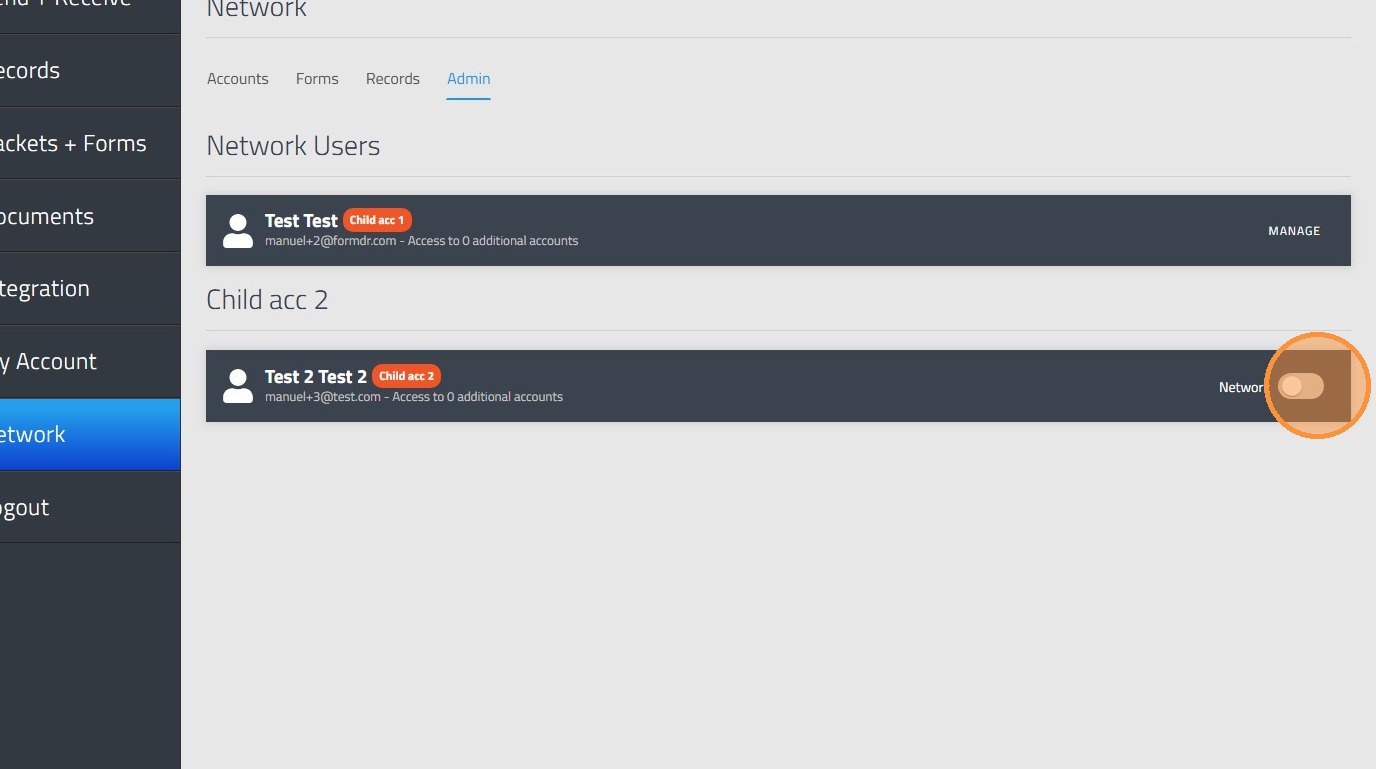
4. Select "Manage" to choose which accounts this user can access.
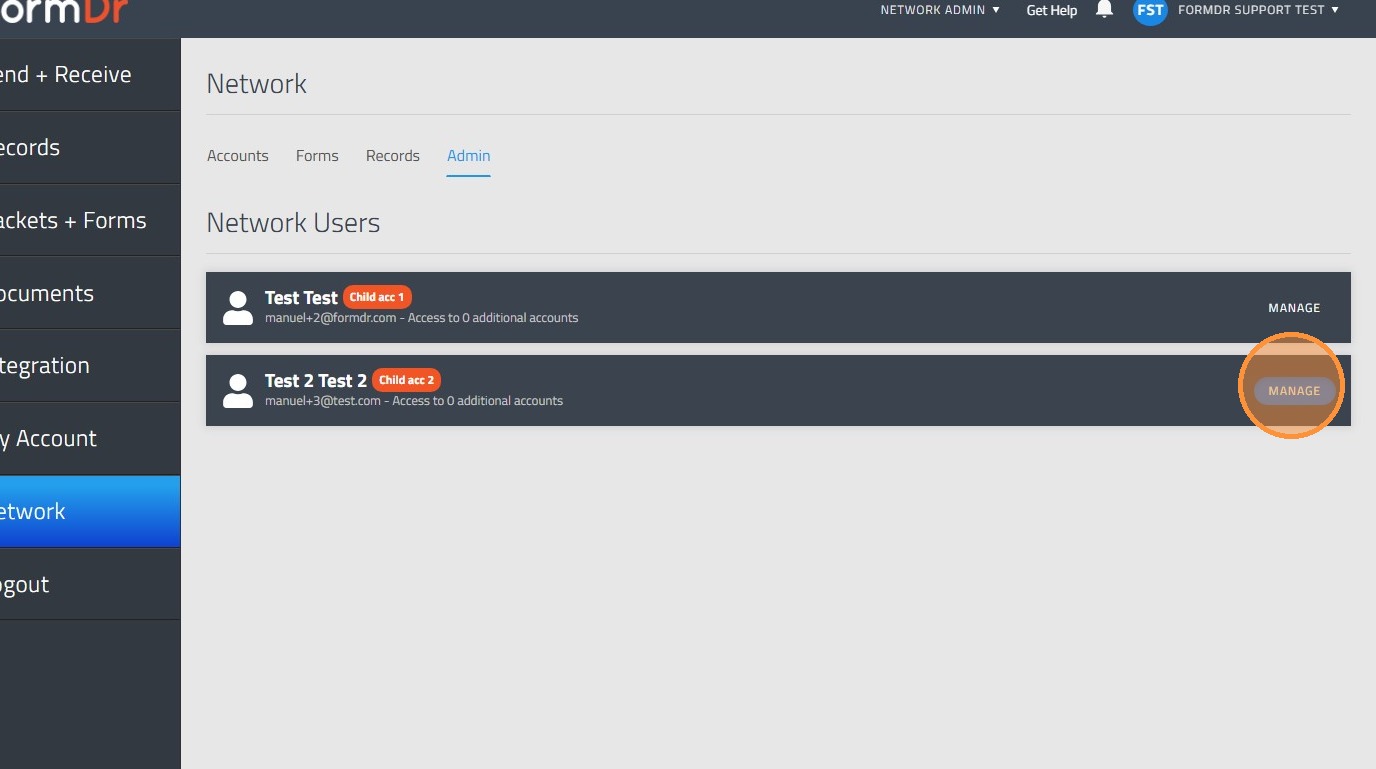
5. Click the account you want to share.
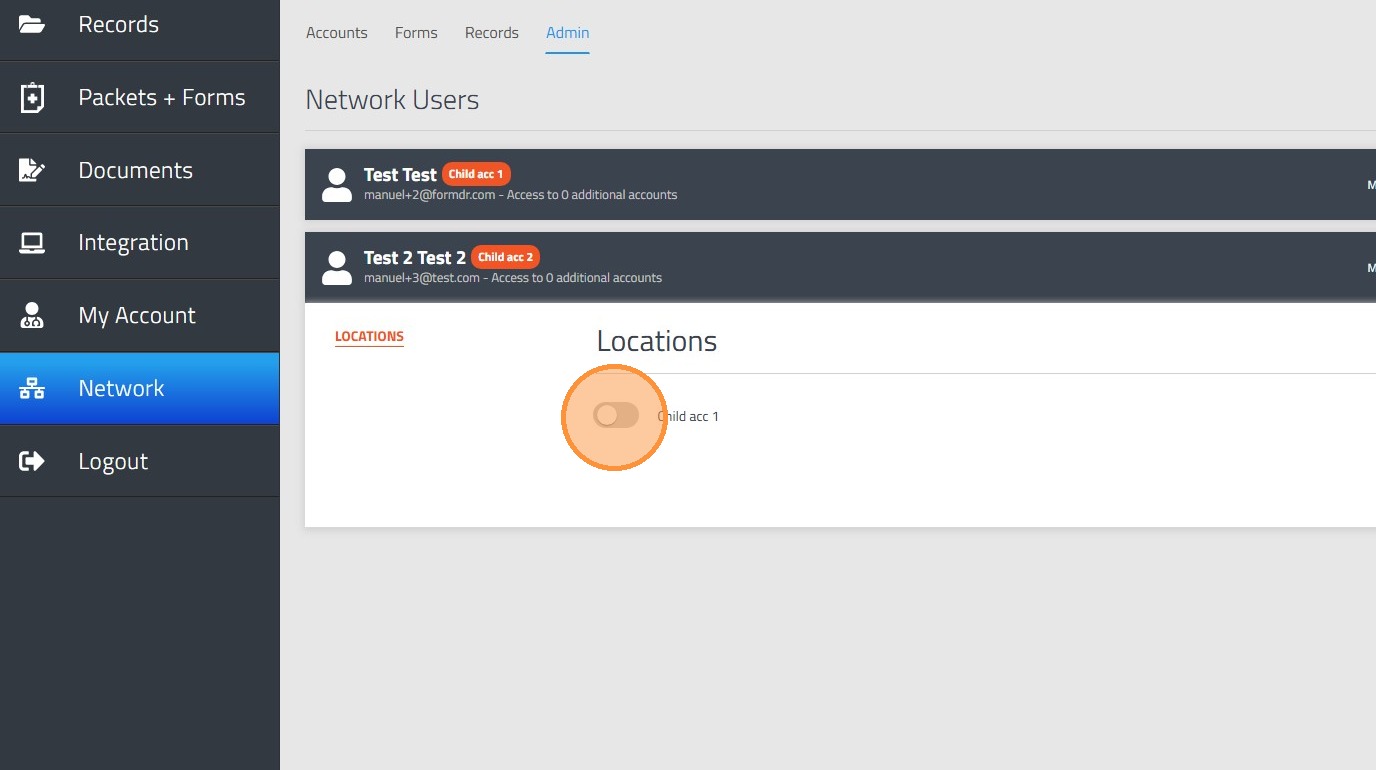
6. Click "OK" to confirm your selection
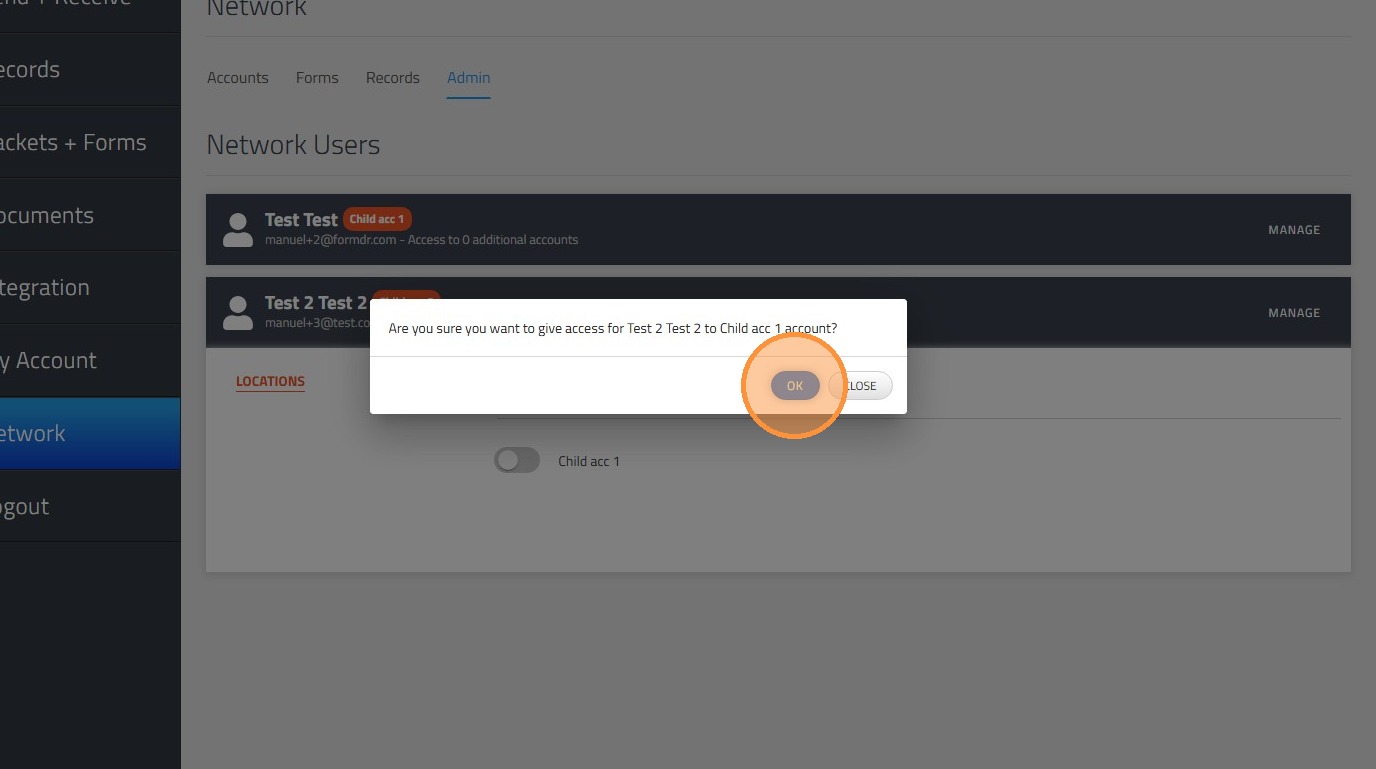
7. After providing access to other accounts, the child account's admin user will have a dropdown to swith between accounts
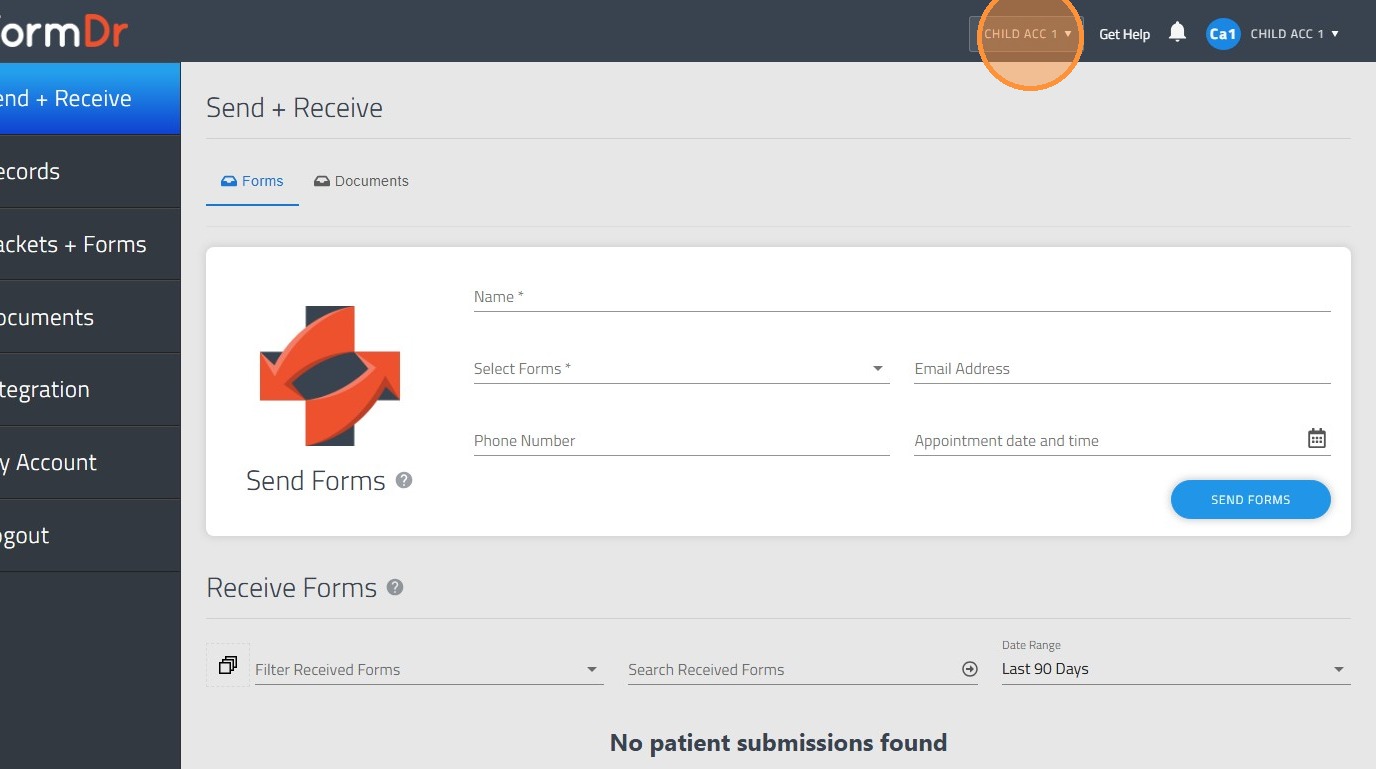
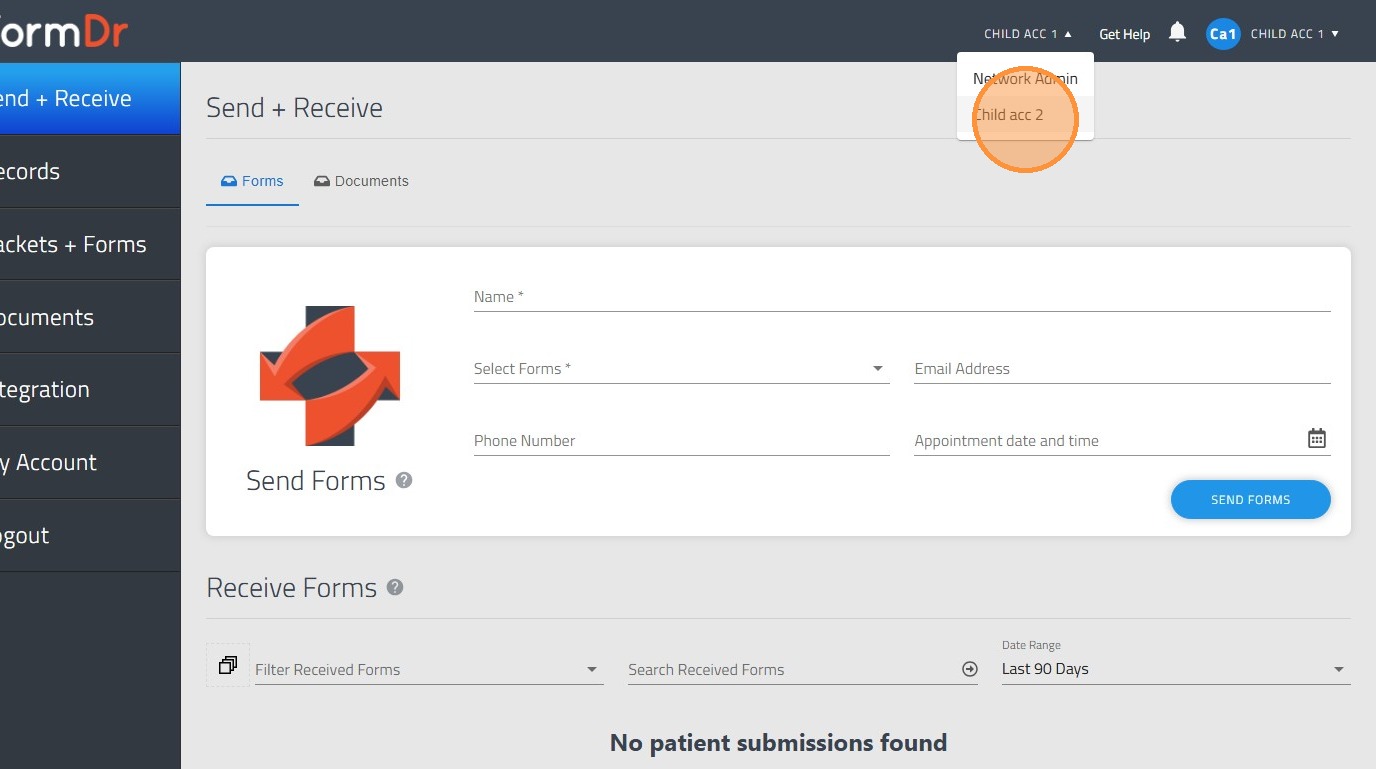
8. Click the account name dropdown
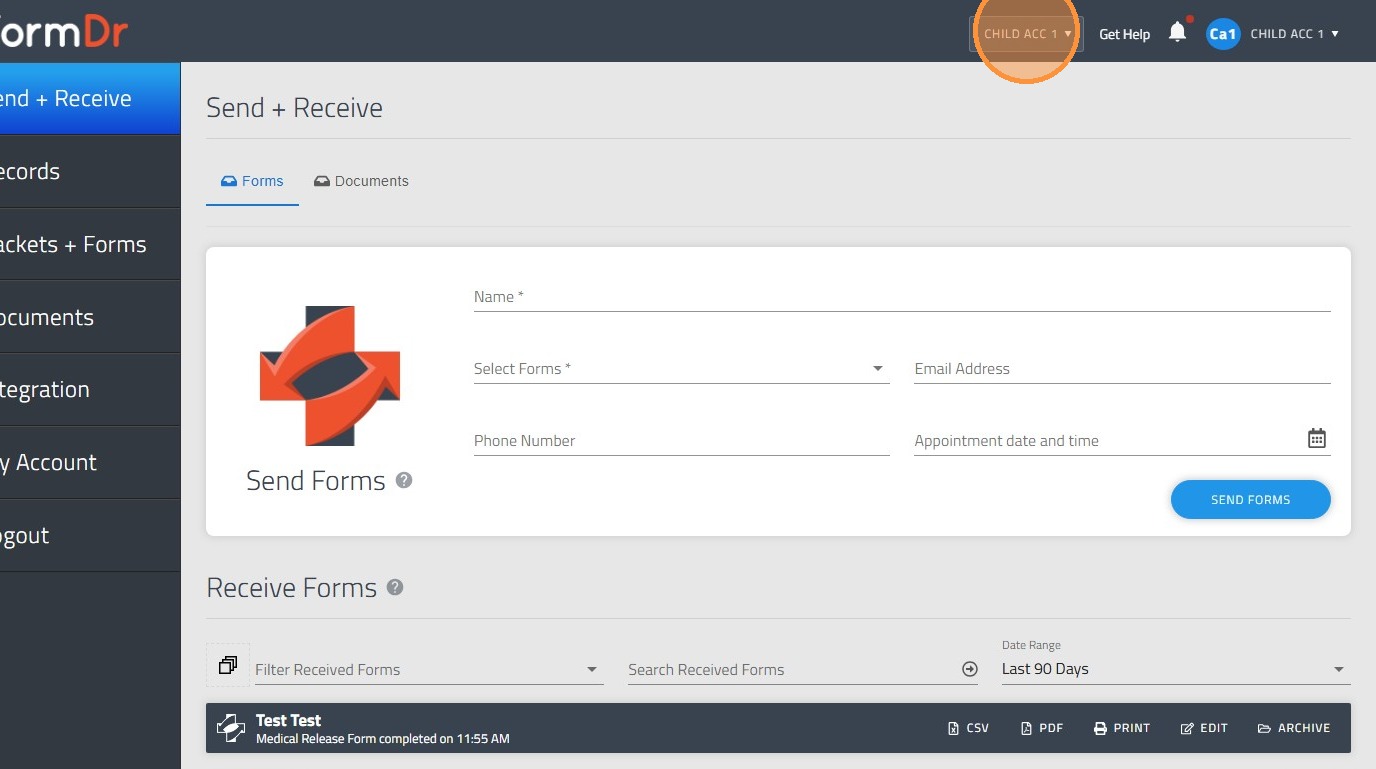
9. Select the account you want to log in.
Alert: Pasos para compartir forms
How to view and use shared forms
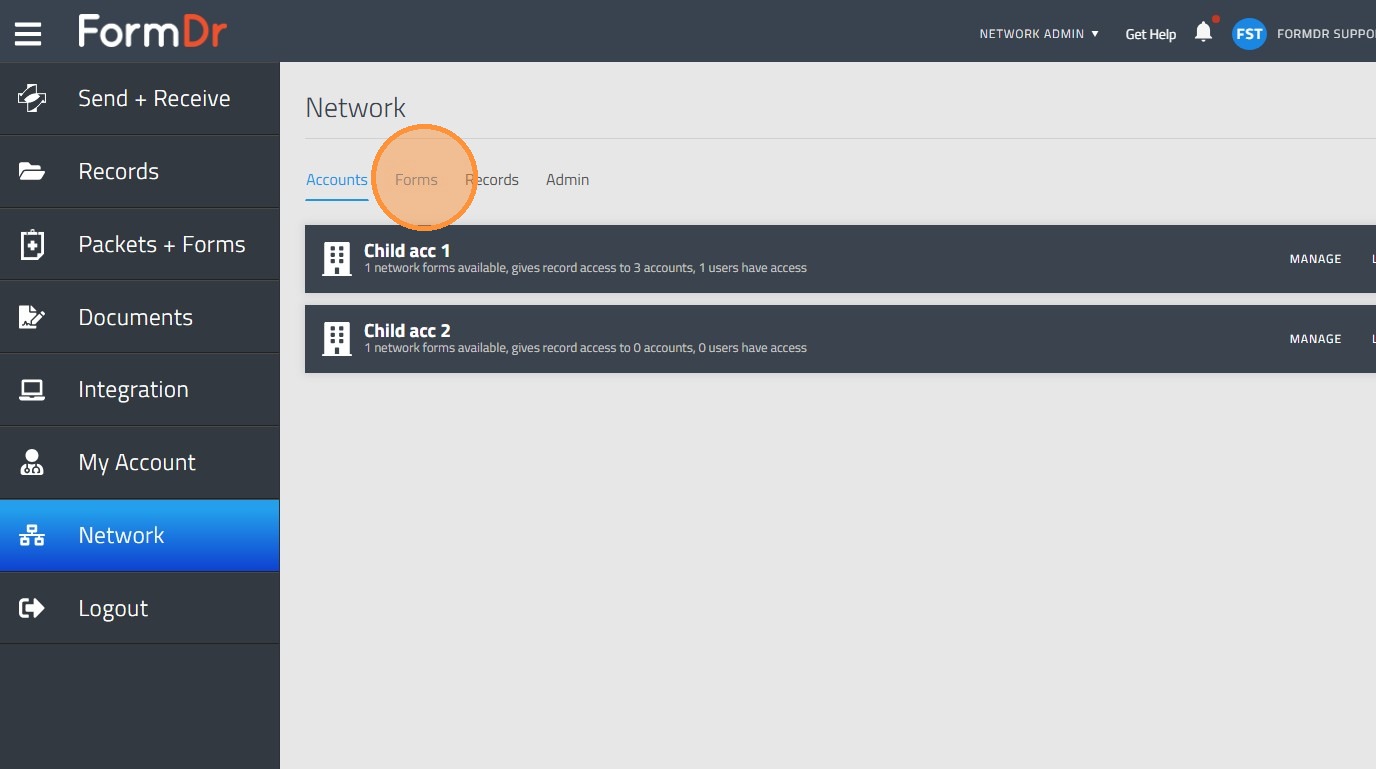
10. The first step is to confirm that the forms are shared with the account you want to use.
11. Click "Forms" in order to see the network available forms.
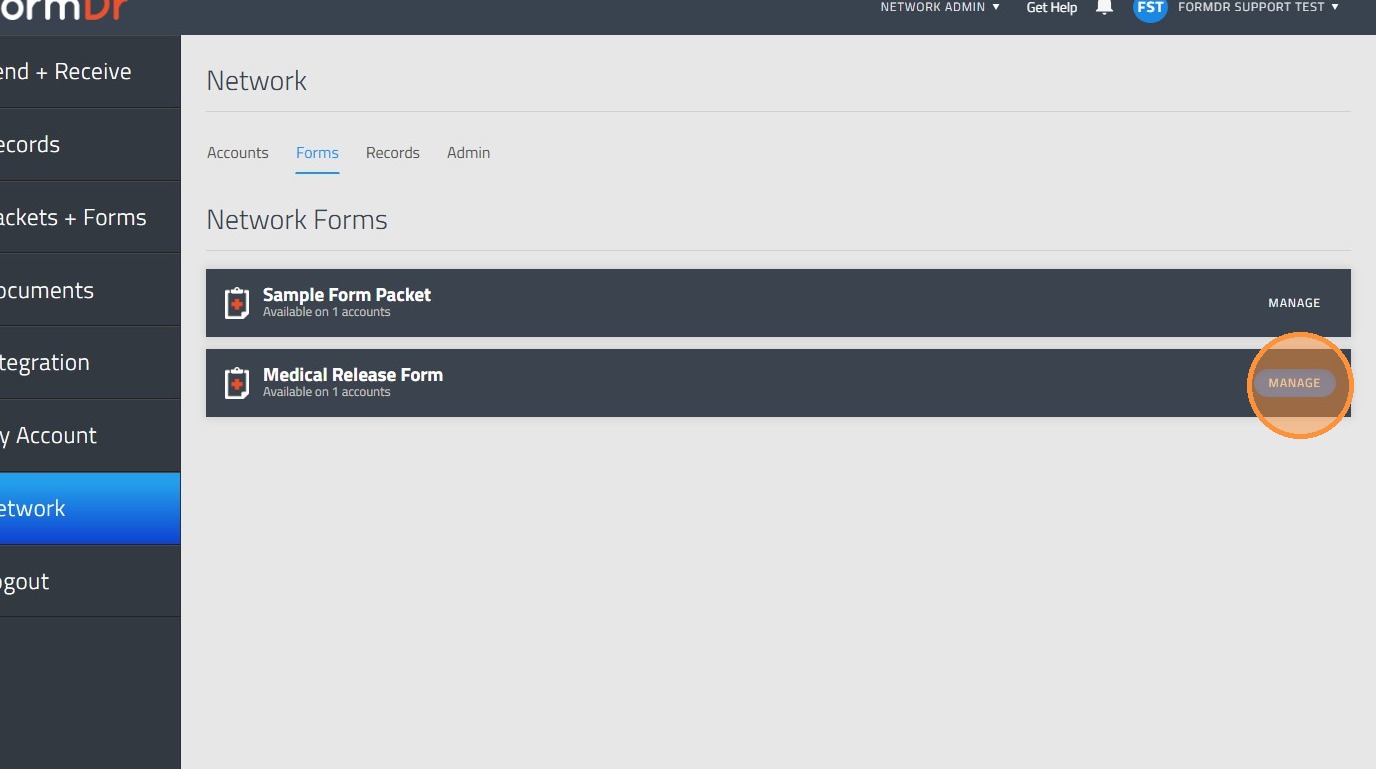
12. Click "Manage" on the form you want to share.
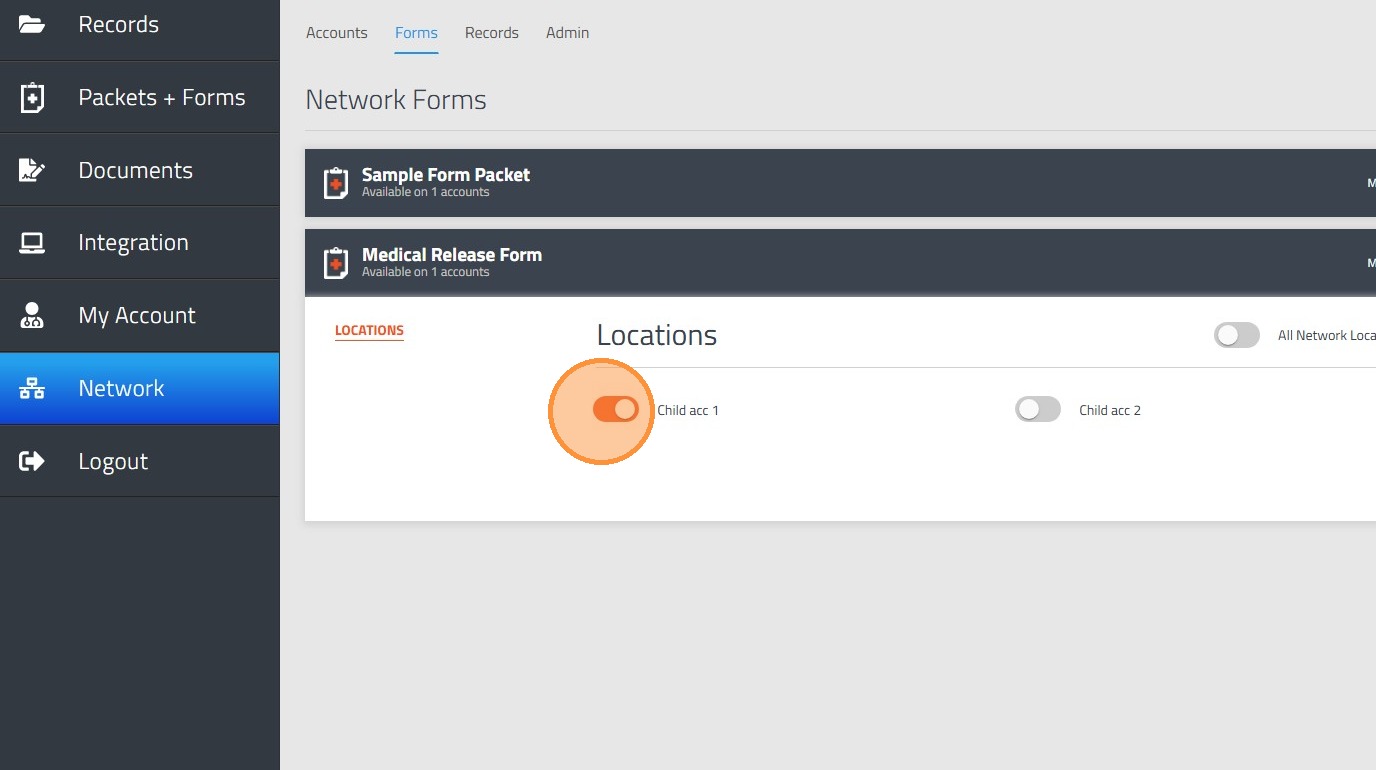
13. Toggle on the locations you need to have the form.
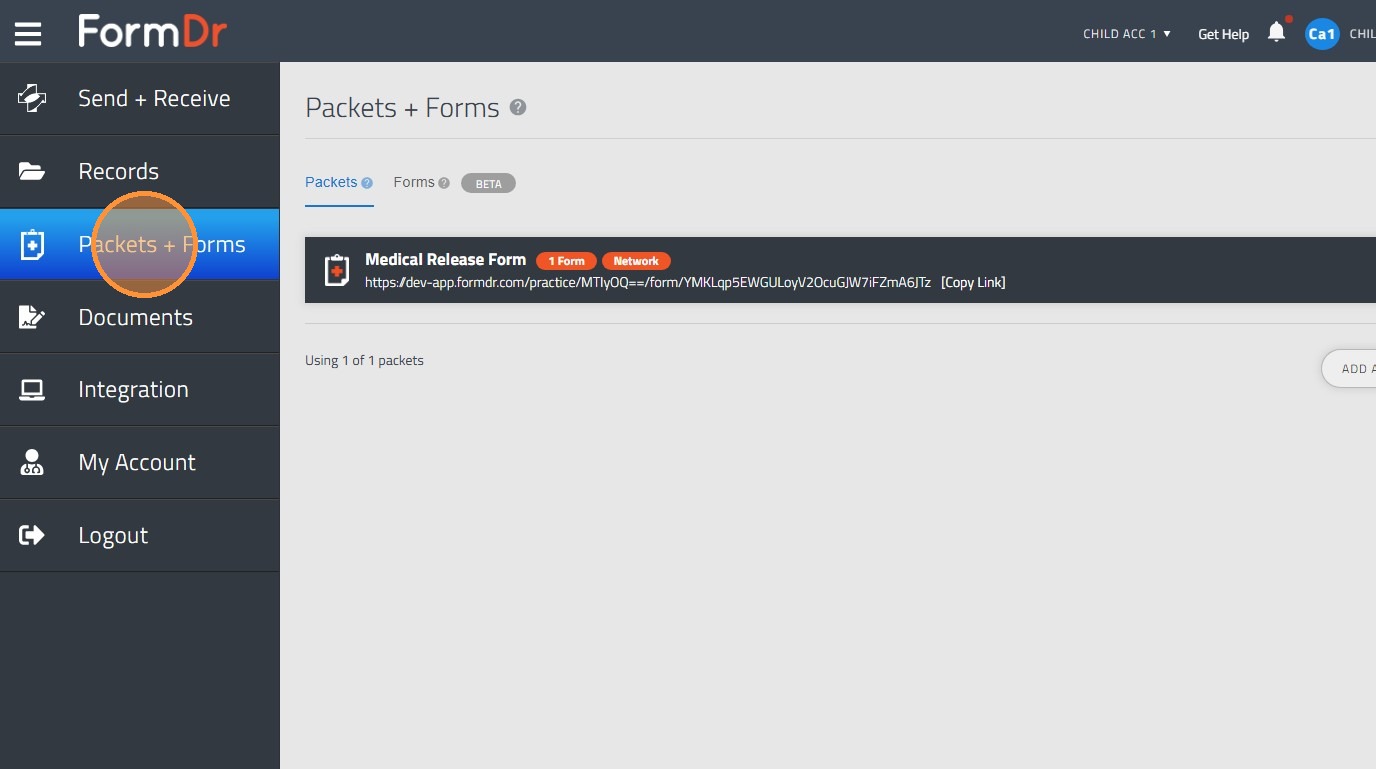
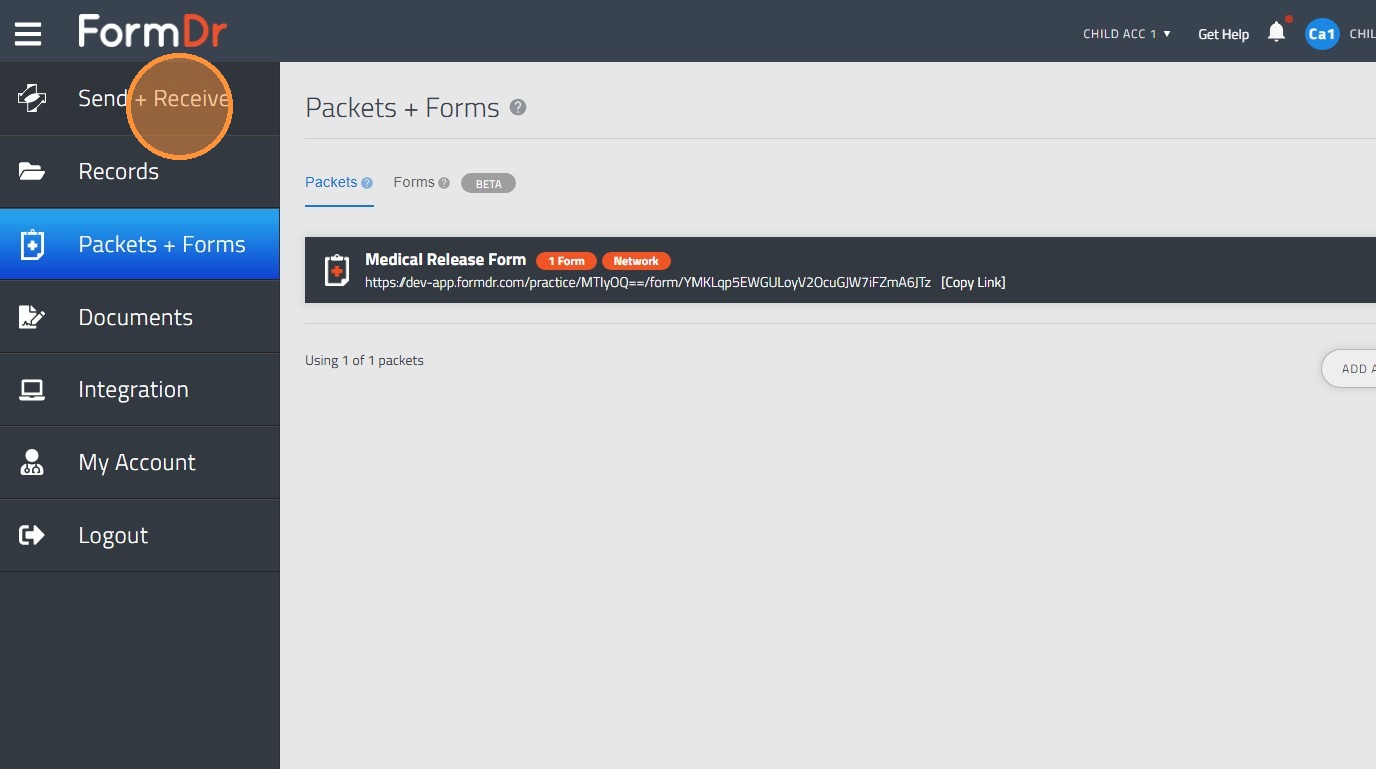
14. Once in the child account, go to the "Packets + Forms" tab to see the list of shared packets or forms.
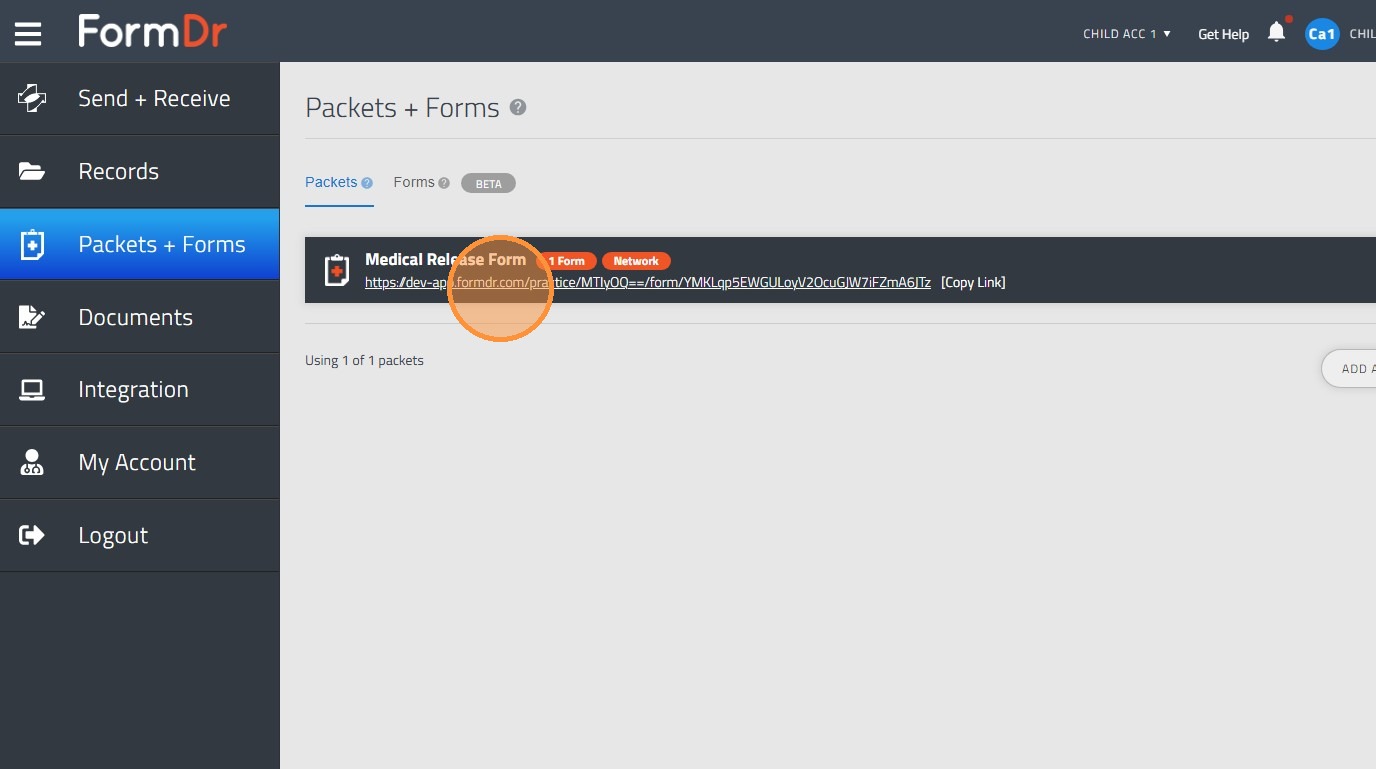
15. To send forms or receive submissions, you have two options. The first is clicking directly on the link in your packets list.
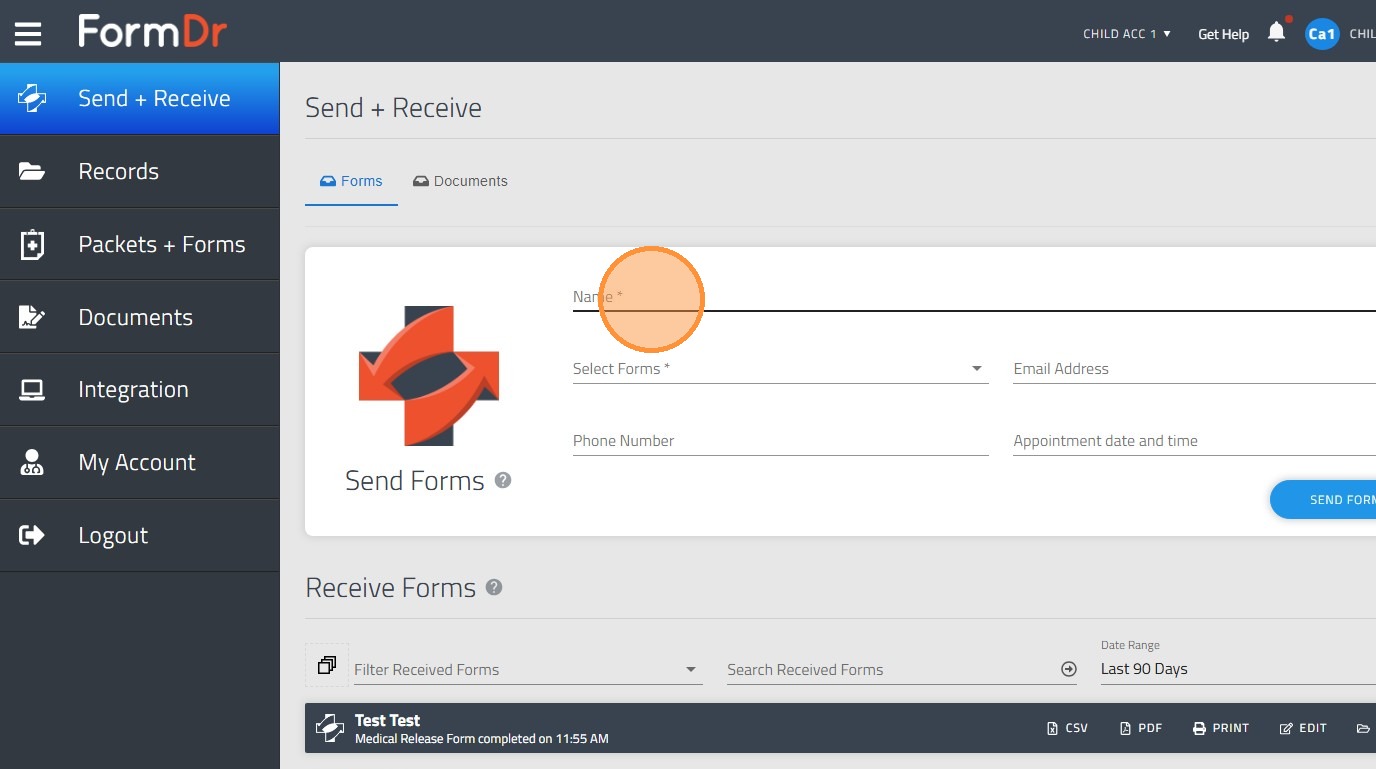
16. The second option is going to the "Send + Receive" tab.
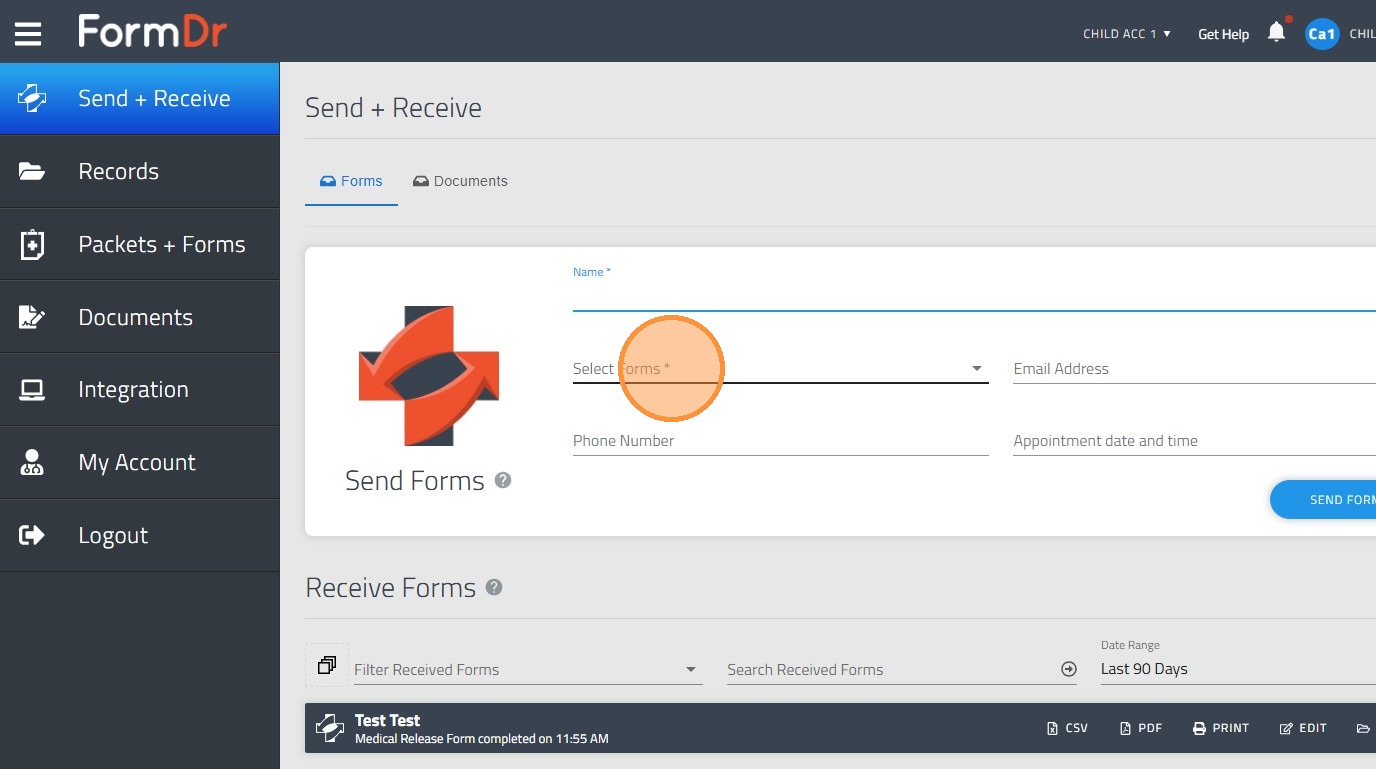
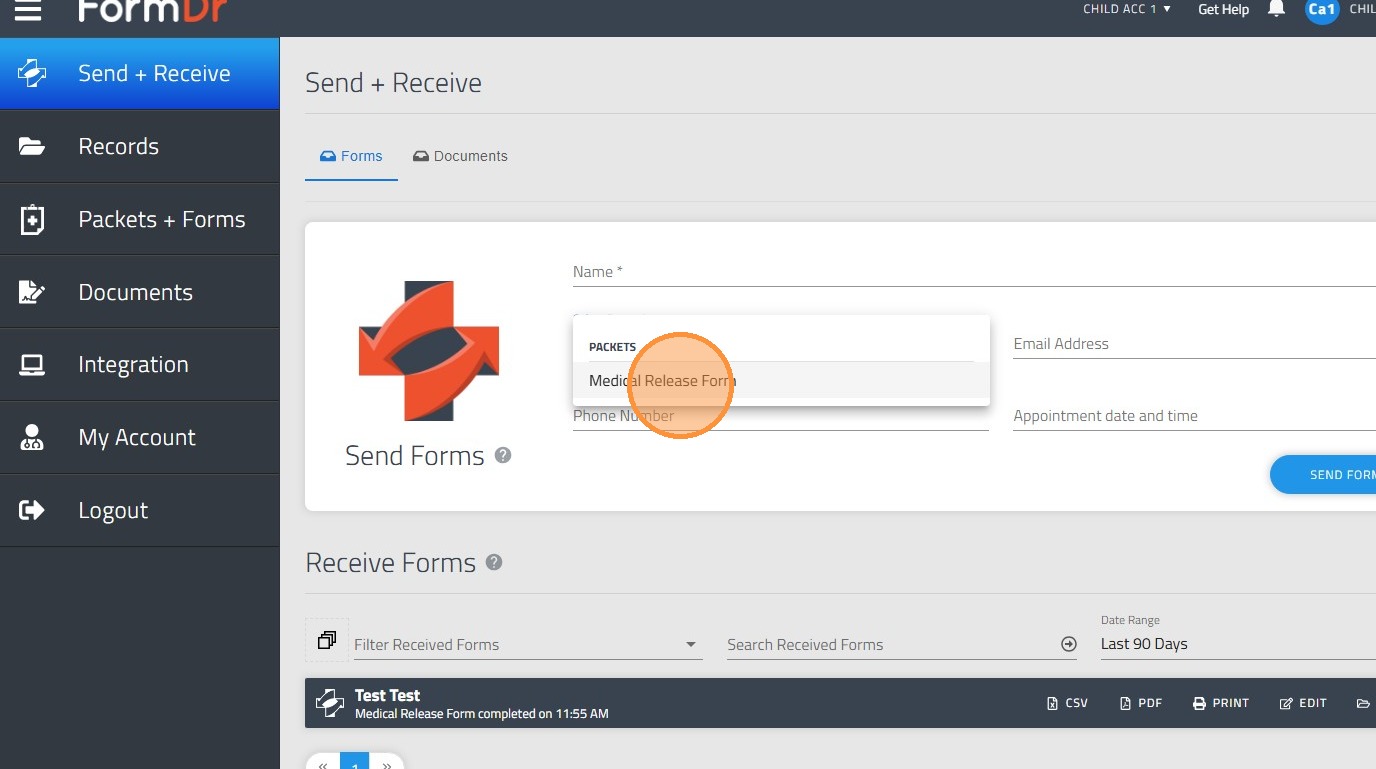
17. And fill out all the recipient's information.
How to view shared records
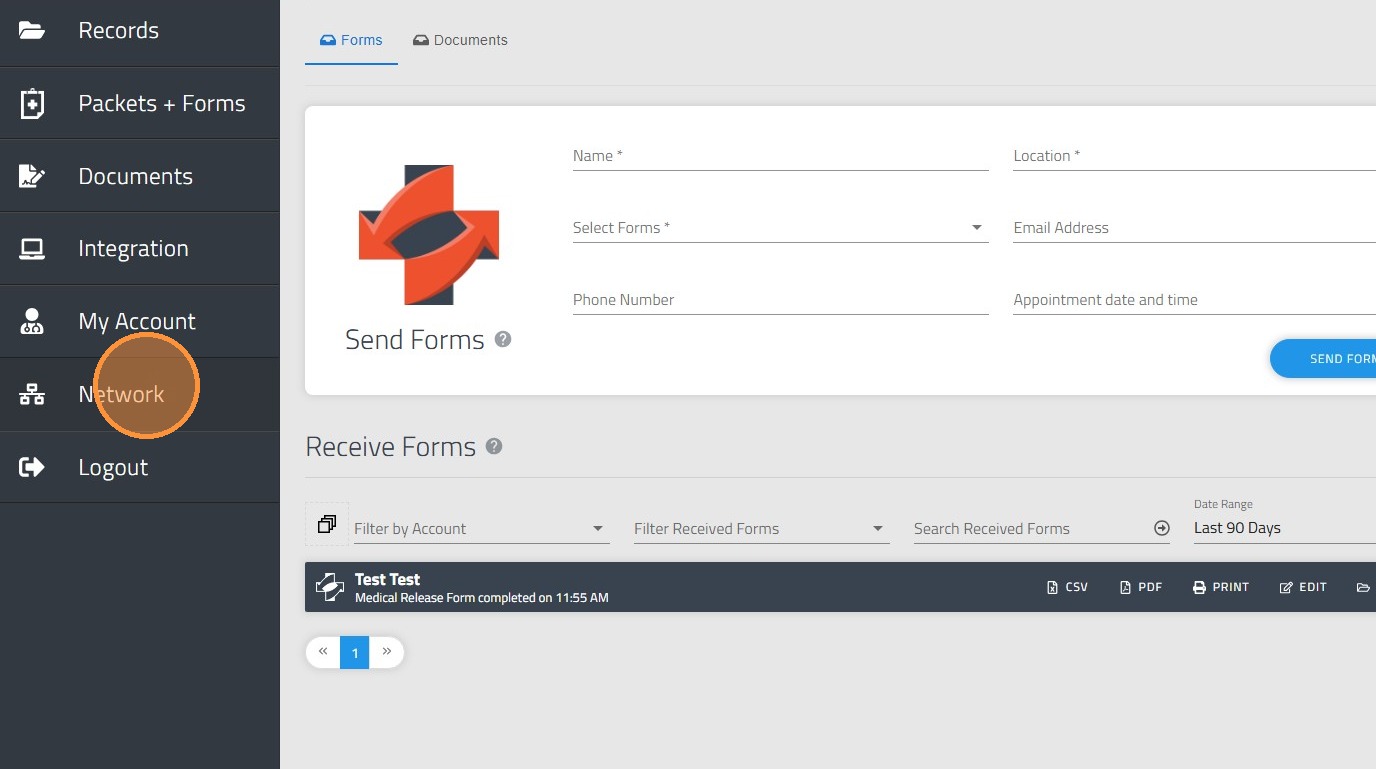
18. The first step is to verify that the child account has access to records from other accounts by going to the Network tab.
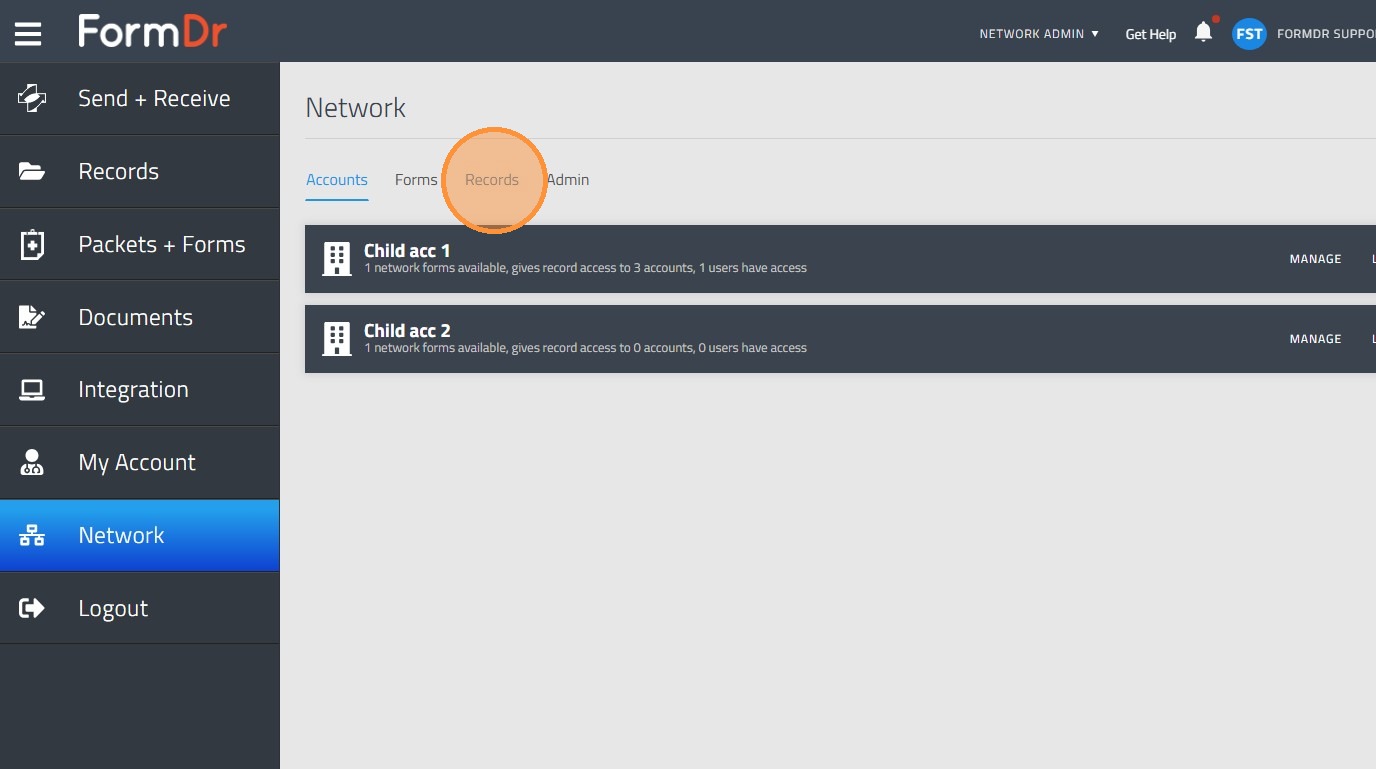
19. Go to the "Records" tab and click "Manage" on the child account you want to grant records access to.
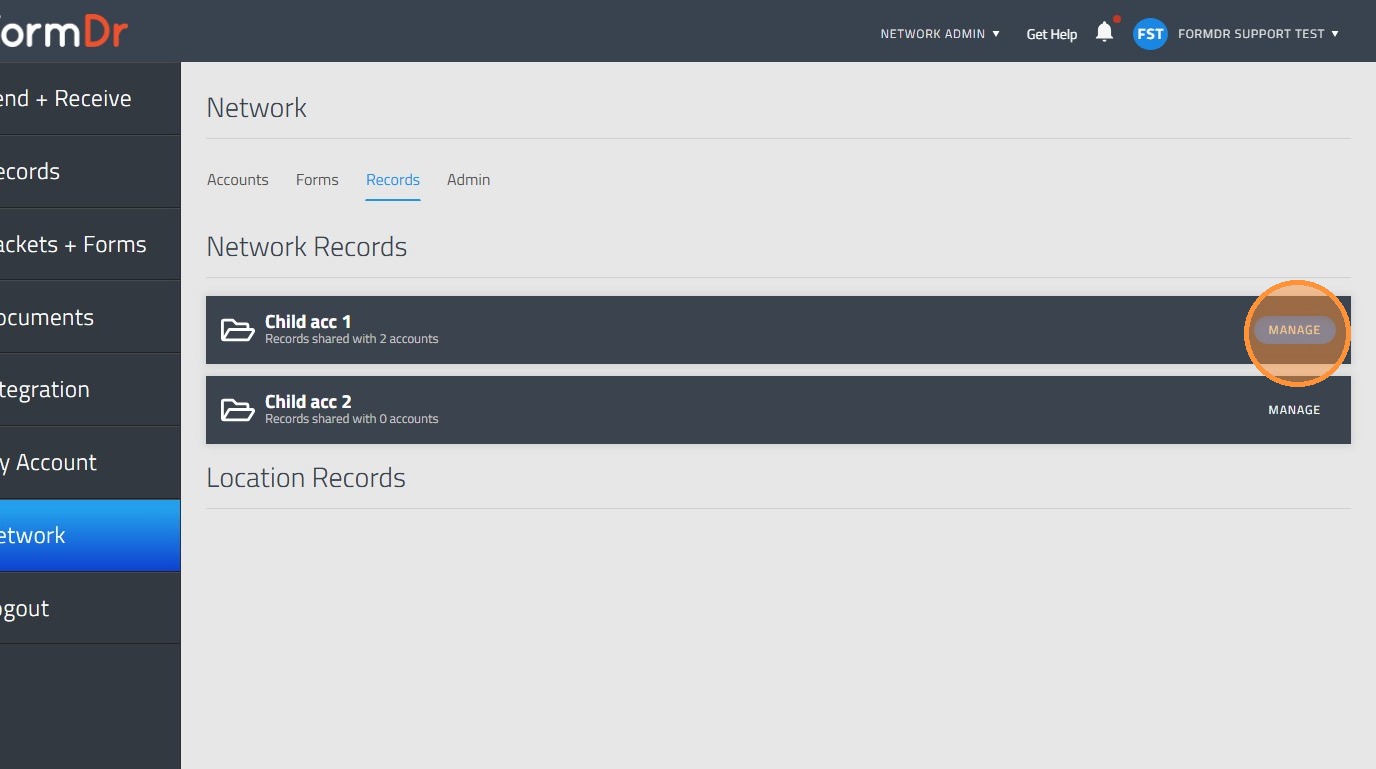
20. Click the account you want to share Records.
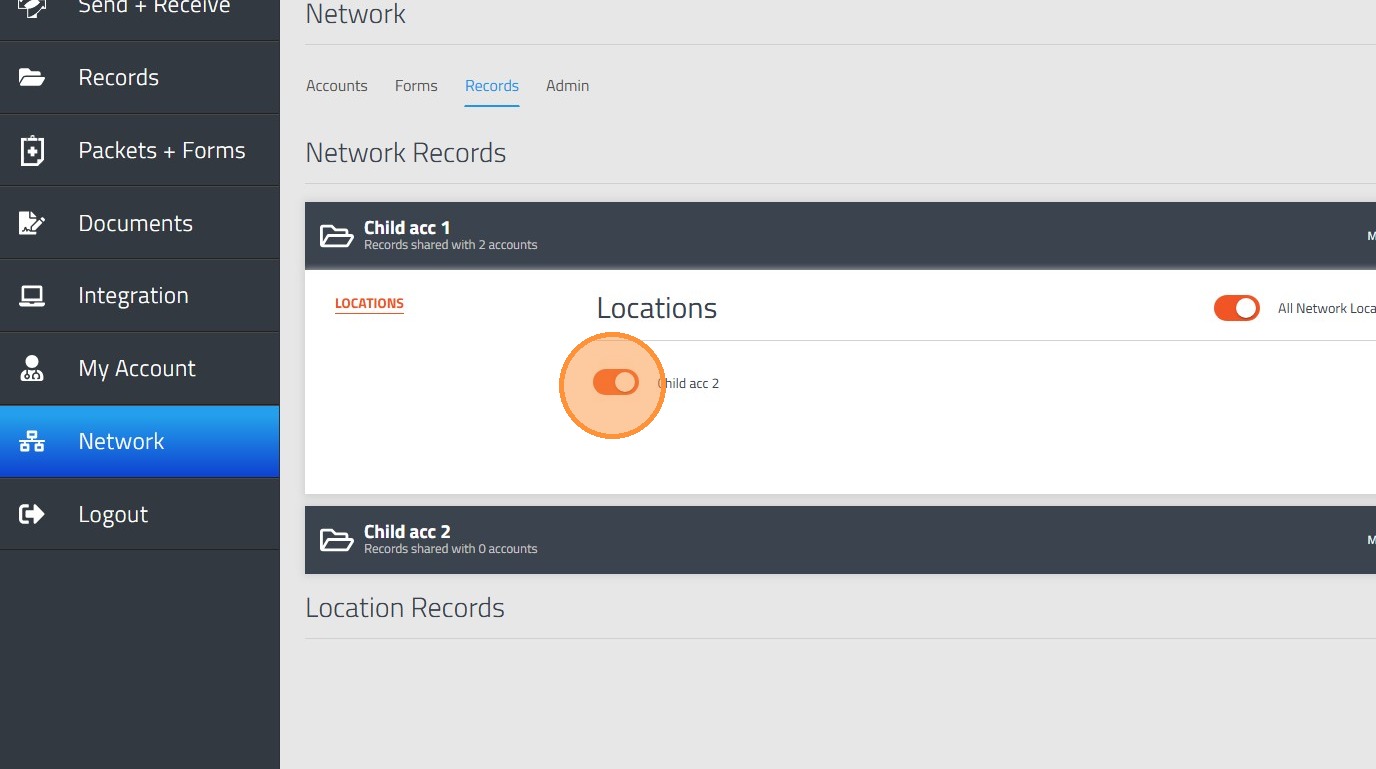
21. If there are multiple child accounts and you want to grant access to all records, you can select the "All network locations" button.
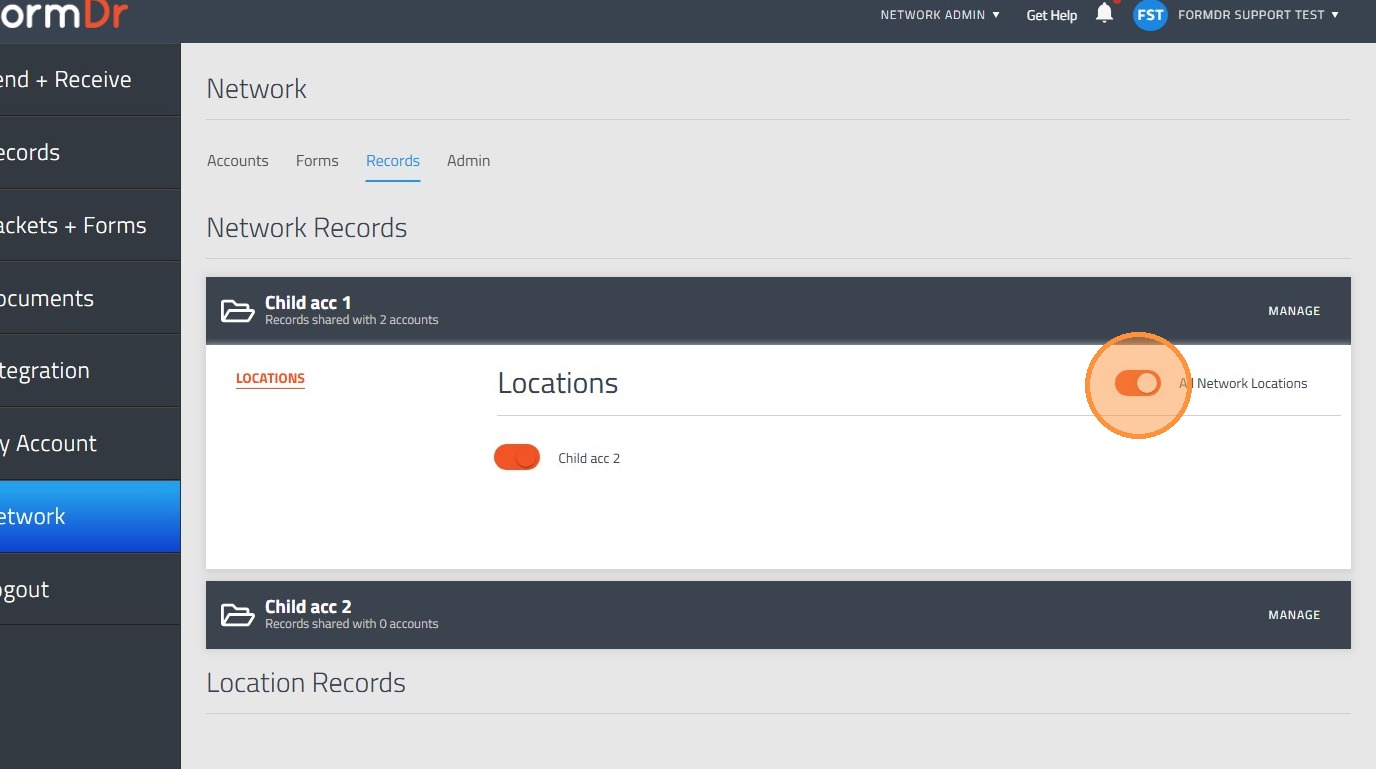
22. Once in the child account, click "Records" to access the account's shared records.
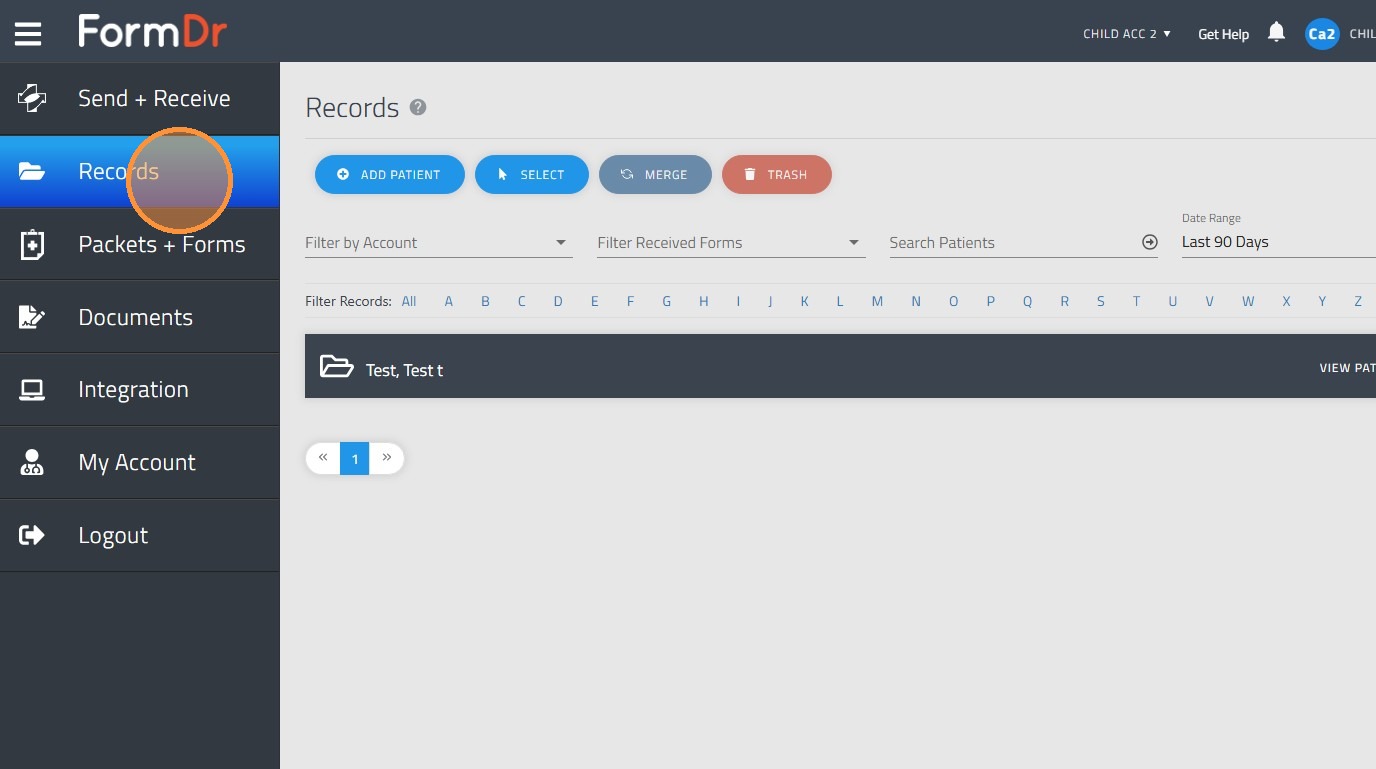
23. You can filter the records to view submissions shared from specific accounts.
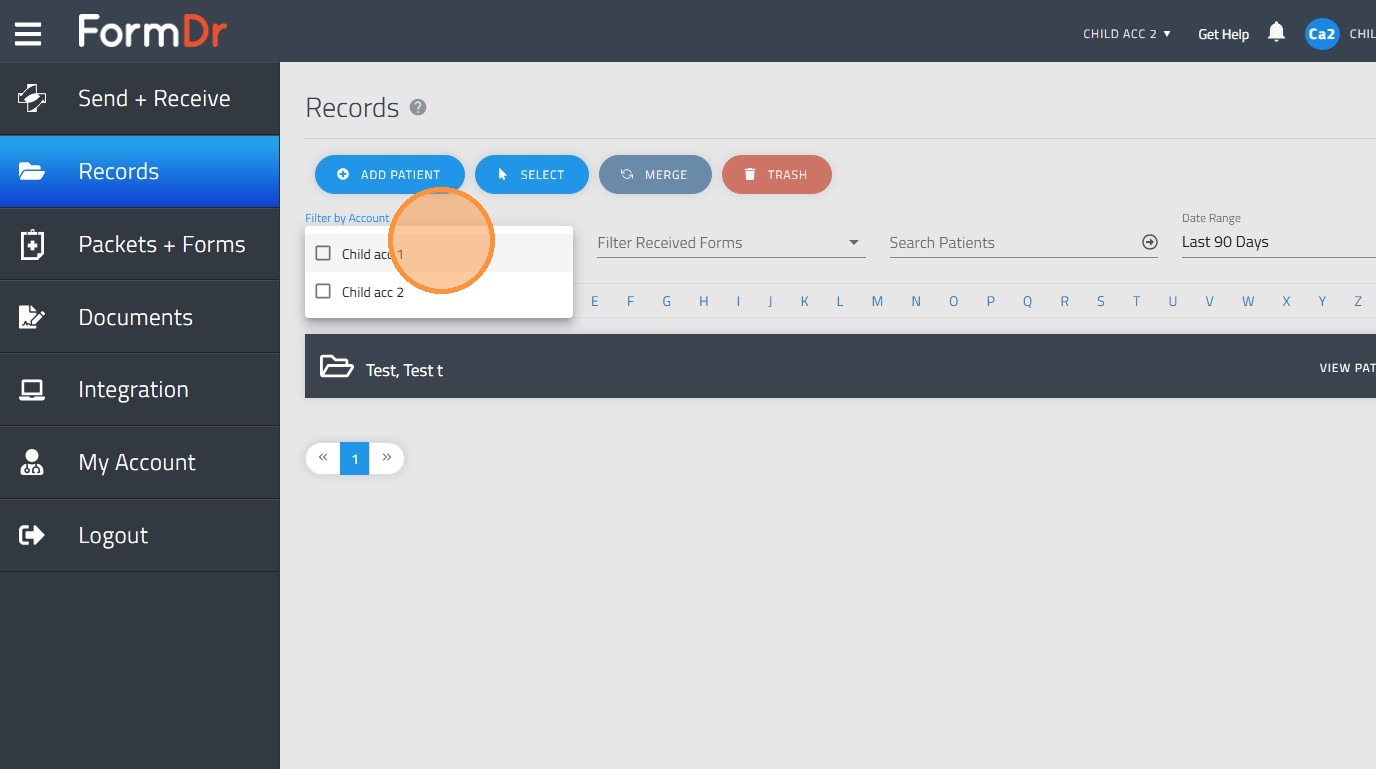
24. Filtering by a specific account displays all forms from that child account. You can then use the additional filters to find specific packets or patients.