
Learn how to sign and submit documents on different devices, including PC, iPhone, Android, iPad, and tablets. This guide walks you through the process of navigating browser tabs and completing signature requirements for all your pending files.
1. The first option is PC, and how a document will look when someone is filling it out.
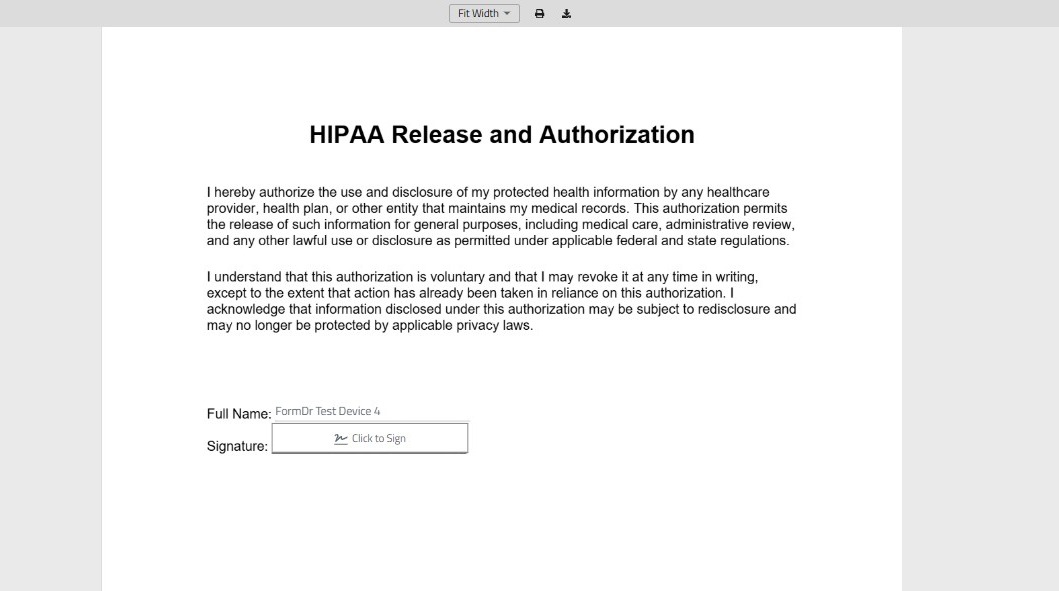
2. When the document is sent to a recipient, it will include automatically the name included in the 'Send + Receive' section.
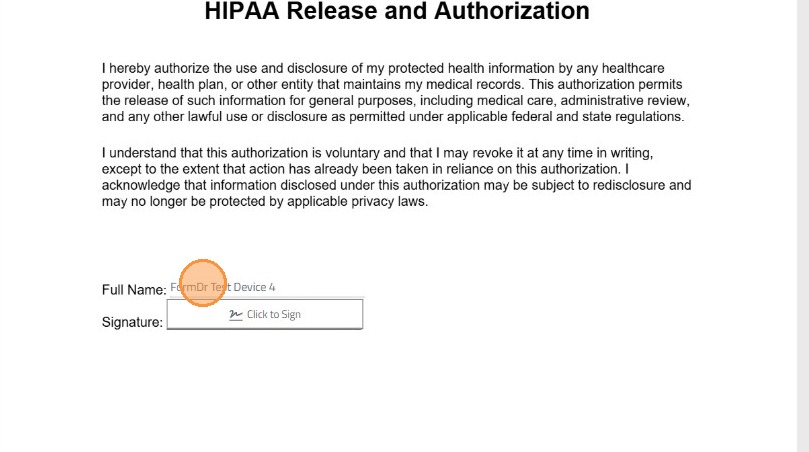
3. Then, the recipient will modify or include the information requested in the document, like the signature. Where the recipient will have to click to sign or add the information.
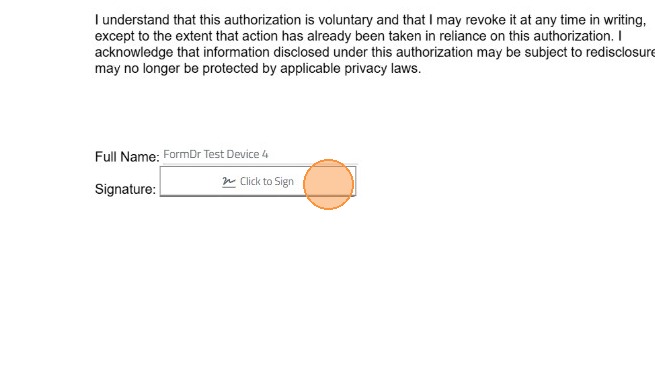
4. In the signature case, the recipient will sign using the mouse.
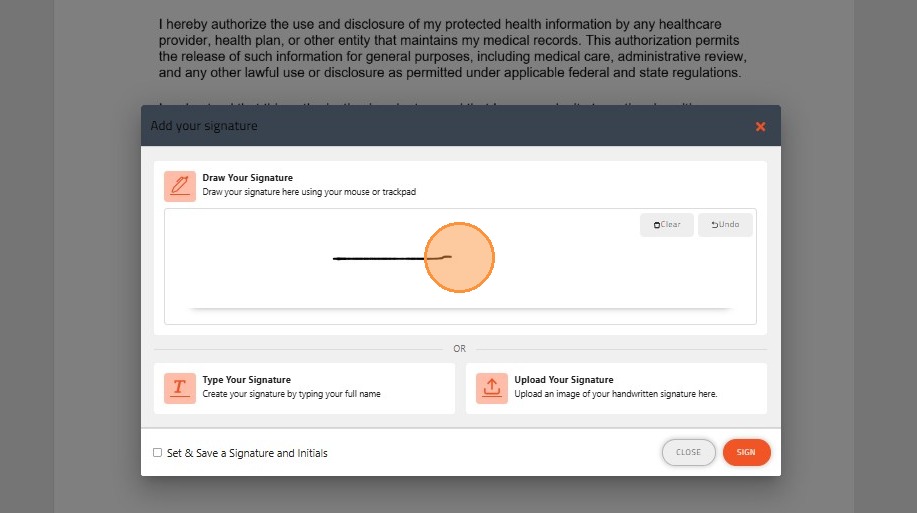
5. Once the document is signed, the recipient will have to click in the button sign to complete the process.
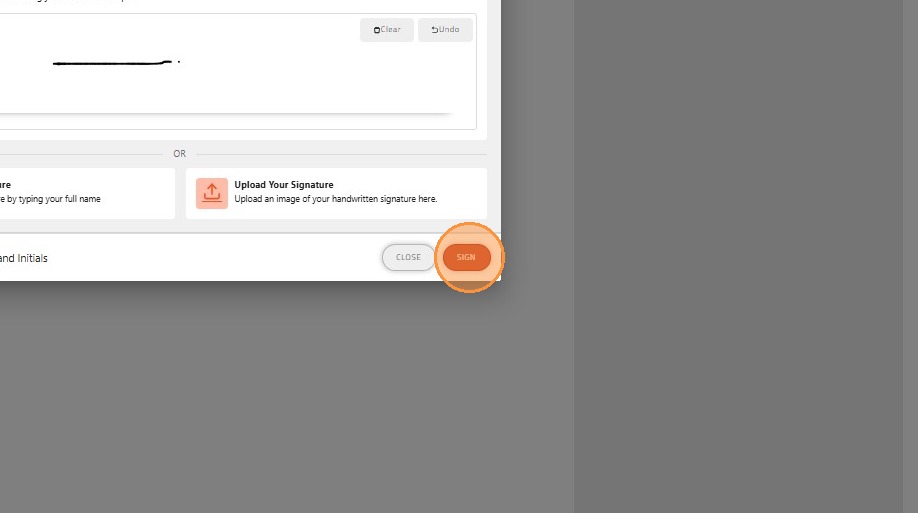
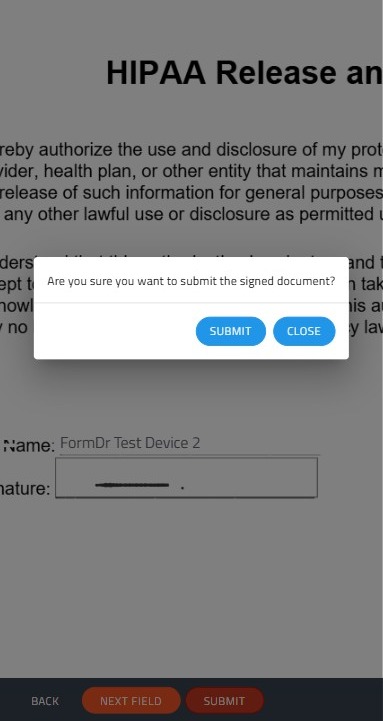
6. Once the document is filled out, the recipient will have to click on submit to send the document.

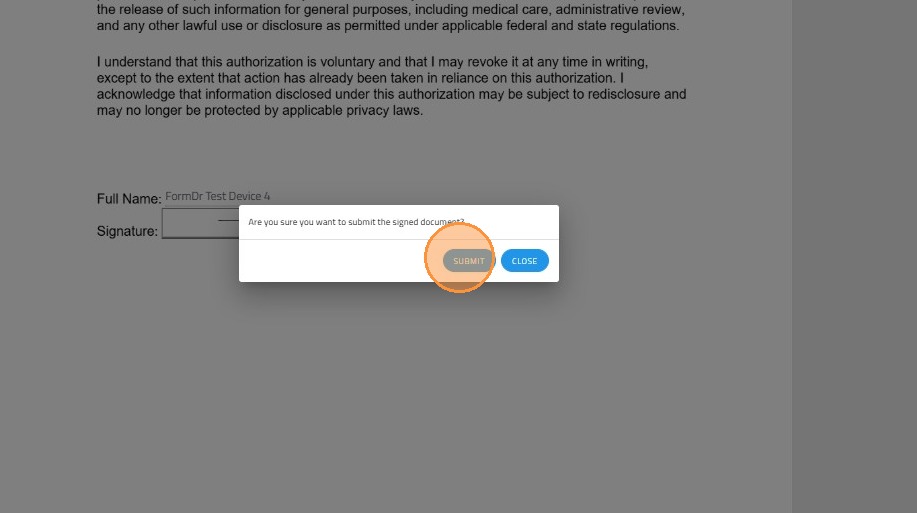
7. Finally, a last confirmation...
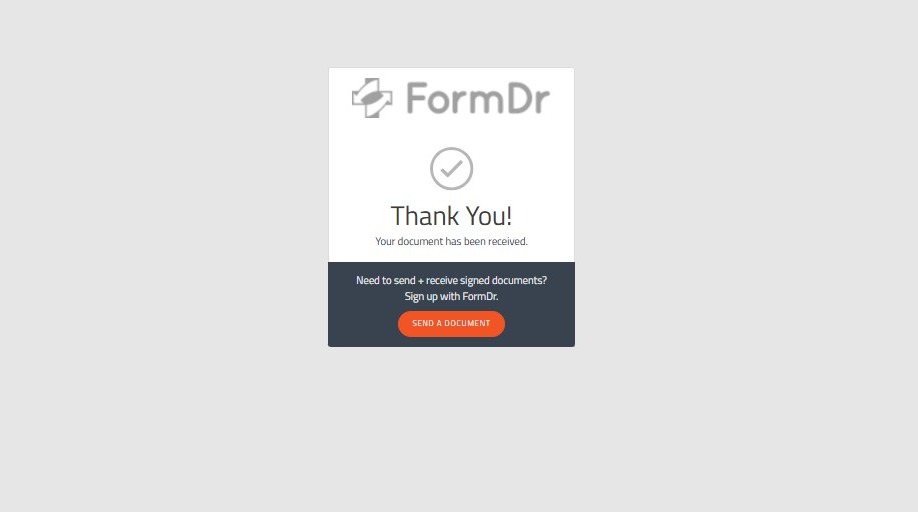
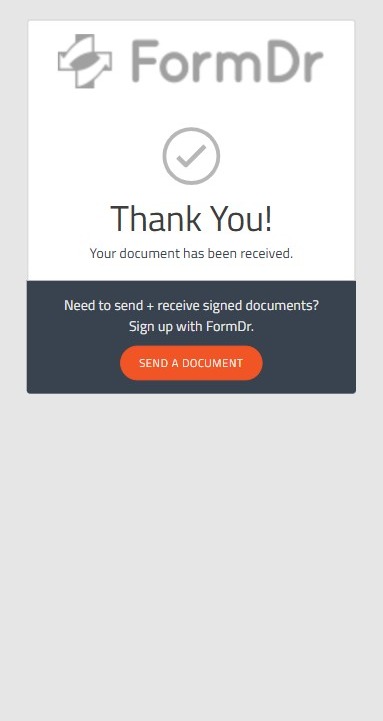
8. And this page will confirm the document was successfully sent.
9. The second option the patients or recipients will have is using and iPhone.
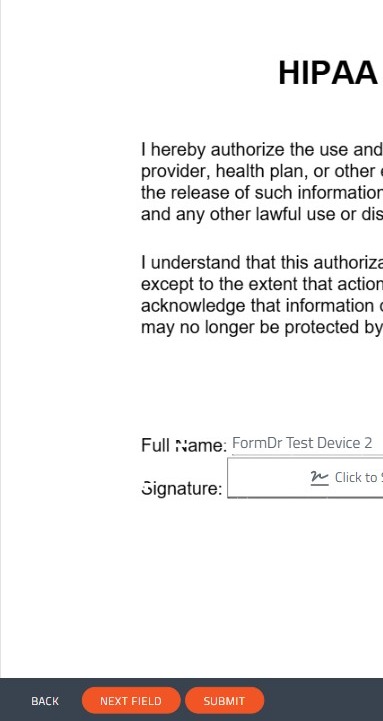
10. The recipients can Slide Across, Scroll Up and Down and Zoom in and Zoom out
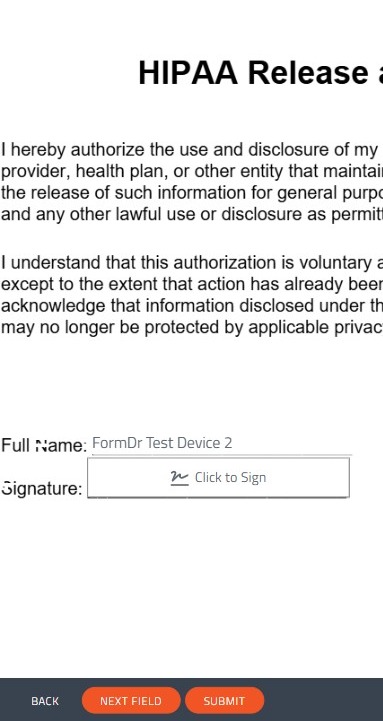
11. Recipients will have to Tap "Click to Sign" and recipients will have to tap all the widget a long the form in order to fill them out, except for the Name, as this information comes prefilled when the document is sent.
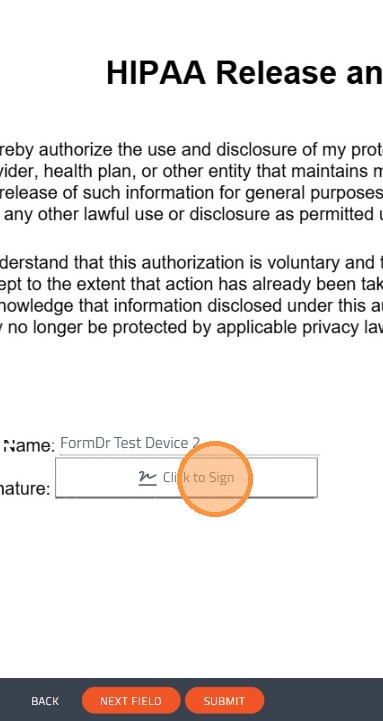
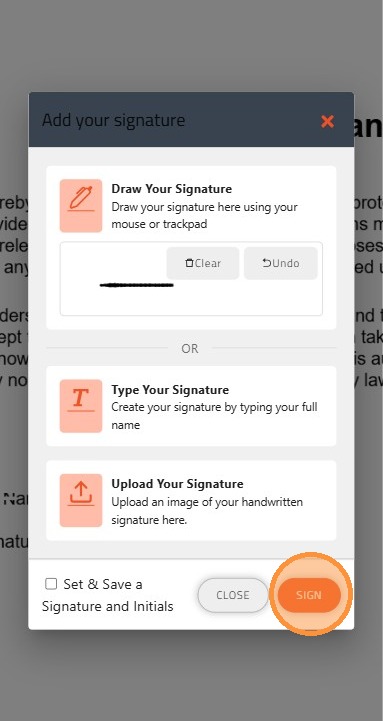
12. Recipients can use finger or a stylus to complete the form. And then Tap on Sign.
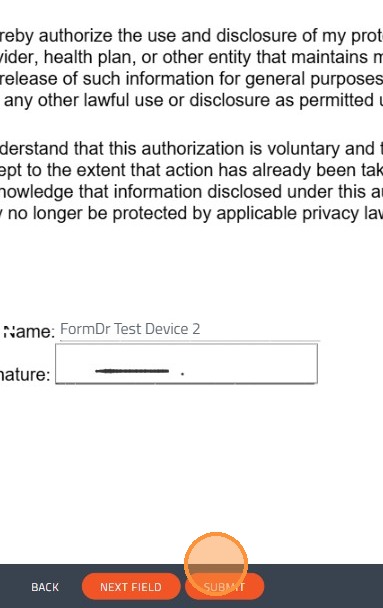
13. Once all the information is filled out the recipient will have to Tap on Submit.
14. Finally, a last confirmation...
15. And this page will confirm the document was successfully sent.
16. The third option the patients or recipients will have is using an Android.
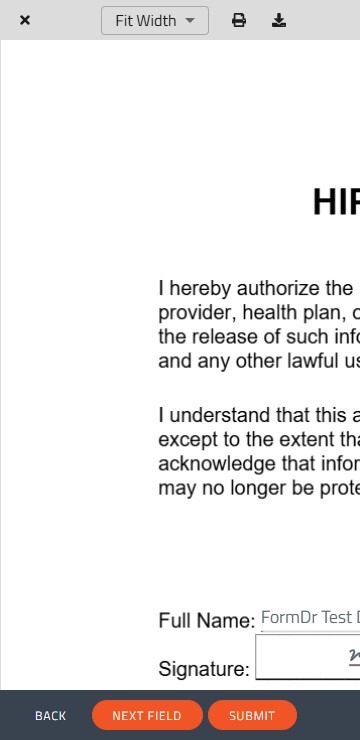
17. The recipients can Slide Across, Scroll Up and Down and Zoom in and Zoom out
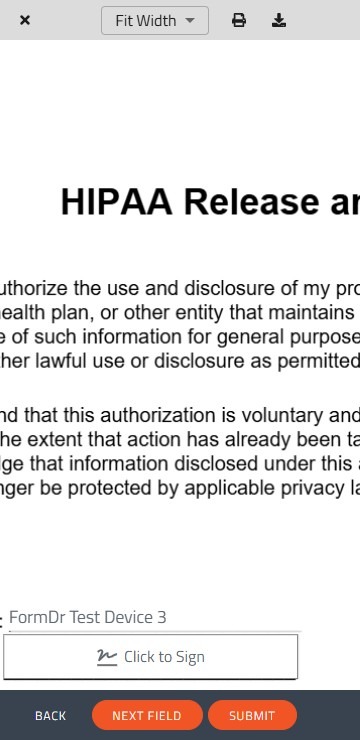
18. Recipients will have to Tap "Click to Sign" and recipients will have to tap all the widget a long the form in order to fill them out, except for the Name, as this information comes prefilled when the document is sent.
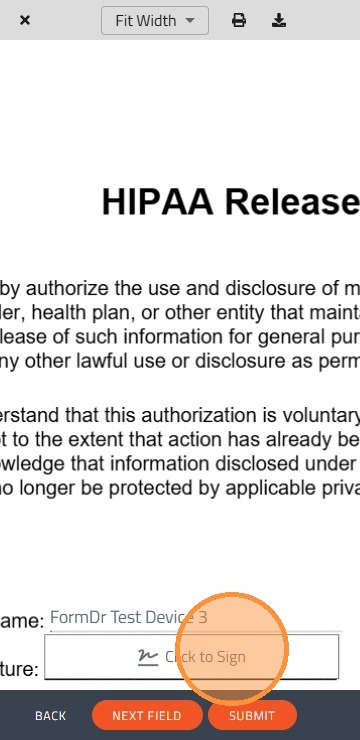
19. Recipients can use finger or a stylus to complete the form.
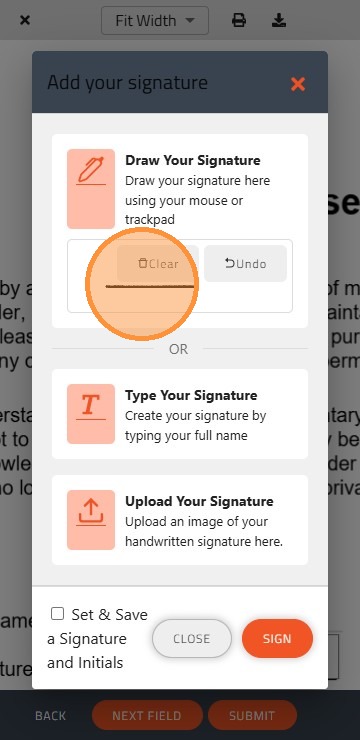
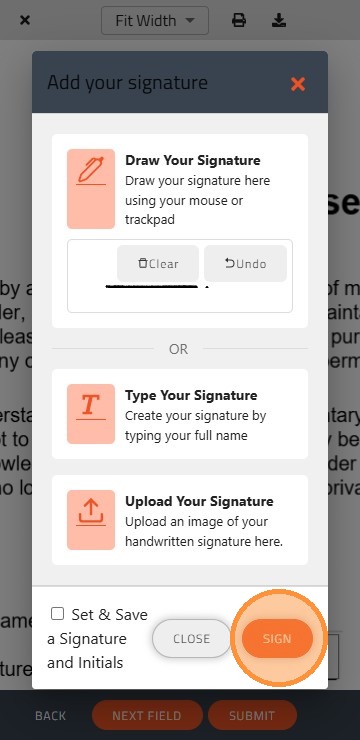
20. And then Tap on Sign.
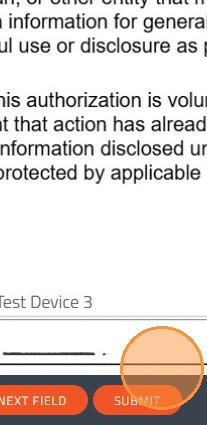
21. Once all the information is filled out the recipient will have to Tap on Submit.
22. Finally, a last confirmation...
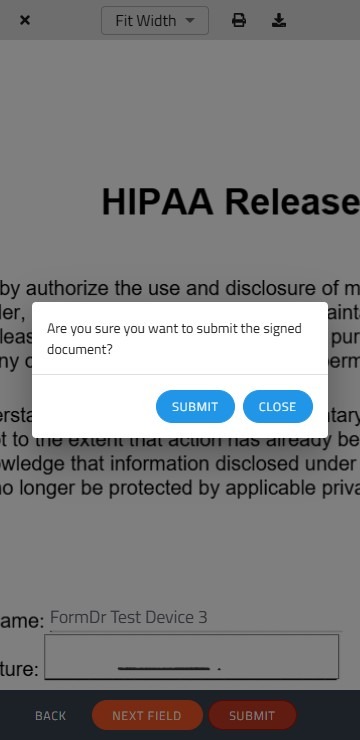
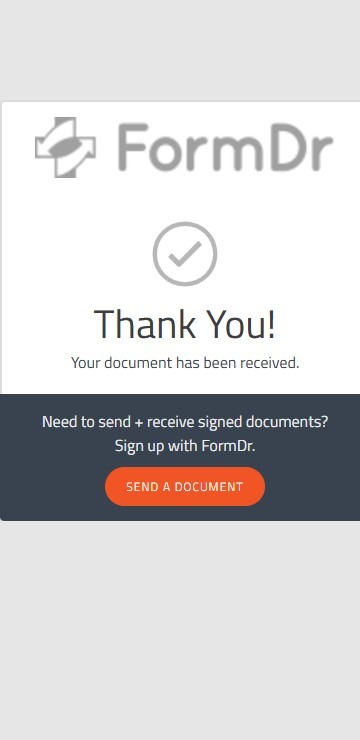
23. And this page will confirm the document was successfully sent.
Alert: Notice regarding Touch Devices
Please be advised that all touch-system devices—including smartphones, tablets, and iPads—provide a consistent viewing and completion experience for our forms. The primary differences you may notice are based on the screen size and the operating system of your device (such as Windows, macOS, Android, or iOS).
Regardless of the device used, the form functionality remains the same to ensure a smooth submission process.