
Learn when use our Packets or Forms and when use a Document E-signature template.
Tip: FormDr offers two distinct methods for creating and signing forms:
Packets + Forms: Created using our drag-and-drop builder. This format is dynamic and adjusts to the screen size, allowing patients to easily fill out fields and sign using our widgets.
Documents for E-signature: Used when a specific, unchangeable layout is required (e.g., official government forms or legal disclosures). You upload your original PDF, and the format remains "pixel-perfect." You simply overlay the signature and text fields exactly where they need to be on the document.
1. The first option you will have is 'Packets + forms'. You will be able to drag and drop the signature widget in our builder creating a form under our form format.
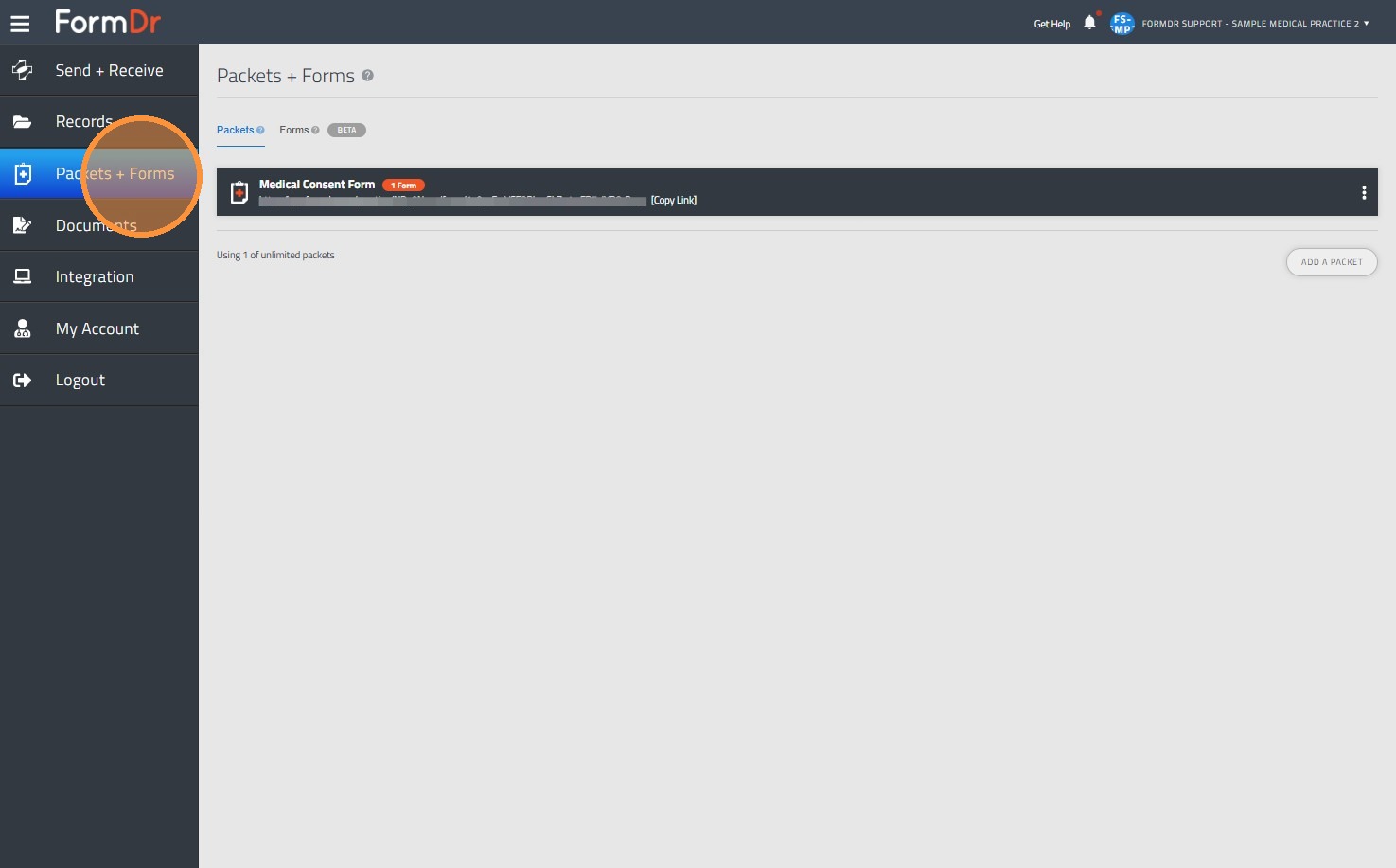
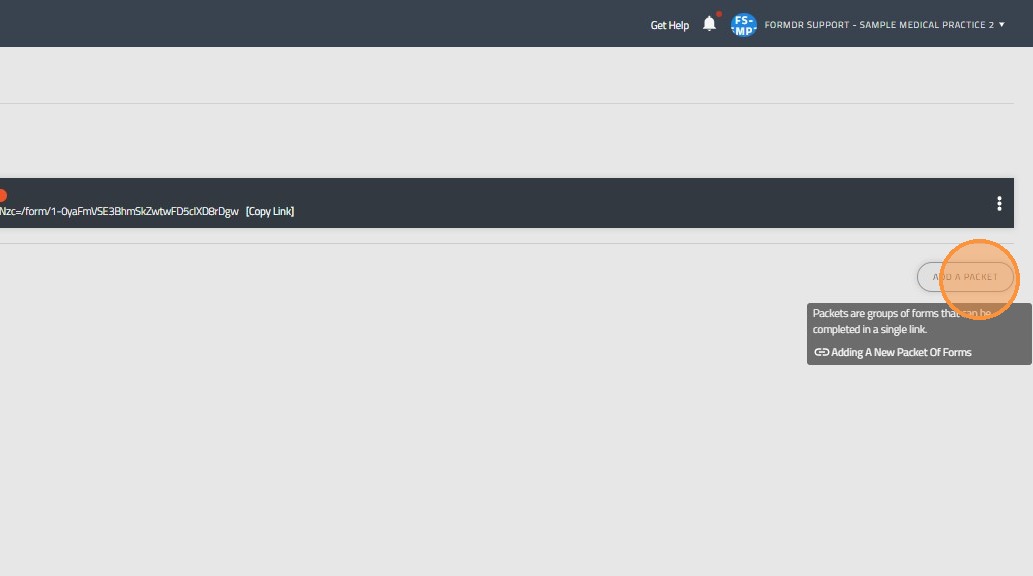
2. Click "Add A Packet" in order to create a new form, using the option Build from Scratch you will create a new form with our form format.
3. You will have the option to add multiple signature fields in one packet or form.
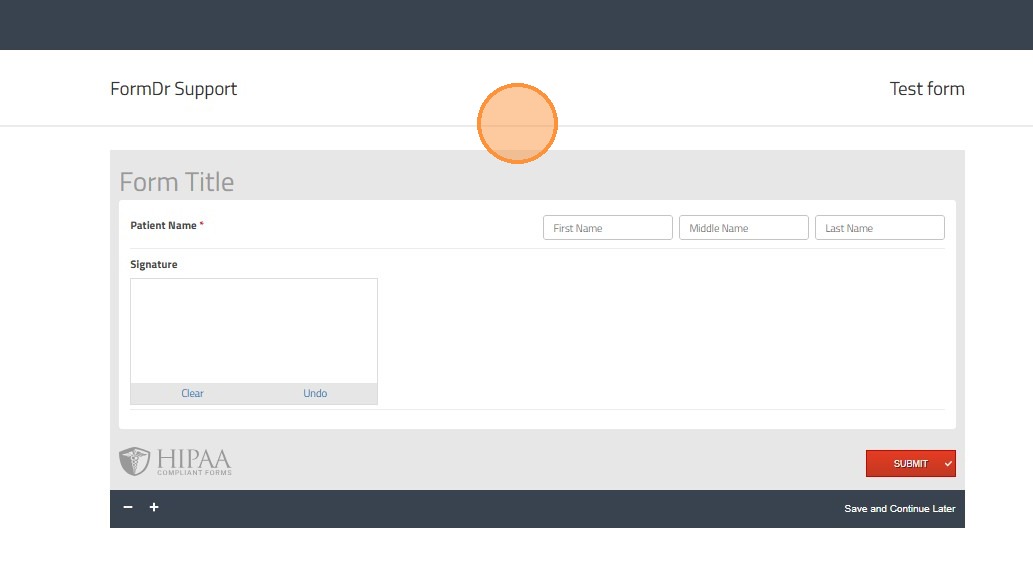
4. Our forms format will allow to add multiple signers in the same form, however, there will be only one recipient and can be submitted only one time.
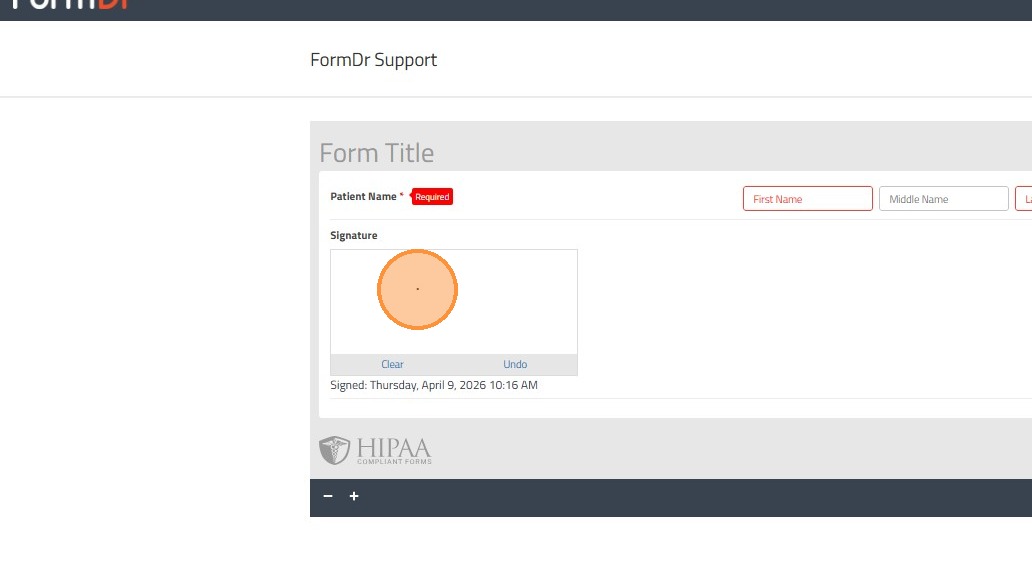
5. Once all the required fields are filled out, including signatures if you required any of them, the patient will be able to submit the packet or form.
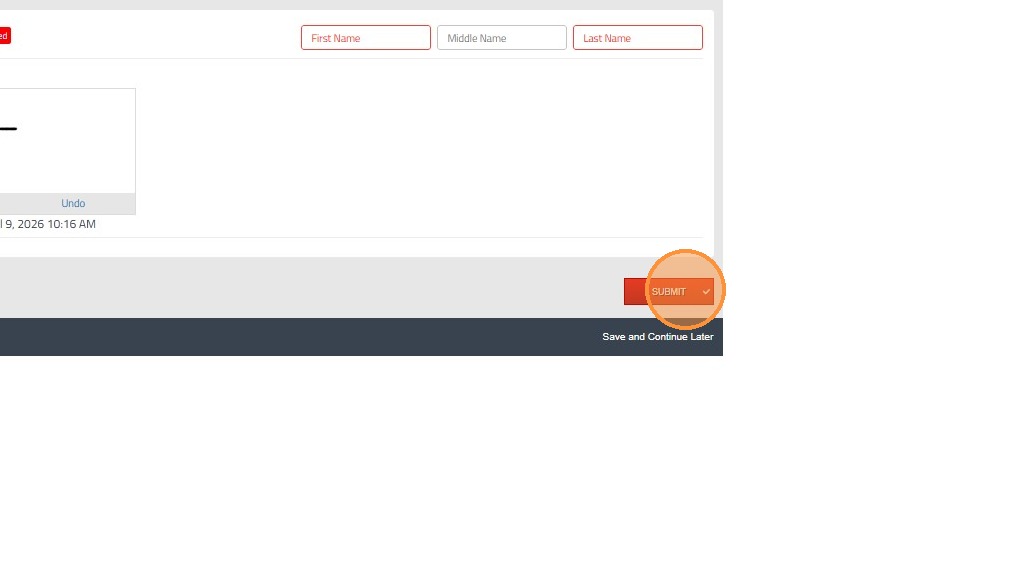
Tip: Keep in mind our Forms are designed to collect signatures once per submission. And you can send the form only to one recipient.
Also, you can use a large amount of features as the Calculation Widget, Rating Scales widget, Credit Card widget, Upload widget, etc.
6. The second option are E-signature documents, this type of signature request is used when you have an unchangeable document, such as a Government document.
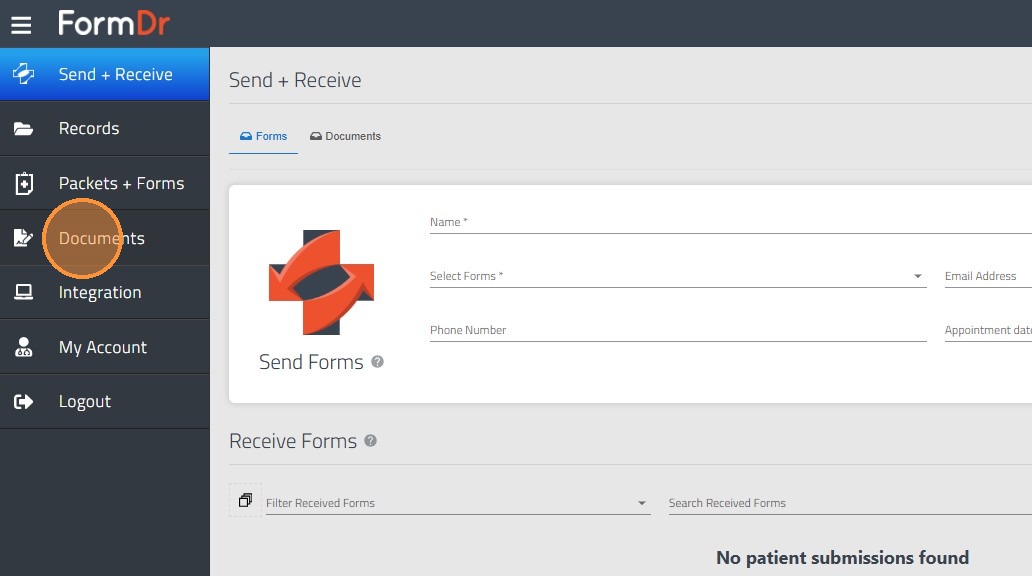
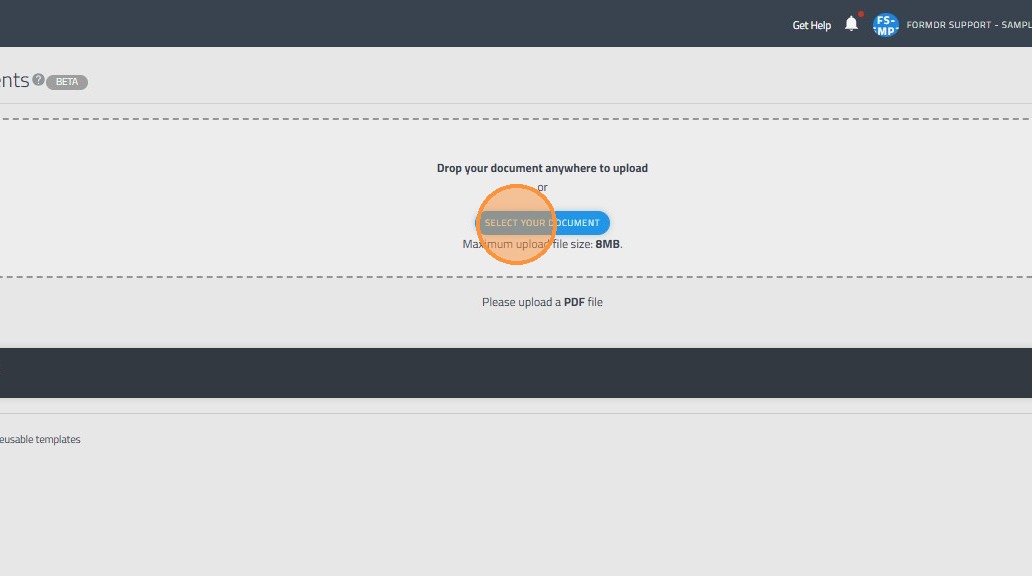
7. You should go to the tab Documents and Upload the document you need as an exact copy.
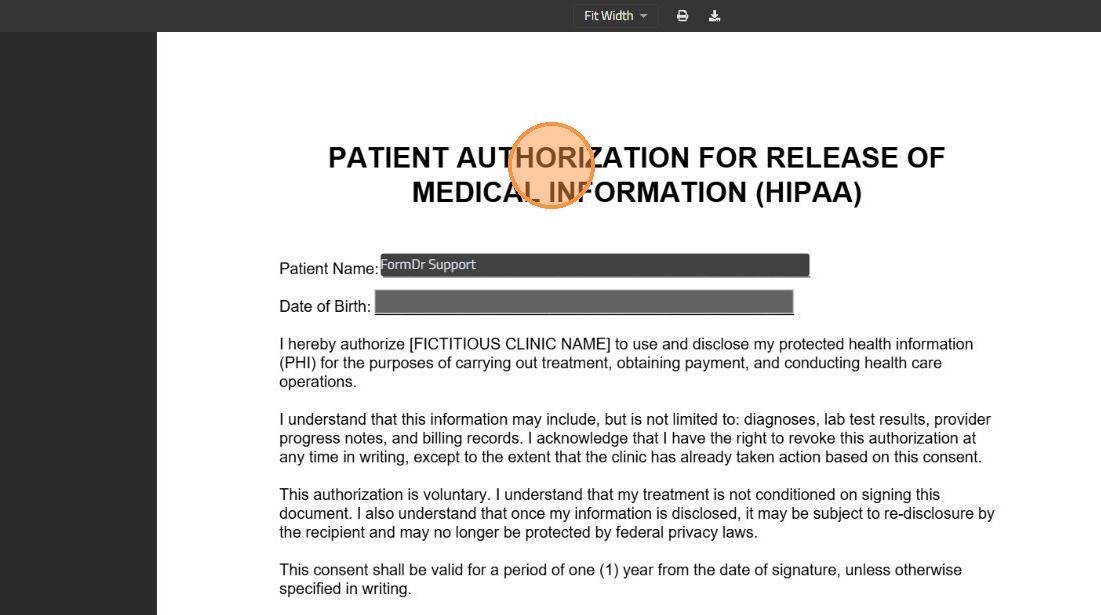
8. The E-signature feature includes only basic widgets, the most used ones Patient Name, text field and Signature space.
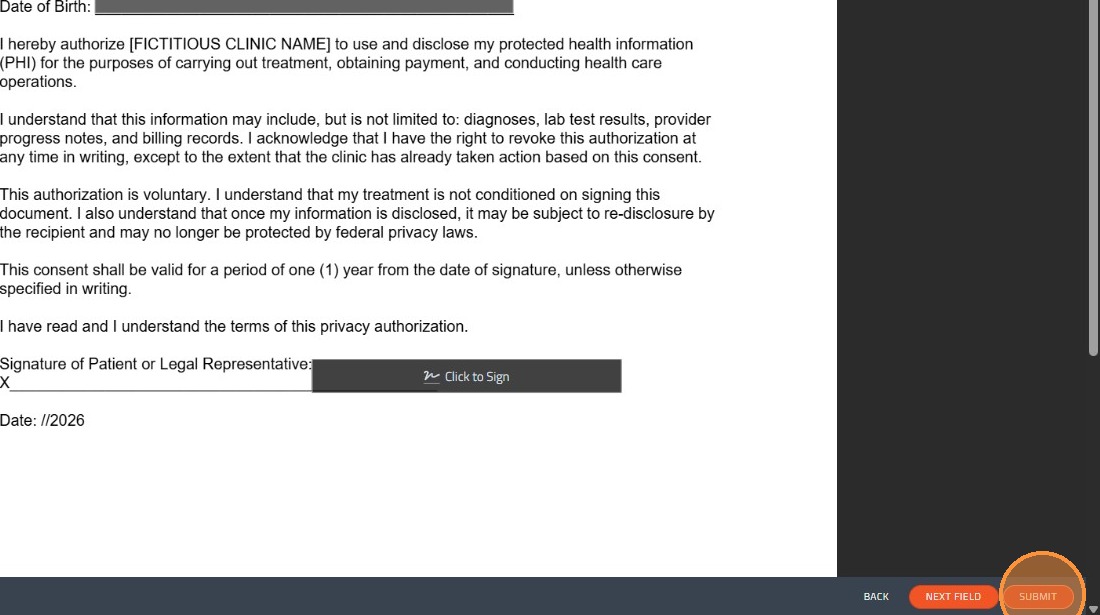
9. The patient will follow the same path as the Online forms; they will sign and submit.
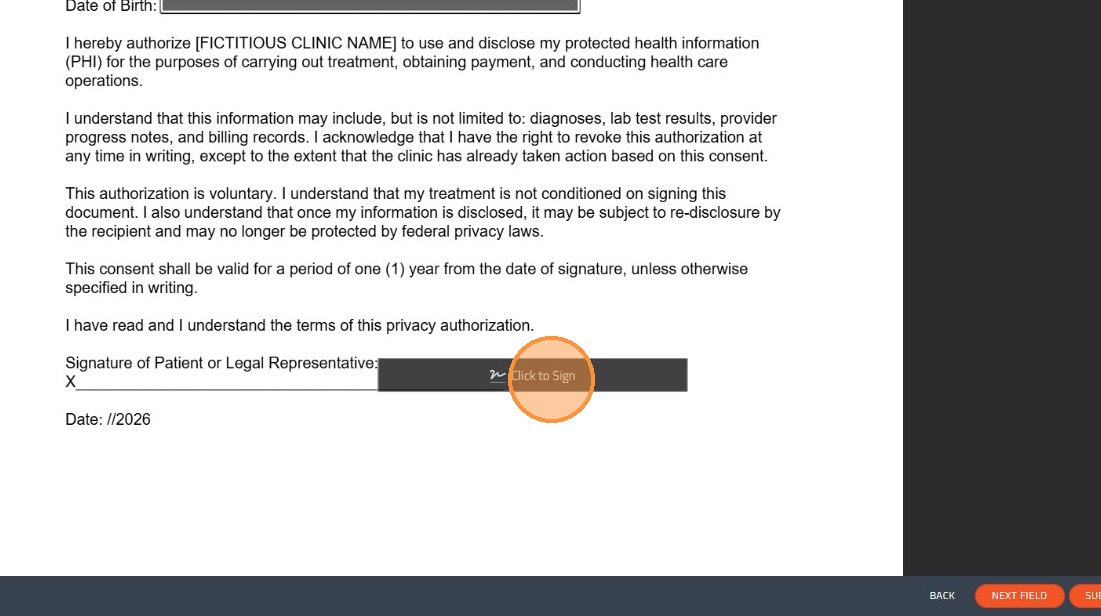
10. Once the document is submitted, the signer will receive a notification of the submission.
Tip: Notice that you will be able to use this option when you have unchangeable documents, such as Government documents.
This type of document will also give you the option to add multiple signers and send the document to multiple recipients, if you need more than one person signing the document in different moments.