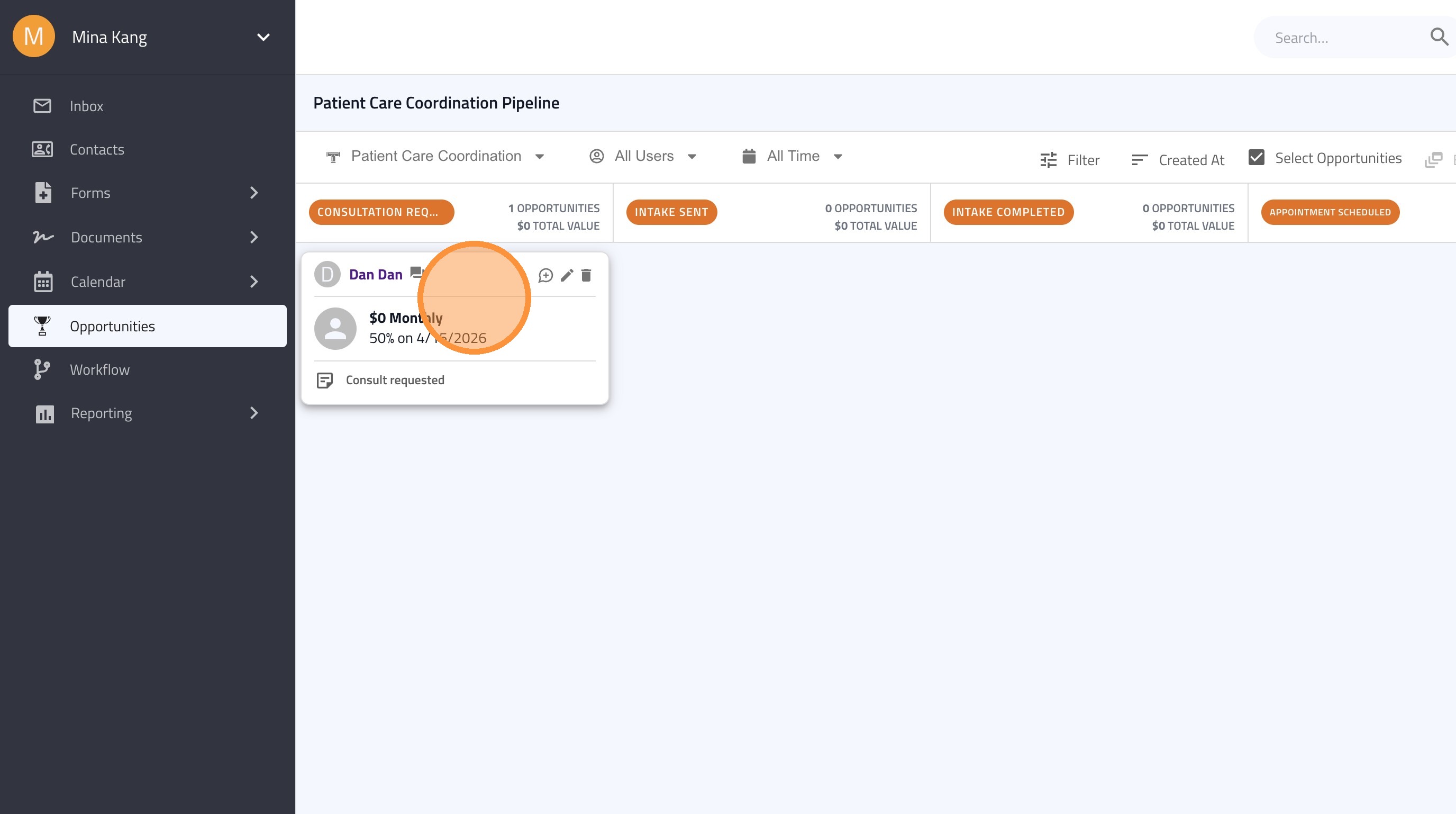
Learn how to efficiently manage patient and/or leads by adding specific opportunities to existing contact profiles. This guide walks you through the steps to manually take a contact through a pipeline and update key details to keep your workflow organized.
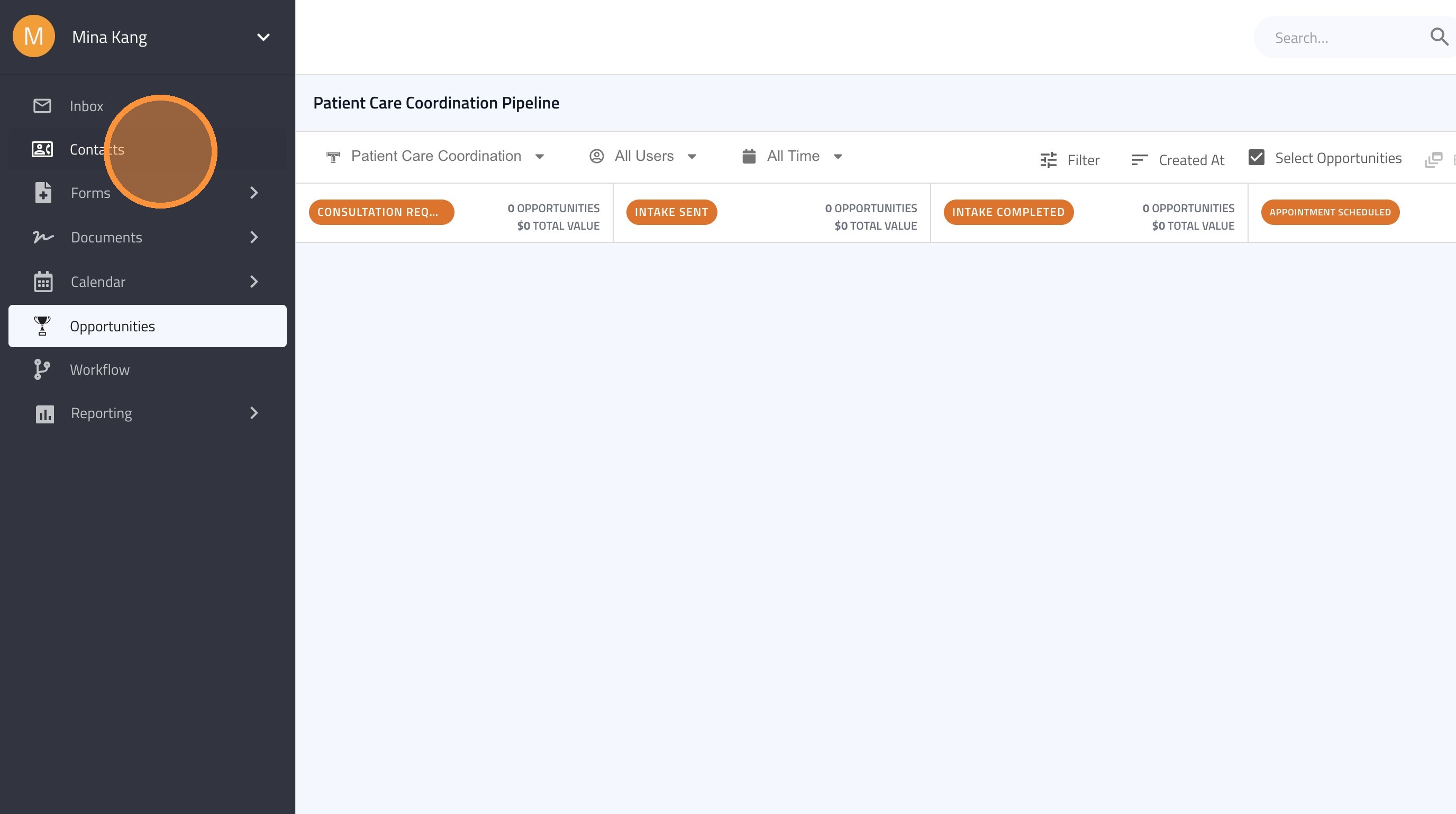
1. Click "Contacts"
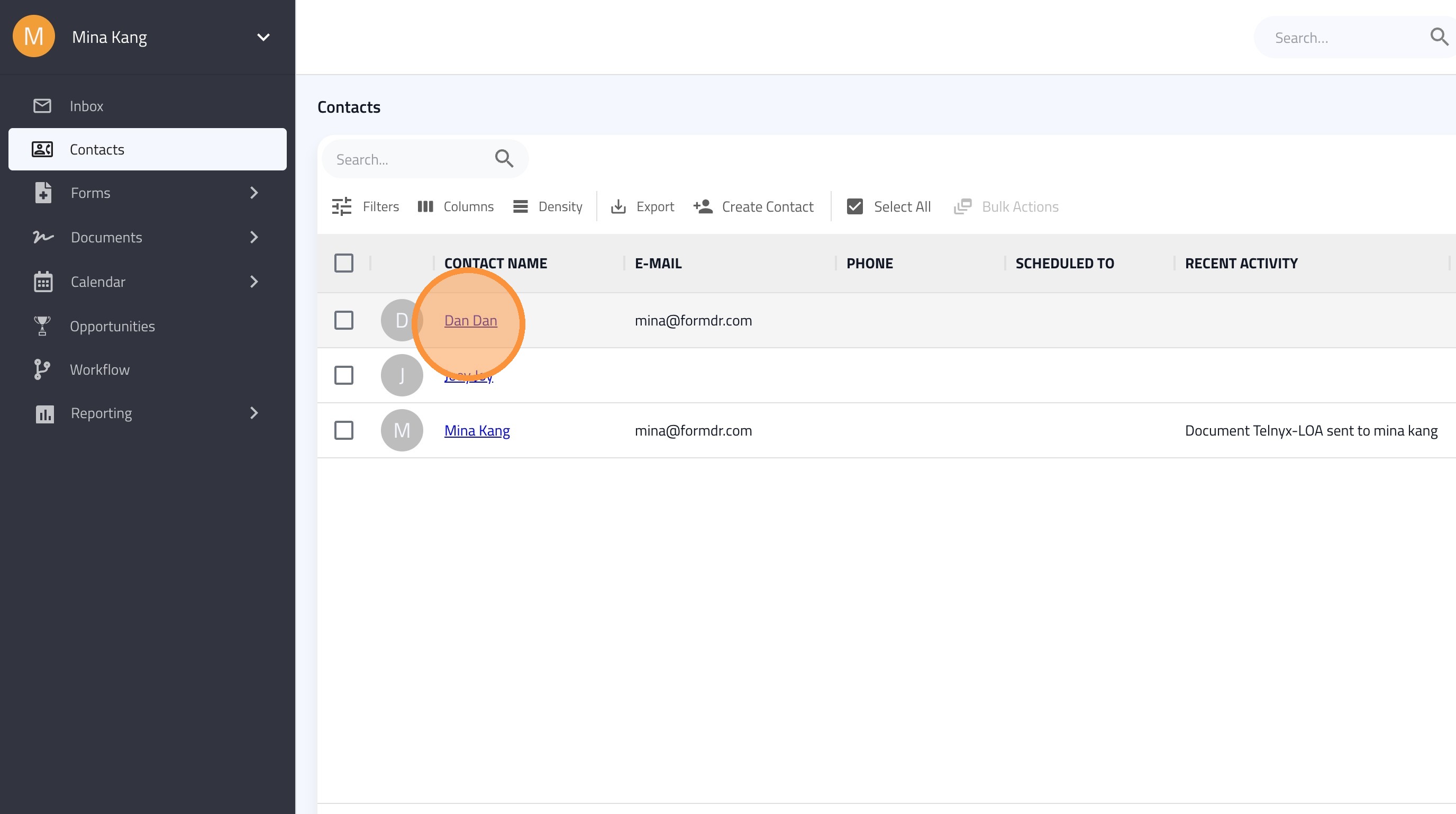
2. Click on the Patient or Lead's Contact Name
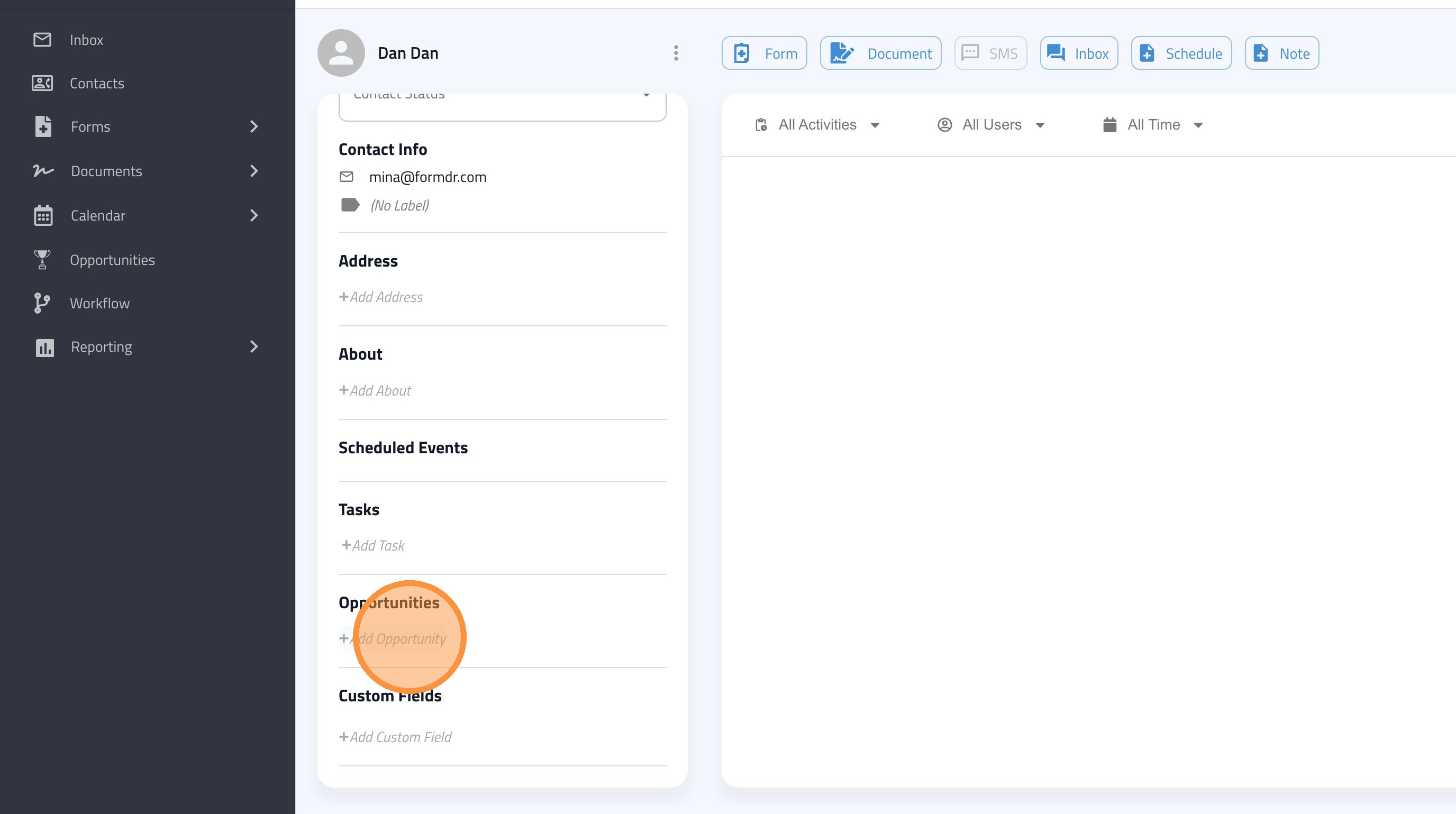
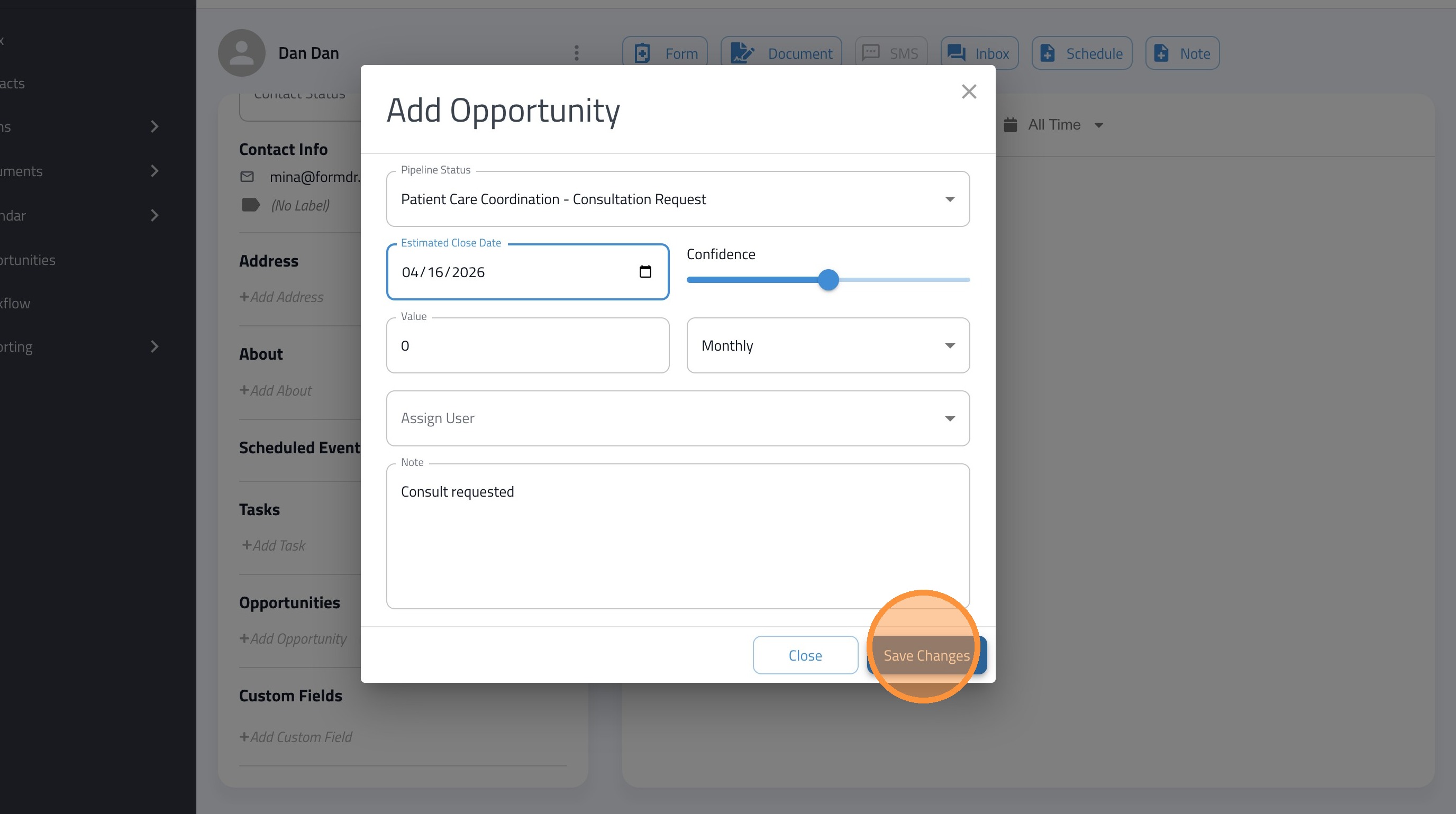
3. Click "Add Opportunity"
4. Use the Drop-Down to Assign the Pipeline Status
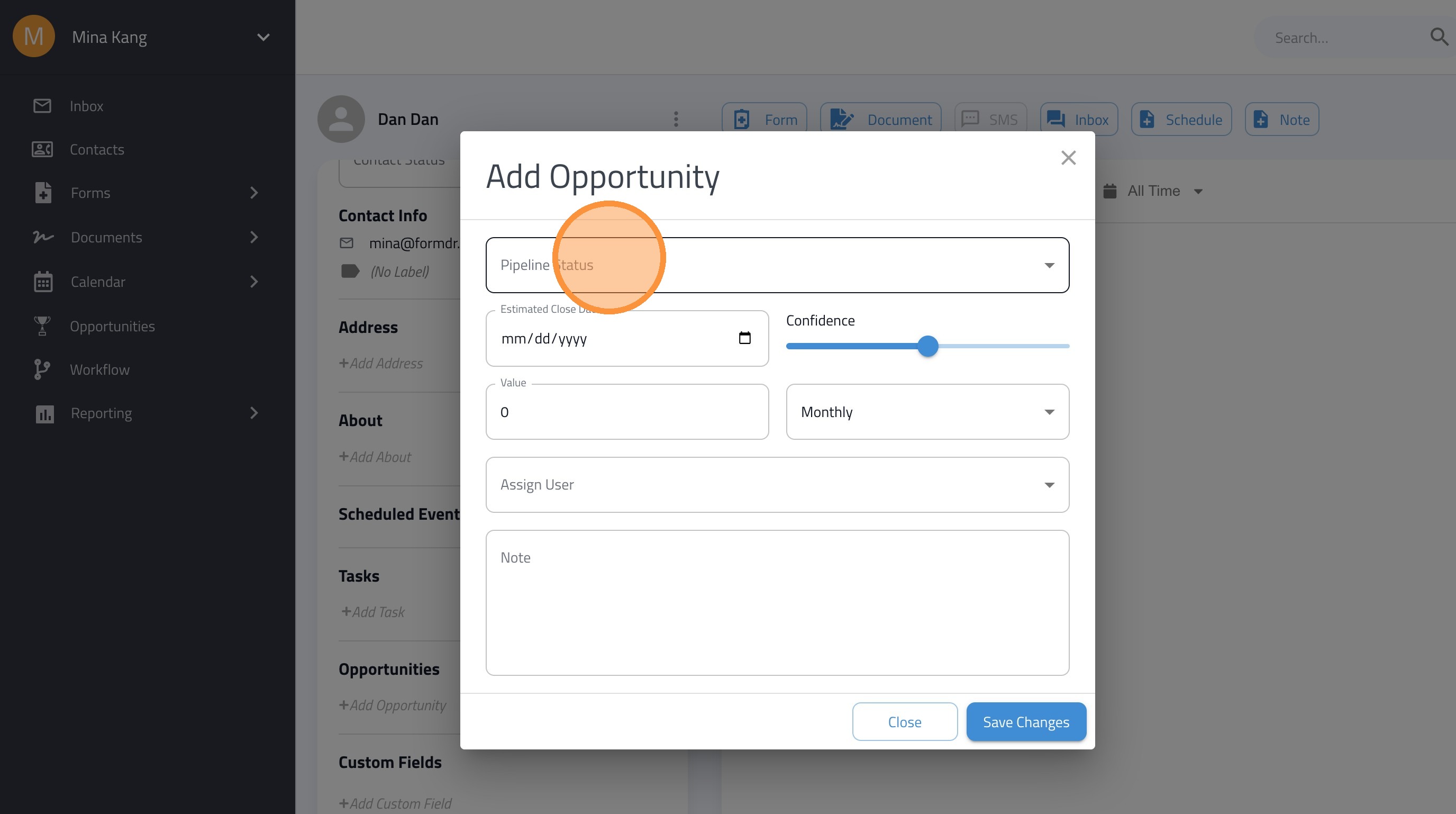
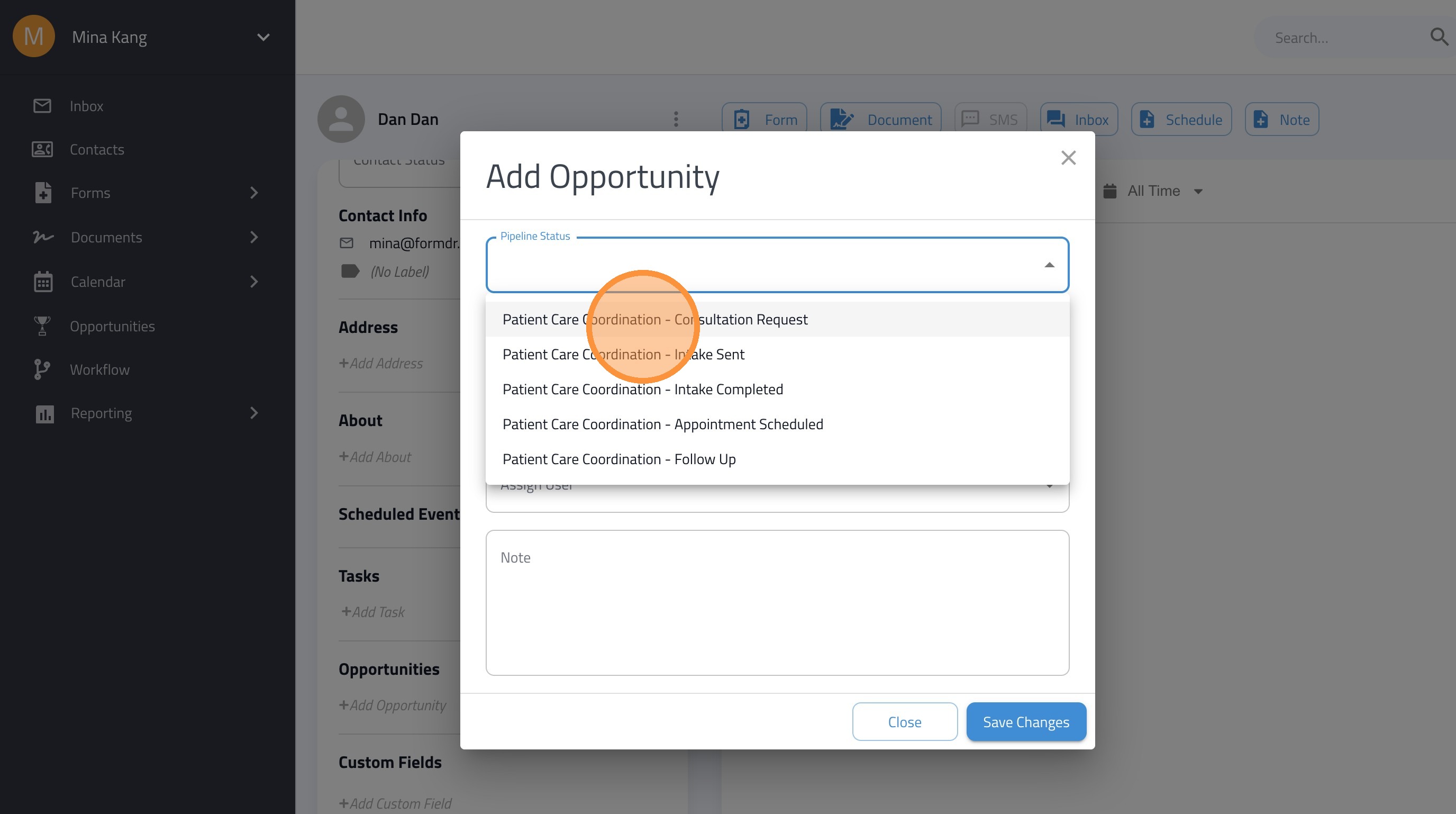
5. Choose the Correct Pipeline Status for This Lead / Patient
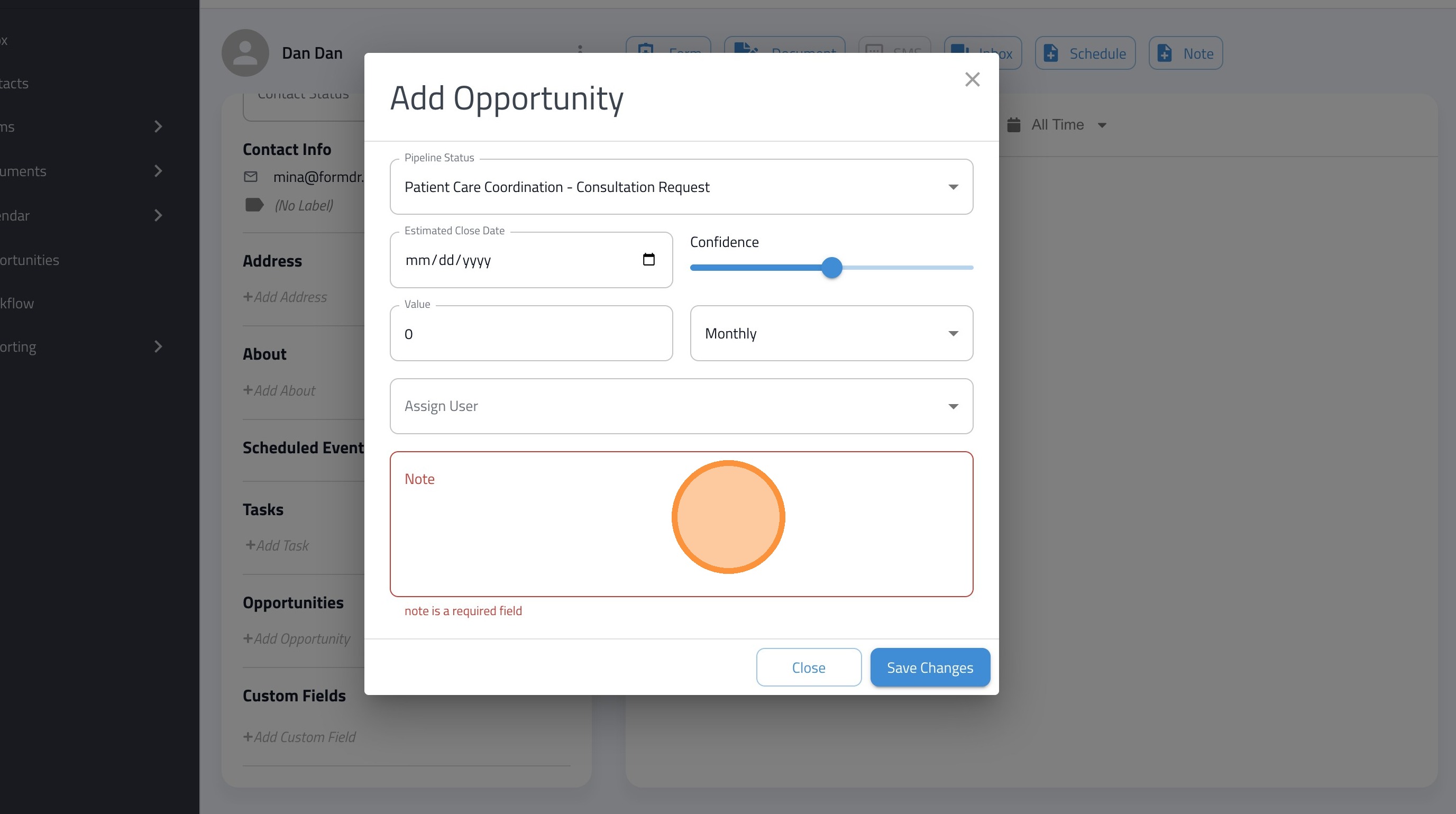
6. Add a Note to Save the Opportunity Status
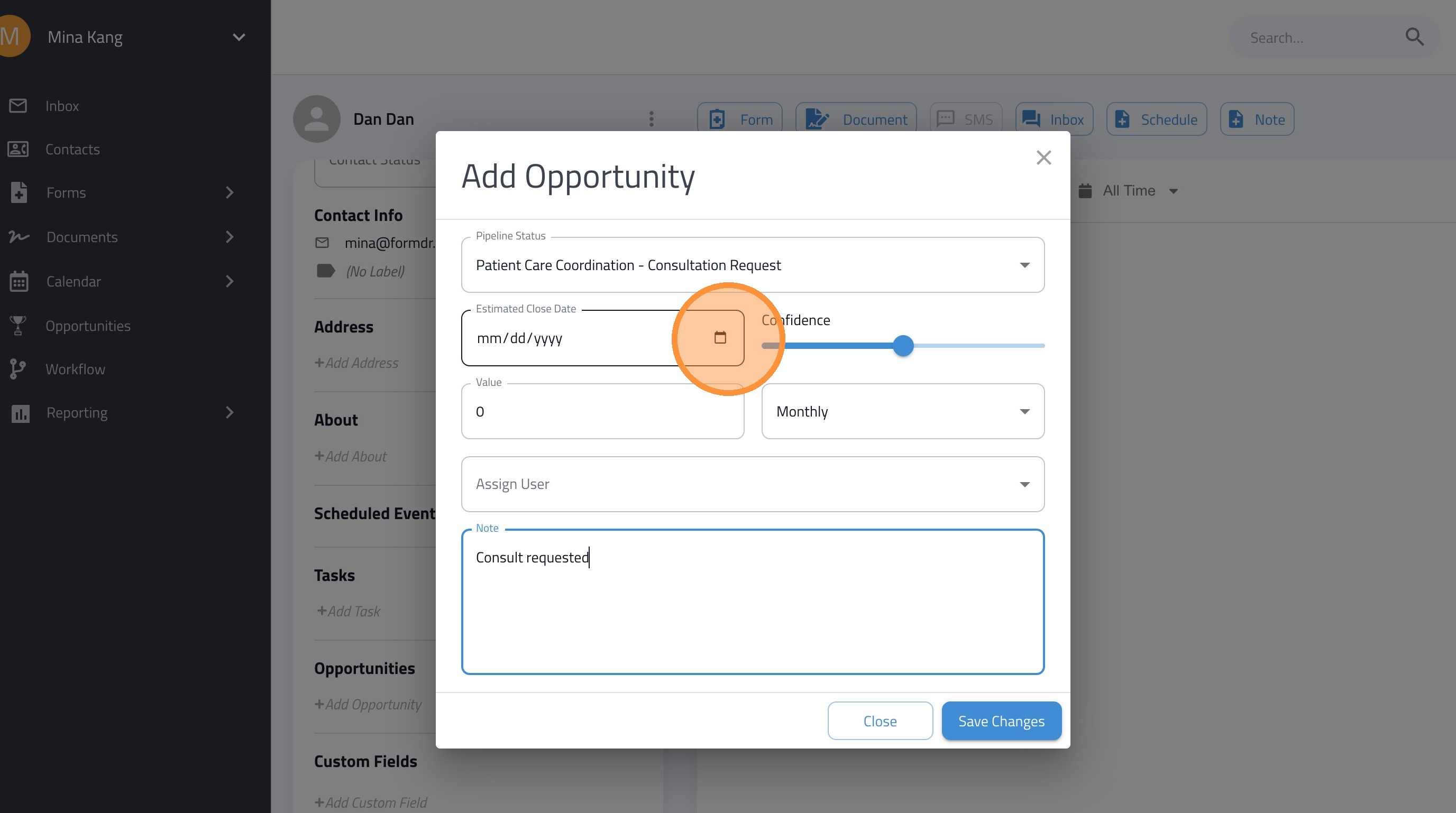
7. Optional: Click the "Estimated Close Date" field.
8. Click "Save Changes"
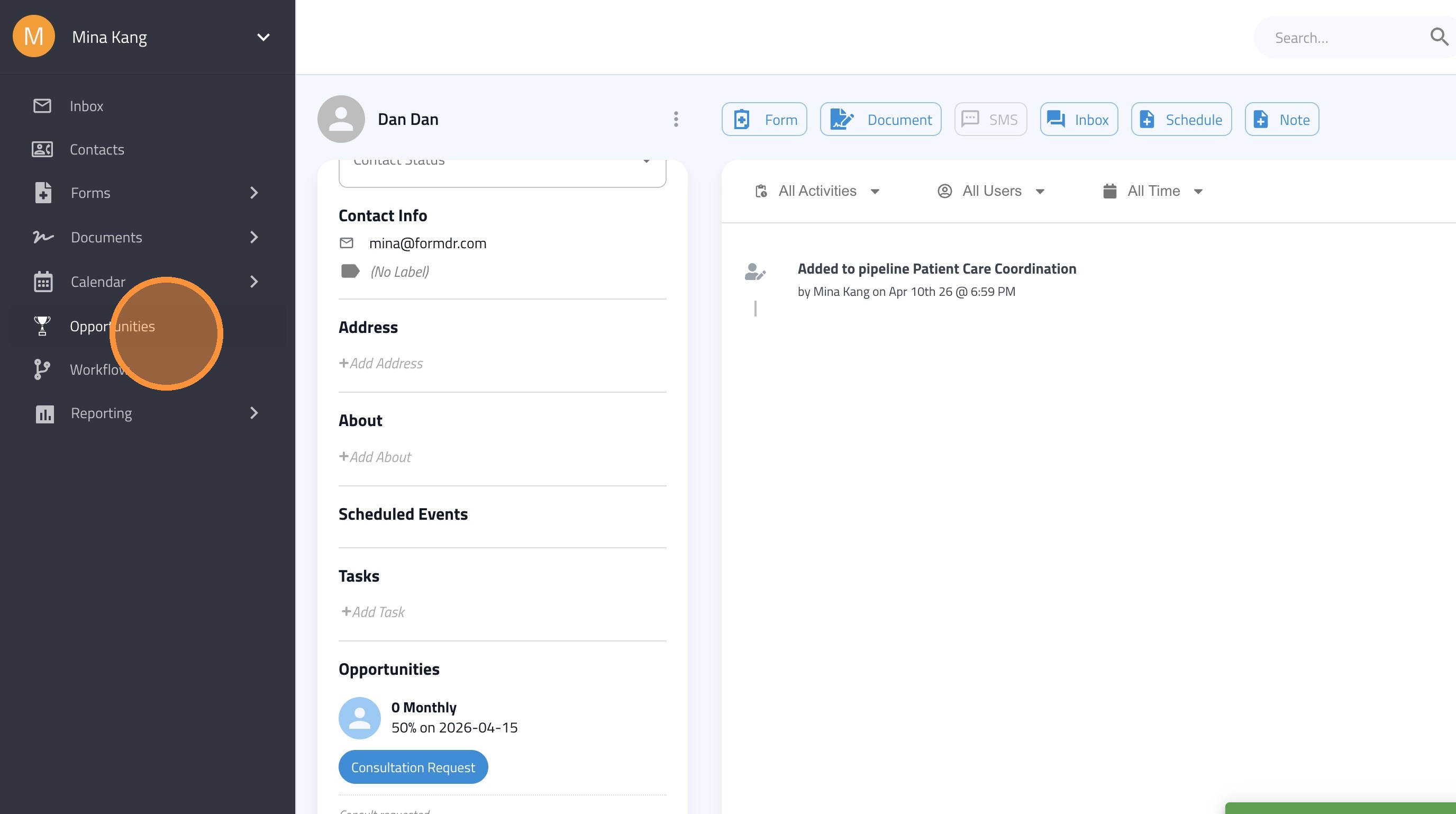
9. Click "Opportunities"
10. Click on the Contact Card
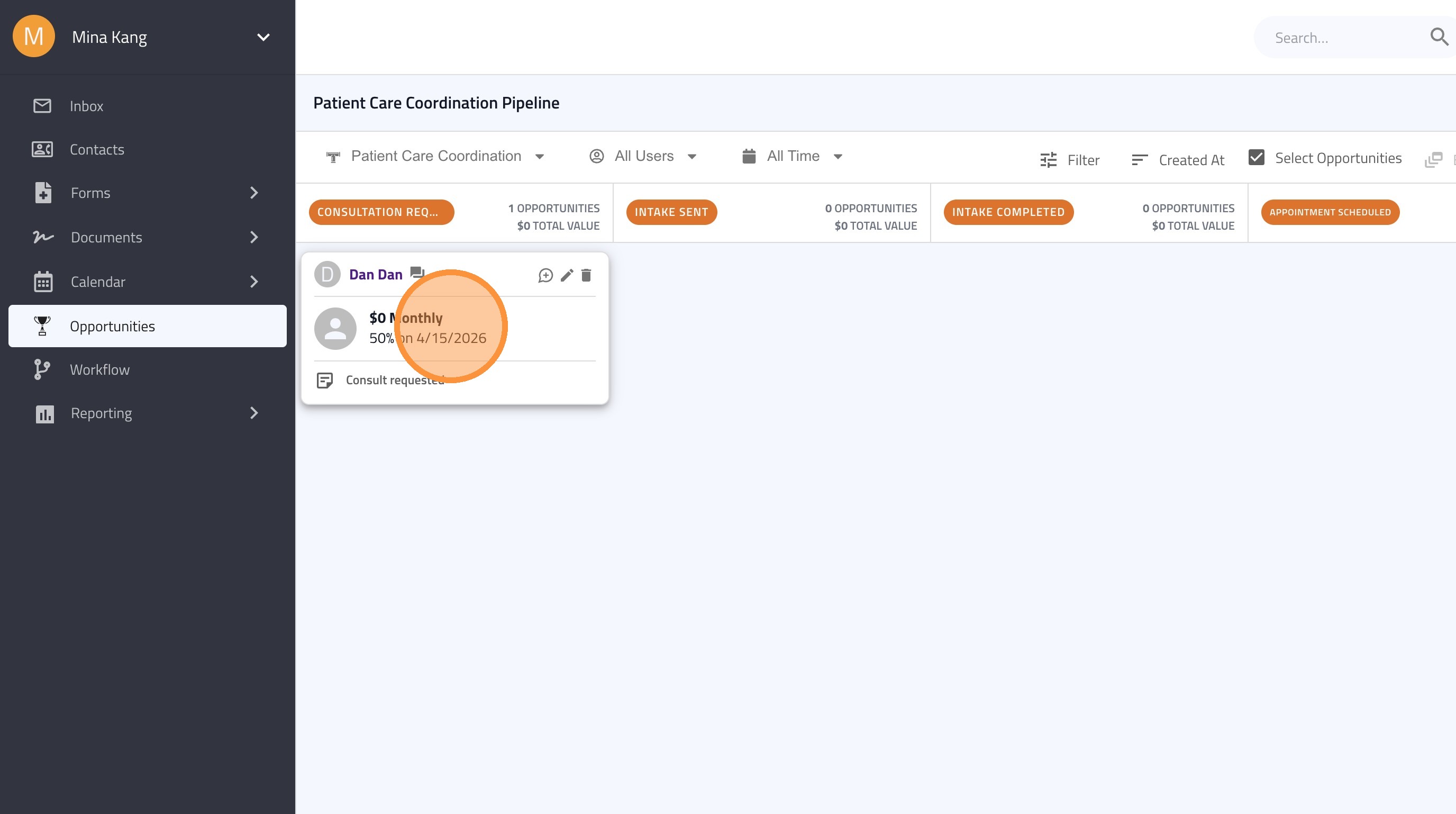
11. Manually Drag and Drop the Contact Card to the Next Pipeline Status