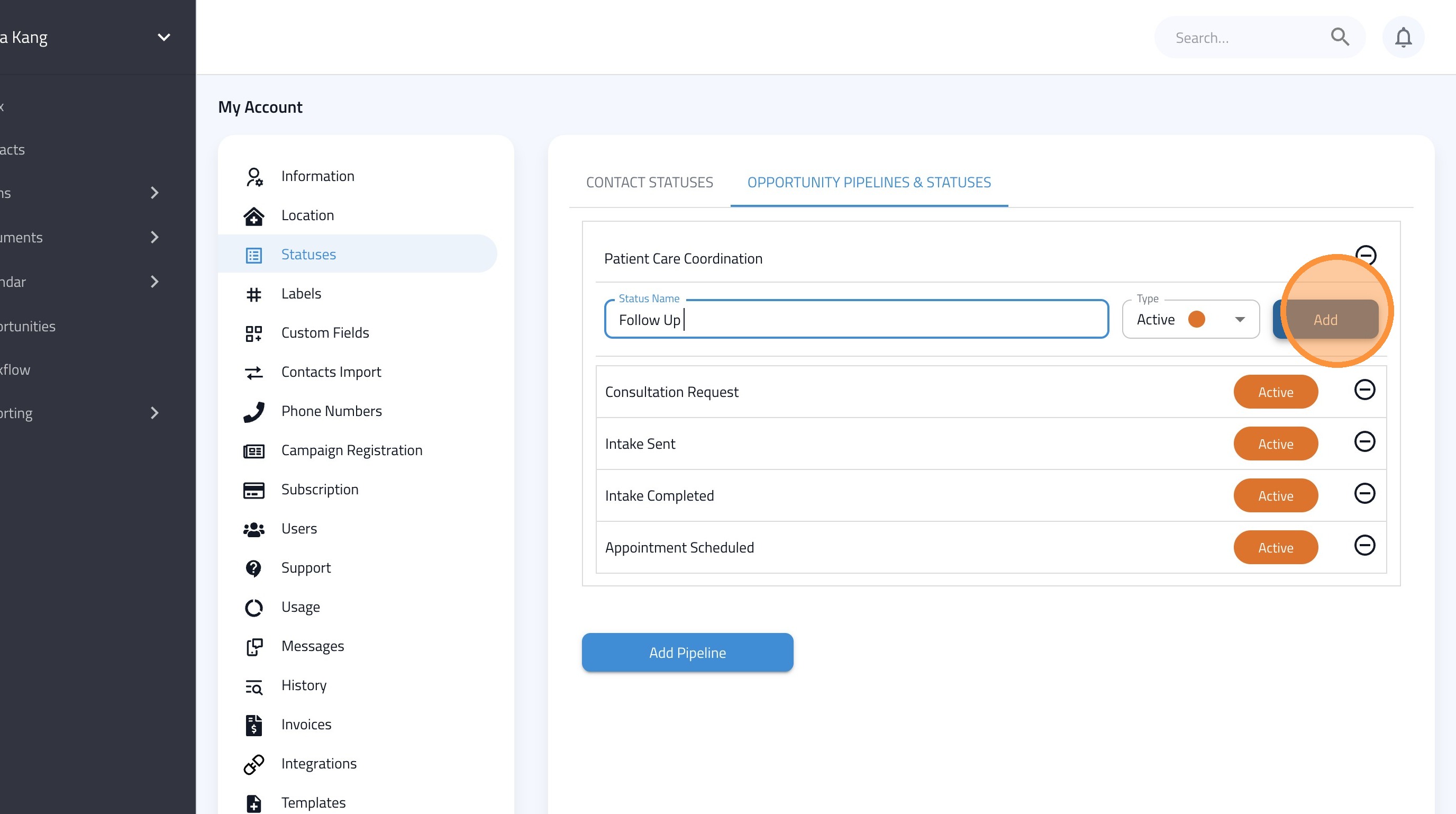
Learn how to organize your patient journey by creating a custom pipeline in FormDr. This guide helps you establish key statuses to manage patient coordination and engagement effectively.
1. Navigate to https://dashboard.formdr.com/inbox
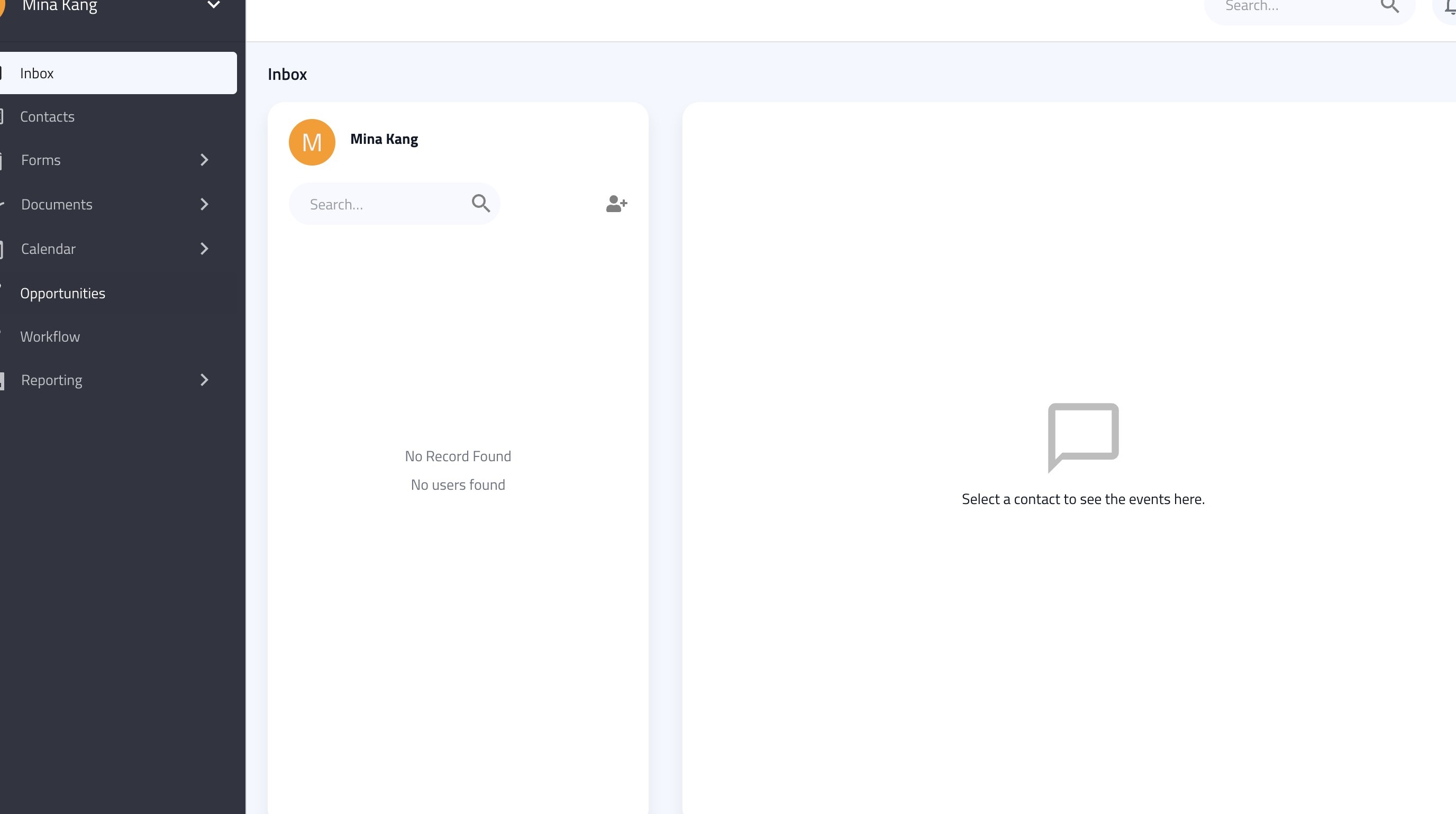
2. Click "Opportunities"
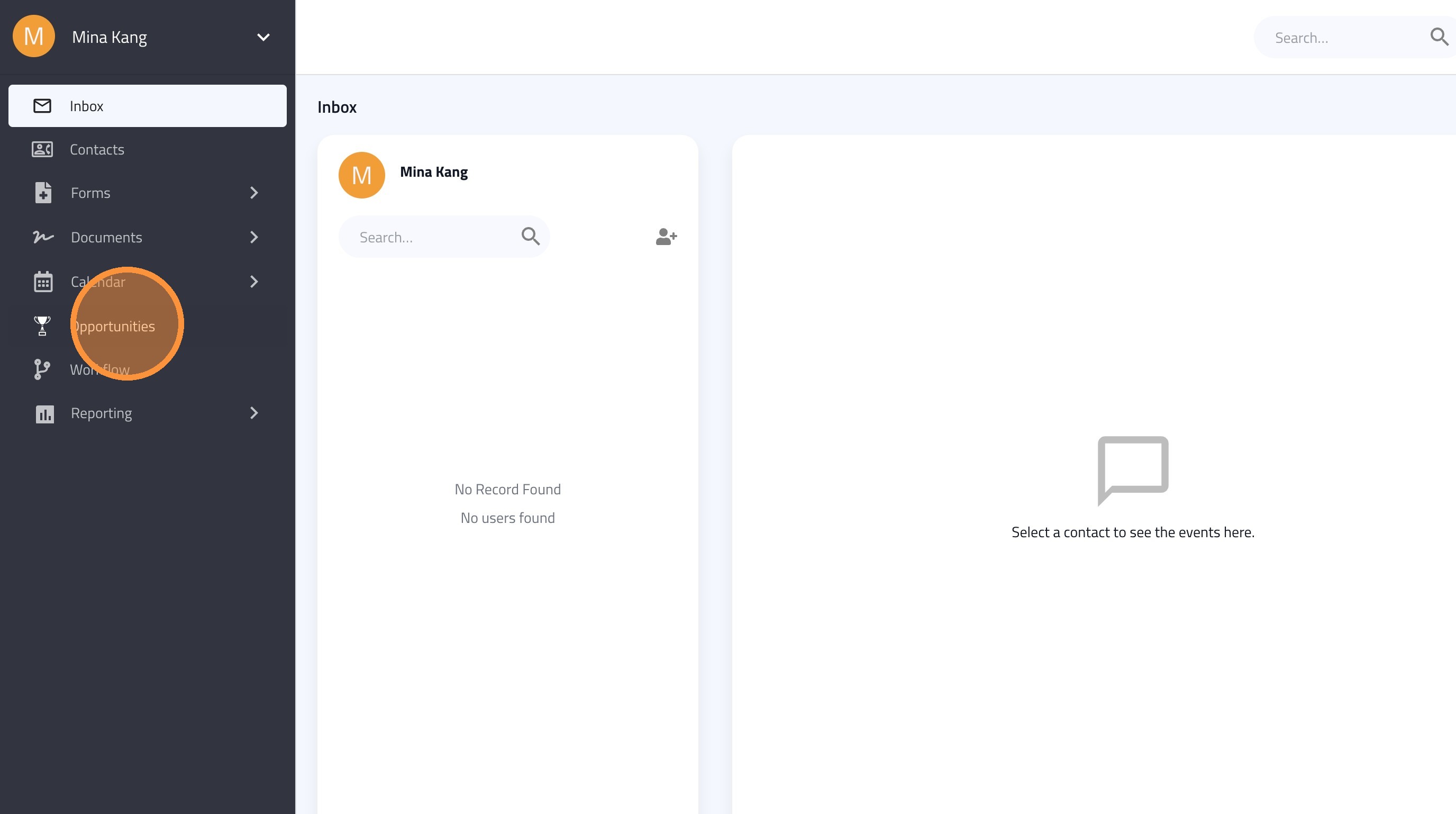
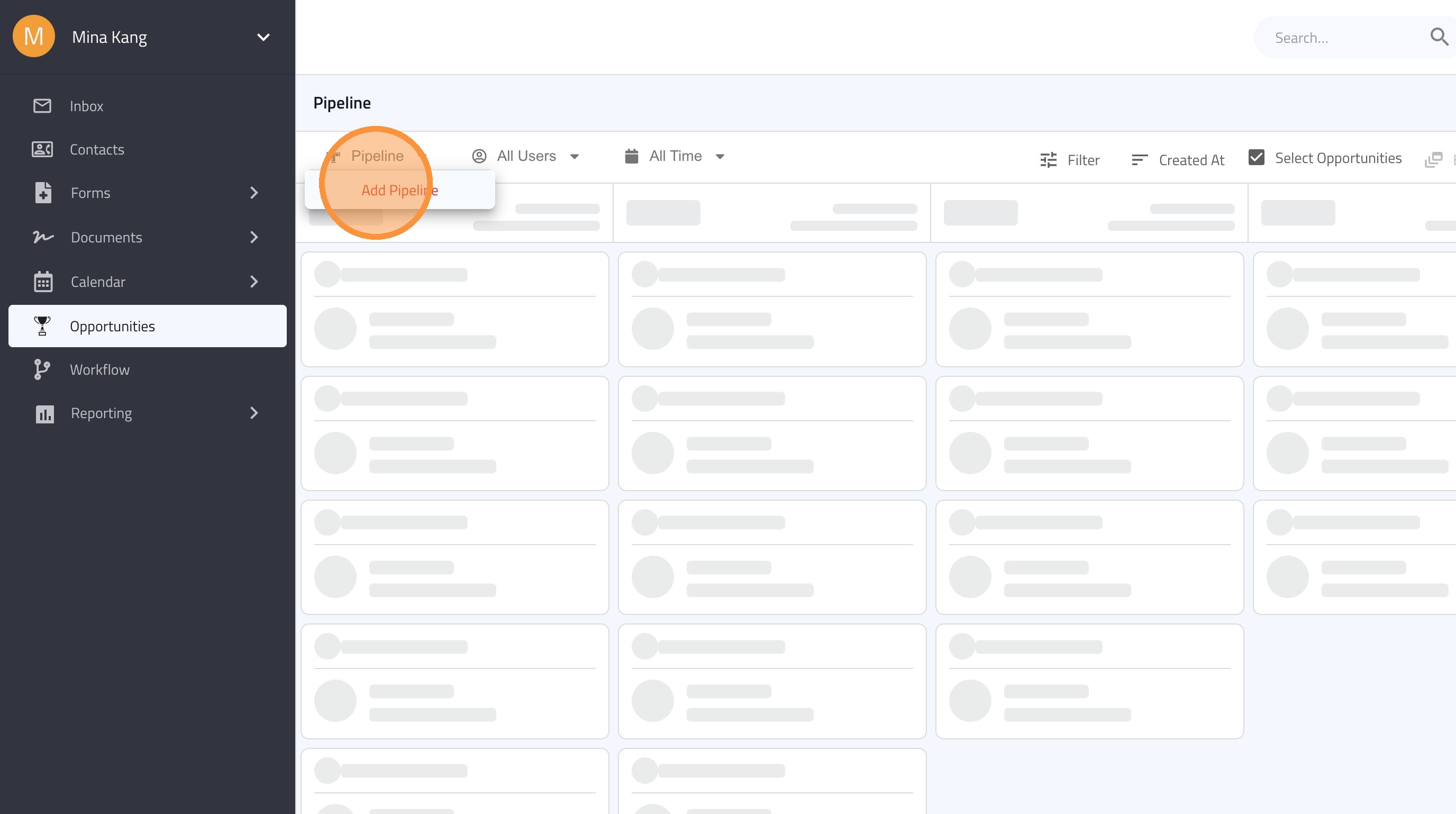
3. Click "Pipeline"
4. Click "Add Pipeline"
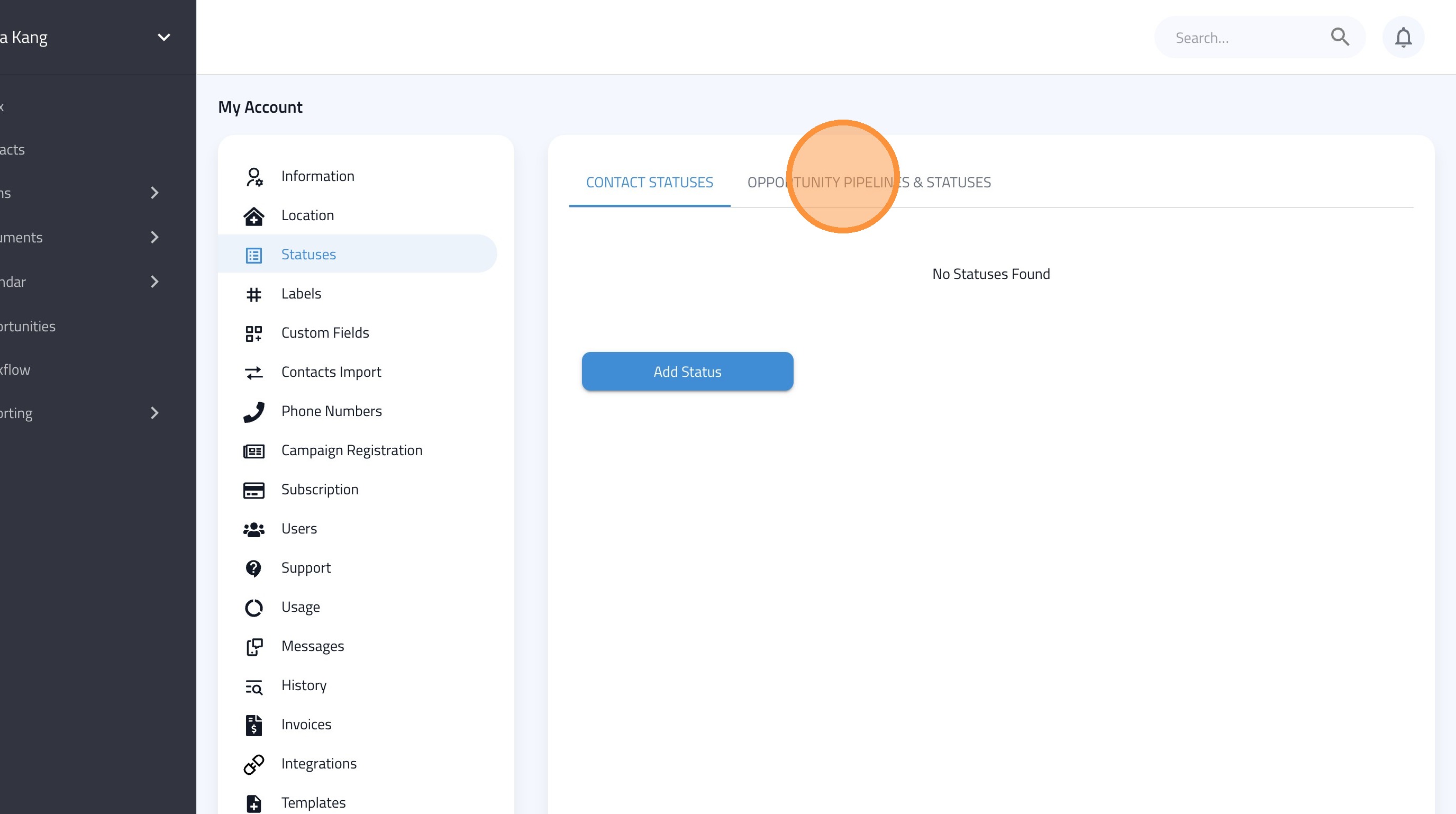
5. Click "Opportunity Pipelines & Statuses"
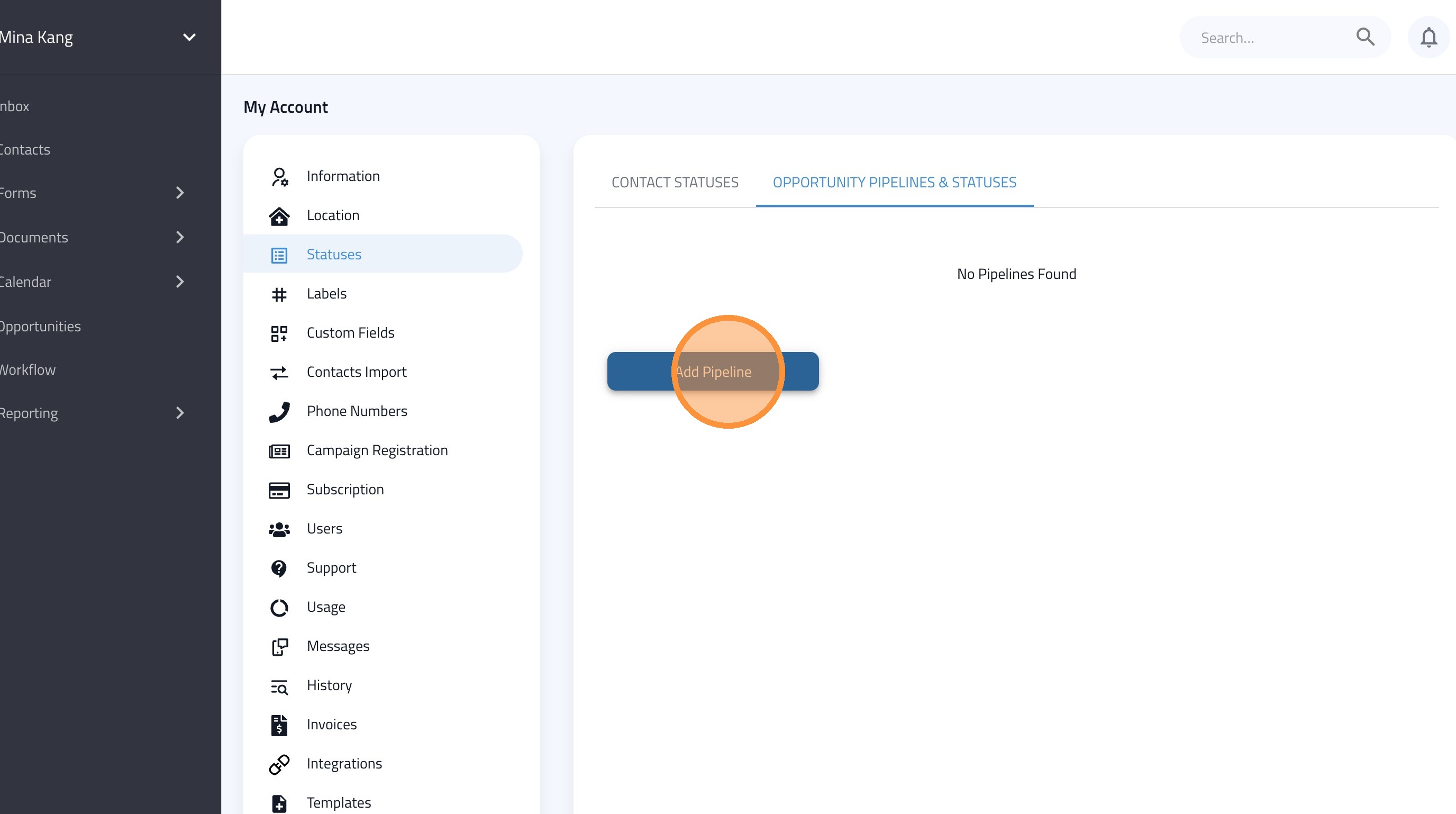
6. Click "Add Pipeline"
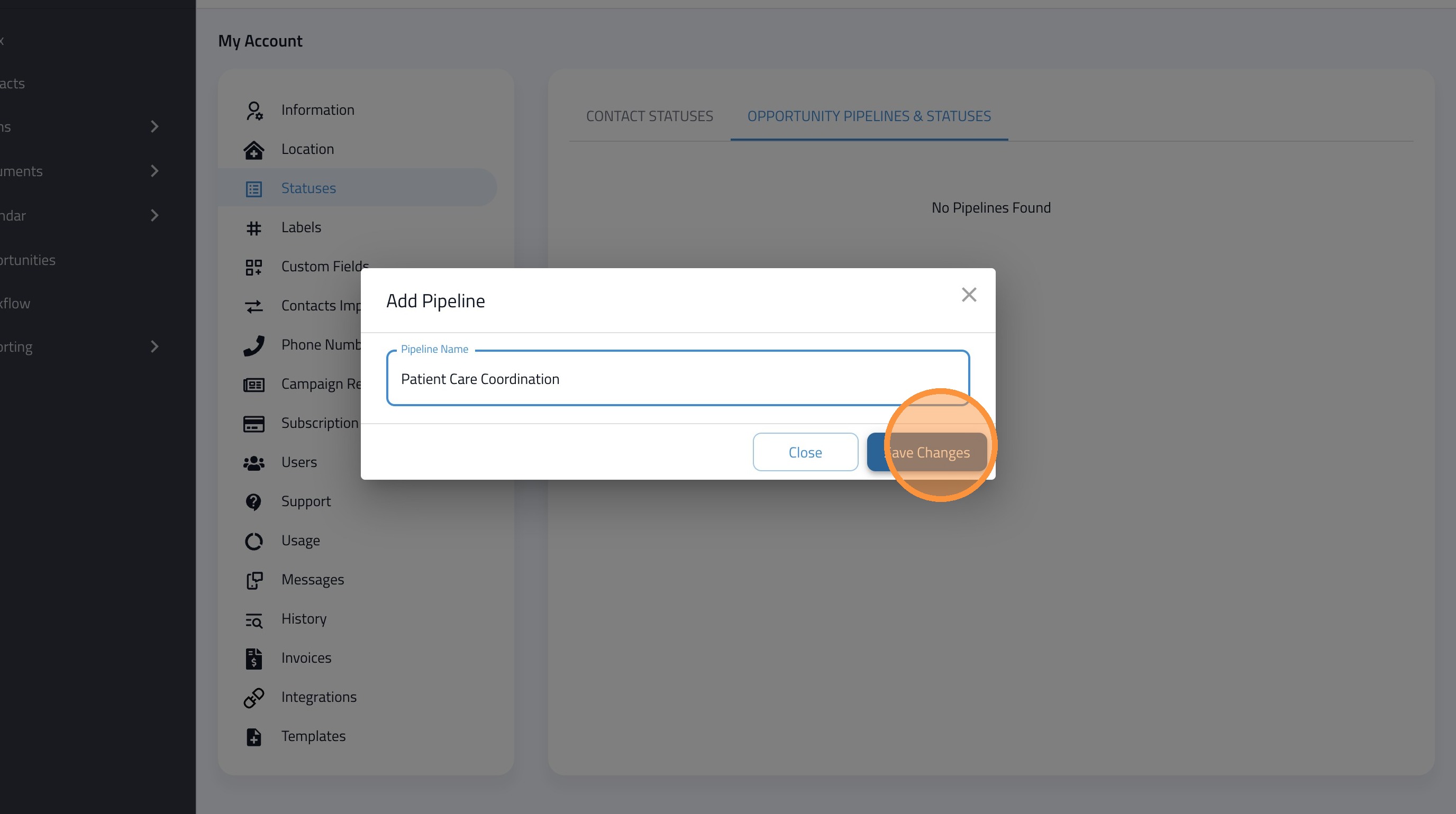
7. Click the "Pipeline Name" field.
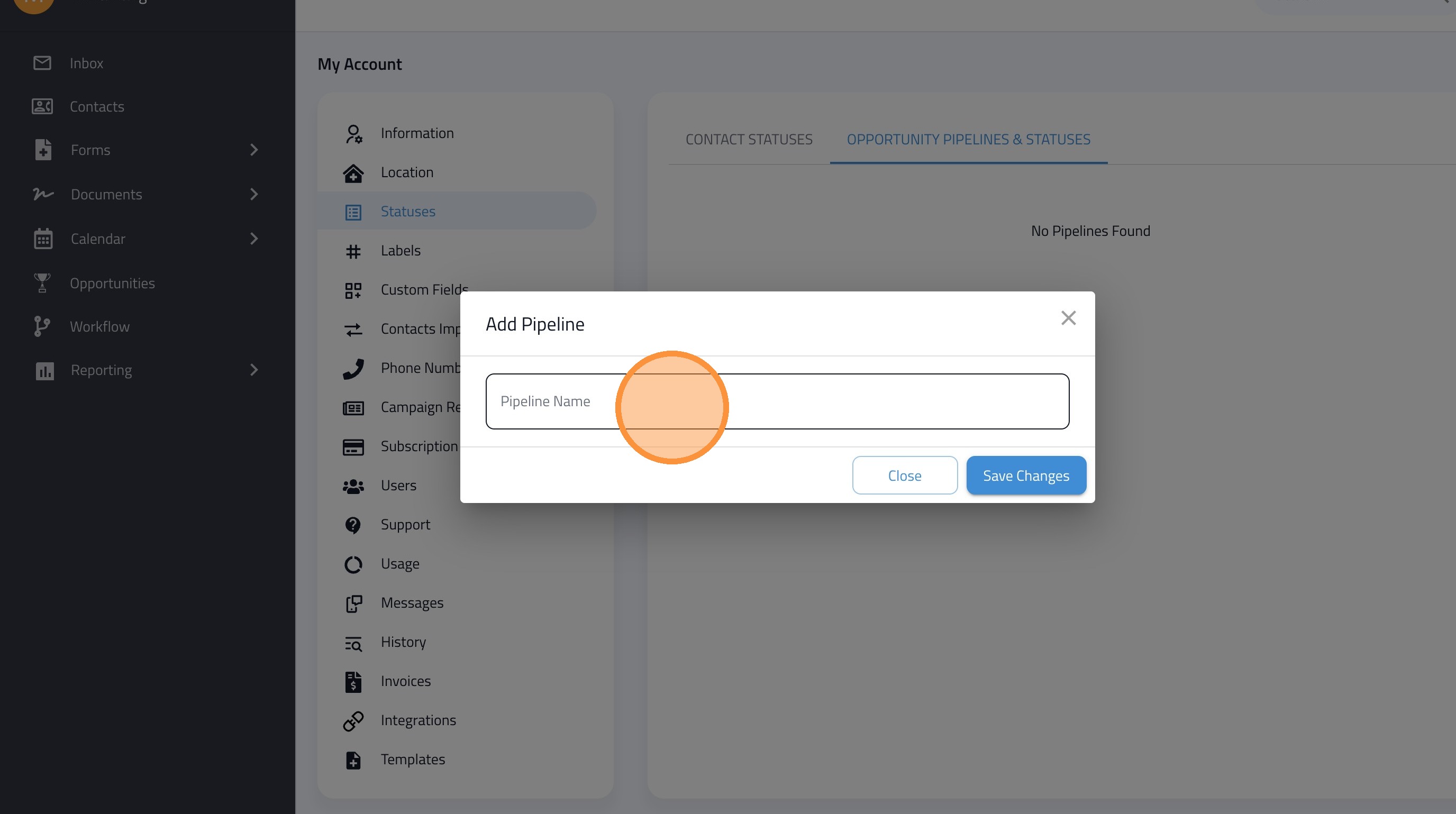
8. Enter the Name of the Pipeline
9. Click "Save Changes"
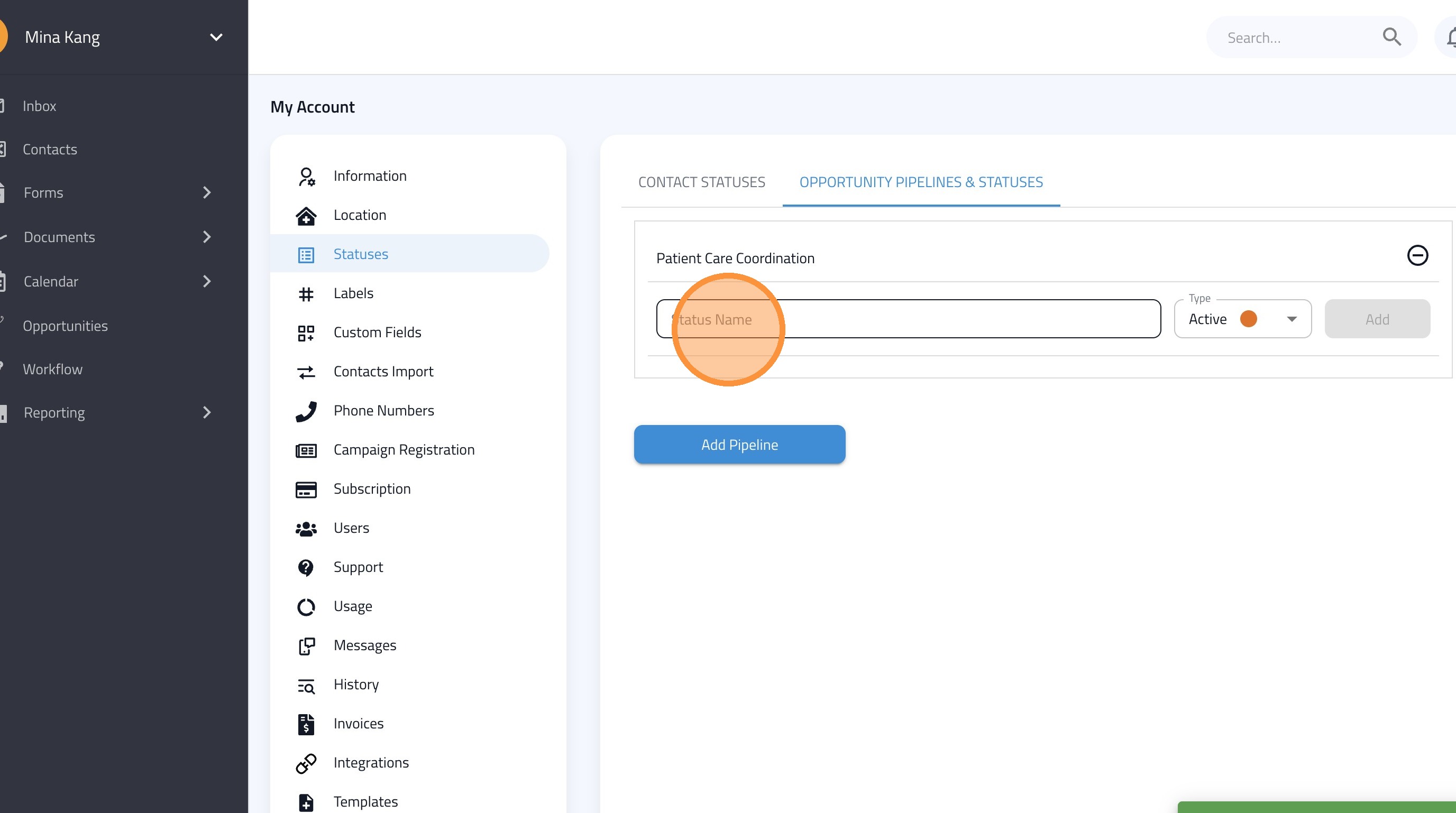
10. Click the "Status Name" field.
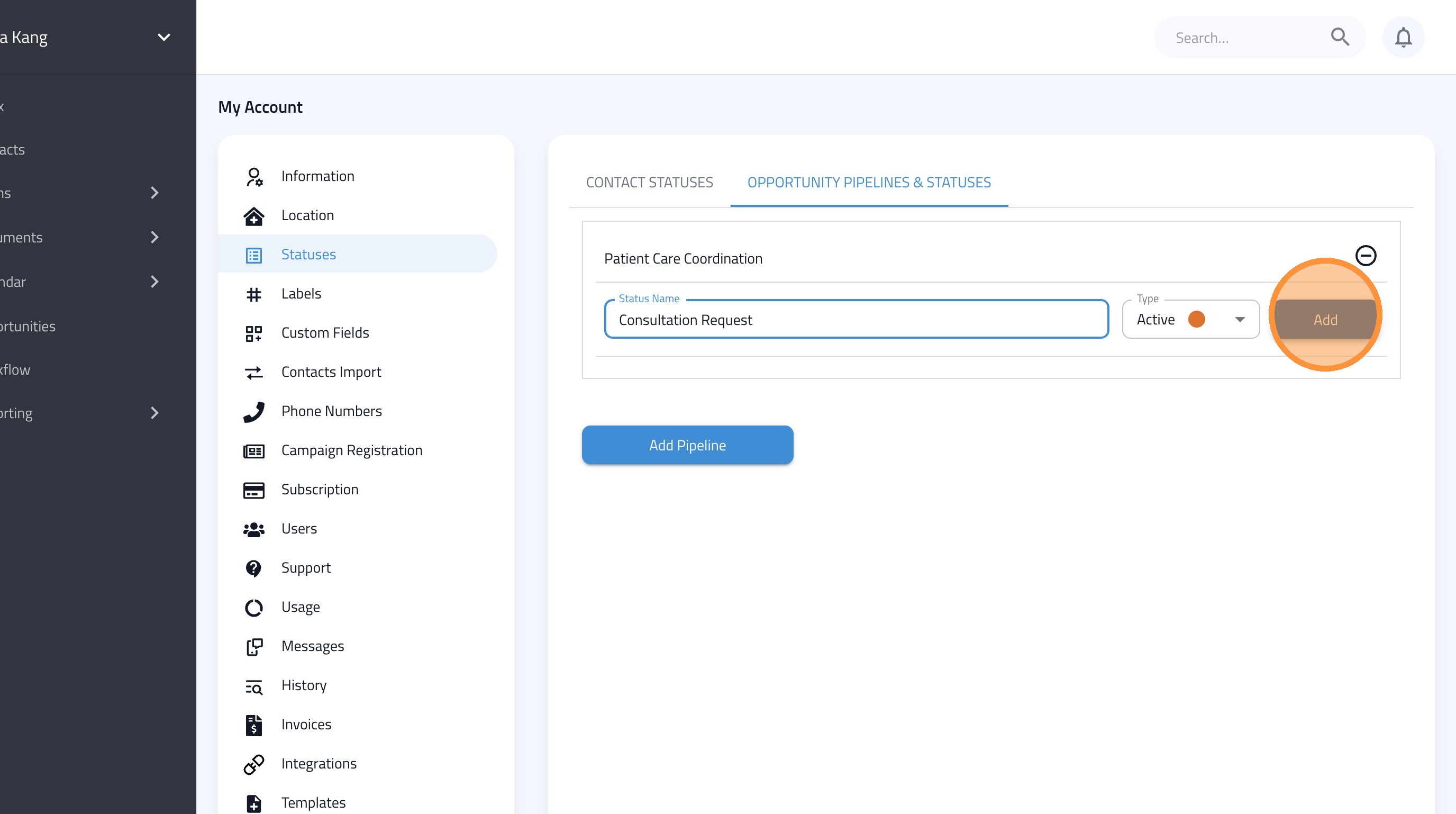
11. Enter the First Status (e.g.: Consultation Request)
12. Click "Add"
13. Click the "Status Name" field.
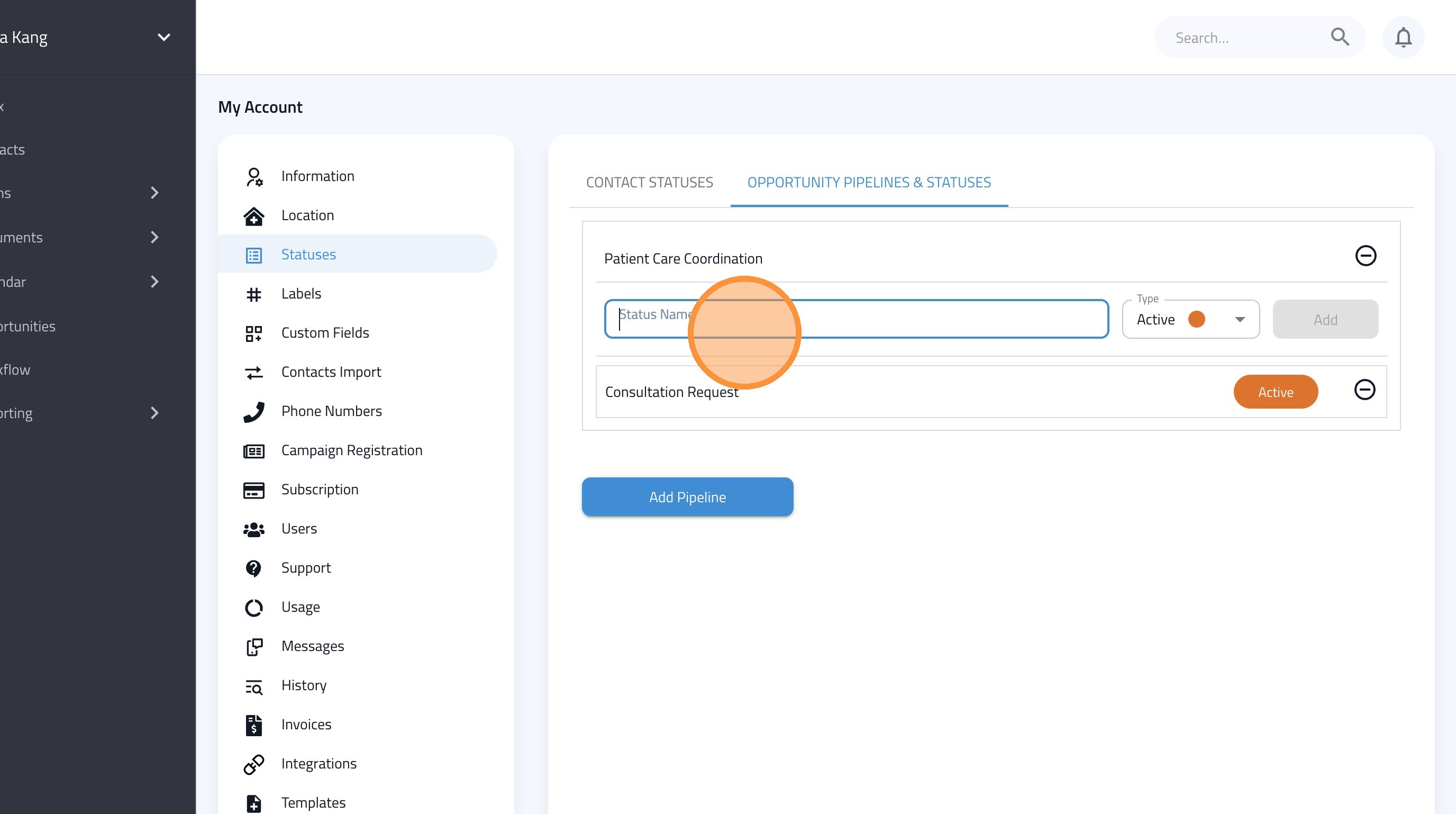
14. Enter the Next Status (e.g.: Intake Sent)
15. Click "Add"
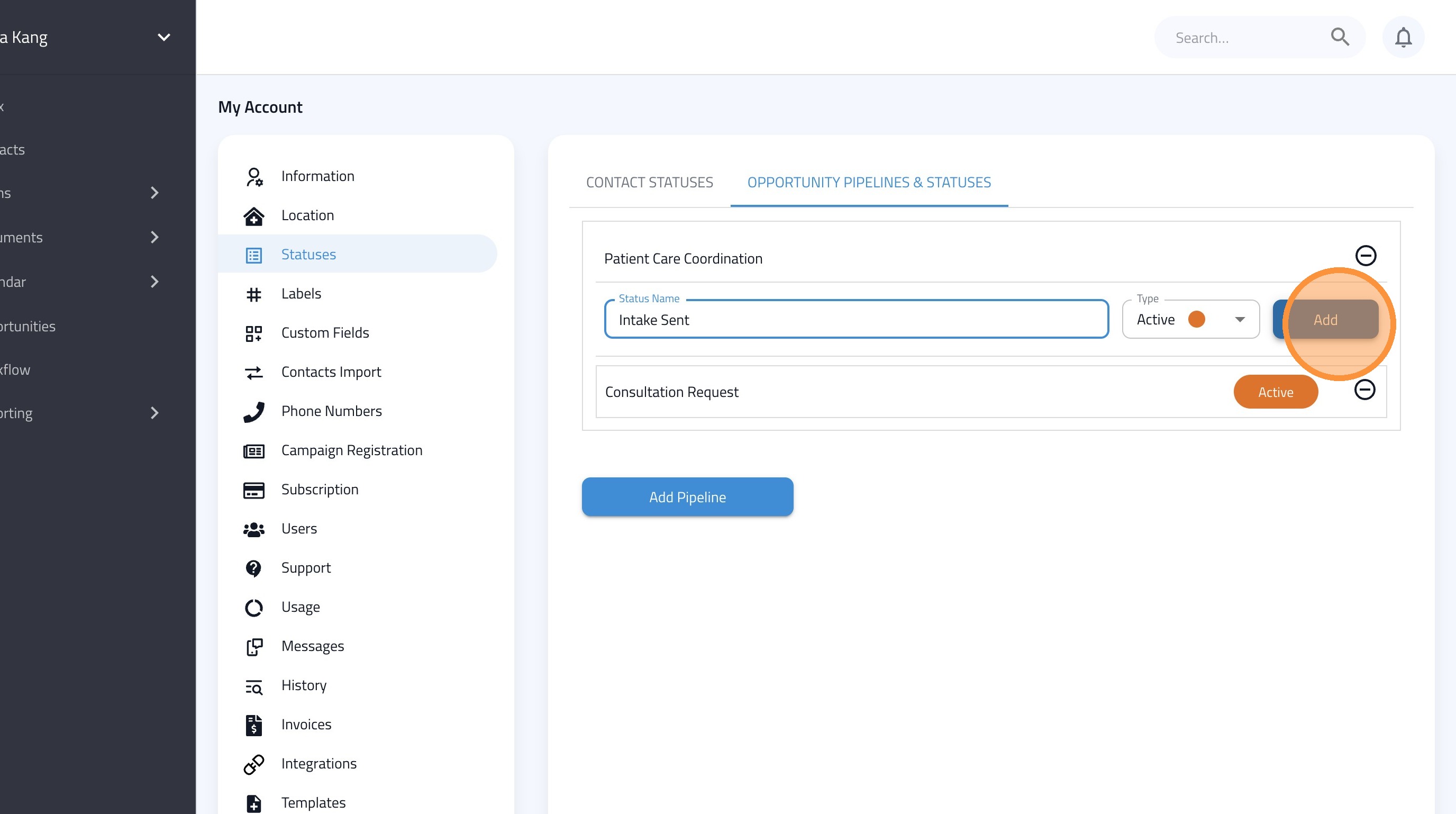
16. Click the "Status Name" field.
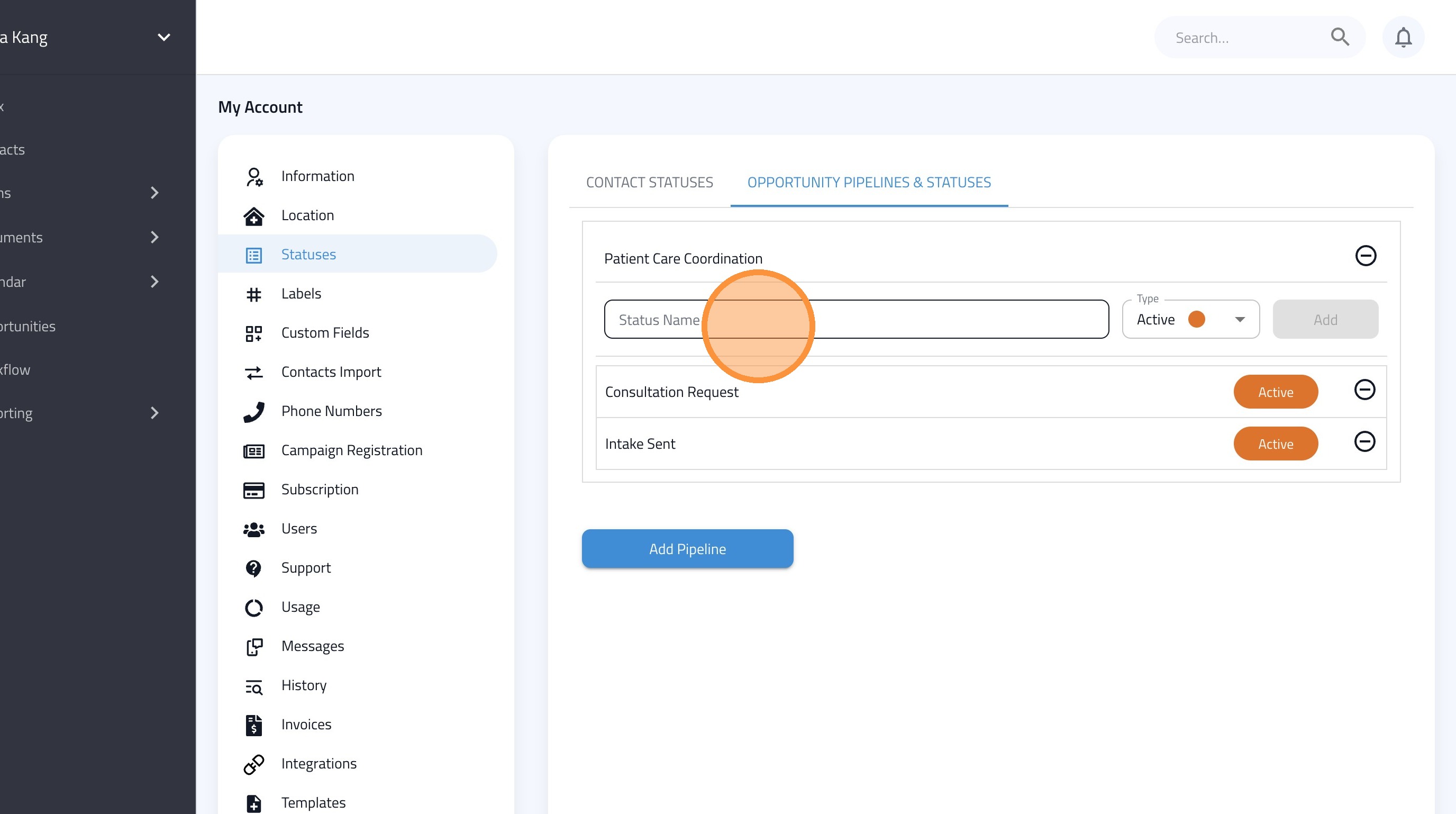
17. Enter the Next Status (e.g.: Intake Completed)
18. Click "Add"
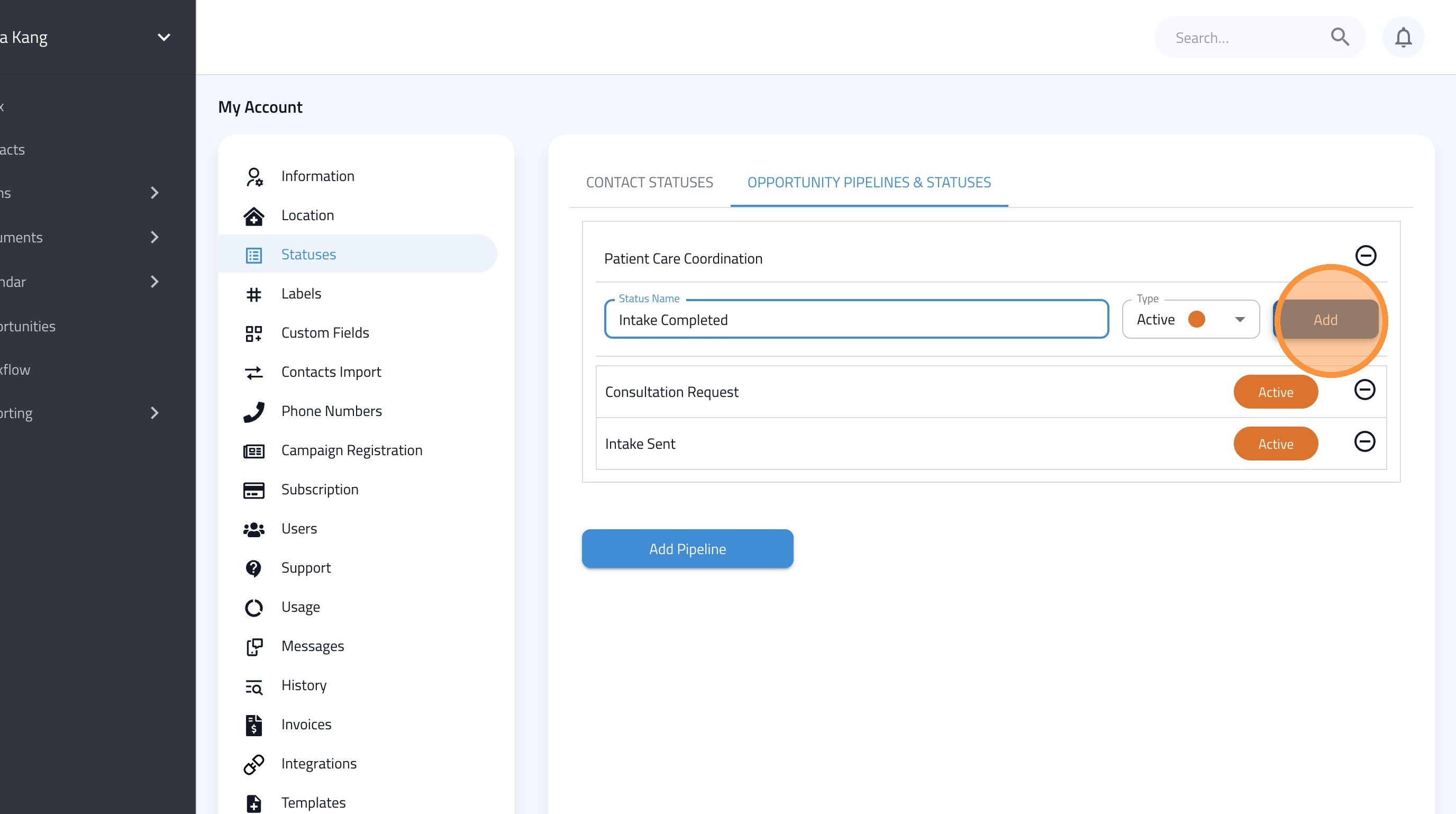
19. Click the "Status Name" field.
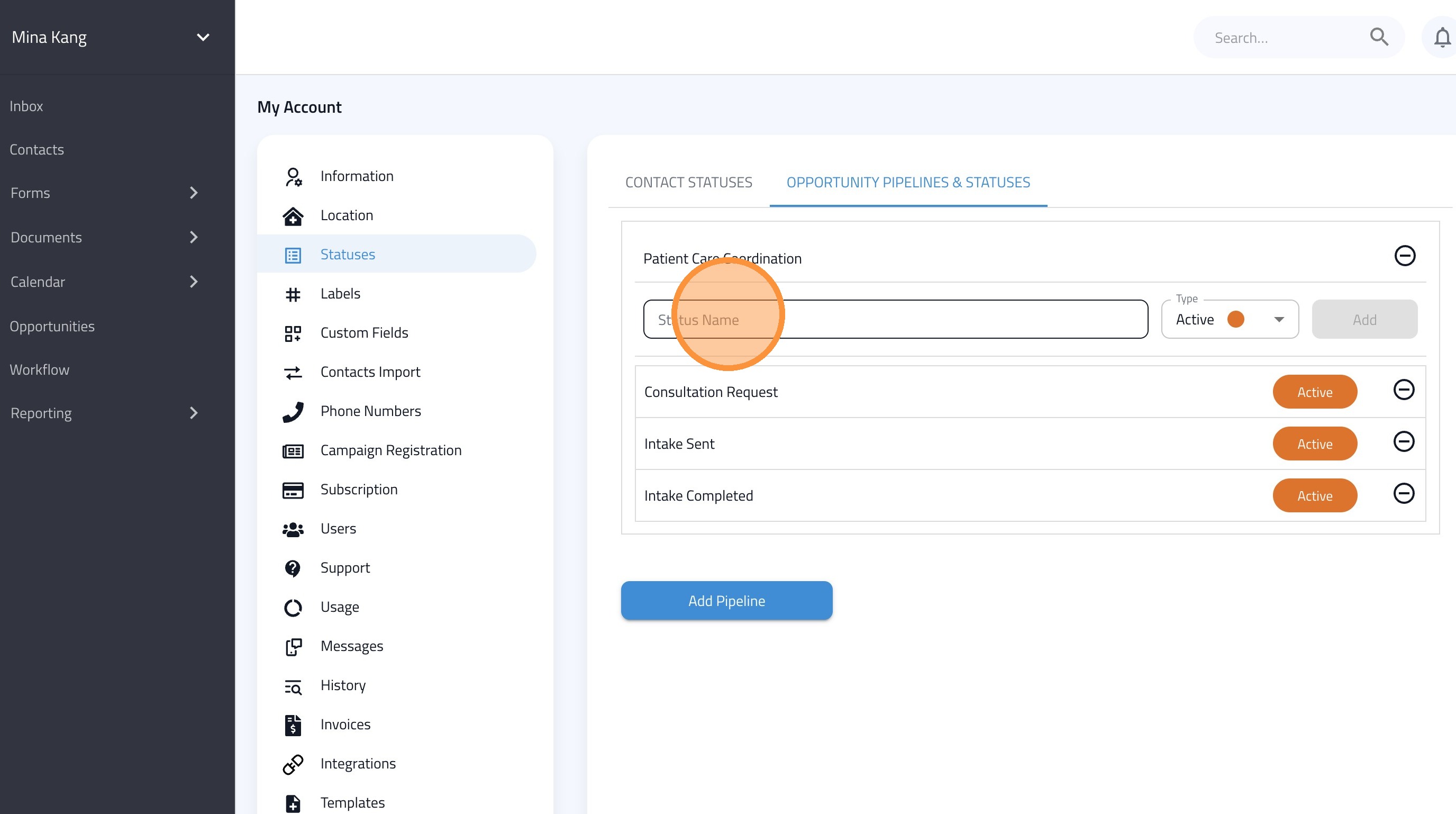
20. Enter the Next Status (e.g.: Appointment Scheduled)
21. Click "Add"
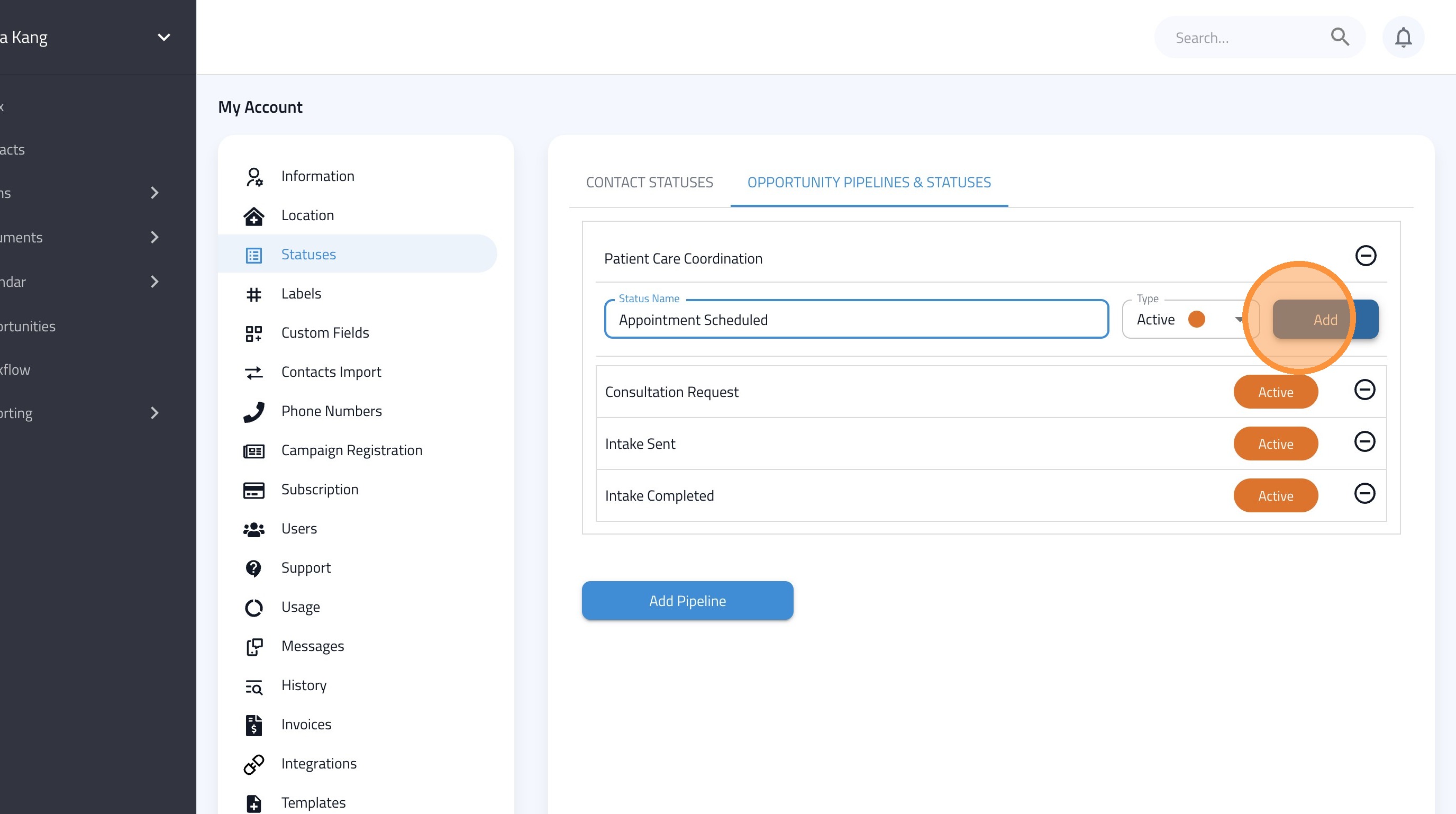
22. Click the "Status Name" field.
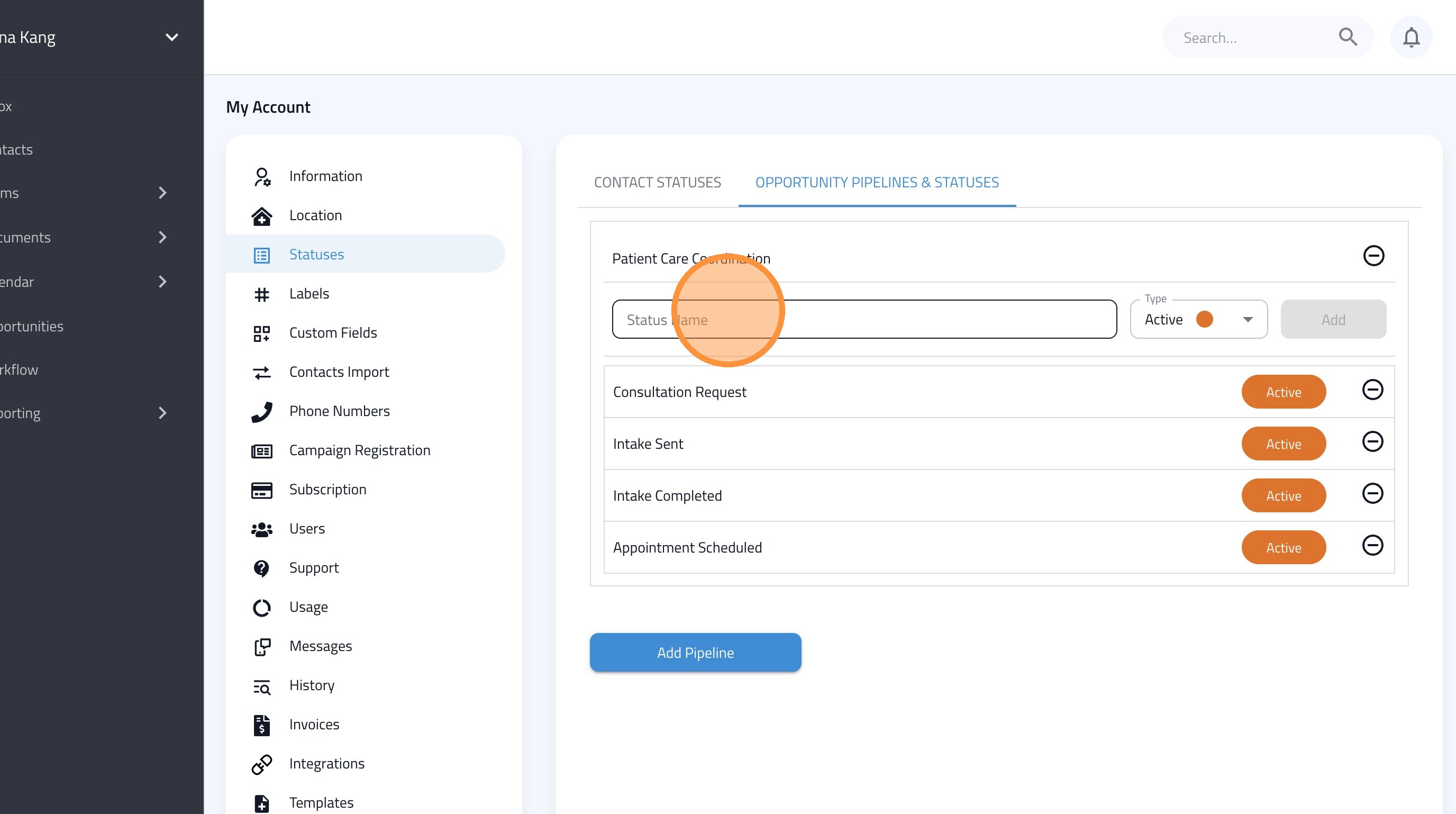
23. Enter the Next Status (e.g.: Follow Up)
24. Click "Add"