
Learn how to upload, send, and request E-signatures within FormDr. This guide walks you through adding E-signature fields and preparing your documents for patients to sign.
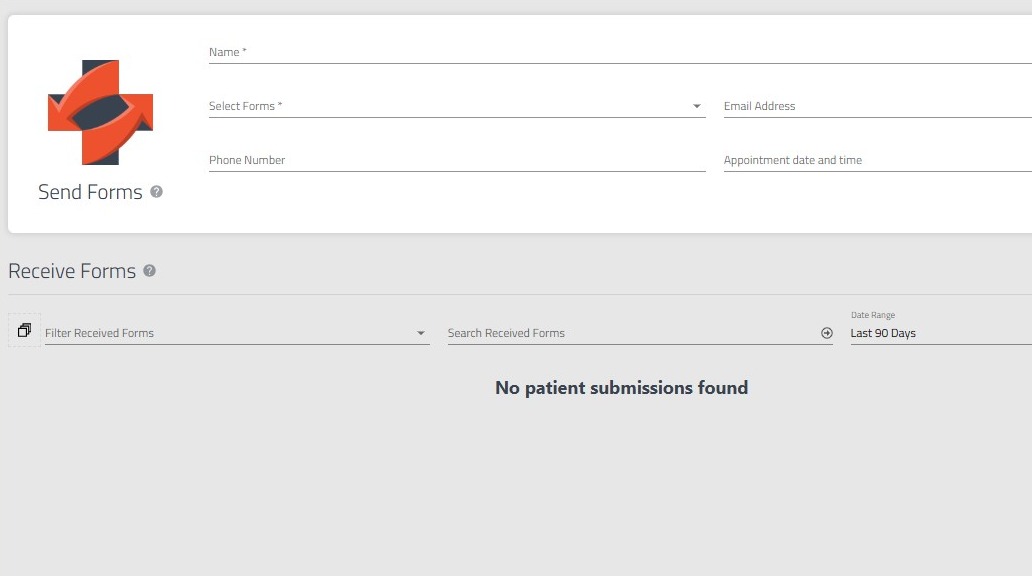
1. Log in into https://app.formdr.com
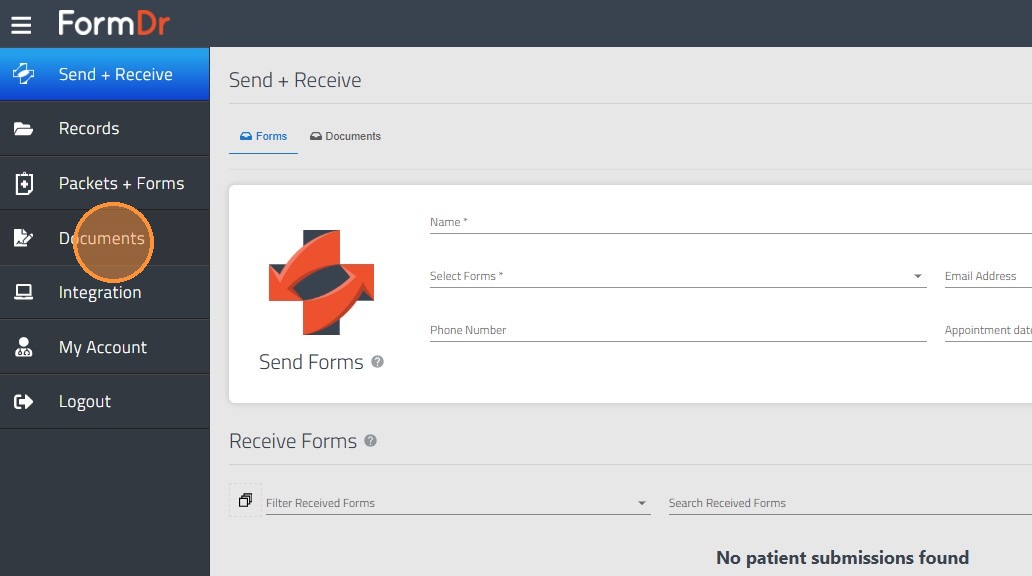
2. Go to "Documents"
3. Click "Select your document"
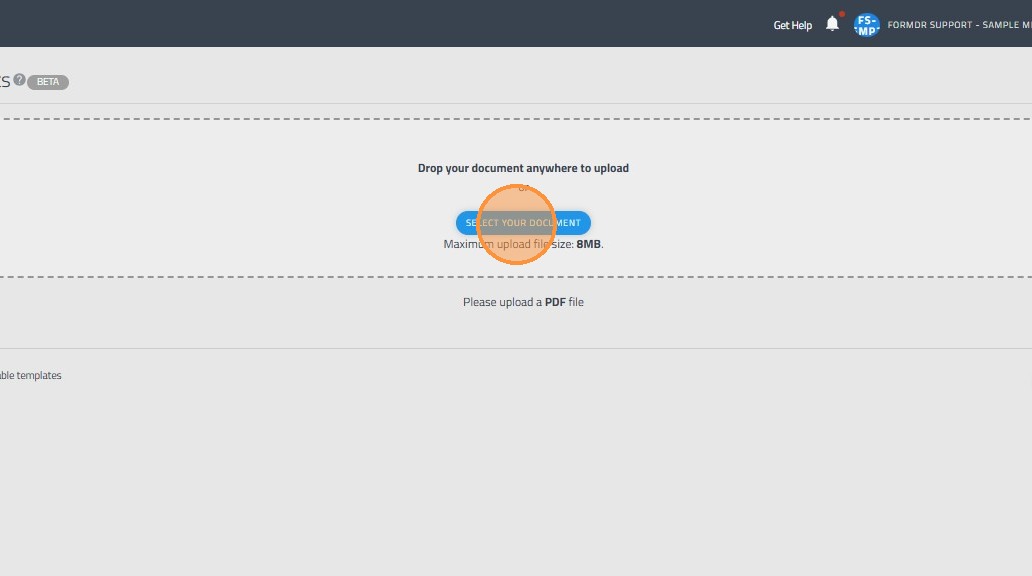
4. Import your document from your device.
5. Click "Add Another Signer" or Add my self as signer depending on who will sign the document.
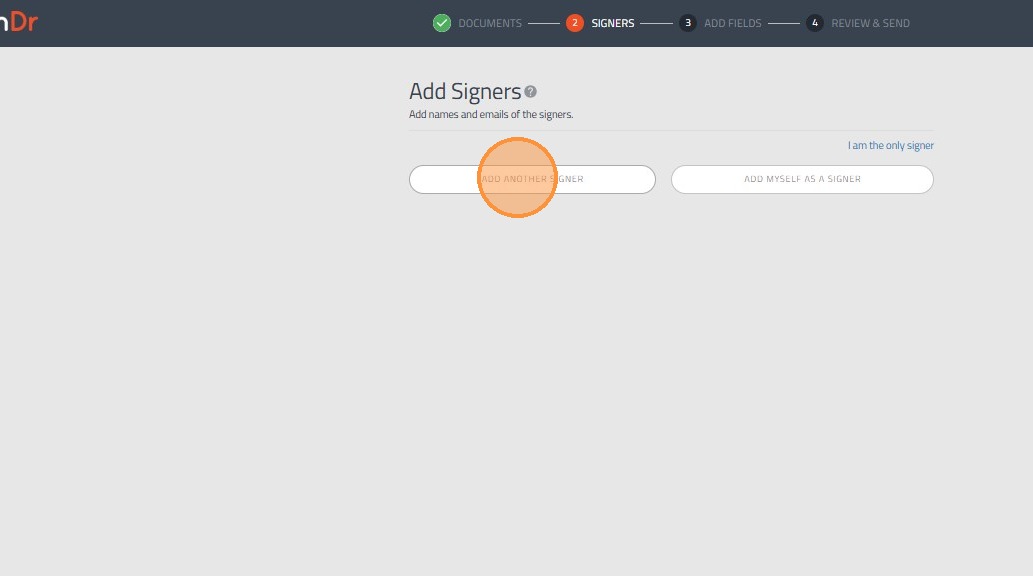
6. Enter the "Signer Name" field.
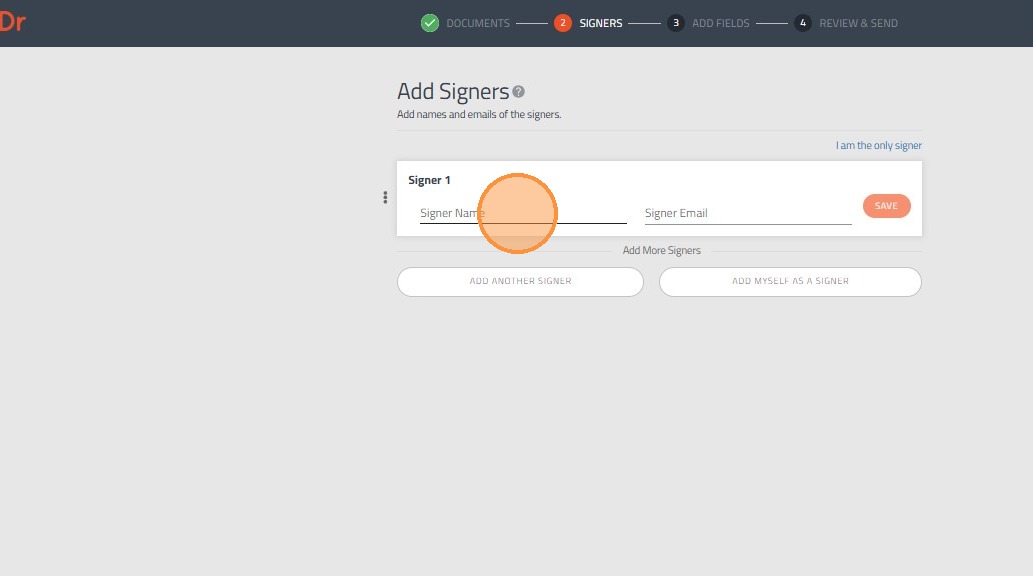
7. Enter the signer's email address.
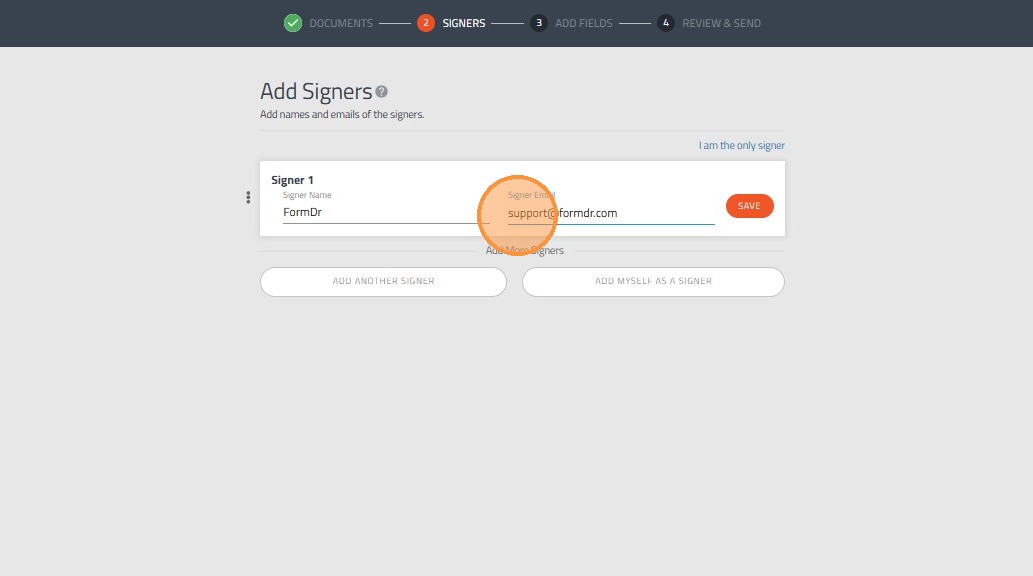
8. Click "Save"
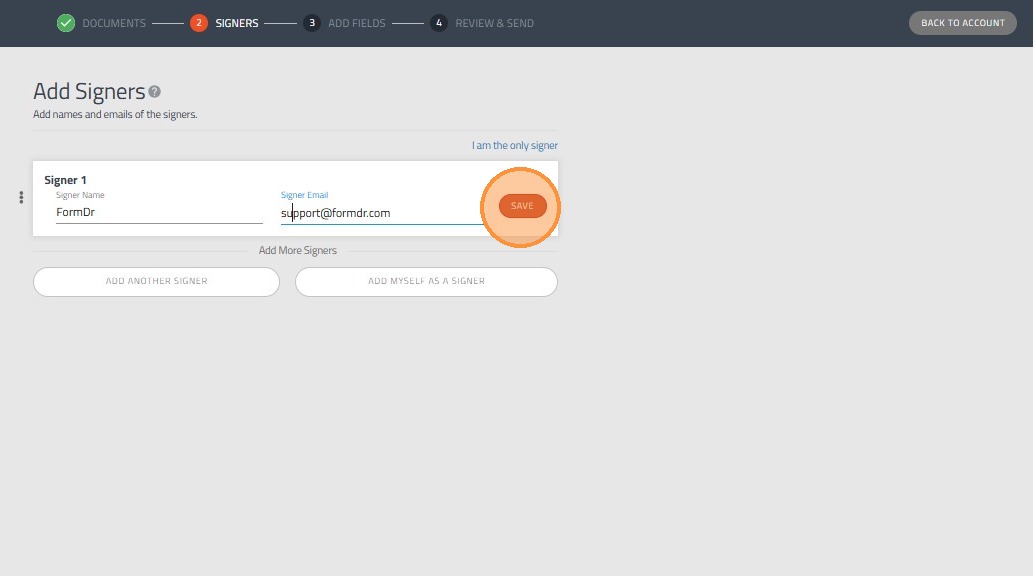
9. Click "Next"

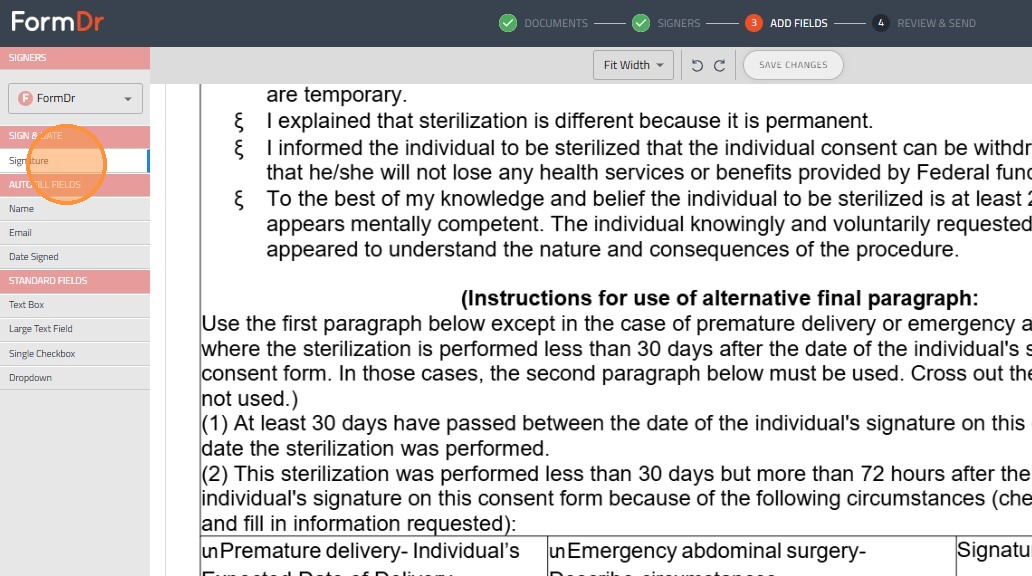
10. Add widgets like "Name"
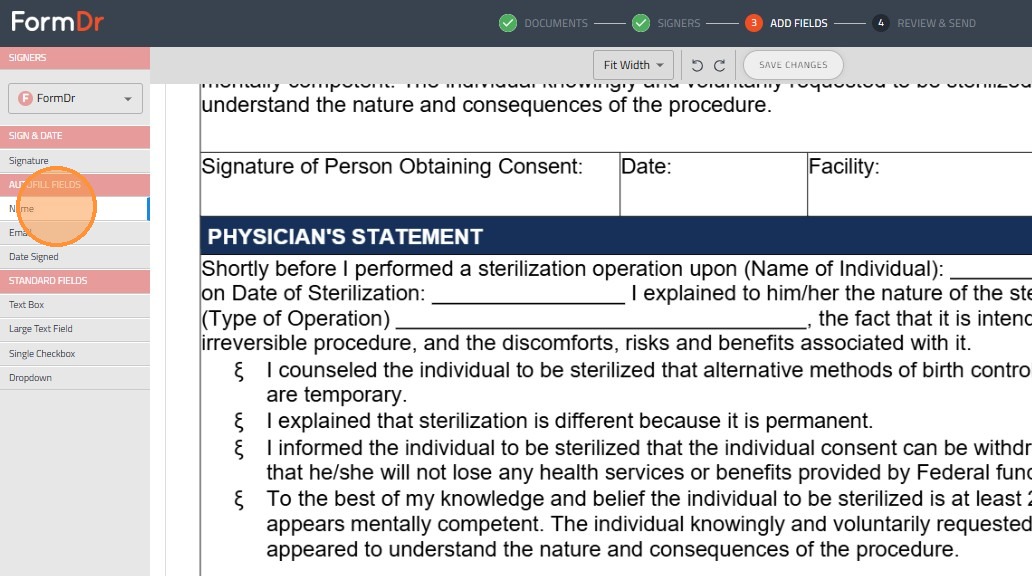
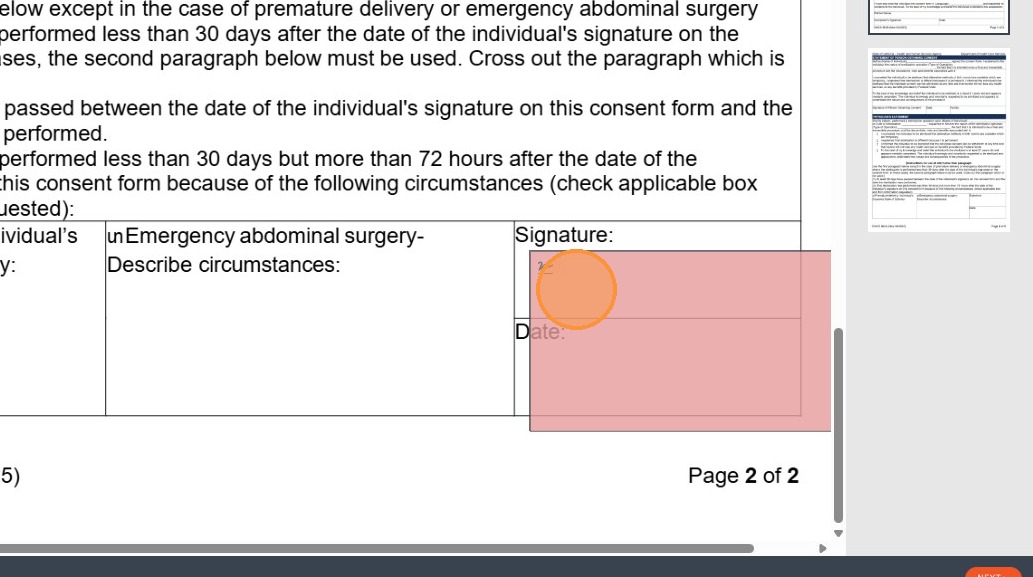
11. Add the "Signature" widget over the Space for the person to sign.
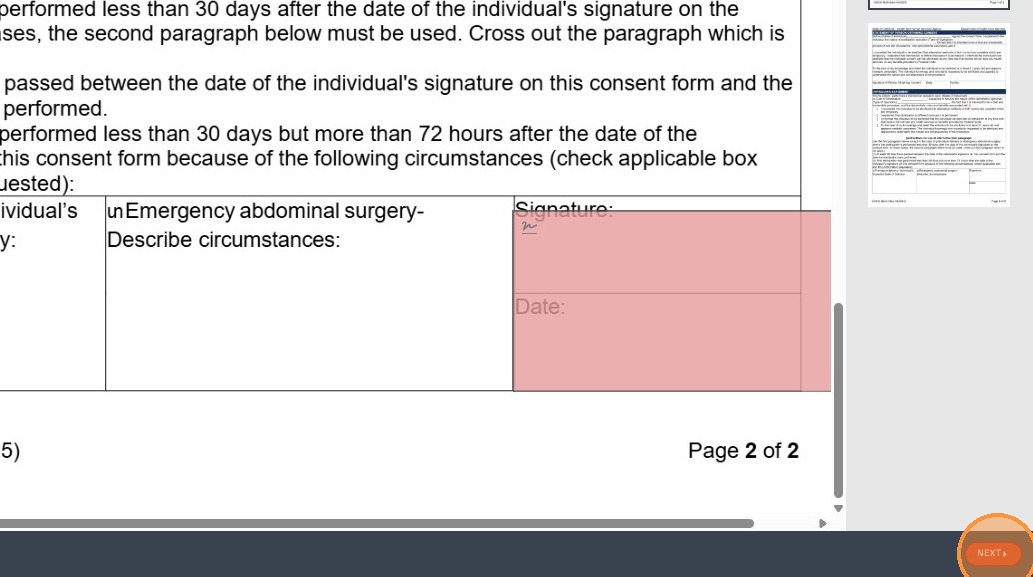
12. Update the widget size.
13. Click "Next"
14. Create a subject the patient will see when receiving the document.
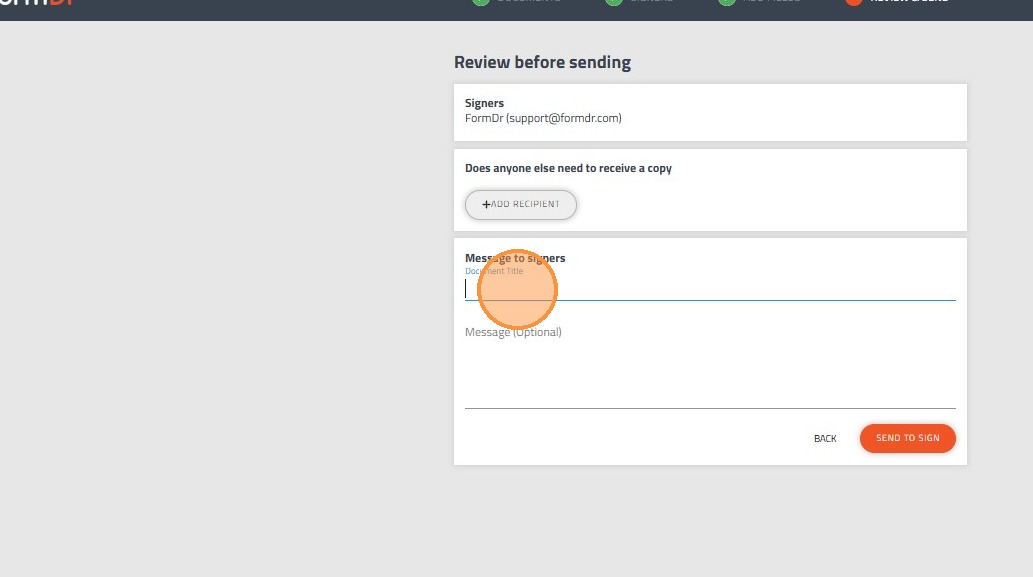
15. Create a message the patient will see when receiving the document.
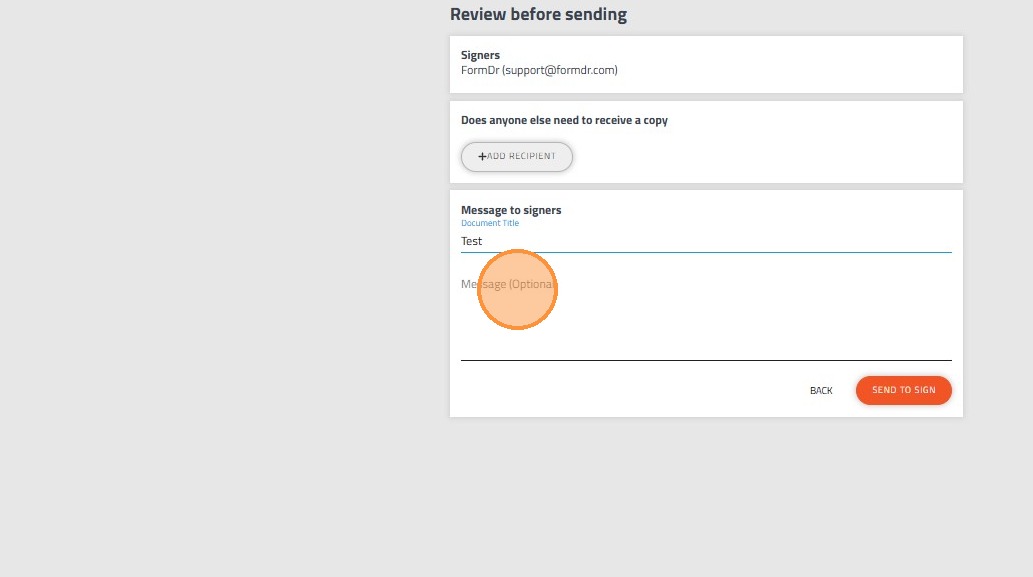
16. Click "Send To Sign"
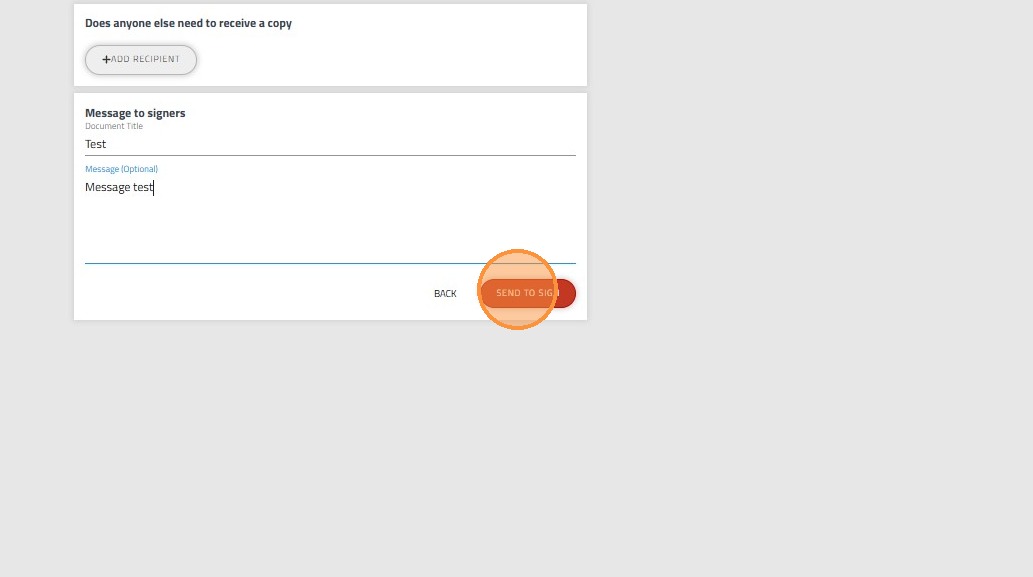
17. You can either send the document as one time signature or save it in case you need to send it to further patients.
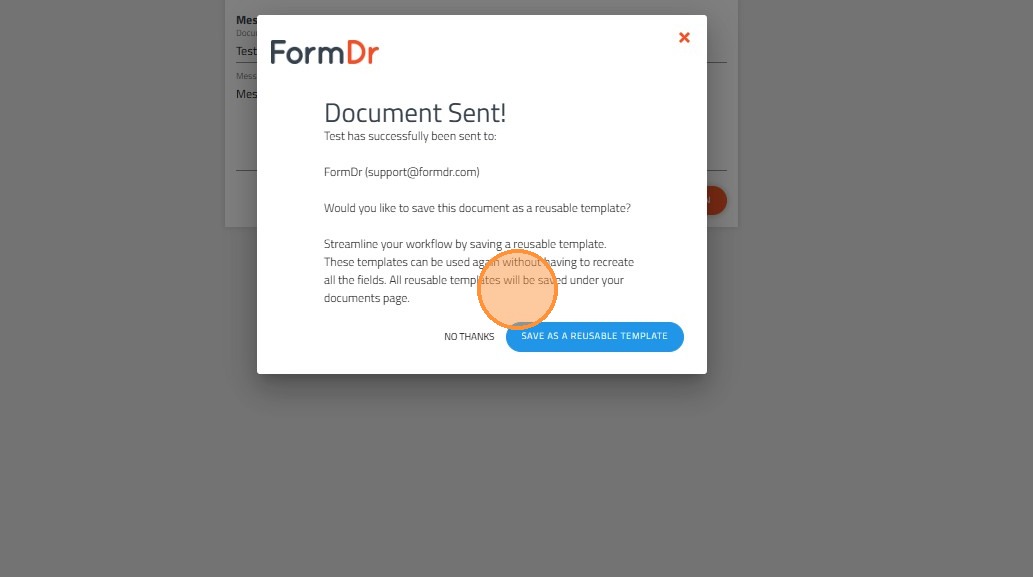
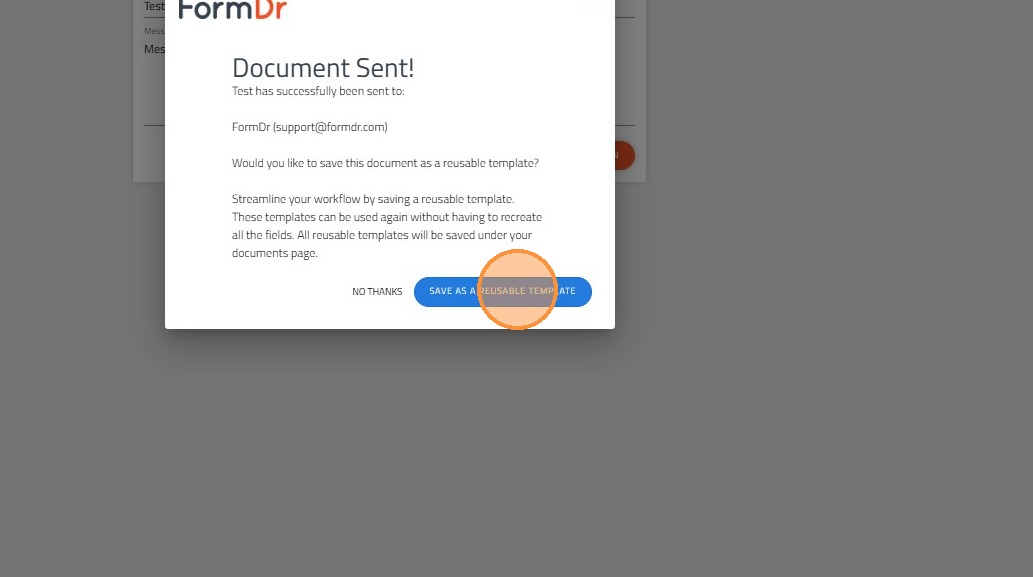
18. Clicking "Save as a reusable template" will save a document template.
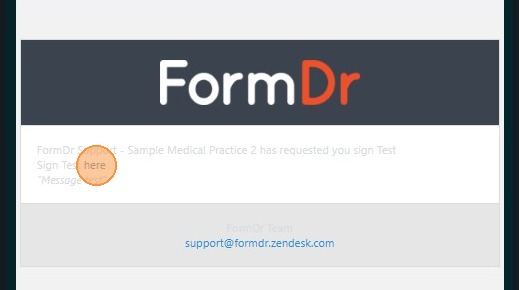
19. Patients will receive an email similar to this email.
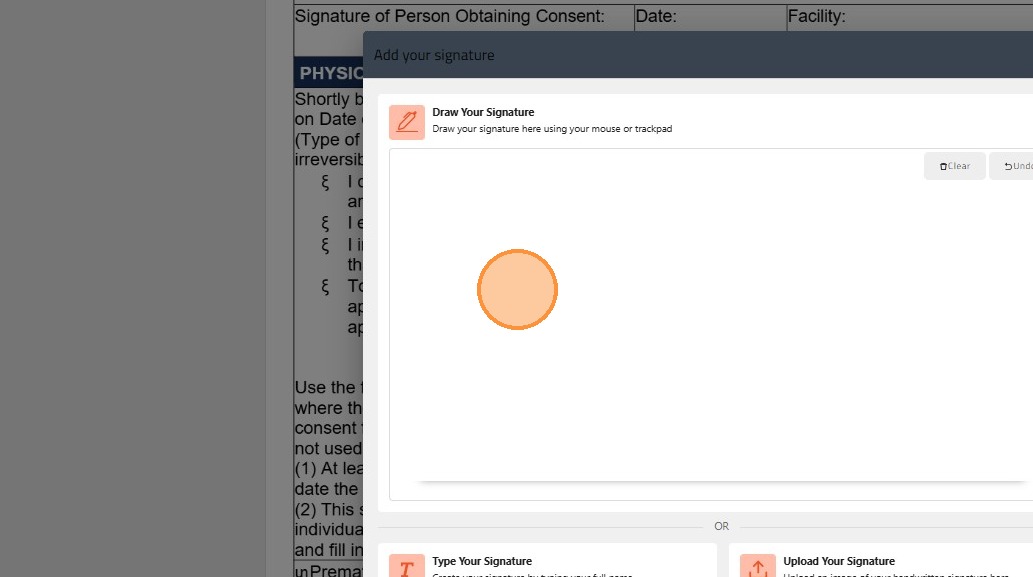
20. If they click any of the widgets included in the Document they will be able to enter o the information as the signature.
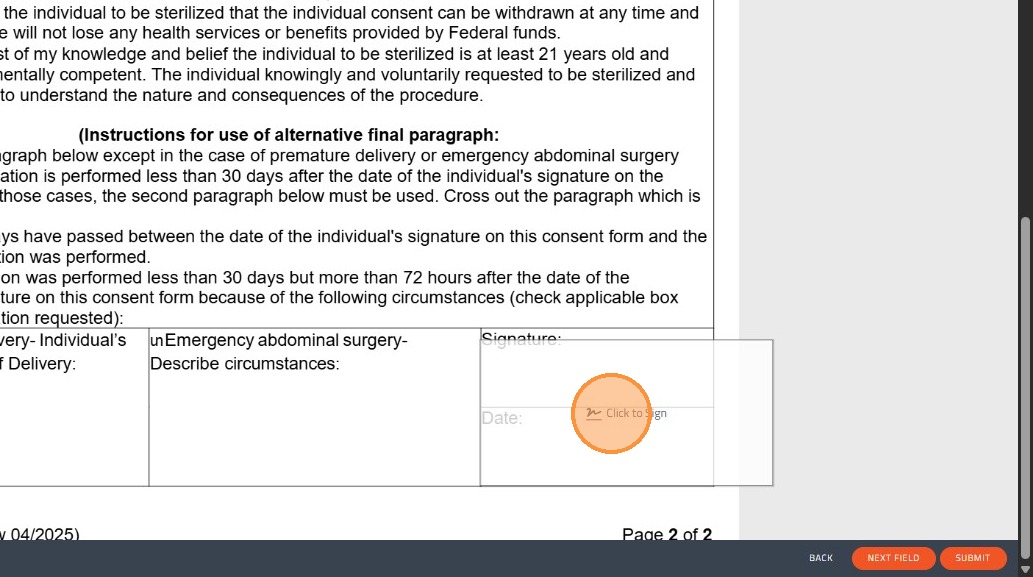
21. This is the view the patients will have when signing your documents.
22. Once everything is done they should click "Sign"
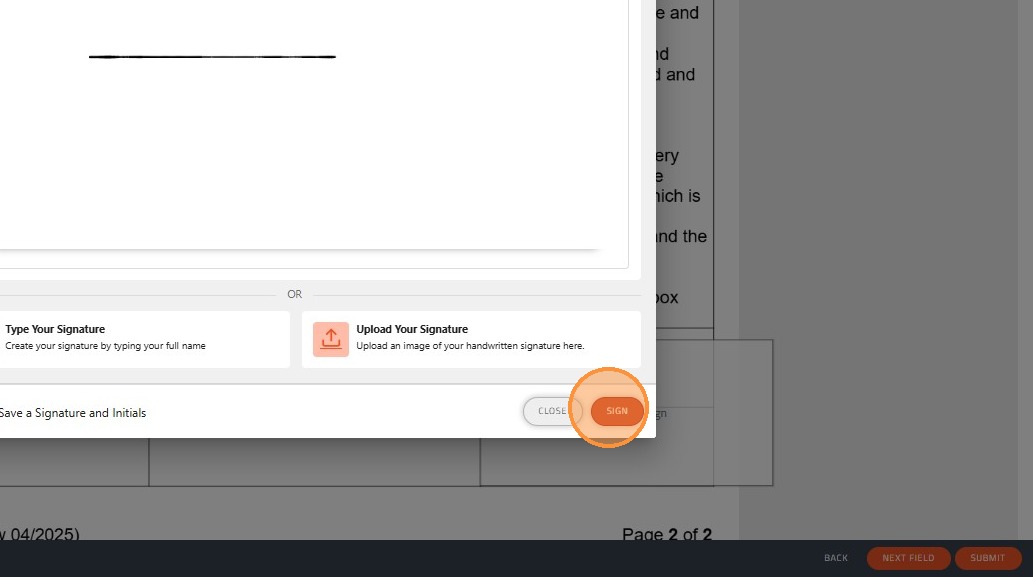
23. And click "Submit"
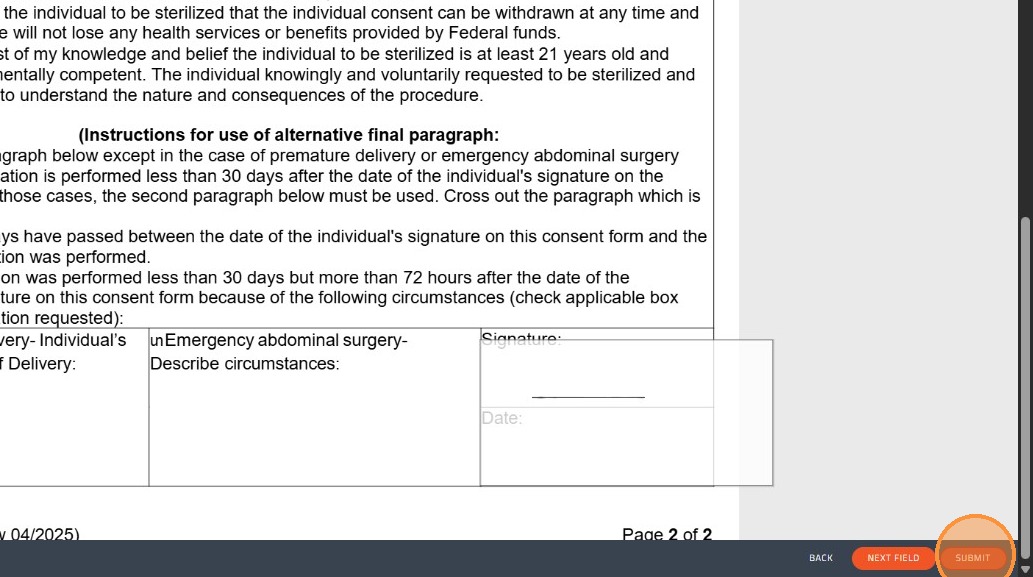
24. Click "Submit"
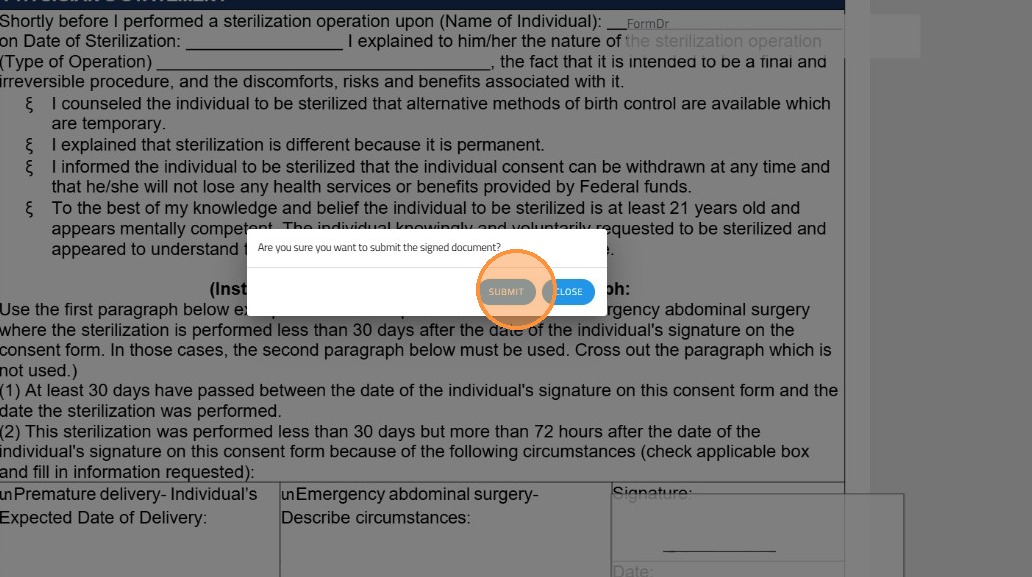
Alert: Once the process is complete you will have a new document signed or pending on you Send + Receive Section, tab Documents.